 By Stephanie Taylor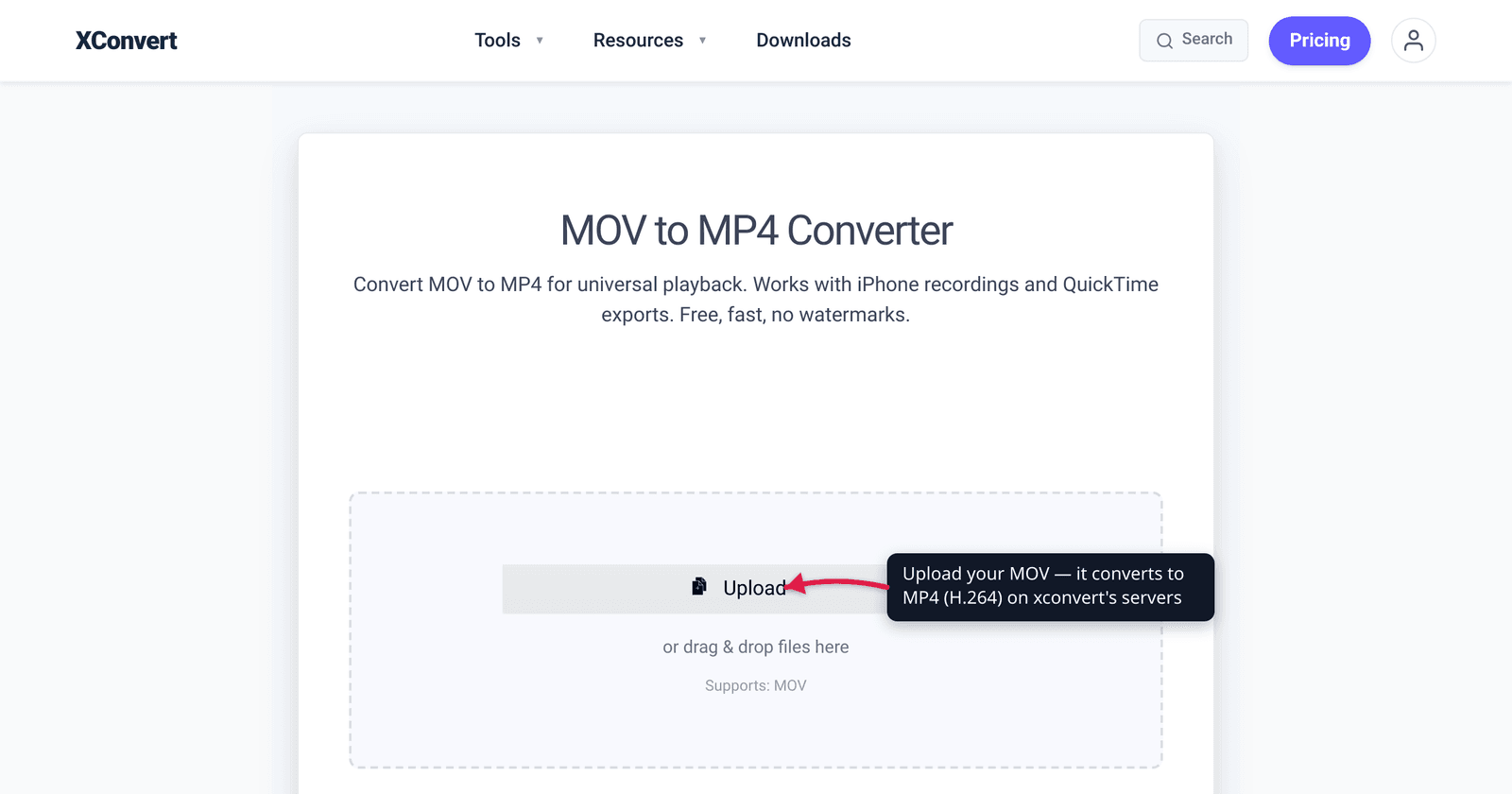
You double-click a .mov file someone AirDropped or emailed from their iPhone, and Windows either throws a codec error, plays sound with a black screen, or shows nothing at all. The file isn’t corrupt — the problem is almost always what’s inside the MOV container, not the container itself. MOV is Apple’s QuickTime format, and modern iPhones often record into it using a codec Windows can’t decode out of the box. We verified the two facts that cause most of this — Microsoft’s HEVC extension being a paid add-on, and Apple discontinuing QuickTime for Windows — against Microsoft and CISA directly.
Quick answer: A MOV usually won’t play on Windows because the video inside is HEVC/H.265 (Windows needs Microsoft’s HEVC Video Extensions, a paid $0.99 Store add-on, to decode it) or Apple ProRes (no native Windows support at all). Apple also stopped supporting QuickTime for Windows in 2016, so the old Apple player is a dead end and a security risk. Three fixes, easiest last: install the HEVC extension, play it in VLC (which bundles its own codecs), or convert the MOV to MP4 (H.264) for playback that just works on every Windows PC.
Jump to a section
- Why a MOV won’t play: it’s the codec inside
- Cause 1: the video is HEVC/H.265
- Cause 2: the video is Apple ProRes
- Cause 3: you’re relying on QuickTime for Windows
- The three fixes, ranked
- Convert MOV to MP4 on xconvert
- FAQ
Why a MOV won’t play: it’s the codec inside
A .mov file is a container — a wrapper that can hold many different video and audio codecs inside it. MOV is Apple’s QuickTime File Format, the same underlying structure MP4 descends from. That’s the key insight: the .mov extension tells you almost nothing about whether Windows can play it. What matters is the codec of the video stream packed inside.
Windows Media Player and the modern Windows 11 Media Player can decode a MOV just fine when the video inside is plain H.264 — the universally-supported codec. The trouble starts when the video is something newer or Apple-specific that Windows doesn’t ship a decoder for. The classic symptoms — a black screen with audio, a “codec missing” error, or a file that simply won’t open — almost always trace back to one of the two codecs below.
Cause 1: the video is HEVC/H.265
This is by far the most common cause. Since the iPhone 7 / iOS 11, Apple devices default to recording in HEVC (H.265) under the “High Efficiency” camera setting, because it produces roughly half the file size of H.264 at the same quality. Those recordings land in a .mov (or .heic for photos) container with an HEVC video stream.
The problem: Windows does not include an HEVC decoder by default. To play HEVC video, you have to install Microsoft’s HEVC Video Extensions from the Microsoft Store — and the publicly listed version costs $0.99 (it’s a paid app because HEVC carries patent-licensing fees). Microsoft’s own Media Player codec documentation confirms the extension is required: “HEVC Video Extension: Adds support for the HEVC (H.265) video format,” available separately from the Store.
There is a free variant called “HEVC Video Extensions from Device Manufacturer,” which is functionally identical but was intended for PC makers (Dell, HP, Lenovo) who already pay the HEVC license to preinstall on their hardware. It’s the same codec; only who pays the license differs. Microsoft has made the free version harder to reach over time, so for most people the practical options are pay $0.99, or skip the extension entirely and use VLC or convert the file (covered below).
Cause 2: the video is Apple ProRes
If the MOV came out of a professional or “ProRes” recording workflow — Final Cut Pro exports, ProRes log footage from a recent iPhone Pro, screen recordings from some Mac apps — the video stream may be Apple ProRes. ProRes is a high-bitrate editing codec, and Windows has no native support for it at all — there isn’t even a paid Store extension that fixes it the way the HEVC extension does for H.265.
Historically the only way to decode ProRes on Windows was through Apple’s QuickTime for Windows, which is now discontinued (next section). Today the reliable answers for a ProRes MOV are the same as the universal fix: open it in VLC, which has its own ProRes decoder, or convert it to MP4 (H.264) so any Windows player can read it. Because ProRes files are very large, converting also shrinks them dramatically.
Cause 3: you’re relying on QuickTime for Windows
For years, the answer to “MOV won’t play on Windows” was “install Apple QuickTime.” That advice is now dangerous. In April 2016, the US Cybersecurity and Infrastructure Security Agency (CISA, then US-CERT) published an alert stating that Apple would no longer be providing security updates for QuickTime for Windows, leaving systems running it vulnerable, and the recommended mitigation was the only one available: uninstall QuickTime for Windows entirely.
So if you still have QuickTime for Windows installed to play MOV files, you’re running software that has had no security patches for nearly a decade and has known, unpatched remote-code-execution vulnerabilities. Remove it. Every modern fix below replaces it safely — and the irony is that QuickTime for Windows couldn’t decode newer HEVC iPhone clips anyway.
The three fixes, ranked
Pick based on how often you’ll need it and whether you want the file to be portable afterward.
| Fix | Best when | Cost / effort | Result |
|---|---|---|---|
| Convert MOV → MP4 (H.264) | You’ll share the file, or want it to play on any Windows PC, TV, or device | Free, ~1 min on xconvert | The file itself just works everywhere, permanently |
| Play in VLC | One-off viewing on your own PC; HEVC or ProRes | Free, open-source download | Plays the MOV as-is; doesn’t fix the file for others |
| Install HEVC Video Extensions | The MOV is HEVC and you want native Windows Media Player playback | $0.99 (Microsoft Store) | Windows can decode HEVC system-wide; doesn’t help ProRes |
- VLC (videolan.org) is free and open-source, and it bundles its own decoders for MOV, HEVC (since VLC 2.1.x), H.264, and ProRes — so it plays these files without Microsoft’s paid extension. It’s the fastest no-cost way to watch a stubborn MOV right now.
- HEVC Video Extensions fixes HEVC playback system-wide (so the Photos app and Media Player work natively), but it’s HEVC-only — it does nothing for a ProRes MOV — and it costs $0.99.
- Converting to MP4 (H.264) is the durable fix: it changes the file so the problem never recurs, on this PC or anyone else’s. If you’re going to send the clip to someone, this is the one to choose — they won’t need any codec, player, or purchase. For a side-by-side on iPhone formats, see MOV vs MP4 for iPhone video.
Convert MOV to MP4 on xconvert
Converting to MP4 with H.264 is the only fix that makes the file play everywhere — no codec install, no special player, no $0.99 purchase, for you or whoever you send it to. The xconvert MOV to MP4 converter does it in the browser:
- Open xconvert.com/convert-mov-to-mp4 and click Upload to add your MOV (from your computer, Google Drive, or Dropbox).
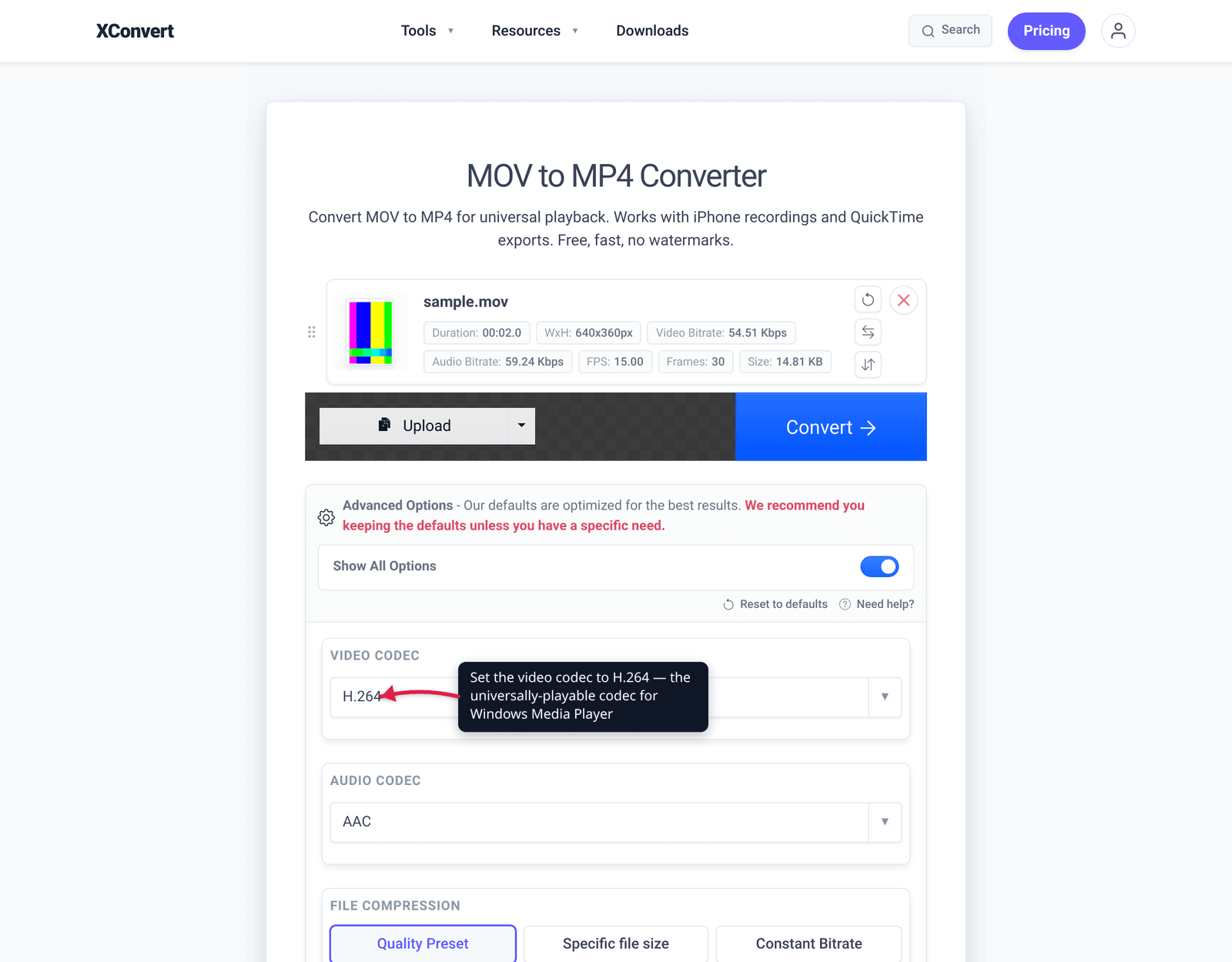
- Open Advanced Options (the gear icon) if you want to control the output — otherwise the defaults are fine.
- For maximum compatibility, set the video codec to H.264 (the universally-playable codec). Leave the Quality Preset at Very High (Recommended) to keep the quality, or pick Specific file size if you need it smaller for email.
- Click Convert, then download your MP4. It will now play in Windows Media Player, on the web, and on virtually any device.
Your file is uploaded over an encrypted connection, processed on our servers, and deleted automatically a few hours later — nothing is kept. If your MOV is specifically HEVC and you want to target that, see convert HEVC to MP4; for the Windows-and-Mac walkthrough, see convert MOV to MP4 on Windows and Mac.
FAQ
Why does my iPhone MOV play sound but show a black screen on Windows?
Audio-with-black-screen is the signature of a missing HEVC video decoder. Windows can read the audio track but can’t decode the HEVC/H.265 video inside the MOV without Microsoft’s HEVC Video Extensions ($0.99) installed. Play it in VLC or convert the MOV to MP4 (H.264) and the picture comes back.
Is the HEVC codec free on Windows?
Not officially. The publicly listed HEVC Video Extensions in the Microsoft Store costs $0.99. There’s a free “HEVC Video Extensions from Device Manufacturer” version that’s functionally identical, but it was meant for PC makers and Microsoft has made it progressively harder to install. The free-and-reliable route is to use VLC or convert to MP4 (H.264) instead.
Should I install QuickTime to play MOV files on Windows?
No. Apple stopped issuing security updates for QuickTime for Windows in 2016, and CISA recommended uninstalling it because of unpatched vulnerabilities. It also can’t decode newer HEVC iPhone clips anyway. Use VLC or convert the file instead.
What’s the difference between MOV and MP4 if they play differently?
Both are containers built on the same Apple QuickTime structure, so they’re closely related — but .mov is Apple’s format and is more likely to hold an HEVC or ProRes stream that Windows can’t decode, while MP4 is more commonly H.264, which plays everywhere. Converting MOV to MP4 with H.264 is really about guaranteeing a universally-supported codec inside. More on that in MOV vs MP4.
Will converting MOV to MP4 lose quality?
A re-encode is technically lossy, but converting at a high quality preset keeps the change visually negligible for normal viewing. The bigger win is compatibility and, if the source was HEVC, you can keep the file reasonably small. Set the codec to H.264 and a high quality level for the best balance.
My MOV won’t play in VLC either — now what?
That points to an Apple ProRes stream or a rare/uncommon codec, or a partially corrupt download. First re-download or re-export the file. If it’s genuinely ProRes, the most reliable answer is to convert it to MP4 (H.264), which replaces the unsupported codec with one every player understands.
Does Windows 11 play MOV files natively?
Windows 11’s Media Player plays a MOV only if the video inside is a codec it supports — H.264 works; HEVC needs the paid extension and ProRes isn’t supported at all. The container being .mov isn’t the issue; the codec inside is. Converting to MP4 (H.264) removes the guesswork.
Sources
Last verified 2026-06-25.
- Microsoft Support — Codecs in Media Player — confirms “HEVC Video Extension: Adds support for the HEVC (H.265) video format” must be installed separately from the Microsoft Store.
- Microsoft Store — HEVC Video Extensions — the publicly listed HEVC Video Extensions app ($0.99) required for native HEVC playback on Windows.
- CISA Alert (2016) — Apple Ends Support for QuickTime for Windows — Apple no longer provides security updates for QuickTime for Windows; recommended mitigation is to uninstall it.
- VideoLAN — VLC features — VLC is free/open-source and natively supports the MP4/MOV container and H.264; it bundles HEVC and ProRes decoders, so it plays these without Microsoft’s extension.
- Apple Support — HEIF and HEVC media formats — HEVC (H.265) video was introduced in iOS 11 / macOS High Sierra and is the recommended (“High Efficiency”) capture format on iPhone 7 and later, with a “Most Compatible” (H.264) opt-out.