 By Stephanie Taylor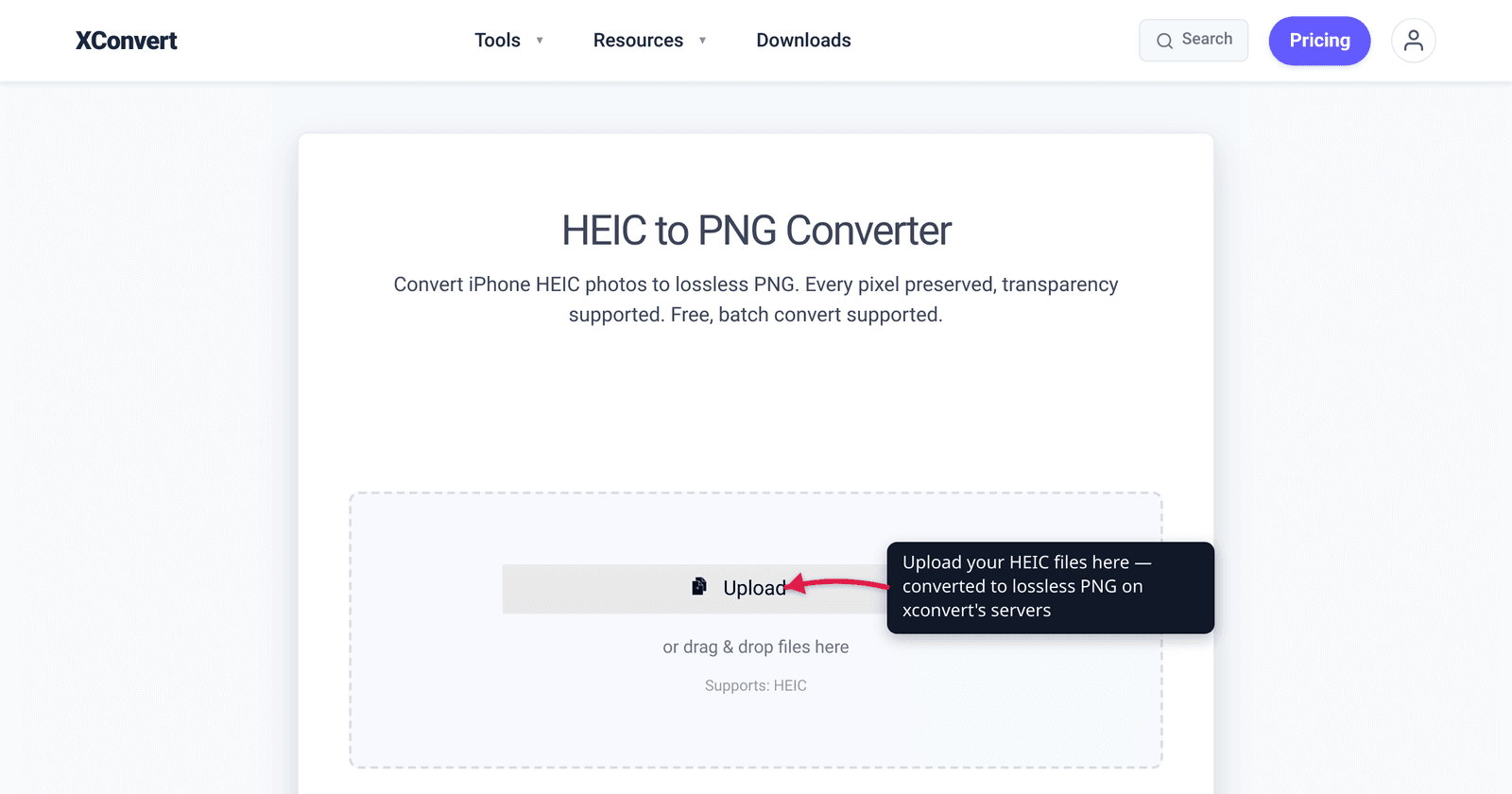
You took the photo on an iPhone, dropped it into a design tool or a Windows app, and it refused to open — because it’s a .heic file, a format almost nothing outside the Apple world reads. Converting it to PNG gives you a universally-viewable, lossless image that keeps every pixel and supports transparency. The catch: PNG is much larger than the HEIC you started with, and for an ordinary photo it’s larger than a JPG would be too. This guide explains when PNG is the right target (and when JPG is the smarter one), with the format facts verified against Apple, the W3C PNG specification, and caniuse.
Quick answer: Convert HEIC to PNG when you need a lossless, universally-openable image — putting a photo into a graphics editor, preserving exact pixels, or keeping transparency. PNG is lossless and reads everywhere, but it’s much bigger than the original HEIC and, for photographs, bigger than a JPG. If you just want to view or share the photo with no editing, convert to JPG instead — it’s far smaller. Upload the .heic to a converter, pick PNG, and download.
Jump to a section
- What HEIC and PNG actually are
- Why convert HEIC to PNG at all?
- PNG vs JPG: which target is right?
- Where PNG and HEIC each open
- Convert HEIC to PNG on xconvert
- FAQ
What HEIC and PNG actually are
They sit at opposite ends of the image-format spectrum — one optimized for tiny files, the other for perfect fidelity.
- HEIC is Apple’s name for an image stored in the HEIF container (High Efficiency Image File Format, from MPEG, 2015) using HEVC / H.265 compression — the same codec that shrinks 4K video. iPhones and iPads have shot HEIC by default since iOS 11 (September 2017) on the iPhone 7/7 Plus and later, because it stores a photo in roughly half the space of an equivalent-quality JPEG. It’s efficient and modern, but outside Apple’s ecosystem it’s frustratingly unsupported.
- PNG (Portable Network Graphics) is an open, lossless raster format. The W3C/ISO specification defines it as a format “for the lossless, portable, well-compressed storage of … raster images,” where lossless means “reconstruction of the original data exactly, bit-for-bit.” It supports an optional alpha channel for transparency. The second-edition spec is also the international standard ISO/IEC 15948:2003.
The crucial difference: HEIC throws away imperceptible detail to stay small (lossy); PNG keeps every pixel exactly (lossless). Converting one to the other is a fidelity-up, size-up trade.
Why convert HEIC to PNG at all?
Three real reasons make PNG the right destination:
- Universal, no-plugin viewing. A
.heicwon’t open in most Windows apps, Android galleries, web browsers, or older software without a codec. A.pngopens everywhere — every OS, every browser, every image tool, no add-ons. - Losslessness for editing. If the photo is headed into Photoshop, Figma, or GIMP — anywhere it’ll be opened, edited, and re-saved repeatedly — PNG preserves every pixel through each save. A lossy format degrades a little each time it’s re-encoded; PNG doesn’t.
- Transparency. PNG’s alpha channel is the reason it’s the standard for logos, icons, screenshots with rounded corners, and anything composited over a background. (A straight photo has no transparency to preserve, but if your workflow needs it, PNG is the only one of these formats that carries it.)
If none of those apply — you just want to look at the picture or send it to someone — PNG is overkill, and its size becomes a liability.
PNG vs JPG: which target is right?
This is the decision that actually matters, because PNG is the wrong default for most HEIC photos.
PNG stores photographic detail losslessly, which means a converted iPhone photo can balloon to several times the size of the original HEIC — and noticeably larger than the same photo saved as a JPG. For a screen-resolution snapshot that’s fine; for a 12-megapixel camera photo it’s a lot of wasted bytes if you’re just going to view or share it.
| Need | Best target | Why |
|---|---|---|
| Open/view anywhere, smallest file | JPG | Far smaller for photos; universal support; quality loss invisible at high settings |
| Edit, re-save, archive at full fidelity | PNG | Lossless — no degradation on repeated saves |
| Transparency (alpha channel) | PNG | JPG has no transparency; PNG does |
| Put into a graphics/design tool | PNG | Lossless, exact pixels, broad tool support |
| Email a batch of photos / save phone storage | JPG | Smallest practical photo files |
Rule of thumb: PNG for fidelity and transparency; JPG for sharing and storage. If you’re converting iPhone photos mainly to view or send them, the HEIC → JPG route gives you a far smaller file that looks identical in normal viewing. Reach for PNG when losslessness or an alpha channel is genuinely the point. (And if you’re not sure what HEIC even is or why your iPhone made one, start with what is HEIC.)
Where PNG and HEIC each open
The compatibility gap is the whole reason this conversion exists. PNG is one of the most universally supported image formats in existence; HEIC is one of the least, on the web.
| Environment | HEIC support | PNG support |
|---|---|---|
| Safari (macOS / iOS) | Yes (Safari 17+) | Yes |
| Chrome | No | Yes |
| Firefox | No | Yes |
| Edge | No | Yes |
| Windows (apps) | Needs Microsoft’s HEVC/HEIF extension | Yes, natively |
| Android | Patchy, device-dependent | Yes |
| Apple devices | Native | Yes |
Per caniuse, HEIC’s global browser support sits around 14% — effectively just Safari’s share — because, as caniuse notes, the format is “complex and expensive to license.” Chrome, Firefox, and Edge don’t support it at all. PNG, by contrast, has been a baseline web format for decades. That’s why a .heic that won’t load becomes instantly usable the moment it’s a .png.
Tip: to stop your iPhone making HEIC files in the first place, open Settings → Camera → Formats and tap Most Compatible — the camera then captures JPEG. (This only changes new photos, not ones you’ve already taken.)
Convert HEIC to PNG on xconvert
The xconvert HEIC to PNG converter turns Apple’s HEIC into lossless PNG, with batch conversion if you have a whole camera roll to process:
- Open xconvert.com/convert-heic-to-png and click Upload to add your
.heicfile(s) — from your computer, Google Drive, or Dropbox. You can add several at once for batch conversion. - (Optional) Open Advanced Options (the gear icon labeled Options).
- Leave Quality Preset at Very High (Recommended) for maximum fidelity, and keep Resolution Percentage at Keep original to preserve full dimensions.
- (Optional) Under Colors, leave it on ORIGINAL for a true lossless result, or choose By Color Reduction + Dither if you want a smaller indexed-color PNG.
- Start the conversion and download your PNG (or download the batch).
Your file uploads over an encrypted connection, is processed on our servers, and is deleted automatically a few hours later. Nothing stays around.
If file size matters more than losslessness, convert the same photos to JPG instead with the HEIC → JPG guide — for ordinary photographs it produces a dramatically smaller file that looks the same.
FAQ
Is converting HEIC to PNG lossless?
The PNG file itself is lossless — it preserves whatever pixels come out of the HEIC exactly, bit-for-bit, with no further quality loss. Note that the original HEIC was already lossy-compressed by your iPhone, so converting to PNG can’t recover detail HEIC discarded; it just stops any additional loss from that point on. For editing and archiving, that’s exactly what you want.
Why is my PNG so much bigger than the HEIC?
Because HEIC uses HEVC compression to make photos tiny, while PNG is lossless and stores far more data. Apple’s HEIC takes roughly half the space of a JPEG; PNG of the same photo is typically several times larger than the HEIC. That’s the cost of perfect fidelity. If size matters and you don’t need losslessness or transparency, convert to JPG instead.
Should I convert HEIC to PNG or JPG?
PNG if you need losslessness or transparency (editing, design tools, archiving); JPG if you just want to view, share, or save space. For a normal photograph headed to someone’s phone or an email, JPG is far smaller and the quality difference is invisible. PNG shines for graphics, screenshots, and anything you’ll keep re-editing.
Does PNG support transparency like HEIC?
Yes — PNG has an optional alpha channel for full or partial transparency, per the W3C/ISO PNG specification. It’s the standard format for logos, icons, and composited images. A regular iPhone photo has no transparency to carry over, but if your workflow needs an alpha channel, PNG supports it (JPG does not).
Why won’t my HEIC file open on Windows or in Chrome?
Because most non-Apple software doesn’t support HEIC. Per caniuse, no version of Chrome, Firefox, or Edge supports the format, and Windows needs Microsoft’s paid HEVC/HEIF extension to view it. Converting to PNG (or JPG) makes the image open natively everywhere. To stop your iPhone creating HEIC files, set Settings → Camera → Formats → Most Compatible.
Can I convert several HEIC photos to PNG at once?
Yes — the xconvert HEIC to PNG converter supports batch conversion. Upload multiple .heic files in one go and download the converted PNGs together. If you’re converting a large camera roll, consider JPG output instead to keep the total download size manageable.
Sources
Last verified 2026-06-25.
- Apple Support — Using HEIF or HEVC media on Apple devices — iOS 11/macOS High Sierra introduced HEIF/HEVC; iPhone 7/7 Plus and later capture them; the Settings → Camera → Formats → Most Compatible path for JPEG capture.
- W3C — PNG (Portable Network Graphics) Specification — PNG is lossless (“reconstruction of the original data exactly, bit-for-bit”) and supports an optional alpha channel for transparency.
- W3C PNG home page — PNG second edition is also the international standard ISO/IEC 15948:2003.
- caniuse — HEIF/HEIC image format — only Safari 17+ supports HEIC; Chrome, Firefox, and Edge do not; ~14% global support; “complex and expensive to license.”
- Wikipedia — High Efficiency Image File Format — HEIF developed by MPEG (2015); HEIC = HEVC-encoded image in the HEIF container; “a HEIC photo takes up about half the space of an equivalent-quality JPEG.”