 By James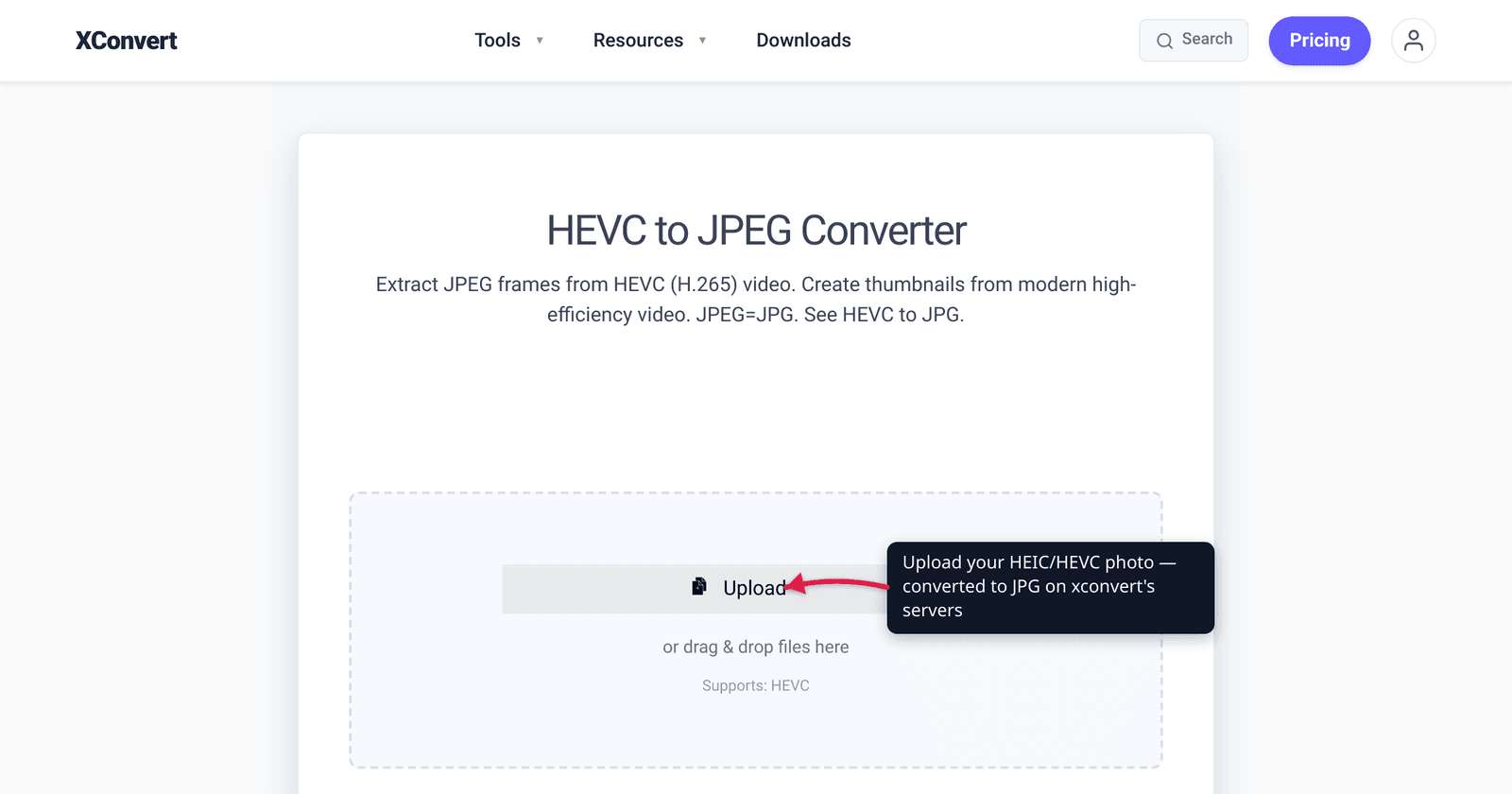
You email an iPhone photo to a Windows colleague and they reply: “It won’t open.” The file ends in .heic, and almost nothing outside the Apple ecosystem knows what to do with it. The fix is to convert it to JPG — the format every browser, app, and operating system can display. The confusing part is that people search for this exact job under two names: “heic to jpg” and “hevc to jpg.” They’re the same conversion. This guide explains why, what you lose in the swap, and how to do it — with the HEIC/HEIF/HEVC relationship verified against Apple’s support docs and the ISO/MPEG spec, and browser support against caniuse.
Quick answer: A .heic file from your iPhone is a HEIF container (ISO/IEC 23008-12) whose still image is compressed with the HEVC (H.265) codec — that’s why “heic to jpg” and “hevc to jpg” describe the same task. Converting to JPG makes the photo open everywhere, because outside Apple platforms only Safari 17+ reads HEIC natively — Chrome, Firefox, and Edge do not. The trade-off: JPG is older and less efficient, so the output is usually larger than the HEIC and is lossy, and you may drop HDR, transparency, depth, and Live Photo motion when you flatten to a plain JPG.
Jump to a section
- HEIC, HEIF, HEVC: why “heic to jpg” and “hevc to jpg” are the same
- Why convert to JPG at all
- What you lose flattening to JPG
- Convert HEIC/HEVC to JPG on xconvert
- FAQ
- Sources
HEIC, HEIF, HEVC: why “heic to jpg” and “hevc to jpg” are the same
The naming is genuinely confusing, so here is the relationship straight from the standards:
- HEIF — High Efficiency Image File Format — is the container. It’s an ISO standard, ISO/IEC 23008-12, developed by the MPEG group. A container is just a wrapper: a single file that can hold one image, a burst, a thumbnail, metadata, a depth map, and more.
- HEVC — High Efficiency Video Coding, also called H.265 — is the codec that compresses the actual picture inside that container. It’s the same codec used for efficient 4K video; for a still image it uses HEVC’s intra-frame coding tools. Per the spec, HEVC is “the primarily used and implied default codec for HEIF.”
- HEIC is the file extension Apple uses for a HEIF container whose image is HEVC-compressed. Apple introduced it in iOS 11 (2017) and made it the default capture format on iPhone 7 and later (and recent iPads).
So the photo on your iPhone is a HEIF/HEIC file whose image data is HEVC-encoded. When someone searches “hevc to jpg” they’re describing the codec; when someone searches “heic to jpg” they’re describing the extension. Both want the same thing: turn that iPhone photo into a universal JPG.
| Term | What it is |
|---|---|
| HEIF | The ISO container standard — ISO/IEC 23008-12 |
| HEVC / H.265 | The codec that compresses the still image inside |
| HEIC | Apple’s .heic extension for an HEVC-compressed HEIF image |
| JPEG / JPG | The 1992 baseline still-image standard, decoded by essentially everything |
(There’s a deeper breakdown of these names — including HEIF vs HEIC vs HEVC — in HEIC vs JPG for iPhone photos.)
Why convert to JPG at all
If HEIC is so efficient, why move to an older, larger format? Compatibility. JPEG is the universal least-common-denominator: there is essentially no device, browser, app, or operating system made in the last 30 years that can’t display a JPG.
HEIC is the opposite. Outside Apple’s walled garden, native support is thin. On the web specifically, only Safari (version 17 and later) decodes HEIF/HEIC natively — Chrome, Firefox, and Edge do not, per caniuse, which is why HEIF/HEIC sits at roughly 14% global browser support today. Windows can be taught to open HEIC, but only after installing Microsoft’s HEVC codec extensions, and plenty of older apps and web upload forms simply reject .heic files outright.
So you convert to JPG when the photo has to leave the Apple ecosystem: emailing a non-Apple recipient, uploading to a website or form that won’t accept HEIC, printing at a kiosk, embedding in a document, or sharing with anyone on Windows, Android, or Linux. (If your problem is specifically that the file won’t open on Windows, see opening and converting HEIC files on Windows for the platform-specific routes.)
If you’re staying inside the Apple ecosystem — iPhone, iPad, Mac — there’s usually no reason to convert, because everything Apple reads HEIC fine and you keep the smaller file.
What you lose flattening to JPG
Converting HEIC to JPG is not a free, lossless swap. Going from the modern format to the 1992 baseline costs you some things — be aware of them:
File size usually goes up. HEIC’s whole point is efficiency — Apple says HEIF/HEVC “offer better compression than JPEG and H.264… so they use less storage space.” JPEG’s older DCT-based compression typically needs more bytes for the same picture, so expect your JPG to be larger than the original HEIC, often noticeably.
It’s lossy. JPEG re-encodes with lossy compression, so the conversion adds a fresh generation of compression. At a high quality setting the loss is hard to spot, but it isn’t the pixel-perfect original — and re-saving the JPG repeatedly compounds it.
HDR may flatten. HEIF can carry HDR (high dynamic range) data; a standard JPG is typically 8-bit SDR. Converting can clip or tone-map that extra range down, so a sunset that glowed on your phone can look flatter as a JPG.
Transparency and depth are dropped. HEIF supports an alpha (transparency) plane and depth-map auxiliary items. JPEG has neither, so a cut-out subject or the portrait-mode depth behind a blurred background is baked or discarded in the flatten.
Live Photo motion is lost. A Live Photo pairs a still with a short HEVC video clip. Convert the still to a JPG and you get exactly that — the still. The motion isn’t part of a JPG and won’t come along.
The takeaway: convert to JPG for reach, keep HEIC for fidelity and size. For a one-off photo you’re sending to a Windows user, the trade-offs rarely matter. For an archive of portrait-mode or HDR shots you want at full quality, leave them as HEIC.
Convert HEIC/HEVC to JPG on xconvert
The xconvert HEVC to JPEG converter handles the iPhone photo case directly — same tool whether you call the input “HEIC” or “HEVC”:
- Open xconvert.com/convert-hevc-to-jpeg and click Upload to add your
.heicphoto (from My Computer, Google Drive, or Dropbox). - Confirm the output extension — the tool offers JPEG and JPG (they’re the same format; pick whichever extension you want on the file).
- (Optional) Open Advanced Options (the gear icon) to set the Quality Preset (default Very High (Recommended)), or choose Specific file size if you need to hit a size target. You can also adjust Image resolution there to scale the photo down.
- Click Convert.
- Download your JPG. It will open on any device, browser, or app.
Your file uploads over an encrypted connection, is processed on our servers, and is automatically deleted a few hours later. Nothing stays around.
FAQ
Is “hevc to jpg” the same as “heic to jpg”?
Yes. A .heic file from an iPhone is a HEIF container whose still image is encoded with the HEVC (H.265) codec. “HEIC” names the file extension and “HEVC” names the codec inside it, but they refer to the same iPhone photo — so converting “HEVC to JPG” and “HEIC to JPG” is the identical task.
Why won’t my HEIC photo open on Windows or in Chrome?
Because native HEIC support is largely confined to Apple platforms. On the web, only Safari 17 and later decodes HEIC; Chrome, Firefox, and Edge do not. Windows needs Microsoft’s HEVC codec extensions installed before the Photos app will show a HEIC. Converting to JPG sidesteps all of that.
Will the JPG be bigger than the original HEIC?
Usually, yes. HEIC uses the more efficient HEVC compression, so the same picture needs fewer bytes than a JPEG. Expect the JPG to be larger than the HEIC — that’s the cost of universal compatibility. If small size is the priority, that’s an argument for keeping the HEIC.
Does converting HEIC to JPG reduce quality?
JPEG is lossy, so the conversion adds a generation of compression. At a high quality setting the difference is usually imperceptible, but it isn’t pixel-identical to the original, and re-saving the JPG repeatedly compounds the loss. For a photo you’re just sharing, this rarely matters.
Do I lose the Live Photo motion when I convert to JPG?
Yes. A Live Photo is a still plus a short HEVC video clip; a JPG holds only a single still image, so the motion can’t come along. You’ll get the photo, not the moving Live Photo.
What about HDR and the portrait-mode background blur?
HEIF can carry HDR and depth-map data; a standard JPG can’t. Converting flattens HDR toward standard dynamic range and discards the depth information, so portrait-mode depth effects and the extra dynamic range may not survive the swap to JPG.
Should I just switch my iPhone to shoot JPG instead?
You can — Settings > Camera > Formats > Most Compatible captures JPEG (and H.264 video) instead of HEIC/HEVC. The downside is you give up roughly half the storage efficiency on every future photo. Many people leave the camera on High Efficiency (HEIC) and convert only the specific photos they need to share.
Sources
Last verified 2026-06-25.
- Apple Support — Using HEIF or HEVC media on Apple devices — Apple confirms HEIF (still images) and HEVC (video) were introduced in iOS 11 / macOS High Sierra (2017), are the default capture format on iPhone 7+, “offer better compression than JPEG and H.264,” and that “Most Compatible” reverts to JPEG/H.264.
- ISO/IEC 23008-12 — High Efficiency Image File Format — the HEIF container standard; documents that
.heicis the conventional extension for HEVC-coded HEIF files, that HEVC is “the primarily used and implied default codec for HEIF,” and that HEIF supports HDR, an alpha/transparency plane, image sequences, and depth-map auxiliary items. - caniuse — HEIF/HEIC image format — current browser support: native only in Safari 17+; Chrome, Firefox, and Edge unsupported; ~14% global support.
- MDN — Image file type and format guide — HEIF/HEIC is absent from the web-image guide, reflecting its lack of cross-browser support; JPEG remains the universally supported baseline.