 By Stephanie Taylor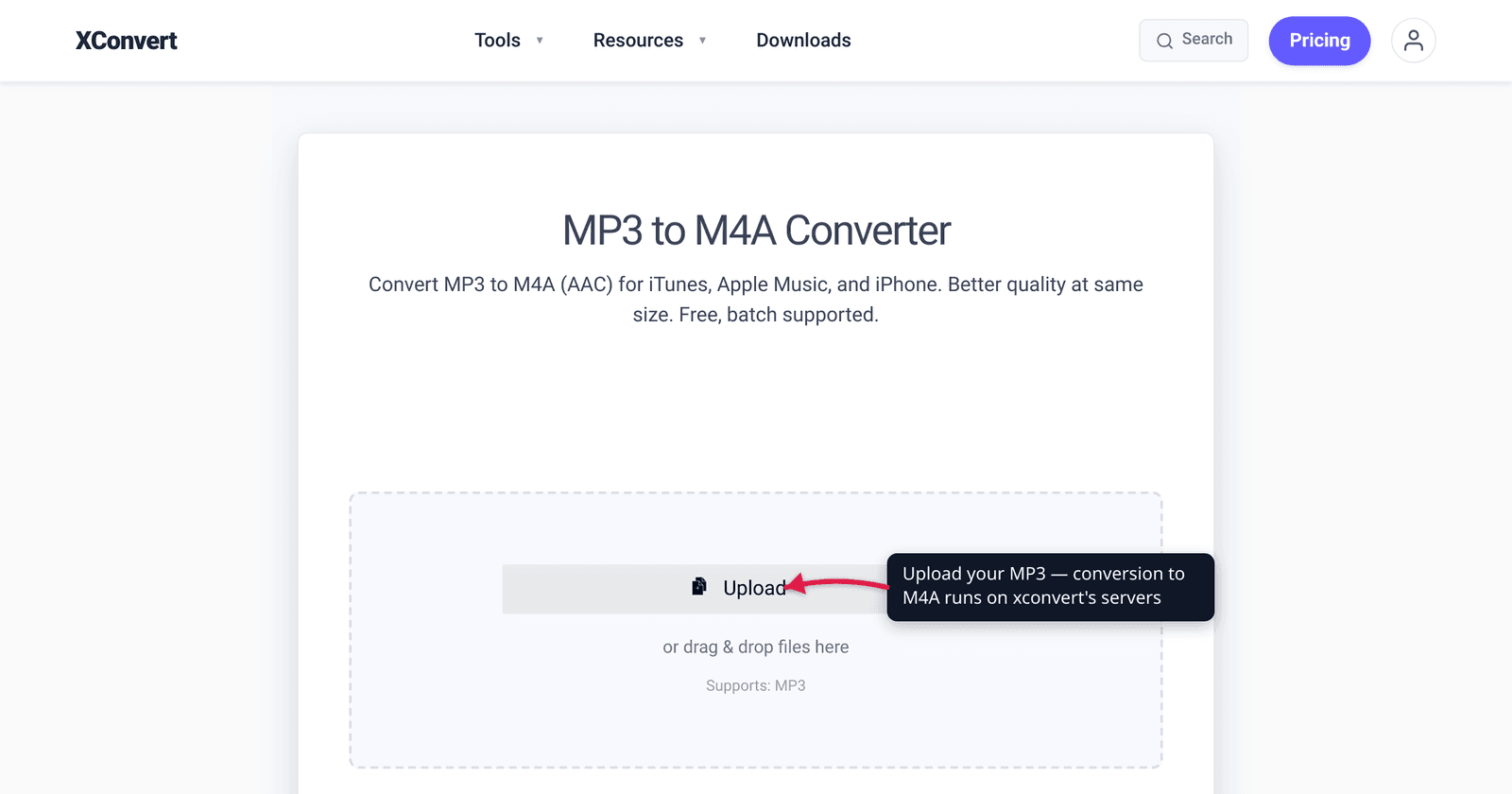
You have a folder of MP3s and you want them to slot cleanly into Apple Music, sync to an iPhone, or become a custom ringtone — and a search told you to “convert MP3 to M4A.” That conversion is real and useful, but it’s worth being clear-eyed about why you’d do it. M4A is the Apple-native audio container (it holds AAC, the format iTunes and the iTunes Store have used for years), so converting buys you ecosystem fit and a tidier path to .m4r ringtones. What it does not buy you is better sound: an MP3 has already thrown audio data away, and re-encoding it as AAC can’t bring that back. We verified the container and codec facts against MDN and Apple’s own documentation.
Quick answer: M4A is an MPEG-4 container that almost always holds AAC audio — the format Apple’s Music app uses by default. Convert MP3 to M4A when you want Apple-ecosystem fit (Apple Music/iTunes, iPhone sync, building a .m4r ringtone), since AAC is more bit-efficient than MP3 going forward. It is not a quality upgrade: MP3 → M4A is lossy-to-lossy, so encode at a matched or higher bitrate and expect roughly the same sound, not better. If you only need a smaller MP3, stay in MP3.
Jump to a section
- What M4A actually is (vs MP3)
- Will converting MP3 to M4A improve quality? (no)
- Real reasons to convert: Apple, iPhone, ringtones
- Bitrate: what to set so you don’t lose more
- Convert MP3 to M4A on xconvert
- FAQ
What M4A actually is (vs MP3)
M4A is not really a codec — it’s a container. Specifically, .m4a is an MPEG-4 (MP4) container that holds an audio track. Per MDN, the MPEG-4 media type audio/mp4 uses the extensions .mp4 and .m4a, and the container can carry several codecs — most commonly AAC, but also ALAC (Apple Lossless), MP3, FLAC, or Opus. In everyday use, when someone says “M4A” they almost always mean AAC audio inside an MP4 container, which is exactly what iTunes and the Apple Music app produce.
MP3, by contrast, is both the codec and the container in one — a single, self-contained format (MPEG-1 Audio Layer III) that plays virtually everywhere.
So the practical difference:
| MP3 | M4A (AAC) | |
|---|---|---|
| What it is | Codec + format in one | MP4 container, usually holding AAC |
| Compression | Lossy | Lossy |
| Efficiency | Baseline | More bit-efficient than MP3 (MDN: “more compression with higher audio fidelity”) |
| Apple ecosystem | Plays, but not native | Native — iTunes/Apple Music default |
| Universal playback | Plays everywhere | Broad, but slightly less universal than MP3 |
| Ringtone path | Needs conversion first | One step from .m4r |
Both AAC and MP3 are lossy — they discard audio data to shrink the file. AAC is the newer design; MDN notes it “was designed to be able to provide more compression with higher audio fidelity than MP3” and is “the standard format for audio in many types of media… as well as being the format used for songs purchased from online vendors including iTunes.” That efficiency edge matters when you’re encoding from a good source — but it can’t undo damage already baked into an MP3.
Will converting MP3 to M4A improve quality? (no)
This is the single most important thing to get right, because a lot of “convert MP3 to M4A” advice quietly implies an upgrade. It isn’t one.
When your MP3 was first created, the encoder permanently threw away the parts of the audio it judged least audible. That data is gone. Converting the MP3 to M4A (AAC) means decoding the lossy MP3 back to raw audio — already missing that data — and then encoding it again with a second lossy pass. AAC’s efficiency advantage applies to the encoding step, but it has nothing to recover.
The realistic outcomes:
- Convert at a matched or higher bitrate (e.g. a 256 kbps MP3 → 256 kbps AAC): the result sounds about the same as the MP3. AAC being more efficient means it generally holds up at least as well as the MP3 did at that bitrate — but it is not audibly better than the original.
- Convert at a much lower bitrate: the file gets smaller, and you lose a little more quality from the second lossy pass — most noticeable at low bitrates.
- Never expect a higher number to “add” quality. Encoding a 128 kbps MP3 to 320 kbps AAC just wraps the same (already-degraded) audio in a bigger file. It won’t sound better; it’ll just be larger.
The honest rule: MP3 → M4A is a compatibility/format change, not a remaster. If you want genuinely better-than-MP3 quality, you need the original lossless source (a CD rip to ALAC/FLAC, or a WAV master), not the MP3. Want this comparison from the other direction? See M4A vs MP3: which to use, and for AAC’s broader trade-offs, AAC vs MP3.
Real reasons to convert: Apple, iPhone, ringtones
So when is MP3 → M4A the right move? When you’re working inside Apple’s ecosystem.
Apple Music / iTunes library fit. AAC is the default Apple uses. Apple’s own documentation says iTunes “converts them into AAC format by default” when importing from CDs, and recommends the AAC Encoder for “most music.” Keeping your library in M4A/AAC means everything is consistent, tagged the way the Music app expects, and sized efficiently.
iPhone / iPad sync. AAC is the codec Apple lists as playable “in iTunes, on iPhone and iPad, and on iPod models.” M4A files drop into the Apple ecosystem without any “will this play?” friction.
.m4r ringtones. This is the big one for the search “mp3 to m4a.” Apple’s iPhone ringtone format, .m4r, is essentially an AAC/M4A file with a different extension — the .m4r extension simply tells iOS to treat the file as a ringtone rather than a song. So the standard ringtone recipe is: convert your MP3 to M4A (AAC), trim it to the segment you want (iPhone custom ringtones are capped at 40 seconds, per the long-standing iTunes/Music workflow), then rename the resulting .m4a to .m4r and add it through Finder/iTunes. Starting from an M4A is what makes that last rename trivial.
Slightly better efficiency going forward. If you’re re-encoding anyway, AAC packs a given quality into a marginally smaller file than MP3. It’s a modest, not dramatic, win — and only meaningful if you’re not also dropping the bitrate.
If none of these apply — you just want a smaller audio file that plays everywhere — converting to M4A is unnecessary. Stay in MP3 and lower its bitrate instead.
Bitrate: what to set so you don’t lose more
Because the second encode is lossy, your bitrate choice decides how much (if any) extra quality you give up.
- Match the source. If you know your MP3’s bitrate (say 256 kbps), encode the AAC at the same or close to it. AAC at the same bitrate generally preserves at least as much as the MP3 retained.
- 256 kbps AAC is the Apple-ecosystem sweet spot. It’s the quality tier Apple Music and the iTunes Store standardized on (the “iTunes Plus” AAC files), and for most listeners it’s indistinguishable from lossless on phones and earbuds. It’s a sensible target for an MP3 that was already 256–320 kbps.
- 128 kbps AAC is roughly Apple’s older baseline — fine for spoken word, podcasts, or background music where size matters more than fidelity.
- Don’t inflate. Setting the AAC bitrate higher than the source MP3’s bitrate wastes space without adding quality — the missing data can’t be reconstructed.
In short: pick a bitrate at or near your MP3’s, and you’ll come out with an M4A that sounds essentially the same while fitting Apple’s world.
Convert MP3 to M4A on xconvert
The xconvert MP3 to M4A converter handles the encode and lets you set the bitrate so you don’t lose more than you have to:
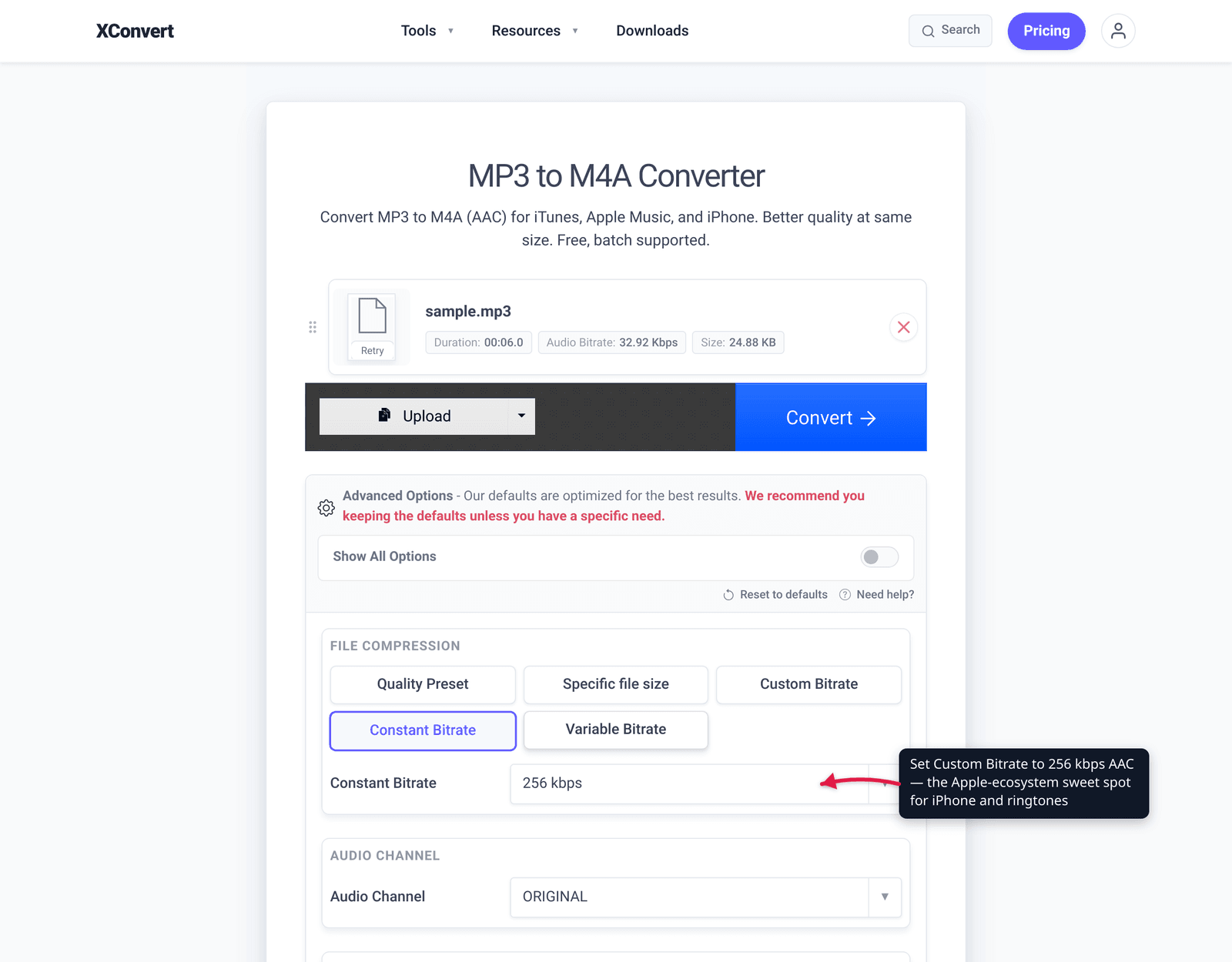
- Open xconvert.com/convert-mp3-to-m4a and click + Add Files to upload your MP3 (from your computer, Google Drive, or Dropbox — or drag & drop it).
- Open Advanced Options (the gear icon) to control the output.
- Set the bitrate so you don’t add loss: use Custom Bitrate at or near your source MP3’s bitrate (256 kbps is the Apple-ecosystem sweet spot), choosing Constant Bitrate or Variable Bitrate. Or pick a Quality Preset — the default is Highest.
- Leave Audio Channel and Audio Sample Rate on ORIGINAL unless you have a reason to change them.
- For a ringtone, use Trim to cut your clip to the part you want (keep it under 40 seconds for an iPhone ringtone).
- Click Convert, then download your
.m4a. To turn it into a ringtone, rename the file to.m4rand add it via Finder/iTunes.
Your file uploads over an encrypted connection, is processed on our servers, and is automatically deleted a few hours later. Nothing stays around.
Going the other way — pulling an M4A back into the universally-playable MP3 — is just as easy: see how to convert M4A to MP3.
FAQ
Does converting MP3 to M4A improve sound quality?
No. Both MP3 and AAC (the codec inside M4A) are lossy, so converting one to the other is a second lossy pass on audio that already had data removed. At a matched or higher bitrate the result sounds about the same as the MP3 — not better. The only way to get genuinely higher quality is to start from a lossless source (WAV, ALAC, or FLAC), not from the MP3.
Is M4A better than MP3?
It depends what you mean. AAC (in M4A) is more bit-efficient than MP3 — MDN describes it as offering “more compression with higher audio fidelity than MP3” at a given bitrate — and it’s native to Apple devices. But MP3 plays on essentially everything, which is its own kind of “better.” For Apple Music, iPhone, and ringtones, M4A fits better; for maximum universal compatibility, MP3 wins. Full breakdown: M4A vs MP3.
How do I make an iPhone ringtone from an MP3?
Convert the MP3 to M4A (AAC), trim it to the segment you want (iPhone custom ringtones are limited to 40 seconds), then rename the .m4a file to .m4r and add it to your iPhone through Finder or iTunes. The .m4r “format” is just an AAC/M4A file with a different extension that tells iOS to treat it as a ringtone.
What bitrate should I use for MP3 to M4A?
Match your source MP3’s bitrate, or use 256 kbps AAC — the tier Apple Music and the iTunes Store standardized on, and the point where AAC is effectively transparent for most listeners on phones and earbuds. Don’t set the AAC bitrate higher than the MP3’s; you can’t recover detail the MP3 already discarded, so a bigger number just makes a bigger file.
Is M4A the same as AAC?
Almost, but not exactly. AAC is the codec; M4A is the container (an MPEG-4 file with the .m4a extension) that usually holds AAC audio. An M4A can technically hold other codecs like ALAC (Apple Lossless), but in practice — and for anything iTunes or Apple Music creates — “M4A” means “AAC inside an MP4 container.”
Will M4A files play on Android and Windows?
Generally yes — M4A/AAC has broad support on modern Android and Windows, but it’s slightly less universal than MP3, and some older players or devices handle it imperfectly. If you need a file that plays anywhere without thinking about it, MP3 is the safer pick; convert back with M4A to MP3.
Sources
Last verified 2026-06-25.
- MDN — Media container formats (Containers) —
audio/mp4uses extensions.mp4/.m4a; the MP4 container carries AAC, MP3, FLAC, Opus, ALAC. - MDN — Web audio codec guide (AAC) — AAC is lossy, “designed to provide more compression with higher audio fidelity than MP3,” and is the format used for iTunes songs; MP3 is also lossy.
- Apple Support — Choose import settings in iTunes — iTunes “converts them into AAC format by default”; AAC Encoder recommended “for most music,” playable in iTunes/iPhone/iPad/iPod; higher quality = larger file.
- TuneMobie — iTunes audio formats: AAC, M4A, M4B, M4P, M4R — M4R is an AAC-encoded file; the extension marks it as an iPhone ringtone.