 By James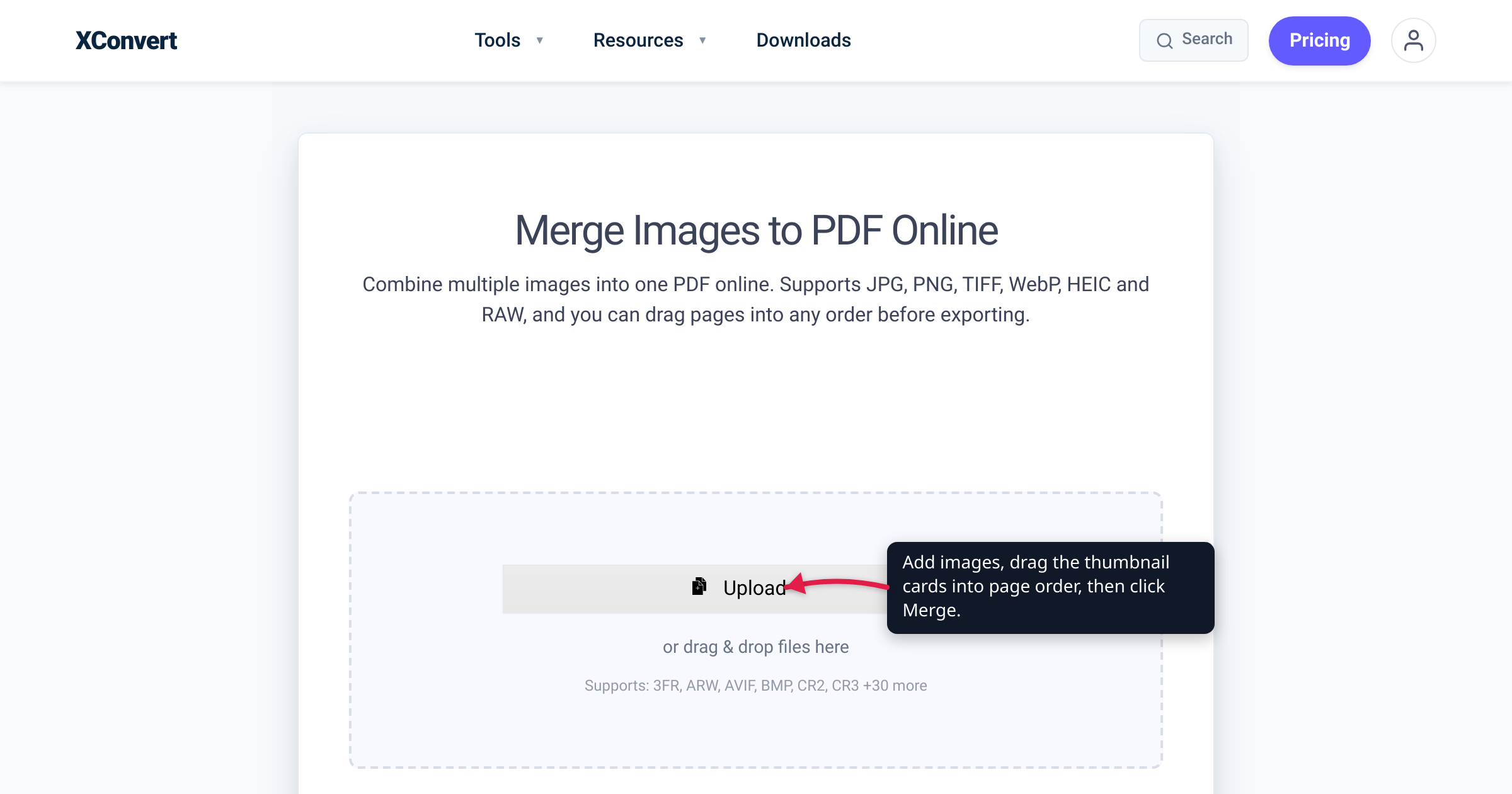
You photographed a twelve-page contract page by page, merged the pictures into one PDF — and page 10 landed between page 1 and page 2. Your photos were fine; the tool sorted IMG_10 before IMG_2, because as plain text “10” starts with a “1”. Scrambled page order is the most common way an image-to-PDF merge goes wrong, and it has three distinct causes with three distinct fixes. For this guide we uploaded deliberately shuffled files to the live xconvert merge tool to pin down exactly what decides page order, and tested the drag-to-reorder, rotate, and flip controls described below.
Quick answer: The page order of the finished PDF is whatever order the thumbnails are in when you click Merge. On xconvert’s Merge Images to PDF, files appear in the order you add them — there is no filename auto-sort (verified with intentionally mis-ordered uploads), and you drag the thumbnail cards to fix the sequence: first card = page 1. Stuck with a tool that sorts by filename? Zero-pad the names (01-, 02-, … 10-) so “10” can’t sort before “9”. And fix sideways photos with each card’s Rotate button before merging — the PDF bakes the orientation in.
Jump to a section
- Why pages come out scrambled
- The rename trick: 01, 02, 03
- Drag the thumbnails: order what you can see
- Sideways photos: rotation and EXIF orientation
- One image per page, paper size, and fit
- Merge images into one PDF on xconvert
- FAQ
Why pages come out scrambled
Every image-to-PDF method decides page order in one of three ways:
| Where the order comes from | Examples | The trap |
|---|---|---|
| The order you select/add files | macOS Finder’s Create PDF, most upload tools | The order the file dialog hands over isn’t always the order you clicked in |
| Filename sort | Windows print flow, many batch converters | “Sorted by name” means two different things — see below |
| Explicit on-screen order | Tools with drag-to-reorder thumbnails | None — what you see is what you get |
Selection order is documented for some flows — Apple states it plainly for the Mac’s built-in combiner: “The files appear in the PDF in the same order that you select them.” That works until you can’t remember which file you clicked first.
Filename sort is where the classic scramble lives, because “sorted by name” means two different things:
- Windows File Explorer sorts numbers numerically. Since Windows XP, Explorer treats digit runs in file names as numbers, so
photo2sorts beforephoto10. (Microsoft’s own history of the feature notes that Windows 95 used to putfile139ahead offile20— the behavior XP fixed.) - Many programs still sort names as plain text, character by character. The default string comparison — the one JavaScript’s own documentation demonstrates — puts
"80"before"9". In a text sort,IMG_10lands beforeIMG_2andIMG_9.
So a folder that looks perfectly ordered in File Explorer can arrive scrambled in a converter that sorts as text — it was never the same list.
Camera naming makes it worse. Cameras and phones following the DCF convention name photos with a fixed four-character prefix plus a four-digit counter from 0001 to 9999 (IMG_0001.JPG); after 9999 the counter wraps back to 0001. Across that wrap — or across two devices, or after a messaging app renames an export, or after your browser appends (1), (2) to duplicate downloads — filename order and chronological order quietly stop agreeing.
If your images are coming straight off a phone camera roll, the device-native routes (and their limits) are covered in How to combine photos into one PDF on iPhone, Android & PC. The rest of this guide is about making the order bulletproof on any device.
The rename trick: 01, 02, 03
If you’ll merge the same batch more than once, or you’re using any tool that sorts by filename, renaming is the durable fix — and exactly one naming scheme satisfies every sorter: zero-padded numeric prefixes.
1, 2, … 10breaks in a text sort: you get1, 10, 11, 12, 2, 3…01, 02, … 10sorts identically in a text sort and in Explorer’s numeric sort. Padding removes the ambiguity.
Three rules make it work:
- Pad to the width of your largest number. Up to 99 files → two digits (
01-); up to 999 → three (001-). - Put the number first, then anything human-readable:
03-lease-signature-page.jpg. Sorting reads from the front of the name. - Rename before you upload, while you can still see the images large enough to number them by eye.
Renaming is also the accepted fix for Windows’ built-in flow — a long-running Microsoft Q&A thread on Print to PDF producing wrong page order settles on rename-then-sort-by-name (details in the FAQ). Its weakness is effort: for a one-off merge of thirty photos it’s slow, and it can’t fix a shot taken out of sequence. For that, reorder on screen instead.
Drag the thumbnails: order what you can see
The most reliable order is one you arranged by eye right before merging. That’s the core of the xconvert Merge Images to PDF tool, and we verified the exact behavior on the live tool:
- Files list in the order you add them — no filename auto-sort. We uploaded
IMG_9.png,IMG_2.png,IMG_10.png, in that order, twice; the list showedIMG_9 → IMG_2 → IMG_10both times. A filename sort would have producedIMG_10 → IMG_2 → IMG_9(text) orIMG_2 → IMG_9 → IMG_10(numeric); the tool imposed neither. The order is yours to set, not the tool’s to guess. - Each image becomes a thumbnail card (filename, pixel dimensions, file size) with a drag handle — we dragged the bottom card to the top and the sequence updated and stuck. The first card is page 1, the second page 2, and so on.
- Reordering also works from the keyboard: focus a card’s drag handle, press Space to pick it up, move it with the arrow keys, press Space to drop — handy on a trackpad or with a screen reader.
- A Remove button on every card drops a stray file without starting over.
The habit that prevents every ordering surprise: scan the thumbnail sequence top to bottom immediately before clicking Merge. Five seconds of eyeballing beats any naming convention.
Sideways photos: rotation and EXIF orientation
The other half of “the right order” is orientation — page 3 on its side is as unusable as page 3 in the wrong place.
Phone cameras usually don’t rotate the pixels when you shoot sideways; they store the sensor image as-is and write an EXIF Orientation flag telling software how to turn it. Software that honors the flag shows the photo upright — browsers apply EXIF orientation by default — while software that ignores it shows the photo sideways. That’s why the same image can look fine in one app and rotated in another, and why you should fix rotation before merging: the PDF locks in whatever the merge renders.
On xconvert, orientation is handled per image: each thumbnail card has Rotate, Flip Horizontal, and Flip Vertical buttons, so a sideways scan is squared up in one click.
Separately, Page layout (Portrait / Landscape) sets the shape of the paper, not the photo. For a mixed batch — tall receipts, wide whiteboard shots — two setups work cleanly:
- A uniform page (say portrait A4) with Image placement: Contained — every image fits entirely on its page, letterboxed, nothing cropped.
- Paper size: Original — each page is sized to its own image; no whitespace, no cropping.
Cover is the third placement: the image fills the page edge-to-edge and overflow is cropped — right for photo-book looks, wrong for documents whose edges carry information.
One image per page, paper size, and fit
The remaining setup takes seconds, and the defaults are sensible:
- One image per page is the default — nothing to configure. Just keep Combine? on Single PDF; the alternative, Individual PDFs, converts each image into its own separate one-page PDF instead of one document.
- Paper size defaults to A4, with US Letter, Legal, Tabloid, A3, Executive, ISO B4/B5, and Original in the dropdown. Pick what your recipient prints on.
- Margin presets run from No margin (0") to Large (2×1"); Image alignment (Top / Center / Bottom) controls where a smaller image sits on the page.
- The Quality Percentage slider defaults to 75; the tool’s guidance is that 90–100 is visually lossless for photos — raise it for archival scans, lower it when the PDF must be small.
If your sources are already PDFs rather than images — exported chapters, a stack of scans — the ordering logic is the same but the tool is different: see How to merge multiple PDFs into one.
Merge images into one PDF on xconvert
The whole workflow on the xconvert Merge Images to PDF tool:
- Open xconvert.com/merge-image-to-pdf and click Upload (or drag and drop; the dropdown next to the button offers From my Computer, From Google Drive, and From Dropbox). JPG, PNG, HEIC, TIFF, WebP, BMP, and camera RAW formats are accepted, mixed freely in one batch.
- Arrange the page order: the thumbnail cards appear in the order you added the files — drag them into the sequence you want. The first card becomes page 1. Use a card’s Remove button to drop strays.
- Fix orientation per image: click Rotate (or Flip Horizontal / Flip Vertical) on any card whose photo is sideways or mirrored.
- In Advanced Options, leave Combine? on Single PDF, pick a Paper size (A4 default, or Original to size pages to the images), and set Page layout, Margin, and Image placement (Contained if nothing may be cropped).
- Give the sequence one last top-to-bottom scan, then click Merge and download — pages come out exactly in the order the cards were showing.
Your images upload over an encrypted connection, the PDF is assembled on our servers, and your files are deleted automatically a few hours later.
FAQ
How do I merge images into a PDF in a specific order?
Use a tool that shows the images as thumbnails and lets you rearrange them before merging. On xconvert, files list in the order you add them and you drag the thumbnail cards into position — the first card becomes page 1. Arranging by eye beats any filename scheme, because you’re looking at the actual content.
Why do my images merge in the wrong order?
The tool ordered them by something other than what you expected — usually a plain-text filename sort, where 10 sorts before 9 because comparison goes character by character. Windows File Explorer sorts numbers numerically, so the folder looks right, and then a text-sorting tool scrambles it. Fixes: zero-pad the filenames, or use a merge tool with drag-to-reorder and check the sequence before merging.
How should I rename files so every tool sorts them correctly?
Zero-padded numeric prefixes: 01-, 02-, … 10-, padded to the width of your largest number (three digits for 100+ files). Padded names sort identically under text sort and numeric sort, so the order survives any tool. Put the number at the front — 03-lease-page.jpg — since sorting reads from the first character.
Why does Windows “Print to PDF” put my pages in the wrong order?
The multi-image print flow follows the file list, not the order you clicked. The fix Microsoft’s Q&A community converged on: rename the images in page order (1.jpg, 2.jpg, …), sort the folder by name ascending, then select all and print. With ten or more images, zero-pad (01.jpg) so the text sort can’t put 10 before 2 — or skip the fragility and use a drag-to-reorder merge tool.
How do I fix a photo that shows up sideways in the PDF?
Rotate it before merging — the PDF bakes in whatever the merge tool renders. Sideways photos happen because the camera stored unrotated pixels plus an EXIF Orientation flag that some software ignores. On xconvert, every thumbnail card has Rotate, Flip Horizontal, and Flip Vertical buttons, so you can square up individual images without an editor.
Can I change the page order after the PDF is already made?
Yes — no need to re-merge. Run the finished file through a page-reordering tool such as xconvert’s Reorder PDF, which moves pages within an existing PDF. Re-merging from the source images works just as well if you still have them; use whichever is fewer clicks.
Sources
Last verified 2026-07-15.
- xconvert — Merge Images to PDF — live tool verification: Upload button (From my Computer / Google Drive / Dropbox), thumbnails keep upload order with no filename auto-sort (tested with shuffled uploads), drag-to-reorder cards with per-card Rotate / Flip / Remove, Merge button, Combine? / Paper size / Page layout / Image placement / Margin / Quality controls.
- Apple Support — Combine files into a PDF on Mac — the selection-order rule: “The files appear in the PDF in the same order that you select them.”
- Microsoft Learn — Windows Confidential: The Evolution of Sorting — Explorer has sorted digits in file names as numbers since Windows XP; Windows 95 sorted
file139ahead offile20. - MDN — Array.prototype.sort() — default string comparison: “because numbers are converted to strings, ‘80’ comes before ‘9’ in the Unicode order” — the mechanics behind
10-before-9scrambles. - Microsoft Q&A — Microsoft “Print to PDF”: how do I control the page order? — the rename-then-sort-by-name workaround for multi-image Print to PDF.
- MDN — image-orientation — browsers apply the image’s EXIF orientation by default (“The EXIF information contained in the image is used to rotate the image appropriately”).
- Wikipedia — Design rule for Camera File system (DCF) — camera file naming: four-character prefix plus a 0001–9999 counter that wraps after 9999 (aggregating the CIPA DC-009 standard).