 By Stephanie Taylor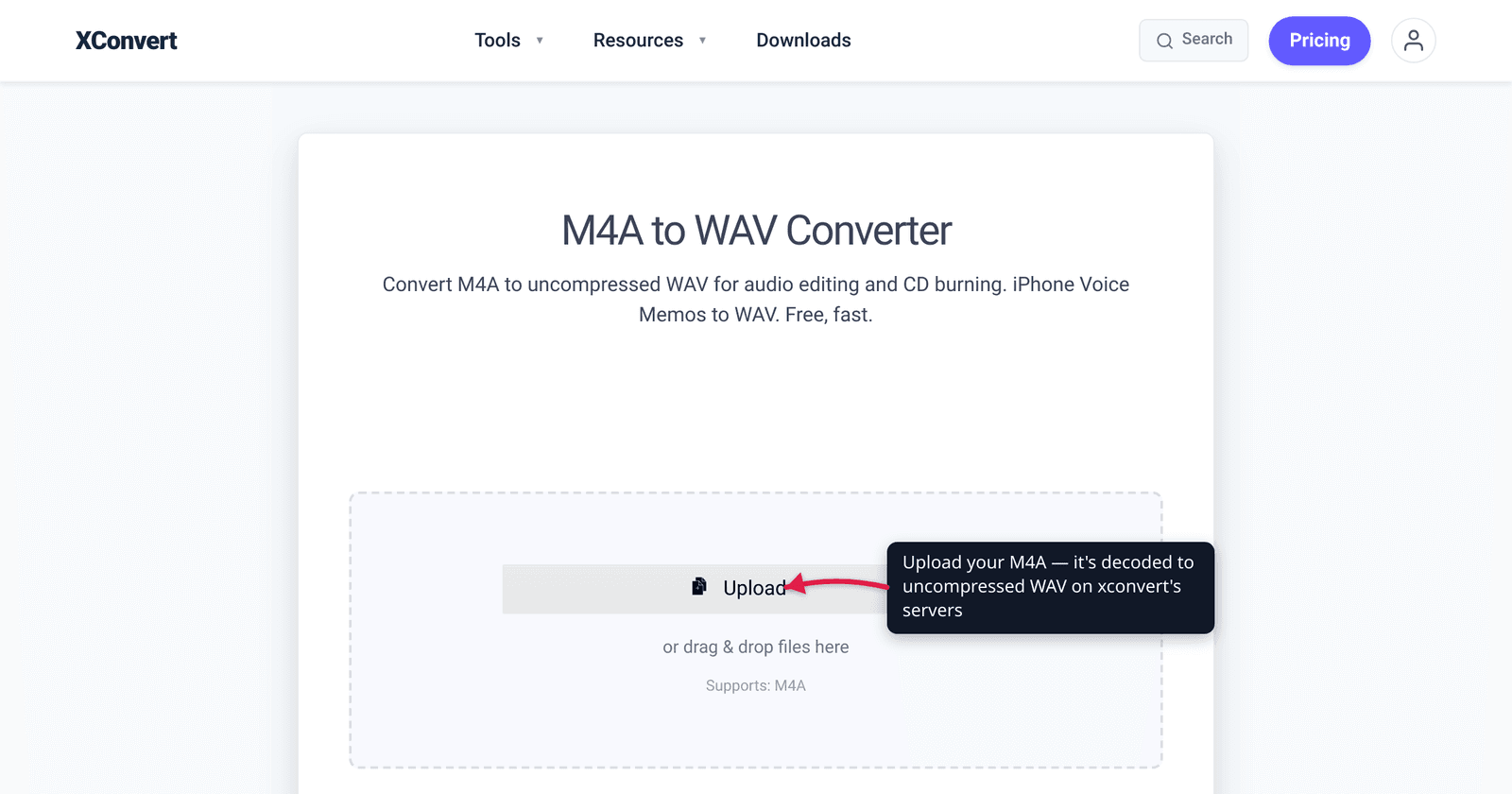
Your DAW won’t import the voice memo. The sampler only accepts WAV. So you need to turn an .m4a into a .wav — and the result will be roughly ten times larger with, in most cases, no improvement in sound. That’s not a bug; it’s exactly what the format swap does. M4A almost always holds AAC, a lossy codec; WAV holds uncompressed PCM. Decoding one into the other gives you a bulky, edit-friendly, perfectly-compatible file at the same fidelity the AAC already had — useful for editing, useless as a “quality fix.” We verified the codec facts against the MPEG/ISO standards, Apple’s ALAC documentation, and the RIFF/WAV spec, and we’re honest below about the one case where the conversion really is lossless.
Quick answer: Convert M4A to WAV when a tool requires uncompressed PCM input — a DAW, sampler, CD-authoring app, or any editor that won’t accept AAC. The WAV will be much bigger (WAV is uncompressed; a 4 MB M4A can become ~40 MB) and it does not restore quality that lossy AAC already discarded — it just decodes the existing audio into an uncompressed container at the same fidelity. The one exception: if your M4A holds ALAC (Apple Lossless), M4A→WAV is fully lossless in both directions. To convert, use a server-side tool like xconvert’s M4A to WAV converter — upload, keep sample rate at Original, and click Convert.
Jump to a section
- What’s actually inside an M4A
- Why WAV is bigger — and why that’s the point
- The honest truth: WAV won’t un-lose lossy quality
- When you genuinely should convert M4A to WAV
- Convert M4A to WAV on xconvert
- FAQ
What’s actually inside an M4A
.m4a is a container, not a codec — it’s the MPEG-4 Part 14 (MP4) file structure with an audio-only extension Apple introduced so players could tell at a glance that a file holds sound, not video. The container is just the box. What matters is the codec inside it, and there are two common possibilities:
- AAC (Advanced Audio Coding) — the usual occupant. AAC is a lossy codec standardized by MPEG/ISO (MPEG-2 Part 7, ISO/IEC 13818-7, and the enhanced MPEG-4 Part 3, ISO/IEC 14496-3) and declared an international standard in April 1997 as MP3’s successor. “Lossy” means the encoder permanently discards audio data that psychoacoustic modeling predicts you won’t hear, in exchange for a much smaller file. This is what you get from the iTunes Store, Apple Music downloads, and most voice-memo and podcast exports.
- ALAC (Apple Lossless Audio Codec) — the less common occupant, also stored in a
.m4a. ALAC is lossless: it compresses without discarding anything, typically to about 40–60% of the original size, and decodes back bit-for-bit. Apple open-sourced it on October 27, 2011.
The catch: both use the same .m4a extension, so you can’t tell lossy AAC from lossless ALAC by the filename alone. This single fact decides whether your conversion preserves everything or merely repackages already-lossy audio (more on that below).
WAV, by contrast, is a container that holds uncompressed audio — almost always linear PCM (pulse-code modulation), the raw digital samples with no compression at all. It’s a RIFF-based format developed by Microsoft and IBM in 1991, supporting bit depths of 8, 16, 24, and 32 bits and sample rates up into the hundreds of kHz. Because nothing is compressed, every sample is preserved exactly — which is precisely why audio software treats WAV as the safe, neutral working format.
Why WAV is bigger — and why that’s the point
AAC’s whole job is to be small; WAV’s whole job is to be exact. So when you convert, the file balloons. A 4 MB M4A song can land around 40 MB as a WAV — roughly a 10× increase is normal, and the exact ratio depends on the M4A’s original bitrate, the WAV’s bit depth, the sample rate, and the channel count.
You can estimate an uncompressed WAV’s size directly, because PCM is just raw samples:
bytes per second = sample rate × (bit depth ÷ 8) × channels
At CD quality — 44,100 Hz, 16-bit, stereo — that’s 44,100 × 2 × 2 ≈ 176 KB/s, or about 10 MB per minute, regardless of how the source was compressed. A 128 kbps AAC of that same minute is only ~1 MB. The WAV isn’t “better”; it’s just stored without compression, and uncompressed always costs more bytes.
That size is a feature, not a flaw, for the workflows WAV is made for. Uncompressed PCM has no codec to decode, so editors load it instantly and re-saving a WAV never degrades it — unlike re-exporting AAC, where each save runs the lossy encoder again and compounds the loss. If your goal is the opposite (a smaller file to store or share), converting to WAV is the wrong direction; see how to compress a WAV file or just keep the M4A.
The honest truth: WAV won’t un-lose lossy quality
This is the part most “convert M4A to WAV” pages skip, so read it carefully.
If your M4A is AAC (the common case), the encoder already threw away data when the file was created. Converting to WAV decodes that lossy audio into an uncompressed container — it does not reconstruct the discarded frequencies. The WAV is lossless relative to the AAC it came from, but the AAC’s quality ceiling is baked in. You get a bigger file at the same fidelity, not a better one. There is no tool, on xconvert or anywhere else, that can restore detail a lossy encoder permanently removed. Anyone promising “lossless upscaling” or “restore original CD quality” from a lossy source is selling a myth.
If your M4A is ALAC (Apple Lossless), the story flips: ALAC kept every bit, so M4A→WAV is fully lossless in both directions — the WAV is a perfect decode of the original samples, and you could go back to ALAC later with no loss. This is the genuinely lossless scenario the title promises.
How to tell which you have? Check the file in a player that reports the codec (VLC’s Tools → Codec Information, or Finder’s Get Info on a Mac). If it says AAC, you’re decoding lossy audio; if it says Apple Lossless / ALAC, you’re working with a true lossless source. Either way the conversion is worth doing for compatibility and editing — just don’t expect it to add quality.
When you genuinely should convert M4A to WAV
WAV is bigger and (for AAC sources) no higher-fidelity, so convert only when a real workflow needs uncompressed PCM:
- A DAW or audio editor requires it. Audacity, Pro Tools, Logic Pro, Adobe Audition, FL Studio and most editors handle WAV natively with zero decoding overhead. Some pipelines or plugins won’t accept AAC/M4A at all.
- A sampler or hardware instrument only reads WAV. Many samplers, drum machines, and embedded devices accept PCM WAV exclusively.
- CD authoring. Burning a standard Red Book audio CD needs uncompressed 16-bit / 44.1 kHz PCM, which is exactly what a CD-spec WAV provides.
- You’re about to edit and re-export repeatedly. Working in WAV avoids generation loss — each AAC re-encode compounds the damage, whereas re-saving WAV doesn’t. MDN’s codec guidance is explicit: if audio “will be getting remixed or recompressed… avoid lossy compression, which would be compounded by recompressing.” Decode to WAV once, edit, then export to your delivery format at the end.
- Maximum compatibility. WAV opens virtually everywhere — every OS, every editor, most embedded players — which isn’t always true of M4A.
If your real goal is a small, shareable file rather than an editable one, WAV is the wrong target — converting to MP3 keeps it compact and universally playable; see how to convert M4A to MP3.
Convert M4A to WAV on xconvert
The xconvert M4A to WAV converter decodes your file to uncompressed PCM WAV on our servers — no app to install. WAV has no codec or bitrate to choose (it’s uncompressed by definition), so the controls are deliberately minimal:
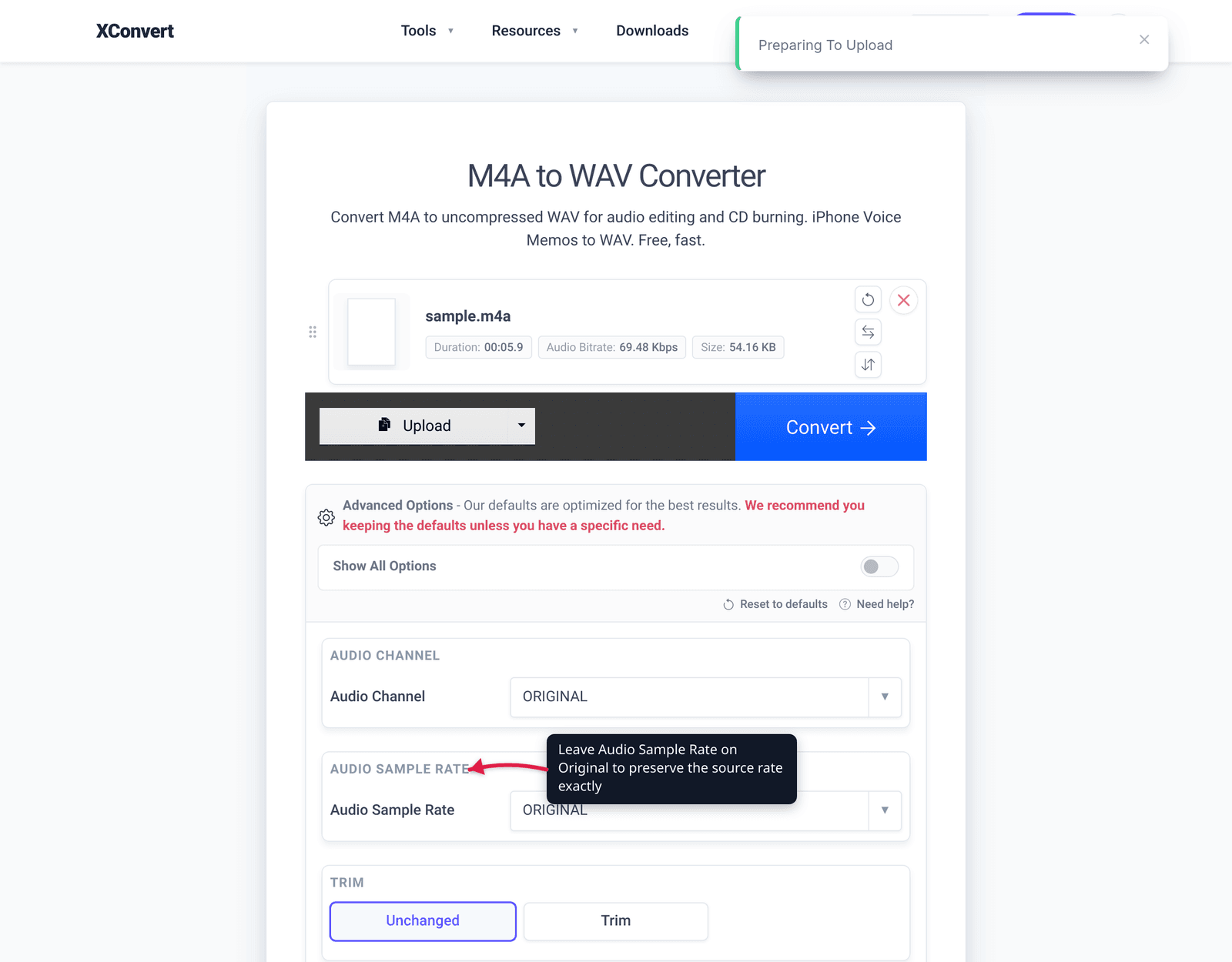
- Open xconvert.com/convert-m4a-to-wav and click Upload to add your file (From my Computer, Google Drive, or Dropbox).
- Leave Audio Sample Rate on Original to preserve the source rate exactly. Only change it if a target tool demands a specific rate — e.g. set 44100 Hz for standard CD authoring.
- Leave Audio Channel on Original unless you specifically need to force mono or stereo.
- (Optional) Use Trim if you only need part of the audio; otherwise leave it Unchanged.
- Click Convert, then download the WAV individually — or grab several as a ZIP if you converted a batch.
Expect a noticeably larger file: WAV is uncompressed, so it’ll dwarf the M4A. Your file uploads over an encrypted connection, is processed on our servers, and is deleted automatically a few hours later — nothing lingers.
FAQ
Does converting M4A to WAV improve audio quality?
No — not if the M4A is AAC (the usual case). Lossy AAC permanently discarded data when the file was made, and converting to WAV only decodes that audio into an uncompressed container; it can’t rebuild what was removed. You get a much larger file at the same fidelity, which is useful for editing and compatibility but not a quality upgrade. The exception is an ALAC (Apple Lossless) M4A, where the conversion is genuinely lossless.
Why is my WAV file so much bigger than the M4A?
Because WAV stores uncompressed PCM and M4A stores compressed AAC. AAC squeezes the audio; WAV keeps every raw sample. CD-quality stereo WAV runs about 10 MB per minute no matter the source bitrate, so a 4 MB M4A commonly becomes ~40 MB — roughly a 10× jump. That size is the price of an editable, never-degrading working file.
Is M4A or WAV better quality?
At equal source material, a WAV can be at most as good as the M4A it was decoded from — never better. WAV is the lossless/uncompressed format, but if it was made from lossy AAC it merely inherits that AAC’s quality. WAV “wins” only when its source was lossless (ALAC, or a direct recording). For storage and sharing, M4A’s far smaller size is the practical advantage.
How can I tell if my M4A is AAC or ALAC?
Open it in VLC and check Tools → Codec Information, or use Get Info on a Mac. It will report either MPEG AAC (lossy) or Apple Lossless / ALAC (lossless). This matters because ALAC → WAV is fully lossless, while AAC → WAV only repackages already-lossy audio at the same fidelity.
What sample rate and bit depth should I use for the WAV?
Keep the sample rate at the source’s original unless a target tool requires otherwise — resampling can’t add detail and risks subtle artifacts. For CD authoring, use 16-bit / 44.1 kHz. For DAW editing, 24-bit gives extra headroom against clipping during processing, though it makes the file larger still. On xconvert, leaving Audio Sample Rate on Original preserves the source rate.
Can I convert WAV back to M4A or MP3 afterward?
Yes — and that’s the normal workflow: decode to WAV, edit, then export to a compressed format for delivery. Going back to a lossy codec re-introduces lossy compression, so do it once, at the end. To go the other direction efficiently, see convert M4A to MP3 or, to shrink an existing WAV, compress a WAV file.
Sources
Last verified 2026-06-25.
- MDN — Web audio codec guide — lists AAC compression as Lossy; warns that audio that “will be getting remixed or recompressed” should avoid lossy compression “which would be compounded by recompressing.”
- Wikipedia — Advanced Audio Coding — AAC is lossy; standardized in MPEG-2 Part 7 (ISO/IEC 13818-7) and MPEG-4 Part 3 (ISO/IEC 14496-3); declared an international standard April 1997, citing the MPEG/ISO documents.
- Wikipedia — Apple Lossless Audio Codec (ALAC) — ALAC is lossless, stored in the MP4/
.m4acontainer, compresses to ~40–60% of original size, open-sourced October 27, 2011. - Wikipedia — WAV — WAV is a RIFF-based, typically uncompressed LPCM format developed by Microsoft and IBM in 1991; supports 8/16/24/32-bit depths and high sample rates.