 By Stephanie Taylor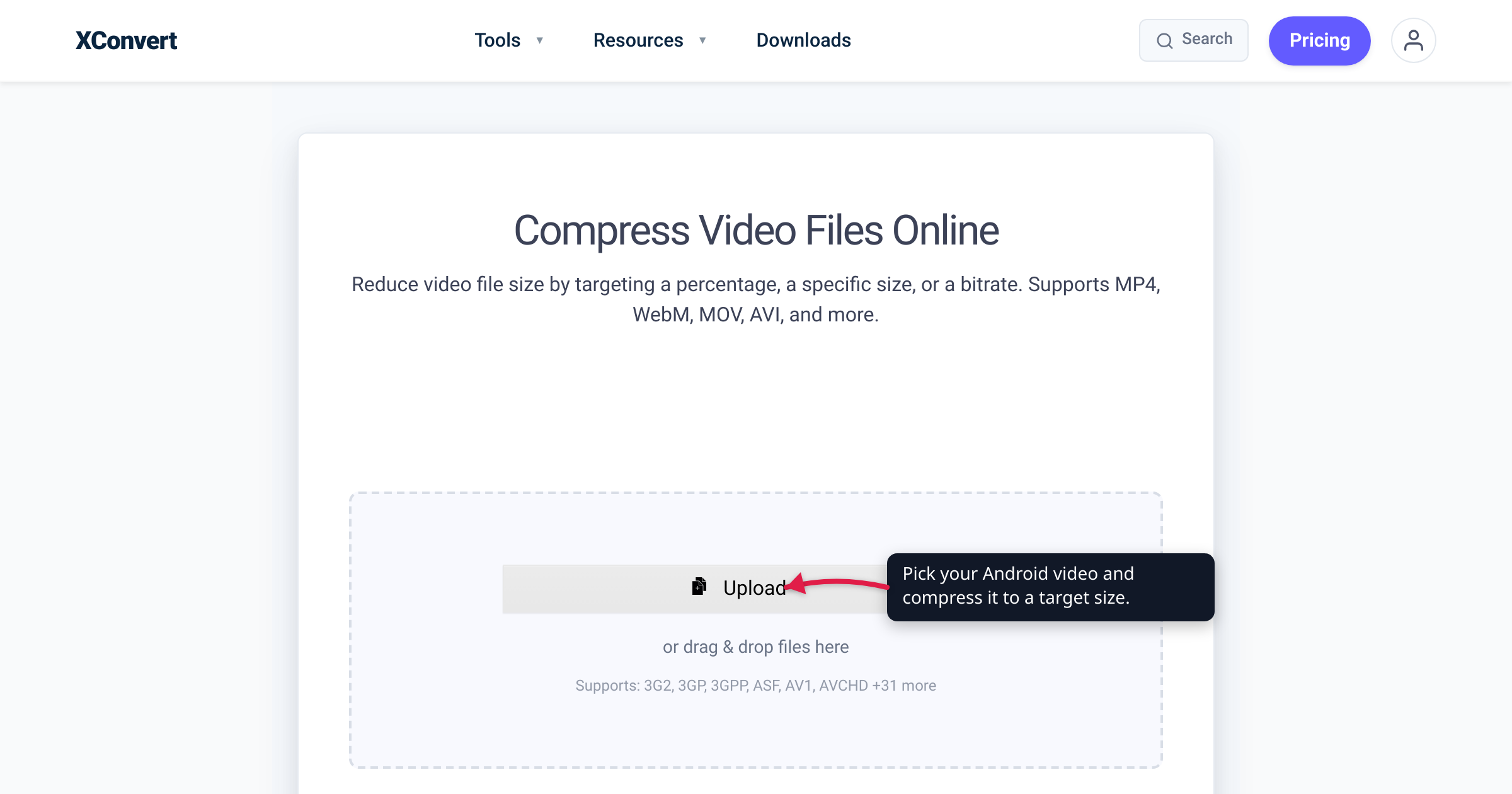
A quick clip you shot on your Android phone can be surprisingly heavy — a couple of minutes of 4K can run into the hundreds of megabytes, which overflows most email attachment limits and is heavy enough to run into the caps on messaging apps. The catch is that Android has no single “compress video” button. Unlike the tidy iPhone story, what you get depends on who made your phone: Samsung, Google, and every other brand ship different camera apps and galleries. This guide covers the built-in tricks that exist (and where they stop), then the one route that works on any Android phone, any version, with nothing to install — a web compressor you open right in Chrome. Every tool label below was checked on the live page.
Quick answer: Android has no universal built-in video compressor. On some phones — Samsung Galaxy, for instance — you can lower a clip’s resolution or codec in the Camera settings, and you can always drop the recording resolution for future clips. Google Photos’ Storage saver backup will down-res anything above 1080p. But none of these lets you hit an exact size. For that, open xconvert’s video compressor in your phone’s browser, tap Upload to grab the clip from your Gallery or Files, choose Target file size (%) or Specific file size, and download the smaller version — no app required.
Jump to a section
- Why Android has no “compress video” button
- What your Android phone actually records
- The built-in options (and where they stop)
- The universal fix: your phone’s browser
- Compress a video on Android with xconvert
- FAQ
Why Android has no “compress video” button
Where an iPhone gives you one predictable set of tools, Android is a family of phones from dozens of manufacturers, each with its own camera app, gallery, and settings layout. There’s no OS-level “compress this video” control that behaves the same everywhere. Google’s own apps don’t fill the gap either: Photos can trim and edit a clip but has no re-encode-for-size control, and the Files app only stores and moves videos.
Peel back the branding and every shrink-a-video method reduces to two moves: cut the resolution — 1080p in place of 4K — or re-encode the footage at a lower bitrate so each second stores less data. Either one trims the file; either one can visibly soften the picture if you overdo it. The whole skill is knowing which move to make and how far to take it — and, ideally, being able to say “make it fit under 25 MB” instead of guessing.
What your Android phone actually records
Before you compress anything, it helps to know what you’re starting with. Android phones record video into the MP4 container, and the codec inside is almost always H.264 (AVC) or the newer, more efficient HEVC (H.265) — both are core parts of Android’s media support, per Android’s supported-formats documentation. Historically most phones recorded H.264 for maximum compatibility; many newer models now default to HEVC because it stores similar quality in less space. To keep those efficient clips from breaking older apps, Android 12 and later can automatically transcode HEVC to H.264 when you open a video in an app that can’t read HEVC.
Resolution and frame rate vary by manufacturer and model. Depending on the phone, the camera might record anywhere from 720p up to 4K — or 8K on some flagships — at 30 or 60 frames per second, with the higher settings producing dramatically larger files.
The practical takeaway: if your clip is already HEVC, your phone has already done much of the compression work, so there’s not as much slack left to reclaim. To go smaller you’ll have to drop the resolution or re-encode at a lower quality — which is exactly what the tools below do.
The built-in options (and where they stop)
Depending on your phone, you may have one or more of these — none of which lets you target an exact size:
- Lower the recording resolution (for future clips). Every camera app lets you pick a video size. On Samsung Galaxy phones you choose a lower resolution and frame rate in the Camera settings, which also list Advanced video options including “High efficiency videos” and a “Reduce file size” toggle. Dropping from 4K/60 to 1080p/30 makes every new recording much smaller. The limit: it does nothing for the videos already sitting in your gallery — you’re heading off the problem, not fixing a clip you’ve already got.
- Re-encode an existing clip in the Gallery (some models). A number of Samsung phones can change an already-recorded video’s resolution or codec straight from the Gallery editor, and other manufacturers have their own equivalents. Where it exists it’s genuinely useful, but it’s inconsistent across brands and, again, offers resolution and codec tiers rather than a size target.
- Let Google Photos shrink it on backup. If you set your backup quality to Storage saver, Google Photos compresses what it uploads and resizes any video above 1080p down to 1080p; you then re-download the smaller copy from photos.google.com. It works, but it’s a backup setting rather than a compressor — it counts against your Google Account storage (for anything backed up after June 1, 2021) and you don’t choose the final size.
The thread running through all of these is the same gap: you can pick a lower resolution, but you can’t say “fit this under 25 MB” and have the tool solve for it. That’s the job a browser-based compressor does.
The universal fix: your phone’s browser
Here’s the route that works on literally any Android phone, on any version, no matter who made it: open a web-based compressor in your browser. Chrome comes preinstalled on most Android phones, but any browser works. There’s no app to download, no permissions to grant, and the only thing that lands in your storage is the finished, smaller file.
Being honest about how it works: a web compressor isn’t doing the math on your phone. When you choose a video, it’s sent over an encrypted connection to the service’s servers, where the compression happens before a download comes back. That means you need a data or Wi-Fi connection, and you’re trusting the service with the file — so it’s worth using one with a clear retention policy (more on xconvert’s below). Some people still prefer a dedicated app because it works offline and keeps everything on the device; that’s a fair trade-off. But if you want a no-install answer that works on every Android phone without hunting the Play Store, the browser route is it.
Compress a video on Android with xconvert
xconvert’s video compressor — titled “Compress Video Files Online” — lets you compress to a percentage or an exact size, with codec and resolution control, straight from your phone’s browser. It accepts more than 35 input formats, so whether your phone saved the clip as MP4, HEVC, or something older, it’ll take it.
- In Chrome (or any browser) on your phone, open the video compressor and tap Upload. Choosing From my Computer opens Android’s file picker, where you can pull the clip from your Gallery/Photos or the Files app; From Google Drive and From Dropbox are there too.
- Pick a compression mode. The default is Target file size (%) — a slider the page explains simply: “if your file is 10 MB, then selecting 80 will produce an 8 MB file.” With Smart Scaling Active, it automatically adjusts the dimensions to hold quality while hitting your target. To land on an exact number instead, choose Specific file size and type your target — for example a value comfortably under your email or chat app’s limit.
- (Optional) Fine-tune. You can change the codec — keep H.264 for the widest compatibility, or switch to H.265 (HEVC) or AV1 to squeeze more out at a similar quality — or switch File Compression to Constant Quality to expose the video-resolution controls. Trim to a Time Range if you only need part of the clip.
- Tap Compress, then download the result. On Android it saves to your Downloads — find it in the download notification, your Files app, or your Gallery.
What happens to your file: it travels to us over an encrypted connection and is processed on our servers and deleted automatically a few hours later. That’s the piece the built-in tools are missing — you name the size you’re after and let the compressor work out the bitrate, instead of stepping down resolution tiers by trial and error.
How much do you actually save? That swings with the clip’s original bitrate and the codec you pick, so any single number is a ballpark rather than a promise. Footage captured in H.264 usually has plenty of slack and drops a fair bit while still looking about the same; footage that’s already HEVC has been squeezed once, so Specific file size is the dependable way to force it under a hard cap. If protecting quality is your main concern, see reduce MP4 file size without losing quality.
FAQ
How do I make a video smaller on Android?
There’s no single built-in button, so you have two paths. On some phones you can lower a clip’s resolution in the Gallery, or drop the recording resolution for future videos in the Camera settings — but neither targets an exact size. For a specific size on any Android phone, upload the clip to a browser-based tool like xconvert, choose Target file size (%) or Specific file size, and download the result. No app needed.
Can I compress a video on Android without installing an app?
Yes. Open xconvert’s video compressor in Chrome (or any mobile browser), tap Upload to grab the video from your Gallery or Files, pick a size mode, and download the smaller file. The clip goes to us over an encrypted connection, where it is processed on our servers and deleted automatically a few hours later — and nothing is installed on your phone.
Why are my Android videos so large?
Because modern phones record at high resolutions and frame rates. Android clips are MP4 files using H.264 or HEVC, often at 1080p or 4K and 30–60 fps, per Android’s media documentation — and 4K at 60 fps in particular produces very big files. Lowering the recording resolution in your Camera settings is the simplest way to keep future clips smaller.
Does Samsung have a built-in video compressor?
Sort of. Many Samsung Galaxy phones let you pick a lower recording resolution and expose Advanced video options — including “High efficiency videos” and a “Reduce file size” setting — in the Camera settings, and some models can re-encode an existing clip from the Gallery. These change the resolution or codec, though; they don’t let you compress to an exact target size the way a dedicated compressor does.
Will compressing make my video look worse?
There’s always some loss, since compression works by throwing data away — but a mild squeeze rarely shows on a phone-sized screen. Keep it looking sharp by choosing an efficient codec (H.265/HEVC or AV1) instead of H.264, holding on to as much resolution as you can, and relying on a target-size or constant-quality setting rather than cranking the compression to its harshest. Our guide to reducing MP4 size without losing quality goes deeper.
How do I compress a video for email or a chat app on Android?
Compress to a specific size under the limit first. Upload the clip to xconvert, choose Specific file size, enter a value comfortably below your provider or app’s cap, and attach or share the downloaded result. That’s more reliable than guessing at a resolution and hoping the file lands small enough.
I’m on an iPhone, not Android — is it different?
The idea is the same, but the built-in tools differ. iPhones record HEVC .mov clips and lean on iMovie or the Shortcuts app for on-device shrinking. See the companion guide, how to compress a video on iPhone.
Sources
Last verified 2026-07-16.
- Android Developers — Supported media formats — H.264/AVC and HEVC/H.265 as core supported video codecs and the MP4 container Android records into.
- Android Developers — Compatible media transcoding — Android 12+ can automatically transcode HEVC to H.264 for apps that don’t support it, enabling more storage-efficient HEVC recording on-device.
- Samsung — Camera modes and settings on Galaxy phones and tablets — recording-resolution selection and the “Advanced video options” list, including “High efficiency videos” and “Reduce file size.”
- Google Photos Help — Choose the backup quality of your photos & videos — Storage saver resizes videos above 1080p down to 1080p on backup and counts toward account storage after June 1, 2021.
- xconvert — Video compressor — Upload (From my Computer / Google Drive / Dropbox), Target file size (%) with Smart Scaling, Specific file size, Constant Quality, codec options (H.264 / H.265 / AV1), 35+ input formats, and the “10 MB → 8 MB at 80%” example.