 By James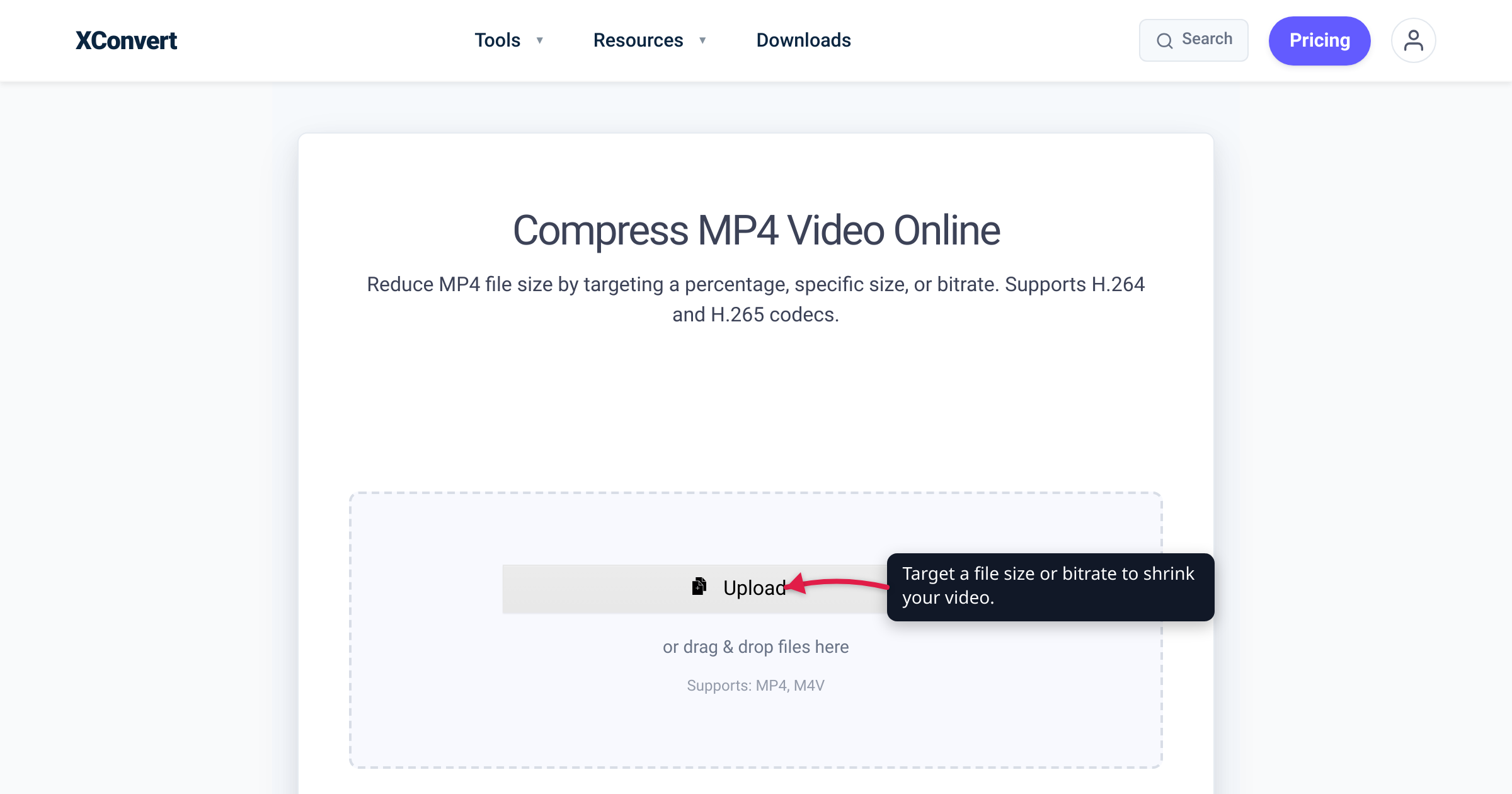
You drop a 1080p clip to 480p expecting the file to roughly halve — and it barely moves. Or you leave the video at full 4K, cut the bitrate, and it shrinks to a fifth. Confusing, until you know the one rule the file size actually obeys: size follows bitrate, not resolution. Resolution matters enormously, but only through the back door — by changing how much bitrate the picture needs to look good. This guide shows the arithmetic (it’s genuinely just multiplication), proves the myth with a worked example, and tells you which control to reach for. Every bitrate figure here is checked against YouTube’s own recommended-upload table and MDN’s codec guide.
Quick answer: Bitrate — bits of data per second — is what directly sets a video’s size: size ≈ bitrate × duration. Resolution isn’t in that equation. Lowering resolution shrinks the file only indirectly: a 4K frame needs far more bitrate than a 480p frame to look good (YouTube recommends ~35–45 Mbps for 4K vs ~2.5 Mbps for 480p), so dropping resolution lets you drop bitrate. Hold the bitrate fixed and a lower resolution gives the same size — just a cleaner picture. To shrink a file, lower the bitrate (or target a file size, which sets the bitrate for you) or switch to a more efficient codec like H.265/AV1. Lower the resolution when the bitrate a big frame needs is more than you want to spend, or when it’ll be viewed small.
Jump to a section
- The one number that sets file size
- Where resolution comes in: the bitrate you need
- The myth, busted: same bitrate, same size
- Codec: more quality per bit
- Which control should you actually change?
- Resolution vs bitrate on xconvert
- FAQ
The one number that sets file size
Bitrate is how many bits of data the video spends on each second of footage, usually quoted in megabits per second (Mbps). Because it’s literally bits per second, the total size of a video is close to pure arithmetic:
file size ≈ bitrate × duration
A clip encoded at 8 Mbps for 60 seconds is about 8 × 60 = 480 megabits. Divide by 8 to get megabytes (8 bits = 1 byte) and that’s 60 MB per minute. Double the bitrate and you double the file; double the length and you double the file. That’s the whole relationship.
Notice what is not in that equation: resolution — nor the codec. That doesn’t make them irrelevant; it means they can only change the file size by changing the bitrate. Bitrate is the one dial wired directly to size; everything else is wired to bitrate. As MDN’s codec guide puts it, “higher bit rates inherently lead to larger output files.”
Where resolution comes in: the bitrate you need
Resolution is the pixel grid of each frame — 1080p is 1920×1080, 4K (2160p) is 3840×2160, which is four times as many pixels. More pixels means more detail to describe every second, so to reach the same perceived quality, a bigger frame needs a bigger bitrate. That is resolution’s entire influence on file size: it sets how much bitrate the picture requires to look good.
The cleanest proof is YouTube’s own recommended upload bitrates. Watch the bitrate climb as the frame grows (standard frame rate, SDR):
| Resolution | Recommended bitrate | ≈ File size per minute |
|---|---|---|
| 360p | 1 Mbps | ~7.5 MB |
| 480p | 2.5 Mbps | ~19 MB |
| 720p | 5 Mbps | ~37 MB |
| 1080p | 8 Mbps | ~60 MB |
| 1440p (2K) | 16 Mbps | ~120 MB |
| 2160p (4K) | 35–45 Mbps | ~260–340 MB |
The right-hand column is just bitrate × 60 ÷ 8. The file-size ladder is the bitrate ladder — a 4K clip is big because it was handed ~40 Mbps, not because “4K” directly weighs anything. This is the sense in which “lower the resolution to shrink the file” is genuinely true: when you re-encode at a sensible quality for each size, a smaller frame calls for less bitrate, so the file falls. (For how far to drop resolution and what each step costs in detail, see lower a video’s resolution.)
The myth, busted: same bitrate, same size
Here’s the catch that trips everyone up: that link between resolution and size runs entirely through bitrate. Break the link — hold the bitrate fixed — and changing the resolution stops changing the file size at all.
Take the same 1-minute 1080p clip and encode it three ways:
| Same 1-min clip, encoded as… | Frame size | Bitrate | File | Looks like |
|---|---|---|---|---|
| Reference | 1080p | 8 Mbps | 60 MB | Great |
| Cut the bitrate only | 1080p | 2 Mbps | 15 MB | 4× smaller — but blocky |
| Keep 2 Mbps, drop the frame size | 480p | 2 Mbps | 15 MB | Same size — but clean again |
The bitrate move (8 → 2 Mbps) is what shrank the file, from 60 MB to 15 MB — resolution never changed. The resolution move (1080p → 480p) at that fixed 2 Mbps shrank nothing: the file is still 15 MB, because 2 Mbps × 60 s is 15 MB no matter how many pixels those bits describe. What dropping the resolution fixed was the quality — 2 Mbps is starvation for 1080p but generous for 480p, so the same bit budget now covers far fewer pixels and looks clean again. As MDN notes, a 1080p source “reduced to 720p prior to encoding” for a tight budget “can be much smaller while having much higher visual quality… than encoding the original video at full size.”
So when does dropping the resolution shrink the file? When you also let the bitrate come down. Encode that same clip at constant quality and drop it to 480p: the encoder now needs only ~2.5 Mbps instead of 8, and the file falls from 60 MB to ~19 MB. The frame size didn’t shrink the file; the lower bitrate it allowed did. Put simply: at a fixed size or bitrate, resolution is a quality dial, not a size dial.
Codec: more quality per bit
The codec is the third lever, and it doesn’t appear in size = bitrate × duration either. What a newer codec changes is how much quality you get per bit — that is, how low you can push the bitrate before the picture falls apart.
- H.264 (AVC) is the universal baseline — plays essentially everywhere.
- H.265 (HEVC) targets the same quality at roughly half the bitrate. Fraunhofer HHI (one of the institutes behind the standard) quotes “about 50% bit-rate reduction at the same subjective video quality,” and MDN concurs that HEVC can reach “compressed file sizes half that of AVC… with comparable image quality.”
- AV1 is more efficient still — MDN puts it at “as much as 50% higher [compression] rates than AVC” — and is royalty-free, at the cost of slower encoding and narrower playback.
Because a better codec lets you spend fewer bits for the same look, switching from H.264 to H.265 or AV1 cuts the bitrate — and therefore the file — without touching resolution or visible quality. It’s the closest thing to a free size win, as long as your playback device supports the newer codec. (The full codec-and-quality recipe, including the constant-quality/CRF settings, is in reduce MP4 file size without losing quality.)
Which control should you actually change?
Boil it down to what each lever really does:
- Bitrate and codec set the size. To make a file smaller while keeping the look, lower the bitrate — directly, or by handing the tool a target size and letting it derive the bitrate — and get more per bit with a more efficient codec (H.265 or AV1) when playback allows. This is the primary size move.
- Resolution sets how much bitrate that size buys you in quality. Lower it when the bitrate a big frame needs is more than you want to spend (shrinking the frame lets the needed bitrate, and the file, fall with no visible loss), when the video will be watched small so the extra pixels are wasted, or when you’re under a hard size cap and full resolution looks blocky at that budget (fewer pixels, so the limited bits go further).
The one thing not to do: drop the resolution while leaving a fixed bitrate or fixed target size in place and expect a smaller file. It won’t shrink — it’ll just look cleaner. Change the size budget (or the codec) to change the size; change the resolution to change how good that budget looks.
Resolution vs bitrate on xconvert
The xconvert MP4 compressor is organized around exactly this split — you either hand it a size and let it derive the bitrate, or you set the quality and choose the resolution yourself:
- Open xconvert.com/compress-mp4 and click Upload to add your video — From my Computer, From Google Drive, or From Dropbox.
- Open Advanced Options to reveal the compression controls.
- To simply make it smaller, keep the default Target file size (%) (marked Best) or pick Specific file size — you give it the size, it works out the bitrate. With Smart Scaling (Auto Scale) on, it even lowers the resolution automatically to hit the target, so the manual resolution settings stay hidden. Prefer to set the bitrate yourself? Use Constant Bitrate or Variable Bitrate.
- To choose the resolution by hand, switch to Constant Quality (click Show All Options if you don’t see every control). That turns Auto Scale off and reveals the Video resolution presets — 2160p, 1440p, 1080p, 720p, 480p — so you pick the frame size and let the encoder hold quality steady.
- Pick the video codec — H.264 for play-anywhere compatibility, or H.265/HEVC or AV1 for the same quality at a lower bitrate (smaller file) when you control the playback device.
- Click Compress, then download.
Your file uploads over an encrypted connection, is processed on our servers, and is deleted automatically a few hours later. Nothing stays around.
For the full quality-first shrink recipe, see reduce MP4 file size without losing quality; for the resolution lever in depth, lower a video’s resolution.
FAQ
Does lowering the resolution reduce file size?
Only if the bitrate comes down too. File size is bitrate × duration, so at a fixed bitrate or a fixed target size, dropping the resolution changes the quality, not the size. It shrinks the file when you re-encode at constant quality — a smaller frame needs less bitrate to look good, and that lower bitrate is what makes the file smaller. Resolution is the cause; bitrate is the mechanism.
Which matters more for file size, bitrate or resolution?
Bitrate — directly. It’s the one value multiplied by duration to get the size. Resolution matters only through bitrate: a bigger frame needs a bigger bitrate to look good, and that bigger bitrate is what enlarges the file. Change the bitrate and the size moves immediately; change the resolution alone and it may not move at all.
Can a 4K video have a smaller file than a 1080p one?
Yes. Because size follows bitrate, a 4K clip encoded at a low bitrate can be smaller than a 1080p clip encoded at a high one — it will just look worse, since 4K needs far more bitrate (YouTube suggests ~35–45 Mbps) to render cleanly than 1080p does (~8 Mbps). The extension and resolution don’t set the size; the bitrate does.
Why does my high-resolution video look blocky at a small file size?
Because you’ve spread too few bits over too many pixels. A low bitrate that would look fine at 720p gets stretched thin across a 4K or 1080p frame, producing blocks and smearing. The fix is either raise the bitrate (bigger file) or lower the resolution so the same bits cover fewer pixels — often the better trade when the file size is capped.
What bitrate do I need for 1080p or 4K?
As a reference, YouTube recommends about 8 Mbps for 1080p and 35–45 Mbps for 4K at standard frame rates (roughly double for 60 fps). Those are upload targets that look clean; you can go lower to save space, accepting some quality loss, or let a constant-quality mode pick the bitrate each scene actually needs.
Sources
Last verified 2026-07-16.
- YouTube — Recommended upload encoding settings — official SDR bitrate ladder: 360p 1 Mbps, 480p 2.5, 720p 5, 1080p 8, 1440p 16, 2160p/4K 35–45 Mbps (standard frame rate); container MP4, codec H.264. The evidence that required bitrate climbs with resolution.
- MDN — Web video codec guide — “higher bit rates inherently lead to larger output files”; size-versus-quality tradeoff; downscaling before encoding “can be much smaller while having much higher visual quality”; HEVC ≈ half of AVC; AV1 “as much as 50% higher rates than AVC.”
- Fraunhofer HHI — H.265 / HEVC — “HEVC achieves about 50% bit-rate reduction at the same subjective video quality” vs H.264.
- YouTube — Video resolution and aspect ratios — standard 16:9 encoding dimensions (1920×1080 for 1080p, 3840×2160 for 4K), confirming 4K is ~4× the pixels of 1080p.