 By Stephanie Taylor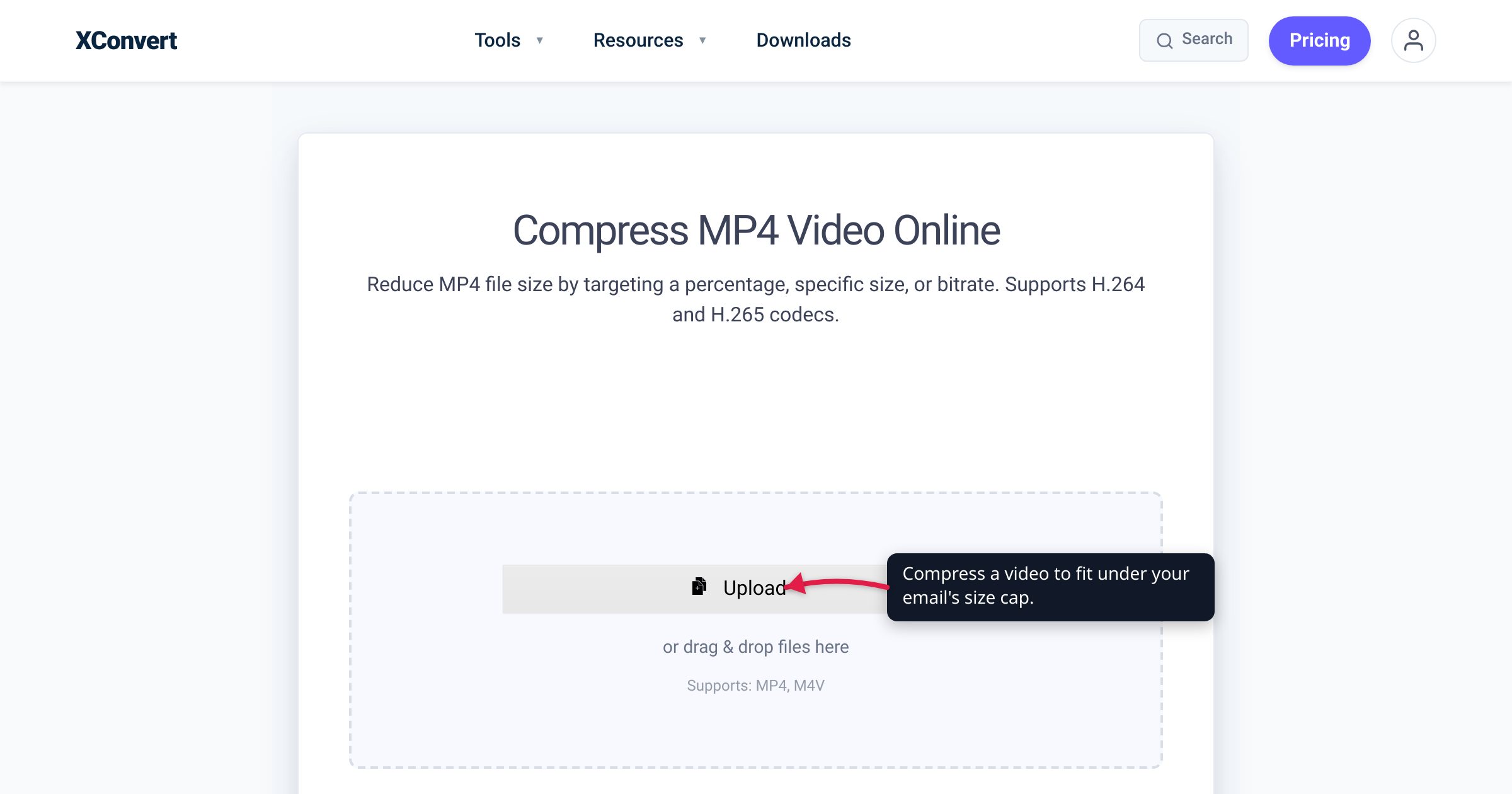
You shot a two-minute clip on your phone, hit attach, and the email refused to send — the file is 180 MB and your provider stops you around 25. Video is the single most common attachment that won’t fit: a minute of 1080p phone footage is routinely 80–150 MB, while Gmail caps attachments at 25 MB and Outlook at 20. Below are seven ways to get that video to someone anyway, ranked from “keep it simple” to “last resort,” with every size cap verified against the provider’s own help page in July 2026.
Quick answer: The cleanest fix is to compress the video under your provider’s cap — 25 MB for Gmail, 20 MB for Outlook — with a target-size video compressor; set an exact output size and it does the math. If the clip must stay full quality, don’t attach it at all — share a link (Google Drive, Dropbox, OneDrive), use a transfer service like WeTransfer, or, on Apple devices, iCloud Mail Drop (attachments up to 5 GB). Gmail will even insert a Drive link for you automatically once you cross 25 MB. One thing that won’t help: zipping the file — video is already compressed, so a ZIP barely shrinks it.
Jump to a section
- First, the caps you’re fighting
- 1. Compress the video under the cap
- 2. Share a cloud link (Drive, Dropbox, OneDrive)
- 3. Use a file-transfer service (WeTransfer)
- 4. Lower the resolution or trim the clip
- 5. Let Gmail insert a Drive link for you
- 6. Use iCloud Mail Drop (Apple users)
- 7. Don’t bother zipping it
- FAQ
First, the caps you’re fighting
Every method below exists because of one number: the sending attachment limit your email provider enforces. It’s separate from your mailbox storage. Here are the verified caps:
| Provider | Max attachment (send) | Above the cap |
|---|---|---|
| Gmail (personal) | 25 MB | Gmail auto-inserts a Google Drive link |
| Outlook — internet email (Outlook.com / POP / IMAP) | 20 MB | Error; Microsoft suggests a OneDrive link |
| Outlook / Microsoft 365 — Exchange business | 10 MB (default) | Admin-configurable |
Two caveats from the docs. Microsoft states its limit “includes both the size of the attachment and the size of the email,” so your signature, inline images, and encoding overhead all count against the 20 MB — leave a margin. And the recipient’s provider has its own inbound cap: a 24 MB file that leaves your Gmail can still bounce at a corporate inbox set to 10 MB. When in doubt, aim under 10 MB and it clears virtually everyone.
1. Compress the video under the cap
The most useful fix — because the recipient gets the actual file, one they can save, forward, or file — is to shrink the video below the cap. The reliable way is target-size compression: you tell the tool the output size you want and it works backward to the bitrate that lands there, no trial and error.
On the xconvert MP4 compressor (its heading reads Compress MP4 Video Online):
- Click Upload (“Add files”) and pick your video — From my Computer, Google Drive, or Dropbox.
- Choose a compression mode. Specific file size lets you type an exact cap (e.g.
20MB for Gmail,9MB to clear everyone); Target file size (%) scales to a percentage of the original (“If your file is 10 MB, then selecting 80 will produce a 8 MB file”). - (Optional) Leave Auto Scale on — its Smart Scaling lowers the resolution automatically to help hit your target.
- Start the compression and download the result, then attach it to your email.
Your file is uploaded to xconvert’s servers, processed there, and deleted automatically a few hours later. The output stays MP4 (H.264), the most universally playable attachment a recipient can open without installing anything. For the full email-specific walkthrough, see how to compress a video for email.
When to use it: the recipient needs the real file, and the clip can tolerate a little quality reduction (for phone or inbox viewing, it’s usually imperceptible).
2. Share a cloud link — Drive, Dropbox, or OneDrive
Upload the untouched video to your cloud storage, copy a share link, and paste that into the email instead of the file. The message stays tiny, the video stays full quality, and the recipient streams or downloads it in a click. This works on any email provider and for any file size your storage plan allows.
When to use it: the video must stay pristine (a 4K clip, a client deliverable) and you already have Google Drive, Dropbox, or OneDrive. Outlook users — Microsoft’s own guidance is to upload to OneDrive and share the link.
3. Use a file-transfer service (WeTransfer)
A transfer service is the no-account-required version of the link method: you upload the video on the website, enter the recipient’s address, and they get an email with a download link. WeTransfer’s free plan currently allows up to 10 transfers or 3 GB total in any 30-day rolling window (per WeTransfer’s own plan-limits page — the free tier changed in 2025, so confirm the current number before you rely on it).
When to use it: a one-off big send when you don’t want to park the file in your own cloud, or the recipient isn’t in your cloud ecosystem.
4. Lower the resolution or trim the clip
If you’re close to the cap, two edits shrink a video fast. Dropping the resolution is the highest-leverage move because pixel count scales with the square of the dimensions — 1080p → 720p removes more than half the pixels (~2.07M down to ~0.92M), so the file falls sharply while still looking sharp on a phone or laptop. Trimming is even simpler: cut the clip to the seconds that matter and the size drops roughly in proportion. xconvert’s compressor exposes resolution presets and a Trim (“Time Range”) option alongside the size modes.
When to use it: the clip is long or high-resolution and target-size alone pushes the bitrate too low; drop to 720p and/or trim, and quality-per-byte recovers. See reduce MP4 file size without losing quality for the quality-preserving order of operations.
5. Let Gmail insert a Drive link for you
If you’re on Gmail, you don’t have to do anything manual. Attach a file larger than 25 MB and, per Google’s help page, “Gmail automatically removes the attachment and adds it as a Google Drive link in the email.” The recipient clicks the link to view or download — nothing bounces.
When to use it: you’re already composing in Gmail, the file is over 25 MB, and full quality matters more than handing over a literal attachment. (Check that the Drive file’s sharing is set so your recipient can actually open it.)
6. Use iCloud Mail Drop (Apple users)
On an iPhone, iPad, or Mac, Apple’s Mail app offers Mail Drop automatically: per Apple’s support page, “If a message, including its attachments, is larger than your Internet Service Provider (ISP) limit, Mail will ask you to send the attachments using Mail Drop.” Mail Drop sends attachments up to 5 GB, the files don’t count against your iCloud storage, and recipients have 30 days to download them.
When to use it: you’re in the Apple ecosystem and want a big video to arrive as a normal-looking email link without signing up for anything — it’s built in.
7. Don’t bother zipping it
The instinct to right-click → Compress / Send to ZIP almost never helps with video. A ZIP is lossless archiving — it removes statistical redundancy — but modern video is already compressed by its codec: H.264/H.265 apply heavy, lossy compression the moment the file is recorded, as MDN’s video-codec guide describes (“video codecs compress the video data”). There’s little redundancy left for ZIP to squeeze, so a zipped MP4 comes out roughly the same size (sometimes a hair larger, from the archive overhead) — and still too big to email.
When to use it: basically never for shrinking video. Zip only when you need to bundle several files into one download, not to beat a size cap — compress or send a link instead.
FAQ
What’s the maximum video size I can email?
There’s no video-specific limit — it’s your provider’s attachment cap. Gmail allows 25 MB and Outlook 20 MB on personal/internet-email accounts; business accounts on Microsoft 365 / Exchange default to 10 MB. Microsoft counts the message body plus the attachment against the limit, so leave a margin. Anything larger needs one of the link or transfer methods above.
How do I send a large video for free without losing quality?
Don’t compress it — send a link. Uploading the untouched file to Google Drive, Dropbox, or OneDrive and emailing the share link keeps 100% of the quality, as does WeTransfer (free within its 3 GB / 10-transfer monthly allowance) or iCloud Mail Drop (up to 5 GB on Apple devices). Compression is only for when the recipient must receive the real file.
What’s the largest video I can send with iCloud Mail Drop?
Up to 5 GB per attachment, per Apple. The files don’t count against your iCloud storage, and recipients have 30 days to download before the link expires. Mail on your iPhone, iPad, or Mac offers Mail Drop automatically when a message exceeds your email account’s normal sending limit.
Does zipping a video make it small enough to email?
No. Video formats like MP4 are already compressed by their codec, and a ZIP uses lossless compression that finds almost no further redundancy — so a zipped video is about the same size as the original, occasionally slightly bigger. To actually shrink a video you have to re-encode it with a compressor; to send it whole, use a cloud link.
Will compressing the video ruin its quality?
Not for normal sharing. A typical phone clip re-encoded to a sensible target size still looks fine on a phone or laptop screen — the loss only becomes obvious on a big display or at very aggressive targets. If you truly can’t accept any loss, skip compression and send a link or Mail Drop instead. (Details: reduce MP4 file size without losing quality.)
Can I email a video straight from my iPhone?
Yes — attach it in Mail, and if it’s over your account’s limit, Mail automatically offers Mail Drop (up to 5 GB). If you’d rather send a small real attachment the recipient can save, compress the clip first with a target-size compressor and attach the smaller MP4.
Sources
Last verified 2026-07-16.
- Google — Gmail attachment size limit (Gmail Help) — 25 MB sending cap and the automatic Google Drive link behavior above it.
- Microsoft — Reduce attachment size to send large files with Outlook — 20 MB internet-email cap, 10 MB Exchange default, “includes both the size of the attachment and the size of the email,” OneDrive sharing.
- Apple — Mail Drop limits — attachments up to 5 GB, offered when a message exceeds your ISP limit, 30-day recipient download window, doesn’t count against iCloud storage.
- WeTransfer — Plan limits — free plan: up to 10 transfers or 3 GB total per 30-day rolling window.
- MDN — Web video codec guide — video codecs (H.264/H.265) already apply lossy compression, which is why a ZIP adds little.
- xconvert — Compress MP4 — target-size, specific-size, Auto Scale, and trim controls used in the steps.