 By James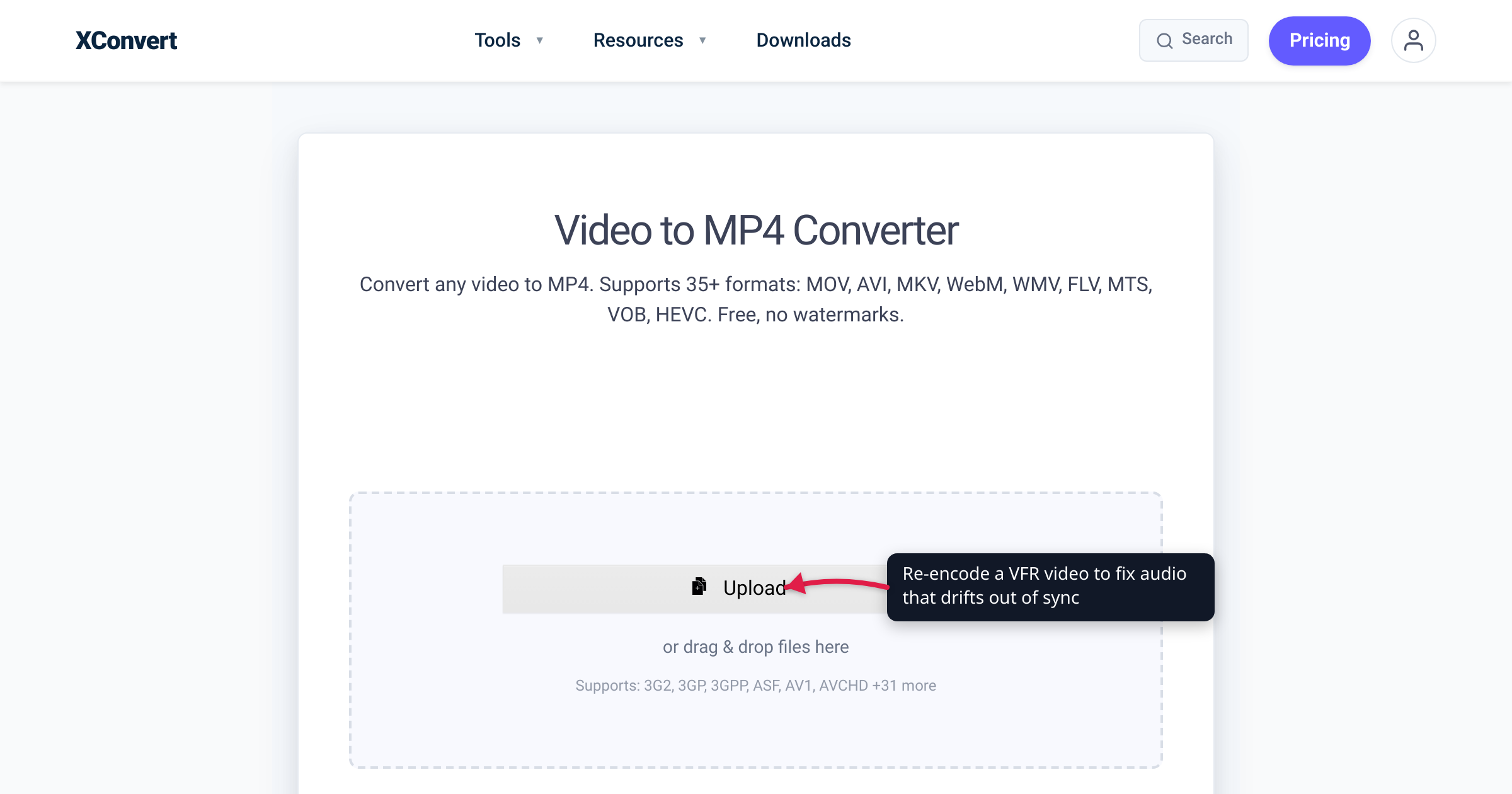
You converted a video, the picture looks fine — but the sound is off. Maybe it starts in sync and slides further out the longer it plays; maybe the voices are just a fraction of a second ahead the whole way through. Those are two different faults with two different causes, and once you know which one you have, the fix is usually a single clean re-encode. This guide covers why converted audio goes out of sync — starting with the number-one culprit, variable frame rate — and how to fix each case. We verified the frame-rate and encoder-delay facts against HandBrake’s documentation, a broadcast timecode reference, and Apple’s own AAC technote.
Quick answer: Audio that drifts — in sync at the start, seconds off by the end — almost always means your source was variable frame rate (VFR) (common with phone and screen recordings) and the converter treated it as a constant rate, or it misread the frame rate (29.97 vs 30, 23.976 vs 24). Audio off by a constant amount is usually encoder delay. The reliable fix for the drift cases is a clean re-encode to MP4 at a constant frame rate, which re-aligns the picture with the constant-rate audio; a badly damaged file may still need a desktop editor to nudge the offset by hand.
Jump to a section
- First: is it drift, or a constant offset?
- Cause 1: your source is variable frame rate (VFR)
- Cause 2: a frame-rate mismatch (29.97 vs 30, 23.976 vs 24)
- Cause 3: broken timestamps from a damaged mux
- Cause 4: a constant offset from encoder delay
- Fix drifting audio by converting to MP4 on xconvert
- FAQ
First: is it drift, or a constant offset?
Before you fix anything, watch the clip to the end and notice how the audio is wrong — the pattern points straight at the cause.
| What you hear | Most likely cause |
|---|---|
| In sync at the start, drifts further out as it plays | Variable frame rate (Cause 1) or a frame-rate misread (Cause 2) |
| Off by the same small amount the whole way through | Encoder delay or a fixed offset in the file (Cause 4) |
| Sync jumps in and out erratically | Broken container timestamps (Cause 3) |
The key distinction is drift versus offset. Drift means the picture and sound run at slightly different speeds, so the gap grows; a constant offset means both run at the same speed but one starts shifted. Most “out of sync after converting” complaints are drift, and drift almost always traces back to frame rate — so start there.
Cause 1: your source is variable frame rate (VFR)
This is the number-one reason converted audio drifts.
Audio is recorded at a fixed sample rate — typically 48,000 samples every second, without variation. A lot of video is the opposite: variable frame rate, meaning it writes a new frame only when the image changes, so the time between frames is irregular. Screen-capture tools (OBS, the built-in iPhone and Android screen recorders, many game recorders) and some phone cameras all produce VFR by design, because it saves space when the screen is static.
As long as the file honestly records each frame’s timestamp, a VFR-aware player keeps everything aligned. The trouble starts when a converter reads only the average frame rate and lays every frame onto an even grid — a flat 30 fps, say — ignoring the real capture times. Now the picture and the constant-rate audio describe two slightly different timelines, and the gap widens as the clip plays — by the end of a long recording the audio can be seconds off. HandBrake spells out the two modes in its documentation: constant frame rate (CFR) “makes your new video exactly one frame rate throughout” and will “make sure any variable portions are made constant at the same rate,” whereas leaving a file variable “cannot ensure such videos will be compatible with devices having considerable frame rate limitations—including nearly all modern media devices.”
The fix: re-encode the video to a constant frame rate, honoring the source’s real timestamps — duplicating or dropping frames as needed so the picture lands back on the same timeline as the audio. That is exactly what a standard conversion to MP4 does, and it’s why simply converting the file to MP4 resolves most VFR drift without you touching a single frame-rate setting. iPhone screen recordings arrive as .mov and are a classic VFR source — see convert MOV to MP4 on Windows or Mac for that path.
Cause 2: a frame-rate mismatch (29.97 vs 30, 23.976 vs 24)
Even a constant-frame-rate source can drift if the converter gets the frame rate slightly wrong — a quirk inherited from broadcast television. NTSC video doesn’t run at a clean 30 fps: when colour TV arrived, engineers nudged the rate down 0.1% to keep it backward-compatible, so — as the Frame.io timecode reference puts it — they “slightly alter the frame rate from 30fps to 30/1.001 = 29.970 fps.” Film gets the same treatment: “In order to properly fit the 24fps of film into a 29.97fps video signal, you have to first convert the 24fps frame rate into 23.976fps.” Real-world files are full of 29.97 and 23.976, not 30 and 24.
If a converter misreads that rate — treating a 23.976 fps clip as a flat 24, or 29.97 as 30 — every frame is placed 0.1% too early, and it accumulates. Per Frame.io, after one hour “the timecode on your recording would be behind by 3.6 seconds.” You’d never notice on a 30-second clip; on a feature-length file it’s glaring.
The fix: re-encode to a standard constant frame rate so the picture and audio share one honest timeline. A clean conversion to MP4 re-times the video onto a consistent rate rather than trusting a mislabeled header, which realigns the sound.
Cause 3: broken timestamps from a damaged mux
Sometimes the frame rate is fine but the timestamps in the container are wrong. Every frame and audio packet carries a presentation timestamp that tells the player when to show or play it. If the file came from a flaky recorder, was interrupted mid-write, downloaded incompletely, or muxed by a buggy tool, those timestamps can be missing, out of order, or non-monotonic — and sync lurches in and out rather than drifting smoothly.
The fix: re-encoding regenerates a clean, consistent set of timestamps from scratch, which repairs many of these files. This is the one case where an honest converter can’t promise a universal cure: if the source is genuinely corrupt — truncated or damaged data that survives the re-encode — you may need a desktop repair tool, or to re-export the video from wherever it originated. Re-converting is still the right first move, because it’s quick and fixes the common cases.
Cause 4: a constant offset from encoder delay
If the audio is off by the same small amount from start to finish, you’re looking at an offset, not drift — and the usual source is encoder delay. AAC, the standard audio codec inside an MP4, can’t start cleanly from the very first sample, so the encoder prepends a short block of silent “priming” samples. Apple’s AAC technote gives the common value as a fixed 2112 samples and warns that if a playback system “does not compensate for this delay … the audio and video will be out of synchronization by 2112 samples — the audio will be 2112 samples behind the video.” Because “the priming value is currently fixed at 2112 samples,” it doesn’t grow with the clip; at a 48 kHz sample rate that’s roughly 44 milliseconds — small, constant, and the same at second one and second one thousand.
The fix: most modern players compensate for this automatically, so a constant offset is often a player quirk rather than a broken file — try it in a different player first. If a file really does lag everywhere, re-encoding it with a tool that writes the delay metadata correctly usually clears it. For a stubborn, precise offset, a desktop editor (Premiere, DaVinci Resolve, the free Shotcut) lets you shift the audio track by an exact number of milliseconds — something an automated converter isn’t built to do.
Fix drifting audio by converting to MP4 on xconvert
For the two common cases — VFR sources and frame-rate mismatches — the reliable fix is a clean re-encode to MP4, which re-times the video onto a constant frame rate and re-aligns it with the audio. The xconvert video-to-MP4 converter does this by default, so there’s nothing complicated to configure:
- Open xconvert.com/convert-video-to-mp4 and click Upload to add your video — from your computer, Google Drive, or Dropbox — or drag and drop it onto the page.
- You don’t need to change any settings. The default conversion re-encodes the video to MP4 on a constant frame rate, which is exactly what re-aligns a drifting VFR or mis-rated source. (If you want to look, the controls live under Advanced Options — the gear icon — where the note reads “Our defaults are optimized for the best results. We recommend you keeping the defaults unless you have a specific need.”)
- Click Convert.
- Download the MP4 and play it all the way to the end — the end of the clip is where any remaining drift shows up first, so that’s where to check the sync.
Your video uploads over an encrypted connection, is processed on our servers, and is deleted automatically a few hours later. Nothing is kept.
A clean re-encode fixes the great majority of out-of-sync audio, but it won’t rescue a genuinely damaged source or dial in an exact offset for you — for those, a desktop editor is the right tool. And if your converted video has no sound at all rather than drifting sound, that’s a different problem — see why a converted video has no sound.
FAQ
Why is my audio out of sync after converting a video?
It depends on the pattern. Sound that drifts further out as it plays points to a variable-frame-rate source treated as constant, or a misread frame rate (29.97 vs 30); sound off by a constant amount is usually encoder delay. The drift cases — the common ones — are fixed by a clean re-encode to MP4 at a constant frame rate.
Why does the audio drift further out of sync the longer the video plays?
Because the picture and sound are running at slightly different speeds, so the gap keeps growing. That happens when a variable-frame-rate source is forced onto an even frame grid, or when a 0.1% frame-rate mismatch (29.97 played as 30) accumulates — about 3.6 seconds per hour, per Frame.io’s timecode reference. Re-encoding to a proper constant frame rate puts both back on one timeline.
What is variable frame rate (VFR) and why does it break sync?
VFR means the video records a new frame only when the image changes, so the gap between frames is irregular — screen recorders and many phones capture this way. Audio, though, runs at a fixed sample rate, so a converter that assumes one constant video rate lays the frames on the wrong timeline and the audio drifts. Re-encoding to a constant frame rate re-aligns them.
How do I convert VFR to CFR to fix the sync?
Re-encode the video to a constant frame rate. A standard conversion to MP4 does this automatically — it re-times the frames onto a consistent rate and re-aligns them with the audio, no setting required. Desktop tools like HandBrake offer an explicit “Constant Framerate” option. This needs a real re-encode; simply re-wrapping (remuxing) the file into a new container won’t fix it.
My audio is off by the same small amount the whole time — why?
That’s a constant offset, usually encoder delay. AAC audio in an MP4 starts with a fixed block of silent priming samples — Apple puts the common value at 2112 samples (about 44 ms at 48 kHz) — and a player that doesn’t compensate runs “the audio … 2112 samples behind the video.” Most modern players handle it, so try another player first; if the offset persists everywhere, re-encode the file, or nudge the track by hand in a desktop editor.
Can converting to MP4 always fix out-of-sync audio?
No — any tool promising a universal fix is overselling it. A clean re-encode fixes the common cases: variable frame rate and frame-rate mismatches, which cover most drift, plus many bad-timestamp files. But it can’t repair a genuinely corrupt source or set a precise offset for you — those need a repair tool or an editor. Re-converting is still the right first move: it’s fast and resolves the majority of cases.
Sources
Last verified 2026-07-16.
- HandBrake Documentation — Frame rate — Constant vs Variable Frame Rate definitions; CFR “makes your new video exactly one frame rate throughout” and makes “any variable portions … constant at the same rate”; VFR “cannot ensure … compatib[ility] with devices … including nearly all modern media devices.”
- Frame.io — Timecode and Frame Rates: Everything You Need to Know — NTSC “30/1.001 = 29.970 fps”; 24fps film converted to 23.976 to fit NTSC; a 0.1% mismatch drifts “behind by 3.6 seconds” per hour.
- Apple Developer — Technical Note TN2258: AAC Audio – Encoder Delay and Synchronization — encoder priming “fixed at 2112 samples”; uncompensated, “the audio and video will be out of synchronization by 2112 samples — the audio will be 2112 samples behind the video.”