 By Stephanie Taylor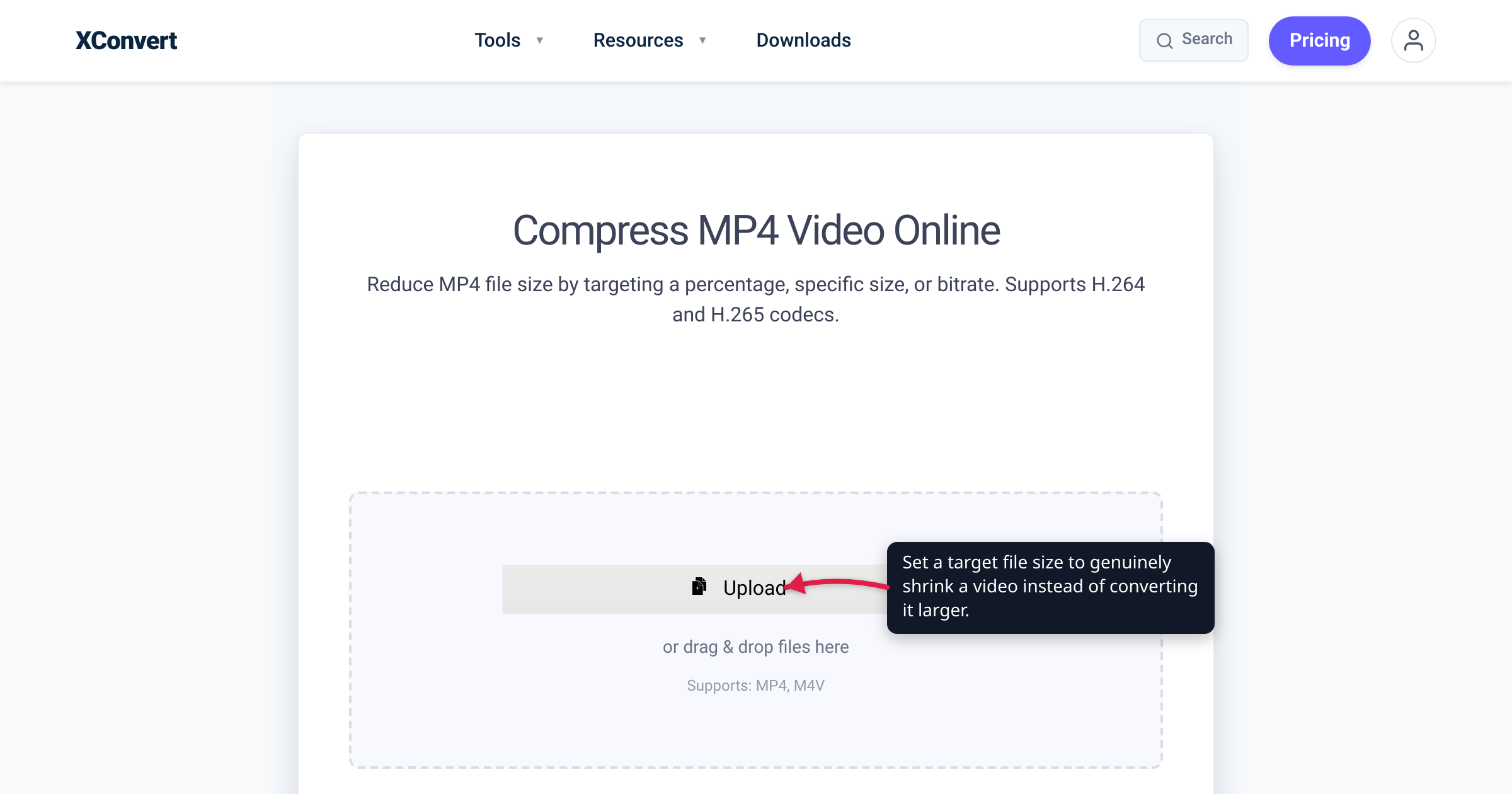
You ran a file through a converter to make it smaller, and it came out bigger. It feels like a bug, but it almost never is — it’s the predictable result of what “convert” actually does. A converter changes a file’s format or codec; it makes no promise about size, and several routine conversions are guaranteed to grow one. This guide walks through the five real causes — verified against MDN’s format and codec guides, Fraunhofer HHI, and Microsoft’s own export documentation — and shows how to get the smaller file you were actually after.
Quick answer: A converted file gets bigger when the new format needs more bits than the old one. Five common causes: (1) you moved to a less efficient codec (e.g. H.265/HEVC → H.264, or any video → MPEG-2); (2) you converted a photo from a lossy format to a lossless one (JPG → PNG balloons because PNG can’t discard detail); (3) you decompressed to a raw format (FLAC or MP3 → WAV, anything → BMP/TIFF), and uncompressed is always huge; (4) the converter re-encoded at a higher bitrate or resolution than your source; or (5) the file was already optimized, so there was nothing left to squeeze. The fix: to get smaller, use a compressor with a size target, not a plain format converter.
Jump to a section
- Converting a file isn’t the same as compressing it
- Cause 1: The new codec is less efficient
- Cause 2: You converted a photo to a lossless format
- Cause 3: You decompressed to a raw format
- Cause 4: It re-encoded at a higher bitrate than your source
- Cause 5: The file was already optimized
- How to actually get a smaller file
- FAQ
Converting a file isn’t the same as compressing it
The root of the surprise is a single conflated idea: convert and compress are not the same operation. Converting changes the format or codec — it re-wraps or re-encodes your data so a different program can read it. Compressing aims at a smaller output, spending bits carefully to hit a size or quality target. A plain converter’s job is fidelity to the new format, not smallness — so if that format is bulkier, or the tool’s default quality is generous, the honest result is a bigger file.
Everything below is a specific version of that mismatch — not a malfunction, just the format math working as designed. (“Bigger” here means the converted file versus its source; if your original was already large before you touched it, that’s a separate question, covered in why is my MP4 file so big.)
Cause 1: The new codec is less efficient than the old one
A video’s size is set mostly by its codec — the algorithm compressing the picture — and codecs are not equally efficient. Newer ones squeeze harder. Per MDN’s video codec guide, “HEVC can achieve compressed file sizes half that of AVC [H.264] but with comparable image quality,” and “AV1 achieves higher data compression rates than VP9 and H.265/HEVC, and as much as 50% higher rates than AVC.” Fraunhofer HHI, a co-developer of the standard, puts HEVC at “about 50% bit-rate reduction at the same subjective video quality” versus H.264.
Read that backwards and the balloon makes sense. If you take an efficient H.265/HEVC clip — the recording default on modern iPhones — and convert it to H.264 for compatibility, you’ve moved to a codec that needs roughly twice the data for the same quality, so the file grows. Go further back to MPEG-2 (the 1990s DVD-era codec, less efficient still) and it grows more. The rough efficiency order, most to least: AV1 → VP9 ≈ H.265/HEVC → H.264 → MPEG-2. Converting up that list shrinks; converting down it inflates.
It’s a common same-format surprise, too: an .mp4 goes in and an .mp4 comes out, but you changed the codec inside from HEVC to H.264 and doubled the size.
Cause 2: You converted a photo to a lossless format
This is the classic “why is my PNG bigger than my JPG?” In MDN’s terms, JPEG is “the most widely used lossy compression format for still images… particularly useful for photographs.” Lossy means it permanently discards fine detail your eye barely registers — that discarding is exactly how it makes photos small. PNG, by contrast, “uses lossless compression”: it reproduces every pixel exactly, and it’s designed for logos, icons, screenshots, and line art — images with large flat areas and hard edges.
Point PNG at a photograph and lossless becomes a liability. A photo has millions of subtly different colors and almost no flat regions to collapse, so lossless compression can barely shrink it — and because PNG refuses to throw anything away (unlike the JPEG it came from), the result is often several times larger. Crucially, converting a JPG photo to PNG adds no quality: the detail JPEG already discarded is gone for good. You just store the leftover data less efficiently.
The same trap catches BMP and TIFF — MDN calls the common BMP “an uncompressed raster image, resulting in large file sizes compared to png or jpg,” and notes “most TIFF files are uncompressed.” Convert a JPG to either and it balloons.
Cause 3: You decompressed to a raw format
Some formats aren’t merely less efficient — they’re uncompressed by design, and converting to one always inflates the file. The headline case is audio: WAV is, per MDN, a container in which “nearly all WAV files use linear PCM,” holding “uncompressed PCM audio, delivering the highest fidelity at the cost of larger file sizes.”
So a FLAC → WAV conversion grows the file by definition. FLAC is lossless but compressed — MDN says it delivers “up to 40–50% size reduction” while “the decompressed audio is identical to the original.” Convert it to WAV and you simply undo that compression: same audio, roughly double the size.
The MP3 → WAV case is more painful, because people often do it hoping to improve the audio. MP3 is lossy — it already threw data away — and decompressing it to WAV cannot recover any of that. You just get a much larger file that sounds exactly like the MP3: uncompressed CD-quality audio runs about 1,411 kbps (16-bit × 44,100 Hz × 2 channels), several times an MP3’s typical 128–320 kbps. Uncompressing restores size, never quality.
Cause 4: It re-encoded at a higher bitrate than your source
Even a same-format conversion (MP4 → MP4, MP3 → MP3) can grow when the converter’s default quality is higher than your source’s. A tool that defaults to a generous bitrate or quality percentage spends more bits than the original did, re-encoding a lightly-compressed source into a heavier one.
Microsoft’s own Clipchamp documentation lists this plainly among the reasons an export lands larger than the input: “Clipchamp’s default output frame rate and bit rate are higher than the fps and bit rate of your input video,” and “you selected an output resolution that is higher than your input video’s original resolution, e.g. you’re exporting… at 1080p but all your input videos are 480p.” Upscaling is the sharpest version — enlarging 480p to 1080p invents pixels and multiplies the data with no real gain in detail.
The fix is to control the output instead of accepting a default: cap the bitrate, match (never exceed) the source resolution, or — best — set a target size and let the tool solve for the bitrate.
Cause 5: The file was already optimized
Sometimes there’s simply nothing left to gain. If your source is already tightly compressed, a converter can’t conjure more savings — Microsoft lists exactly this: “your input video is already compressed efficiently and cannot get compressed further.” Re-encode a maxed-out file and you mostly just degrade it; if the new settings are even slightly heavier, it grows.
On very small files, fixed container overhead can tip the balance too: every format carries some header, index, and metadata structure, and on a tiny clip that fixed cost can outweigh any codec saving. The lesson is the same across all five causes — a plain converter optimizes for the format, not for the size.
How to actually get a smaller file
If your goal is a smaller file, reach for a compressor with a size target, not a plain format converter. The xconvert MP4 compressor is built for exactly that — video is the most common case, and the same logic applies to image and audio compressors:
- Open xconvert.com/compress-mp4 and click Upload to add your video (from your computer, or From Google Drive / From Dropbox).
- Open Advanced Options (the gear icon) to reveal the size controls.
- Set a size — don’t guess. Choose Specific file size to hit an exact MB cap, or Target file size (%) (marked Best) to shrink by a proportion. For a quality-first shrink, Constant Quality holds the look steady while trimming waste. This is the lever a plain converter never gives you.
- Don’t downgrade the codec. Under Show All Options, the video codec dropdown lets you keep an efficient codec — leave it on H.265/HEVC (or H.264 for maximum compatibility) rather than an older one like MPEG-2, which would enlarge the file.
- Match the resolution to how it’s watched — let Auto Scale (Smart Scaling) size it down sensibly rather than upscaling it.
- Click Compress, then download.
Your file uploads over an encrypted connection, is processed on our servers, and is automatically deleted a few hours later. Nothing stays around. For the quality-preserving method in depth, see reduce MP4 file size without losing quality.
FAQ
Why is my PNG bigger than the JPG I converted from?
Because PNG is lossless and JPEG is lossy. JPEG makes photos small by permanently discarding fine detail; PNG keeps every pixel exactly, which is ideal for logos and screenshots but wrong for photographs — there’s little for lossless compression to collapse. Converting a JPG photo to PNG adds no quality (the discarded detail is already gone) and usually produces a much larger file. For photos, keep JPEG.
Why is my converted video bigger than the original?
Most often you changed to a less efficient codec (for example H.265/HEVC → H.264), let the tool re-encode at a higher bitrate or resolution than the source, or the original was already efficiently compressed. Per Microsoft, an export grows when “the default output frame rate and bit rate are higher than… your input video,” or when you upscale the resolution. Use a compressor with a size target instead of a plain converter.
Does converting MP3 to WAV improve the quality?
No. MP3 is lossy — the data it discarded is gone. Converting to WAV only decompresses it into an uncompressed file that’s several times larger and sounds identical to the MP3. You get all the size of high-fidelity audio with none of the fidelity. Nothing can restore what a lossy format removed.
Why did my file get bigger when I kept the same format?
Same-format conversions still re-encode. If the converter’s default quality, bitrate, or resolution is higher than your source’s, it spends more bits than the original did — so an MP4 → MP4 or MP3 → MP3 pass can grow. Set an explicit target size or a bitrate below the source instead of accepting defaults.
Which conversions almost always make a file bigger?
Converting to an uncompressed format — anything → WAV (audio), or → BMP / uncompressed TIFF (image) — grows the file by definition, because those store raw data. So does converting a photo to PNG, or a video to an older, less efficient codec like MPEG-2. If smaller is the goal, those are the wrong targets.
How do I actually make a file smaller, then?
Use a compressor, not a converter, and give it a size target. On the xconvert MP4 compressor, choose Specific file size for an exact cap or Constant Quality for a visually-transparent shrink, keep an efficient codec, and match the resolution to the screen. See reduce MP4 file size without losing quality for the full method.
Sources
Last verified 2026-07-16.
- MDN — Image file type and format guide — JPEG is lossy and best for photographs; PNG uses lossless compression (best for graphics); the common BMP is an uncompressed raster with large file sizes; most TIFF files are uncompressed.
- MDN — Web video codec guide — “HEVC can achieve compressed file sizes half that of AVC”; “AV1… as much as 50% higher rates than AVC”; VP9 ≈ HEVC; uncompressed video is enormous; size-vs-quality tradeoff.
- MDN — Media container formats guide — WAV holds uncompressed linear PCM, “delivering the highest fidelity at the cost of larger file sizes.”
- MDN — Web audio codec guide — FLAC is lossless, “the decompressed audio is identical to the original,” “up to 40–50% size reduction”; MP3 and AAC are lossy.
- Fraunhofer HHI — H.265 / HEVC — “HEVC achieves about 50% bit-rate reduction at the same subjective video quality” versus H.264.
- Microsoft — Why your output video file may be larger than the original (Clipchamp) — an export lands larger when the default output bit rate/frame rate exceeds the input, when you upscale the resolution, or when the input is already efficiently compressed.