 By Stephanie Taylor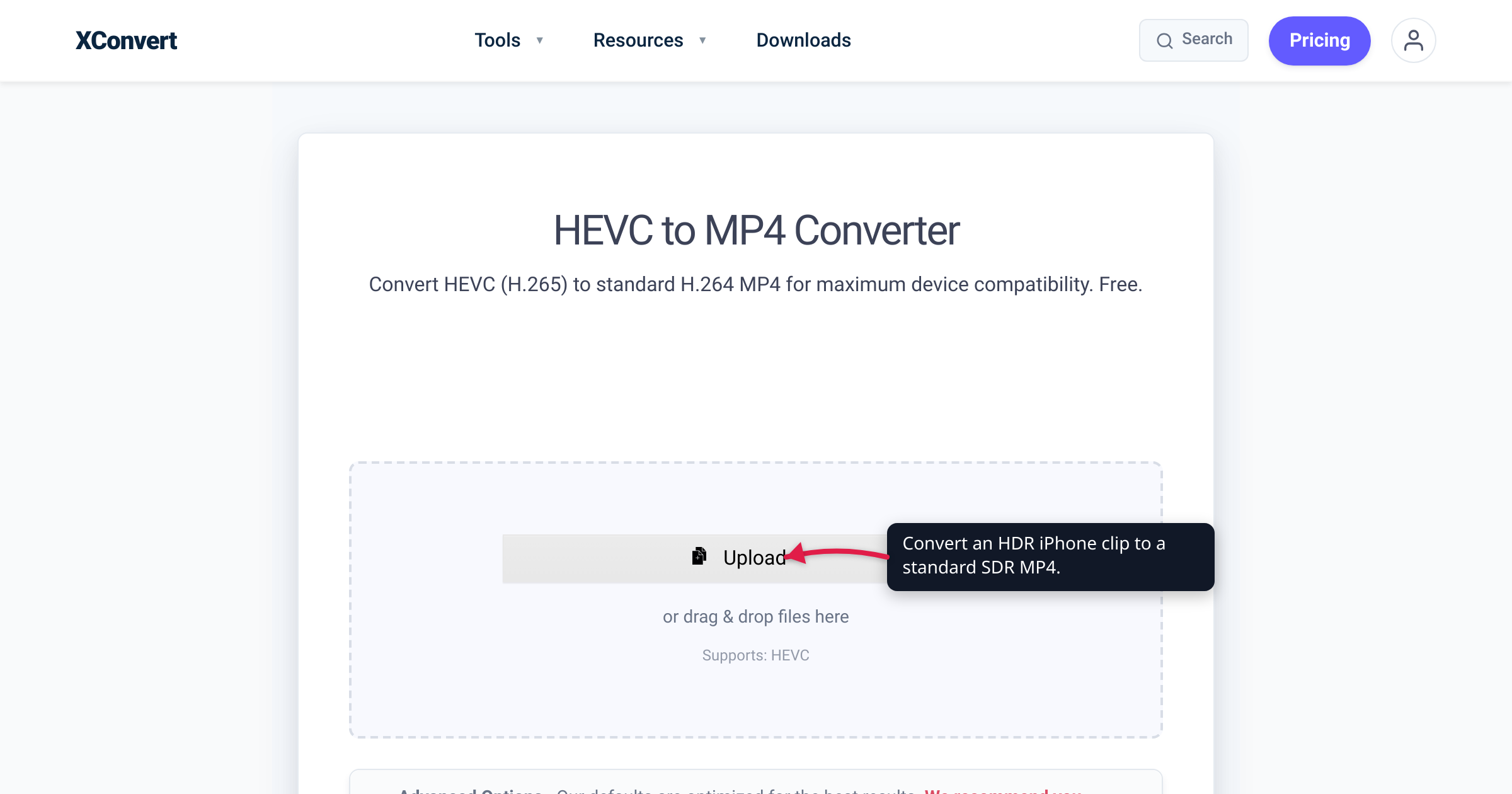
An iPhone clip looks stunning on the phone — bright sky, punchy highlights, saturated color. Then you convert it, email it, drop it into an editor, or open it on a Windows PC, and the same footage turns pale, gray, and flat, as if someone drained the color out of it. Nothing is actually broken. Your iPhone recorded that video in HDR (Apple’s Dolby Vision), and somewhere between the phone and the screen you’re looking at, that HDR picture was dropped to ordinary SDR without being properly tone-mapped — so its wide, bright colors got squashed instead of remapped. We verified how iPhone HDR recording works against Apple’s own documentation, and the HDR-to-SDR color science against the ITU standards that define both.
Quick answer: Since the iPhone 12, supported iPhones record video in Dolby Vision HDR by default — a wide-gamut, high-dynamic-range picture that carries extra color metadata. HDR looks washed out (pale, gray, desaturated) whenever it’s shown or converted as plain SDR without proper tone-mapping: the wide, bright HDR values get naively clamped into SDR’s smaller range instead of remapped into it. Two situations produce it — a player or editor that ignores the HDR metadata (the file is fine; it’s a display problem), or a naive re-encode that bakes the flat look into the output file. The fix is to convert the clip to a standard SDR MP4 (H.264, the Rec.709 color space every device treats as “normal”) — or to record and export in SDR from the start.
Jump to a section
- Your iPhone is quietly recording in HDR
- HDR vs SDR: why the picture looks pale
- Is the file broken, or just displayed wrong?
- Why a naive conversion bakes in the washed-out look
- Convert an HDR iPhone video to a standard SDR MP4 on xconvert
- FAQ
Your iPhone is quietly recording in HDR
Most people who hit this never chose HDR — their iPhone chose it for them. Per Apple Support, “Certain iPhone and iPad models can record video in Dolby Vision HDR,” and Apple’s iPhone User Guide adds that “On supported models, iPhone records video in Dolby Vision HDR for true-to-life color and contrast.”
Two details make this the quiet root cause of the washed-out look:
- It started with the iPhone 12 and it’s on by default. Apple’s HDR-video support article is filed under the iPhone 12, 12 mini, 12 Pro, and 12 Pro Max — the generation that introduced Dolby Vision HDR recording — and it has been the standard capture mode on supported iPhones ever since. You have to deliberately go to Settings → Camera → Record Video and turn HDR Video off to stop it. That’s why the problem grows with every new iPhone: more people shoot HDR without ever deciding to.
- It looks perfect until it leaves Apple’s world. On an iPhone, iPad, Mac, in Photos, or on an HDR TV, that footage is gorgeous. The trouble starts the moment the file reaches something that isn’t HDR-aware — a Windows PC, an older phone, a web upload, a non-HDR editor timeline — where the receiving screen or software often has no idea the video is HDR and shows it wrong.
HDR vs SDR: why the picture looks pale
To understand the fade, you need two acronyms and one idea.
SDR — standard dynamic range — is the long-established HD standard defined by ITU-R BT.709: an 8-bit signal with a limited brightness range and a baseline set of colors that every player, browser, and ordinary TV has assumed for decades. It’s the “normal” that a random device expects when you hand it a video.
HDR pushes both dimensions further. It uses a wider color gamut — ITU-R BT.2020, the ultra-high-definition color space, which spans roughly twice the gamut area of BT.709 and carries 10 or 12 bits per channel — plus a much higher dynamic range between the darkest and brightest parts of the picture. Apple layers Dolby Vision metadata on top to describe how that expanded picture should be displayed.
| SDR | HDR (iPhone Dolby Vision) | |
|---|---|---|
| Standard | ITU-R BT.709 (HD) | ITU-R BT.2020 wide gamut + HDR |
| Color gamut | Baseline | ~2× the gamut area |
| Bit depth | 8-bit | 10-bit (or more) |
| Brightness range | Limited | Much higher dynamic range |
| Looks correct on | Virtually anything | HDR-aware screens and apps |
Here’s the idea that ties it together: SDR is a small box of crayons; HDR is a much bigger box. iPhone HDR footage is painted with brightnesses and saturated colors that simply don’t exist in the small box. When that picture is forced into the SDR box without remapping, the values that fall outside SDR’s range get clipped or wrapped — bright highlights blow out or go flat, saturated colors desaturate, and the whole image loses contrast. That’s the washed-out look. It isn’t random; it’s the predictable result of squeezing a wide range into a narrow one without adjusting for the difference.
Is the file broken, or just displayed wrong?
Before you re-convert anything, find out whether the HDR data is still intact (a display problem) or has already been ruined (baked into a bad file). The check takes thirty seconds:
Play the original clip on the iPhone that shot it — or on any HDR-aware Apple device. If it looks vivid and correct there, the HDR picture is intact, and the washed-out version you saw elsewhere is a downstream problem: some non-HDR player, editor, or conversion is showing HDR values as if they were SDR. The file isn’t damaged.
This is exactly why the complaint shows up so often in video editors. HDR footage dropped onto an ordinary SDR timeline in Premiere Pro, Final Cut, or Resolve — without the project being set to HDR/wide-gamut color — renders flat and gray, even though the source is fine. Same story on a plain Windows player that doesn’t interpret the Dolby Vision metadata.
The practical takeaway: the file is usually fine; what’s wrong is that something is treating HDR as SDR. If you only need to watch it once, viewing it on an HDR-aware player fixes it. But to make it look right for everyone — any player, any PC, any upload — the durable answer is to convert it into a real SDR file, done properly.
Why a naive conversion bakes in the washed-out look
Here’s the part most “I converted it and now it’s gray” reports come down to: HDR → SDR is not a simple downscale. Doing it correctly is a defined, two-part process that the ITU documents in detail.
- Tone mapping — remapping the brightness. ITU-R Report BT.2446 sets out methods for converting HDR content to SDR, and calls the step of reducing the dynamic range of content tone mapping. Done well, HDR’s highlights and shadows are intelligently compressed to fit SDR’s smaller range instead of being clipped off.
- Gamut conversion — remapping the colors. ITU-R Report BT.2407 covers converting the color gamut from BT.2020 (wide) to BT.709 (SDR). Skip it and colors that live outside the SDR gamut get clipped or shifted.
A converter that ignores the HDR metadata and just re-encodes the raw pixel values into an 8-bit file does neither of these things. It treats HDR numbers as though they were already SDR — and the output is exactly the pale, low-contrast picture you’re trying to escape, now permanently written into the file. A conversion that tone-maps and gamut-converts pulls the colors back into the SDR range, so the result looks natural. Same source clip; the entire difference is whether the conversion respects the HDR-to-SDR math instead of pretending it isn’t there.
Convert an HDR iPhone video to a standard SDR MP4 on xconvert
The reliable target for “looks right everywhere” is a standard SDR H.264 MP4 — the format every phone, PC, browser, and editor treats as ordinary video, with no HDR metadata to misread. iPhone HDR clips are HEVC (H.265) inside a .MOV, so converting to H.264 MP4 also clears the codec-compatibility hurdles covered in convert HEVC to MP4 and MOV vs MP4 for iPhone video.
The xconvert HEVC to MP4 converter re-encodes your iPhone clip into a standard, widely compatible H.264 MP4:
- Open xconvert.com/convert-hevc-to-mp4 and click Upload (the Add files button), or drag your clip onto drag & drop files here, to add the iPhone video from your computer.
- (Optional) Open Advanced Options (the gear — its note reads “Our defaults are optimized for the best results”) to fine-tune the output.
- Under Quality Preset, leave the Preset on Very High (Recommended) to keep the picture as close to the original as possible, or pick a lower preset / a Specific file size if you need to cap the size.
- Leave Video resolution on Keep original unless the destination doesn’t need full resolution.
- Convert, then download your standard H.264 MP4 — an SDR-standard file that plays as normal video on Windows, Android, browsers, and editors.
Honest caveat: this produces a standard SDR-compatible MP4 rather than an HDR file that non-HDR screens misread — the tool doesn’t expose a manual color or tone-mapping control, so treat it as “convert to a normal MP4,” not a color-grading step. If you want a guaranteed SDR export straight from the source, Apple’s iMovie does it directly: add the HDR clip, and on export, “turn HDR off” to “share a Standard Dynamic Range (SDR) version of your movie” (Apple’s own instructions). And to avoid the whole issue on future clips, turn it off at the source under Settings → Camera → Record Video → HDR Video.
Your file uploads over an encrypted connection, is processed on our servers, and is deleted automatically a few hours later. Nothing is kept.
FAQ
Why is my iPhone video washed out after converting?
Because it was recorded in HDR (Dolby Vision) and turned into SDR without proper tone-mapping. Supported iPhones have recorded HDR by default since the iPhone 12, and HDR carries a wider color gamut and brightness range than standard video. A conversion that squeezes those wide values into SDR’s smaller range — instead of remapping them — flattens the highlights and desaturates the colors. Convert with a tool that outputs a standard SDR MP4, or export an SDR version on-device.
Is my washed-out file broken, or is it just the player?
Often just the player. Play the original clip on the iPhone that shot it, or another HDR-aware Apple device — if it looks right there, the HDR data is intact and some non-HDR player or editor is showing it wrong. The file isn’t damaged. To make it look consistent for everyone, convert it to a real SDR MP4.
Why does HDR iPhone footage look faded or gray in Premiere Pro or my editor?
Because the HDR clip landed on an SDR timeline / in a pipeline that isn’t interpreting the Dolby Vision HDR metadata. The footage itself is fine; the editor is displaying HDR values as SDR. Either set the project to HDR / wide-gamut color, or convert the clip to a standard SDR MP4 before importing.
How do I stop my iPhone from recording in HDR?
Go to Settings → Camera → Record Video and turn HDR Video off (per Apple). New clips record in standard dynamic range and won’t wash out on other devices. Existing HDR clips are unchanged — convert those separately.
Does converting HDR to SDR ruin the quality?
No — a proper HDR→SDR conversion tone-maps the picture into the SDR range so it looks natural. You do give up some brightness and contrast headroom (SDR genuinely can’t hold HDR’s full range), but a good conversion looks far better than the clipped, washed-out result of a naive one. HDR only looks flat when it’s shown as SDR without that remapping.
What’s the best format to share an iPhone video so the colors look right everywhere?
A standard SDR H.264 MP4. That’s the combination every phone, PC, browser, and editor treats as ordinary video — no HDR metadata to misread and no HEVC codec to install. Convert your HDR clip to H.264 MP4, or export an SDR version from iMovie.
Sources
Last verified 2026-07-16.
- Apple — Edit HDR video recorded on an iPhone or iPad — “Certain iPhone and iPad models can record video in Dolby Vision HDR”; the HDR-video article is filed under the iPhone 12 generation; check/change the setting at Settings → Camera → Record Video → HDR Video; in iMovie, “turn HDR off” to “share a Standard Dynamic Range (SDR) version of your movie.”
- Apple — Adjust HDR camera settings on iPhone (iPhone User Guide) — “On supported models, iPhone records video in Dolby Vision HDR for true-to-life color and contrast”; how to turn HDR video recording off.
- ITU-R Report BT.2446 — Methods for conversion of high dynamic range content to standard dynamic range content and vice-versa — defines reducing the dynamic range of content as “tone mapping”; the authoritative HDR→SDR conversion methods.
- ITU-R Report BT.2407 — Colour gamut conversion from Recommendation ITU-R BT.2020 to Recommendation ITU-R BT.709 — the wide-gamut (BT.2020) to SDR (BT.709) color conversion is a defined, non-trivial process.
- ITU-R BT.2020 — Parameter values for ultra-high definition television systems — the wide color gamut used by HDR; 10/12-bit; gamut far larger than BT.709.
- ITU-R BT.709 — Parameter values for the HDTV standards — the standard-dynamic-range HD color space every ordinary player assumes.