 By Stephanie Taylor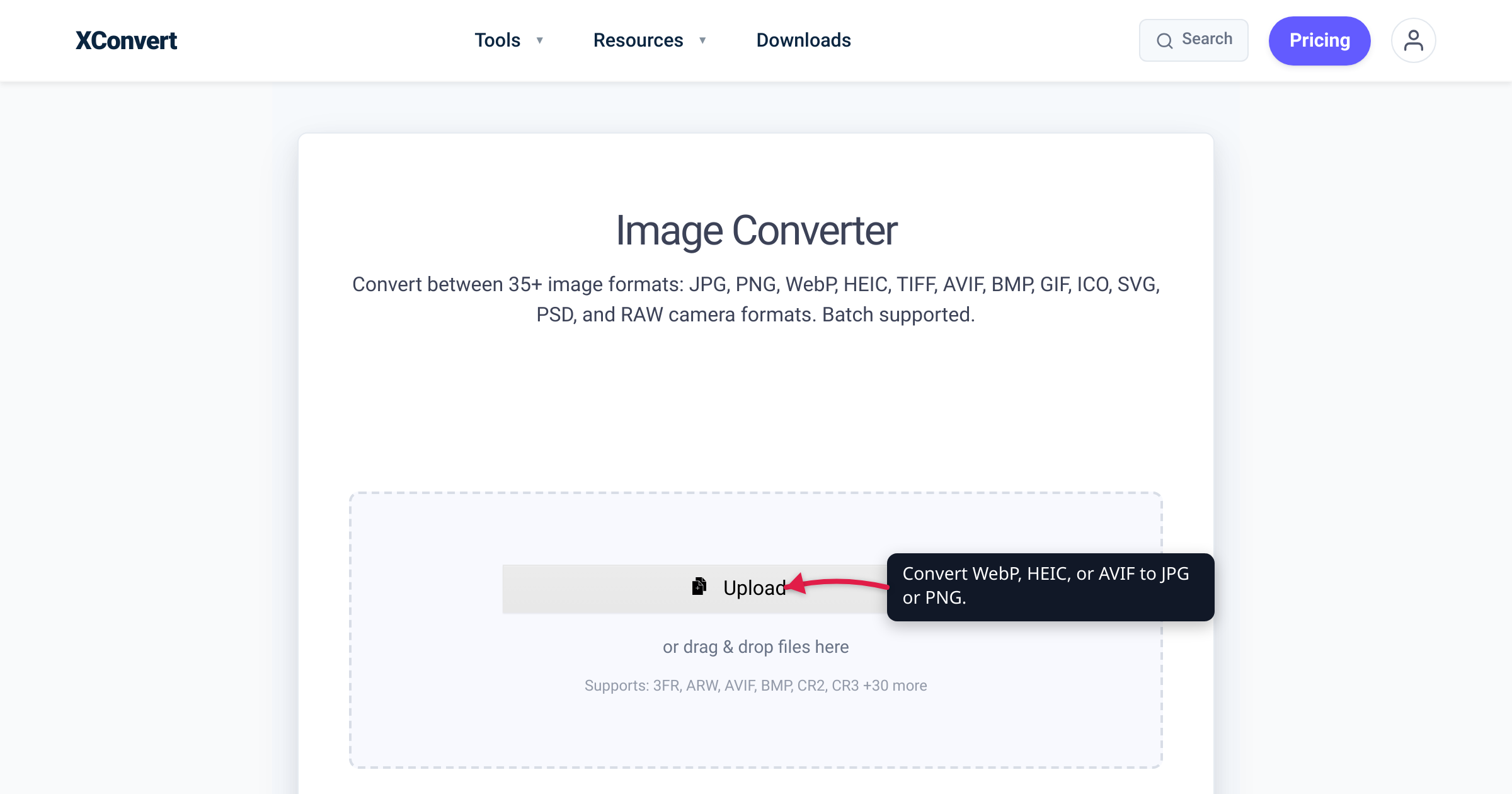
You pick a photo for a job application, a marketplace listing, or a government form — and the upload box throws it back: “invalid file type,” or the thumbnail loads broken. The file looks perfect on your phone. The problem is its format. iPhones save photos as HEIC, and “Save image as” on a modern website often hands you a WebP or an AVIF — three newer image formats that plenty of upload forms simply won’t accept. This guide gives you a compatibility table for all three, explains the one distinction that trips everyone up — a browser displaying a format is not the same as a form accepting it — and shows the fix that always works. Every support figure below is quoted from caniuse and dated.
Quick answer: Many upload forms, older CMSes, marketplaces, and government or job portals whitelist JPG and PNG (sometimes GIF) and reject newer formats. On caniuse, WebP displays in about 96% of browsers and AVIF in about 93% — but browser display support is not the same as upload acceptance: the receiving app has its own allowlist. HEIC is the worst case: only Safari 17+ even shows it (about 14% globally). The universal fix is to convert to JPG (maximum compatibility) or PNG (if you need transparency) before you upload.
Jump to a section
- Why your image won’t upload
- Compatibility table: WebP, HEIC & AVIF
- “Works in my browser” ≠ “the form accepts it”
- The universal fix: convert before uploading
- Convert to JPG or PNG on xconvert
- FAQ
Why your image won’t upload
The rejection shows up in one of two ways, and they mean slightly different things:
- A hard error — “file type not supported,” “please upload a JPG or PNG,” “invalid format.” The site’s upload code inspected your file, didn’t find it on its allowlist, and refused it.
- A broken or blank thumbnail — the file uploads, but where the preview should be you get a broken-image icon or nothing. The receiving app can’t render the format even if it technically stored the file.
Either way the root cause is the same: your file is a modern format the site was never built to handle. A large share of the web still runs on upload forms, content management systems, marketplaces, ID-verification and job portals, and some chat or social apps that were designed to accept the old universal trio — JPG, PNG, and sometimes GIF — and never added support for WebP, HEIC, or AVIF. You didn’t do anything wrong; your device just handed you a newer, more efficient format than the receiving side expects.
Compatibility table: WebP, HEIC & AVIF
Here’s where each format comes from, how widely browsers can display it (quoted from caniuse, verified 2026-07-16), and the practical “will an upload form take it?” reality. Note that the last column is a general pattern, not a per-site guarantee — every site sets its own rules.
| Format | Where you got it | Browser display support (caniuse, 2026-07-16) | Will an upload form accept it? |
|---|---|---|---|
| WebP | “Save image as” from most modern sites/CDNs; saved from Chrome; some Android screenshots | 96.15% global — Chrome 32+, Firefox 65+, Edge 18+, Safari 16+ (iOS 14+), Opera 19+; no Internet Explorer | Often not. Widely displayable, but many forms, older CMSes, and editors still whitelist JPG/PNG. Newer platforms increasingly accept it. |
| HEIC | iPhone/iPad photos — the default “High Efficiency” capture setting since iOS 11 (2017); AirDrop and Photos exports | 13.6% global — Safari 17+ only (desktop and iOS). Chrome, Firefox, and Edge do not display it at all | Usually not. The most-rejected of the three: most non-Apple sites, portals, and previews can’t even render it. |
| AVIF | “Save image as” from sites/CDNs that serve AVIF; saved from Chrome; some newer apps export it | 93.42% global — Chrome 85+, Firefox 93+, Edge 121+, Safari 16.4+ (iOS 16+), Opera 71+; no Internet Explorer | Often not. The newest of the three — even fewer upload forms and desktop tools accept it than WebP yet. |
Reading the table: HEIC fails almost everywhere outside Apple because barely any browser can display it. WebP and AVIF display almost everywhere — yet they still get bounced by upload boxes constantly. That contradiction is the part worth understanding, because it explains why “but WebP works in every browser!” doesn’t save you at the upload form.
“Works in my browser” ≠ “the form accepts it”
This is the single most useful thing to understand, and almost every guide skips it.
The caniuse percentages above measure exactly one thing: can a browser render this format on a web page? That’s a completely different question from will this website accept the format when I upload it? There are two separate gates:
- Display gate — your browser has to be able to show the image (the thumbnail, the preview). A broken thumbnail means this gate failed. WebP and AVIF usually pass it; HEIC usually fails it outside Safari.
- Acceptance gate — the receiving application has to be willing to accept and process the uploaded file. This is code written by whoever built the site, and it commonly checks your file against a fixed allowlist like
jpg, jpeg, png, gif. An “invalid file type” error means this gate failed — and it can fail even when your browser displays the format perfectly.
So a format can sit at 96% browser support and still be rejected by an upload box, because your browser rendering WebP has nothing to do with the server on the other end accepting a WebP file. The two are unrelated systems.
Why do so many upload forms lag behind browsers? A few concrete reasons:
- Server image libraries. The backend that resizes and stores your upload (often ImageMagick or GD) has to be compiled with WebP, AVIF, or HEVC support — and on many shared hosts it isn’t.
- Security allowlists. Upload endpoints deliberately restrict file types to a short, known-safe list. Anything not on the list is refused by default, and adding new types is a manual change.
- HEVC licensing. HEIC’s underlying codec (HEVC/H.265) carries patent-licensing complexity, which is exactly why Chrome, Firefox, and Edge never added HEIC display and why so few services touch it. Apple pays those fees for its own ecosystem; most websites don’t.
- The form simply predates the format. A portal or CMS built around JPG/PNG years ago keeps working — nobody circled back to add WebP or AVIF.
The takeaway: don’t judge whether a file will upload by whether you can see it. Judge by what the receiving side accepts — and when in doubt, hand it a format everything accepts.
The universal fix: convert before uploading
There’s one move that sidesteps all of the above: convert the file to JPG or PNG before you upload it. Those two formats are the universal baseline — essentially every upload form, CMS, marketplace, email client, and portal accepts them. Which one you pick comes down to a single question:
Convert to JPG when:
- It’s a photo (an iPhone HEIC shot, a web photo saved as WebP/AVIF).
- You want the smallest file and don’t need a transparent background.
- It’s headed to an upload form, marketplace, email, or ID/job portal — JPG is the safest default that opens and uploads anywhere.
Convert to PNG when:
- The image has transparency — a logo, icon, sticker, or cutout. JPG can’t store an alpha channel and will flatten transparent areas to a solid color.
- You need a lossless, pixel-sharp copy — a screenshot, line art, or text you’ll edit further.
Two honest notes. First, converting a photo to JPG re-encodes it, but at a high quality setting the difference is normally invisible; the bigger change is that a HEIC-to-JPG file is usually larger than the HEIC, because JPG is a less efficient codec. Second, converting a lossy WebP or AVIF to PNG won’t restore any detail the original compression already discarded — it just prevents further loss and gives you a universally accepted file. (For the WebP-specific version of this decision, see Convert WebP to PNG or JPG; for the full background on iPhone’s format, see What is HEIC?.)
Convert to JPG or PNG on xconvert
The xconvert Image Converter takes WebP, HEIC, or AVIF and turns it into a universally accepted JPG or PNG — no app or codec install required:
- Open xconvert.com/image-converter and click Upload (the drop zone reads Click “+ Add Files” or drag and drop). Add files From my Computer, From Google Drive, or From Dropbox — you can add several at once.
- Set the Image File Extension dropdown to JPG for maximum compatibility (this is the default), or PNG if your image needs transparency.
- (Optional) Open Advanced Options (the gear icon). Under Image Compression you can set the Quality Preset — it defaults to Very High (Recommended) — and use the Image resolution controls (Keep original, or resize) if the target has a size limit.
- Click Convert to process and download your images — or grab everything as a ZIP if you converted a batch.
For photos specifically, the dedicated HEIC to JPG and WebP to JPG tools follow the same flow. Your files upload over an encrypted connection, are processed on our servers, and are automatically deleted a few hours later. Nothing is kept.
FAQ
Why won’t my iPhone photo upload to a website?
Because your iPhone saved it as HEIC, and outside Apple’s ecosystem almost nothing can display or accept it — on caniuse, only Safari 17+ renders HEIC (about 14% of browsers), and most upload forms and portals refuse it outright. The reliable fix is to convert the HEIC to JPG before uploading. To stop it happening in future, on your iPhone go to Settings → Camera → Formats → Most Compatible, which captures new photos as JPEG.
A site rejected my WebP even though “WebP works in every browser” — why?
Because displaying a format and accepting an upload are two different systems. WebP displays in about 96% of browsers (caniuse), but an upload form runs its own server-side check against an allowlist that’s frequently just JPG/PNG/GIF. Your browser showing WebP has no bearing on whether the server accepts a WebP file. Convert it to JPG or PNG and the upload goes through.
Should I convert to JPG or PNG?
JPG for photos and anything where you want the smallest file and don’t need transparency — it’s the most universally accepted format. PNG when the image has a transparent background (a logo, icon, or cutout) or you need a lossless, pixel-sharp copy, since JPG can’t store transparency and would fill it with a solid color.
Why does my image show a broken thumbnail instead of an error?
A broken or blank thumbnail means the file was accepted but your browser (or the site) can’t render that format — the display gate failed even though the acceptance gate passed. It’s most common with HEIC in Chrome, Firefox, or Edge, none of which can show HEIC. Converting to JPG or PNG gives you a preview that renders everywhere.
Is AVIF accepted for uploads anywhere yet?
Rarely, so far. AVIF displays in about 93% of browsers (caniuse: Chrome 85+, Firefox 93+, Edge 121+, Safari 16.4+), but as the newest of the three formats it’s accepted by even fewer upload forms and desktop editors than WebP. If a form rejects your AVIF, convert it to JPG or PNG rather than waiting for the site to add support.
Does converting to JPG or PNG lose quality?
Converting to PNG is lossless — it won’t drop any detail (though a photo-to-PNG file gets larger). Converting to JPG re-encodes the image, so there’s some loss in theory, but at a high quality preset it’s usually invisible. Neither can restore detail that a lossy WebP, AVIF, or HEIC already discarded — conversion fixes the compatibility problem, not the original compression.
Sources
Last verified 2026-07-16.
- caniuse — WebP image format — global browser display support 96.07% + 0.08% = 96.15%; Chrome 32+, Firefox 65+, Edge 18+, Safari 16+ (iOS 14+), Opera 19+; no Internet Explorer.
- caniuse — HEIF/HEIC image format — global support 13.6%; Safari 17.0+ only (desktop and iOS); Chrome, Firefox, and Edge unsupported.
- caniuse — AVIF image format — global support 93.4% + 0.02% = 93.42%; Chrome 85+, Firefox 93+, Edge 121+, Safari 16.4+ (iOS 16+), Opera 71+; no Internet Explorer.
- Apple Support — About High Efficiency image and video formats — iPhone/iPad capture HEIF/HEIC by default (“High Efficiency”) since iOS 11 / macOS High Sierra (2017); “Most Compatible” reverts to JPEG.
- Google Developers — WebP — WebP is Google’s web image format (origin of the
.webpfiles you save from modern sites). - xconvert — Image Converter — live tool UI verified: “+ Add Files” upload with From my Computer / Google Drive / Dropbox; “Image File Extension” dropdown (JPG default, includes PNG); Advanced Options → Quality Preset (Very High (Recommended)); Convert and Download.