 By Stephanie Taylor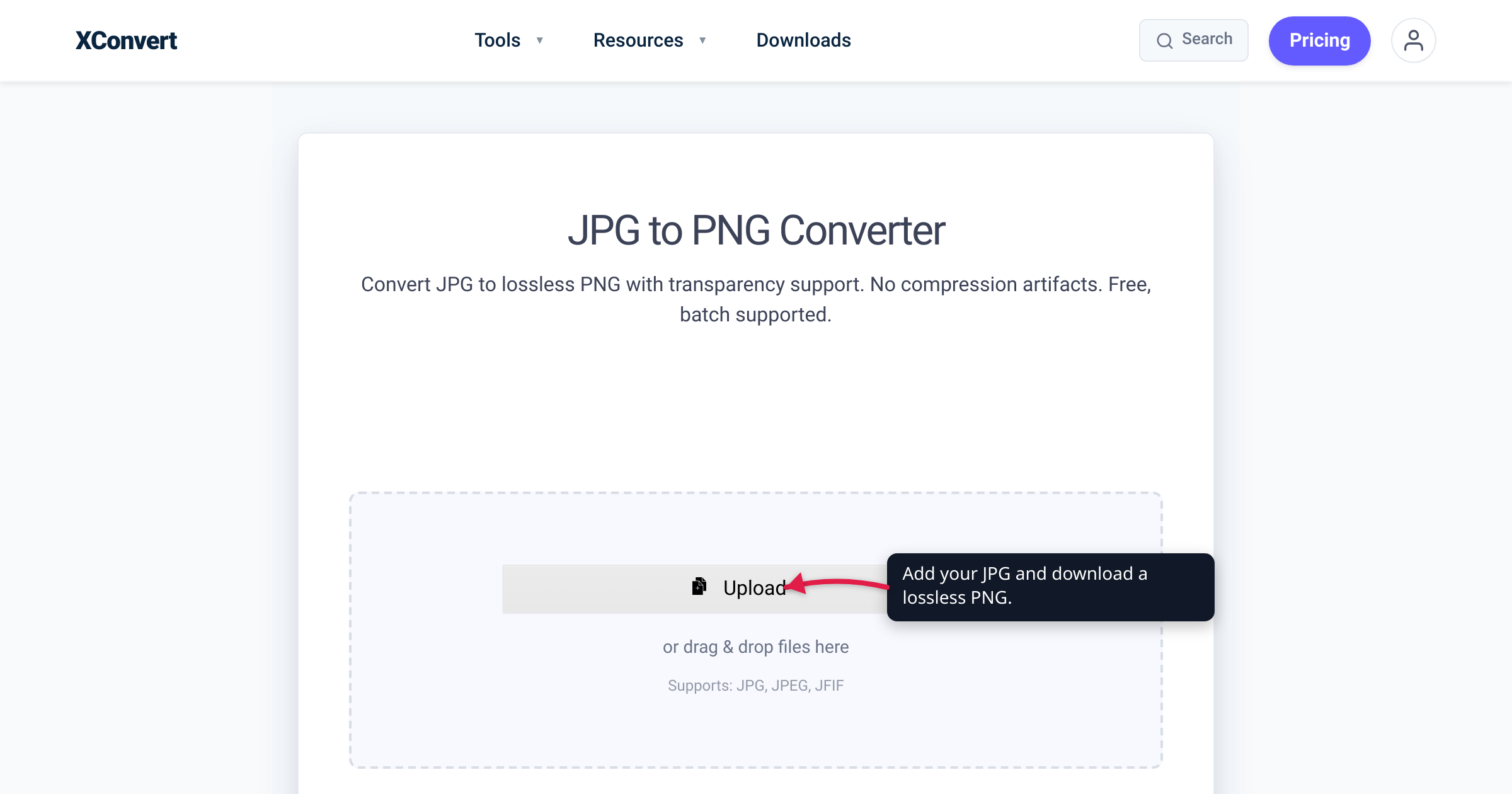
You’ve got a JPG that looks a little soft, blocky, or pixelated, and someone tells you the fix is to “convert it to PNG — PNG is the higher-quality format.” So you do, and you end up with a file three or four times larger that looks exactly the same. That’s not a glitch. Converting a JPG to PNG cannot restore or improve image quality, because JPEG already threw the detail away when it compressed the photo, and PNG is lossless — which only means it faithfully preserves whatever you hand it, flaws and all. We verified the lossy/lossless mechanics against MDN and the W3C PNG specification. Here’s what’s really happening, and what actually does improve a JPG.
Quick answer: No — converting JPG to PNG does not improve quality. JPEG is lossy: it permanently discards image data (via DCT quantization), baking in blocking, blur, and ringing artifacts to shrink the file. PNG is lossless: it reproduces its input exactly, bit-for-bit — so it preserves every one of those JPEG artifacts at a bigger file size. You get a larger file of the same image, not a better one, and no converter can re-create the deleted detail. JPG→PNG is the right move when you need transparency, crisp text/screenshots, or a lossless copy for editing — just never for “restoring quality.” To actually improve the image, go back to a higher-quality original (RAW, PNG, TIFF, or a larger JPEG).
Jump to a section
- Why people think JPG to PNG improves quality
- Lossy vs lossless: what JPEG and PNG each do
- Why the quality can’t come back — and the file gets bigger
- What actually improves a JPG’s quality
- When converting JPG to PNG genuinely makes sense
- Convert JPG to PNG on xconvert
- FAQ
Why people think JPG to PNG improves quality
The belief is intuitive. PNG is the format of crisp screenshots, logos, and graphics with transparent backgrounds; JPG is the format of compressed camera photos and email attachments. So “convert JPG → PNG” feels like promoting a file to a better tier — like swapping a worn paperback for a hardback of the same book.
The flaw is treating “PNG” as a quality level rather than a storage method. PNG isn’t a measure of how good an image looks; it’s a promise about how the pixels are stored — with no loss. Per MDN, PNG “uses lossless compression … featuring full alpha transparency support,” while JPEG is “the most widely used lossy compression format for still images.” Lossless describes fidelity to the input. Hand it a pristine studio image or a mangled, over-compressed JPG and it reproduces each just as faithfully — it can’t tell the difference, and it can’t improve either one.
Lossy vs lossless: what JPEG and PNG each do
Two words carry the whole story.
- JPEG is lossy. It shrinks a photo by throwing data away. The encoder splits the image into 8×8 blocks, converts each into frequency components with the discrete cosine transform (DCT), then quantizes — rounds off — the fine, high-frequency detail your eye is least likely to miss (Wikipedia: JPEG, citing the JPEG standard). That rounded-off detail isn’t hidden; it’s deleted. The visible price is JPEG’s signature artifacts: blocking (faint 8×8 squares in smooth skies), blur (softened texture and edges), and ringing/halos around hard edges and text. MDN notes that “applying lossy compression to content requiring sharpness, like diagrams or charts, can produce unsatisfactory results.”
- PNG is lossless. It compresses much the way a ZIP file does — rearranging data so that decoding returns exactly what went in. The W3C PNG specification defines lossless compression as a “method of data compression that permits reconstruction of the original data exactly, bit-for-bit,” and lists “Losslessness” among PNG’s core design goals: “filtering and compression should preserve all information.” Nothing is approximated; nothing is discarded.
Put together: lossy removes information to save space; lossless repackages information without removing any. When you convert JPG → PNG, you take pixels that have already had detail deleted and store them losslessly. PNG dutifully preserves every artifact the JPEG baked in.
Why the quality can’t come back — and the file gets bigger
Here’s the part intuition gets wrong. For the conversion to improve the JPG, PNG would have to re-create the detail JPEG deleted — the texture behind the blur, the pixels under the blocking. But that information no longer exists in the file, and a lossless encoder, by definition, never invents data; it only preserves what it’s given. So the PNG is a pixel-perfect copy of a flawed image: every block edge, every halo, every smeared color boundary reproduced exactly.
Think of photocopying a blurry photo onto premium glossy paper. The paper is nicer, the copy is bigger and heavier — and the picture is exactly as blurry as before. You’ve upgraded the envelope, not the contents.
And you pay for that envelope. JPEG hit its small size by discarding data; PNG keeps everything, and its lossless compression is far less aggressive on noisy, photographic content than JPEG’s lossy DCT. So a photo saved as PNG is commonly several times larger than the JPG it came from (flat graphics stay small; detailed photos balloon). That’s the real trade: a bigger file holding the same picture — worse on every axis except that the extension now reads .png. And if your JPG already looks soft from repeated re-saving, that damage — generation loss — is baked into the pixels, so PNG can’t lift it out either.
What actually improves a JPG’s quality
If the goal is a genuinely better image, the detail has to come from somewhere it still exists. Three honest options:
- Go back to the original source. If you still have the camera RAW, the original PNG/TIFF export, or simply a higher-resolution or higher-quality JPEG, re-export the image you need from that. This is the only reliable way to gain quality — you’re pulling from a file that never lost the detail, instead of trying to squeeze it out of one that did.
- Stop adding new loss. If you must keep editing, convert to PNG (or TIFF) first and do your work there, so every save is lossless and you don’t stack a fresh round of JPEG damage on top of the old. The conversion won’t undo existing artifacts, but it stops them multiplying with each save. (This is the legitimate editing reason — more below.)
- Be realistic about upscaling. Enlarging or “AI-upscaling” a JPG is a separate operation, and it doesn’t recover the original either. Interpolation stretches the existing pixels; AI upscalers invent plausible new detail to fill the gaps. Sometimes the result looks nicer, but it’s a fabricated guess, not the photo you lost — treat it as a cosmetic enhancement, not a restoration.
No converter, filter, or format switch can manufacture quality that isn’t in the file. That’s the honest ceiling.
When converting JPG to PNG genuinely makes sense
None of this means JPG → PNG is pointless — only that it’s never useful for restoring quality. It’s the right choice for several other reasons, which is exactly why the converter exists. As MDN puts it, “PNG is preferred over JPEG for more precise reproduction of source images, or when transparency is needed.”
| Convert JPG → PNG when you need… | Why PNG is the right target |
|---|---|
| Transparency (logo, sticker, overlay) | JPEG has no alpha channel; PNG offers “full alpha transparency support” (MDN). Note: the conversion gives you a PNG that can hold transparency — you still have to erase the background in an editor; the JPG’s pixels are all opaque. |
| A lossless editing copy | Further edits and re-saves add no new loss, unlike re-saving a JPEG over and over. |
| Crisp text, screenshots, or line art | MDN on screenshots with text: “you should use a lossless format … PNG is probably your best bet.” |
| Exact colors / no new artifacts | Lossless reproduction with no chroma subsampling or DCT ringing added on top. |
| A tool that requires PNG input | Some editors and pipelines only accept PNG; conversion satisfies them without extra loss. |
And when it’s the wrong tool: if you’re hoping a blurry or pixelated JPG will come out sharper, or trying to “restore” an over-compressed photo, converting to PNG will do nothing but enlarge it. For that you need a better source, not a different container.
Convert JPG to PNG on xconvert
When you have a legitimate reason — transparency, a lossless working copy, crisp text — the xconvert JPG to PNG converter does it cleanly:
- Open xconvert.com/convert-jpg-to-png and click Upload to add your JPG (From my Computer, From Google Drive, or From Dropbox).
- The output is PNG automatically — there’s no format dropdown to set. Leaving every setting alone gives you a faithful, pixel-exact PNG of your JPG.
- (Optional) Open Advanced Options to fine-tune the output. Under Image resolution, leave Keep original — upscaling here can’t add detail the JPG never had. Adjust Colors, Compression level, or Compression speed only to trade file size; these change how the PNG is packed, not how the image looks.
- Click Convert, then download the
.pngfile.
Your file uploads over an encrypted connection, is processed on our servers, and is deleted automatically a few hours later. There’s no install, sign-up, or watermark.
One expectation to set: the PNG will very likely be larger than the JPG you started with, and it will look identical — that’s the correct, expected result, not a bug. If a smaller file is what you’re really after, converting PNG to JPG is the usual direction people want, and if you’re weighing formats for the web, PNG vs WebP vs JPG covers which to pick.
FAQ
Does converting JPG to PNG improve quality?
No. JPEG permanently discards image data when it compresses, and PNG’s “lossless” only means it reproduces its input exactly — it has nothing to recover, because the detail is already gone. You get a pixel-perfect copy of the same (flawed) image in a larger file. To improve the picture you must start from a higher-quality original, not convert the JPG.
Will the PNG be bigger than the JPG?
Usually yes — often several times larger. JPEG reached its small size by throwing data away; PNG stores every pixel losslessly, and its compression is far less aggressive on photographic content. Flat graphics and screenshots stay reasonably small, but detailed photos can balloon. A bigger file with an identical-looking image is the expected outcome.
Does converting JPG to PNG make the background transparent?
No — not by itself. JPEG has no transparency (every pixel is opaque), so the converted PNG starts fully opaque too. PNG supports transparency, but you have to remove the background yourself in an image editor or a background-removal tool. The format conversion gives you a canvas that can hold transparency; it doesn’t add any.
Can I recover a blurry or pixelated JPG by converting it to PNG?
No. The blur, blocking, and ringing are baked into the JPEG’s pixels by lossy compression, and no format switch, filter, or quality setting brings the lost detail back. Your options are to re-export from a higher-quality original if you still have one, or to accept the current quality and simply stop it degrading further by editing a lossless copy. See why JPEGs go blurry after saving.
When should I actually convert JPG to PNG?
When you need transparency, a lossless copy for editing (so further saves add no loss), crisp text/screenshots/line art, exact colors, or a tool that requires PNG input. MDN notes PNG is preferred “for more precise reproduction of source images, or when transparency is needed.” Just don’t expect the image to look better than the JPG — expect it to look identical, in a bigger file.
Is PNG always higher quality than JPG?
Not inherently. PNG is lossless and JPG is lossy, but a lossless copy of a heavily compressed JPG looks no better than the JPG. PNG genuinely wins for graphics, text, and transparency; JPG is usually the better choice for photographs, where it delivers far smaller files at visually excellent quality.
Sources
Last verified 2026-07-16.
- MDN — Image file type and format guide — JPEG as “the most widely used lossy compression format for still images” and unsuitable for sharp content; PNG “uses lossless compression … featuring full alpha transparency support”; PNG preferred “for more precise reproduction of source images, or when transparency is needed,” and the best bet for screenshots containing text.
- W3C — Portable Network Graphics (PNG) Specification — PNG defined for “lossless, portable, well-compressed storage” of raster images; lossless = “reconstruction of the original data exactly, bit-for-bit”; optional alpha channel; “Losslessness” listed among the core design goals.
- Wikipedia — JPEG — lossy DCT compression and quantization discard high-frequency detail; blocking/ringing artifacts and generation loss across re-saves. Cites the JPEG standard (ITU-T T.81 / ISO/IEC 10918).