 By James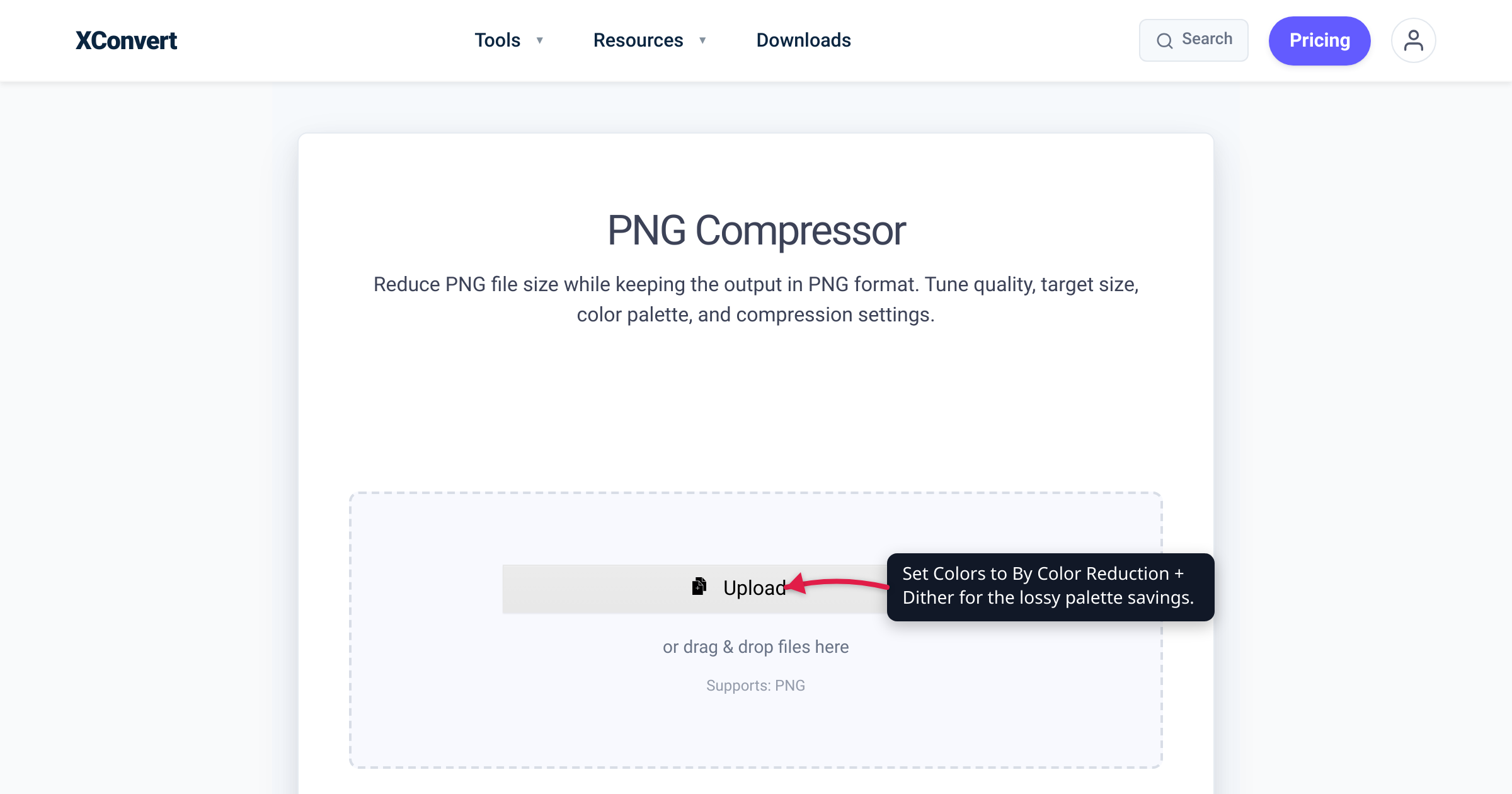
Run a PNG through TinyPNG and it can come back 70% smaller while still looking pixel-perfect — yet PNG is supposed to be a lossless format that never throws a pixel away. Both things are true, and the reason is that “compressing a PNG” secretly means two completely different operations. One repacks the same image tighter and saves a little; the other quietly rebuilds the image on a smaller set of colors and saves a lot. This explainer takes apart exactly what pngquant, TinyPNG, and xconvert’s color-reduction setting do under the hood — verified against the PNG specification (W3C), MDN, and pngquant’s own documentation — so you know which lever you’re pulling and what it costs.
Quick answer: The PNG format is strictly lossless — its built-in DEFLATE compression never discards a pixel (W3C). So true “lossless PNG optimization” (optipng, zopfli, pngcrush) can only strip metadata and find a tighter DEFLATE packing: the decoded image is bit-for-bit identical, and savings are usually single digits to ~20%. The dramatic “70% smaller” from pngquant and TinyPNG is a different trick — color quantization: it rebuilds the image on an optimized palette of at most 256 colors instead of 16.7 million. That’s genuinely lossy (colors are approximated), but usually invisible on logos, icons, and flat UI. Use lossless for exact/archival copies; use lossy color reduction for web and email weight.
Jump to a section
- Is PNG lossy or lossless?
- Lossless optimization: the modest lever
- Lossy PNG is color quantization
- Which lever should you pull?
- Compress a PNG on xconvert
- FAQ
Is PNG lossy or lossless?
The format itself is unambiguous. The W3C PNG specification defines PNG as a format for the “lossless, portable, well-compressed storage of static and animated raster images.” Decode any PNG and you get back exactly the pixels that were encoded — there is no quality slider that trades away detail for size the way JPEG’s does.
That’s because a PNG is already compressed, losslessly, by design. The spec states plainly that “PNG compression method 0 is deflate compression” — the same DEFLATE algorithm used in ZIP and gzip. Before that step, “PNG allows image data to be filtered before it is compressed,” because “filtering can improve the compressibility of the data.” Filtering followed by DEFLATE is a fully reversible pipeline: nothing is thrown away, and decoding reconstructs the original pixels exactly.
So where does “lossy PNG” come from? Here is the key insight the rest of this article hangs on: any loss happens before the pixels are handed to PNG’s lossless encoder. A tool that advertises a “lossy PNG” first alters the image — specifically, it reduces how many distinct colors the image contains — and then saves that already-simplified picture as a perfectly ordinary, still-lossless PNG. The PNG format never became lossy; the image was changed on the way in.
Lossless optimization: the modest lever
“Lossless PNG optimization” keeps every pixel and simply repacks the file more efficiently. There are three honest, fully reversible levers:
- A tighter DEFLATE pass. The same pixels can be encoded into a smaller DEFLATE stream if the encoder works harder at it. Google’s Zopfli is built for exactly this — it describes itself as a library to “perform very good, but slow, deflate or zlib compression,” emitting a valid, standard deflate stream (RFC 1951) that any PNG decoder reads back normally. Fewer bytes, identical image.
- Smarter row filtering. Because PNG filters each row before compression, choosing better per-row filters makes the data compress tighter. Optimizers like OptiPNG and pngcrush try multiple filter strategies and keep whichever produces the smallest result.
- Stripping metadata. PNGs carry optional ancillary chunks — text comments, timestamps, editor tags, embedded color profiles. The spec notes a decoder “can safely ignore” unknown ancillary chunks, so removing the ones you don’t need (while keeping a color profile you do) is free size with zero visual change.
The honest catch: a PNG exported by a modern editor is often already near-optimally packed, so this whole category typically buys single digits up to ~20%. Real and reversible, but rarely dramatic. On xconvert, this is what the Compression level slider governs — how hard the lossless DEFLATE pass works. Turn it up and the file gets smaller and the encode slower, while the decoded pixels stay bit-for-bit identical.
Lossy PNG is color quantization
This is the mechanism behind every “70% smaller” headline, and it has a precise name: color quantization (also called palette reduction). Here is what pngquant and TinyPNG actually do.
A full-color PNG is 24-bit truecolor — three 8-bit channels, up to 16.7 million possible colors per pixel. Quantization converts that into an indexed-color PNG. MDN describes this mode as one where “each pixel is a D-bit value indicating an index into a color palette,” and “the colors in the palette all use an 8-bit depth.” Instead of storing a full 24-bit color at every pixel, the file stores one small palette (up to 256 entries) plus a compact index per pixel. TinyPNG sums it up in a sentence: it uses “smart lossy compression techniques… by selectively decreasing the number of colors in the image, fewer bytes are required to store the data.”
The hard part — and where quality is won or lost — is choosing which colors survive. The palette isn’t fixed; it’s computed from your specific image:
- Build an optimal palette. pngquant uses a “modified version of the Median Cut quantization algorithm,” refined with Voronoi iteration (K-means) to pick the set of colors that best represents the original. Median cut repeatedly splits the color space; pngquant’s variant splits so that colors sit as close as possible to their chosen palette entry.
- Map every pixel to its nearest palette color. Each original pixel is replaced by the closest surviving color. This is the lossy step — the approximation is permanent.
- Dither to hide the seams. Snapping a smooth region onto a handful of colors can leave visible steps. Dithering scatters pixels between palette colors so the eye blends them. pngquant uses “a unique adaptive dithering algorithm that adds less noise… than the standard Floyd–Steinberg.”
Crucially, the output is still a real PNG and it preserves full alpha transparency (pngquant states exactly that) — so a transparent logo comes out transparent. And it works: pngquant reports reductions “often as much as 70%,” with a worked example taking a 75,628-byte PNG down to 19,996 bytes — 73% smaller — almost all of it from quantization, not the lossless tricks above. On xconvert, this lever is the Colors setting: leave it ORIGINAL for a purely lossless pass, or pick By Color Reduction + Dither to run exactly this quantize-and-dither pipeline.
Which lever should you pull?
Match the lever to the image and the goal:
| You have… | Pull this lever | Why |
|---|---|---|
| An archival master, or a PNG you’ll re-edit later | Lossless only (Compression level; Colors = ORIGINAL) | Bit-for-bit identical; no color decisions baked in |
| A logo, icon, screenshot, or flat illustration for web/email | Lossy (Colors = By Color Reduction + Dither) | Few distinct colors → quantizes ~60–70% smaller with no visible change |
| A photograph that happens to be a PNG | Change the format entirely | PNG is the wrong container for photographic content |
The one image type to watch is smooth gradients — sunsets, soft shadows, glows. They contain thousands of subtly different colors, so squeezing them onto a 256-color palette can produce visible banding (stepped contours). Dithering softens it at a small size cost; preview gradient-heavy images before you commit.
And the honest edge case: if it’s a photograph, no PNG compression is the right answer. MDN is direct that for such content “WebP/AVIF provide even better compression and reproduction” than PNG. A photo saved as PNG will almost always be dramatically smaller as WebP or JPG than as any optimized PNG — see PNG vs WebP vs JPG for which to pick. Quantization is for graphics, not photos.
Compress a PNG on xconvert
The xconvert PNG Compressor exposes both levers on one page, and the output stays a PNG:
- Open xconvert.com/compress-png and click Upload (from your Computer, Google Drive, or Dropbox).
- Open Advanced Options (the gear) to reveal the controls.
- Pick how to steer size: Target file size (%) (marked Best), an exact Specific file size, or Image Quality (%).
- Set Colors — the lossy lever. Leave it ORIGINAL for a pixel-identical lossless pass, or choose By Color Reduction + Dither to run the palette quantization that delivers the big cut (the dither smooths gradients).
- Adjust Compression level and Compression speed — the lossless DEFLATE effort (higher = smaller and slower, still bit-for-bit identical). Optionally let Auto Scale downsize oversized dimensions.
- Click Compress PNGs and download.
Your file is uploaded over an encrypted connection, is processed on our servers and deleted automatically a few hours later. If you just want a plain step-by-step walkthrough rather than the mechanism, our compress a PNG image guide covers it.
FAQ
Is PNG a lossy or lossless format?
PNG is strictly lossless. The W3C specification defines it as a format for “lossless… storage,” and decoding a PNG always returns the exact pixels that were encoded. When a tool offers “lossy PNG,” it isn’t making the format lossy — it reduces the image’s colors before saving, then writes an ordinary lossless PNG of that simplified picture.
How does TinyPNG (or pngquant) actually work?
By color quantization. TinyPNG says it works “by selectively decreasing the number of colors in the image, [so] fewer bytes are required to store the data,” converting 24-bit color into a small indexed palette. pngquant does the same with a modified Median Cut algorithm plus adaptive dithering. The result is a normal PNG built on at most 256 well-chosen colors instead of 16.7 million.
What is color quantization?
Reducing an image to a smaller, optimized color palette. The tool analyzes your specific image, computes the set of (up to 256) colors that best represents it, then remaps every pixel to its nearest palette color. Optional dithering scatters pixels between palette colors so gradients still look smooth. Fewer colors means far fewer bytes.
What’s the difference between “Compression level” and “Colors” on the tool?
Compression level is lossless; Colors is where “lossy” lives. Compression level controls how hard the reversible DEFLATE pass works — a smaller file with identical pixels. Setting Colors → By Color Reduction + Dither turns on lossy quantization, which permanently reduces colors for a much bigger cut. Leaving Colors on ORIGINAL keeps the whole operation lossless.
Is “lossy PNG” the same as saving a JPEG?
No. JPEG uses block-based frequency (DCT) compression that blurs sharp edges and can’t store transparency at all. Lossy PNG uses palette quantization, which keeps crisp edges and full alpha transparency intact (pngquant “preserves full alpha transparency”). That’s why quantization — not JPEG — is the right lossy method for logos, icons, and UI, where JPEG would smear the edges.
Can I compress a PNG with zero quality loss?
Yes, but expect modest savings. A purely lossless pass — a tighter DEFLATE packing (e.g. Zopfli), better row filtering, and stripping unneeded metadata — leaves the image bit-for-bit identical and usually saves single digits up to ~20%. The headline 60–70% reductions require lossy color quantization, which is visually identical on flat graphics but not literally lossless.
Sources
Last verified 2026-07-16.
- W3C — Portable Network Graphics (PNG) Specification — defines PNG as “lossless”; “PNG compression method 0 is deflate compression”; row filtering “can improve the compressibility of the data”; unknown ancillary chunks “can safely ignore”; indexed-color palette.
- MDN — Image file type and format guide — PNG “uses lossless compression” with “full alpha transparency support”; indexed color as a D-bit index into a palette; WebP/AVIF beat PNG for photographs.
- pngquant — lossy PNG compressor — “lossy compression of PNG images”; reductions “often as much as 70%”; 75,628 → 19,996-byte example; modified Median Cut plus adaptive dithering; “preserves full alpha transparency.”
- TinyPNG — “smart lossy compression techniques… by selectively decreasing the number of colors in the image, fewer bytes are required to store the data.”
- Google Zopfli — “very good, but slow, deflate or zlib compression” producing standard, valid deflate streams — the lossless “better DEFLATE” lever.