 By James
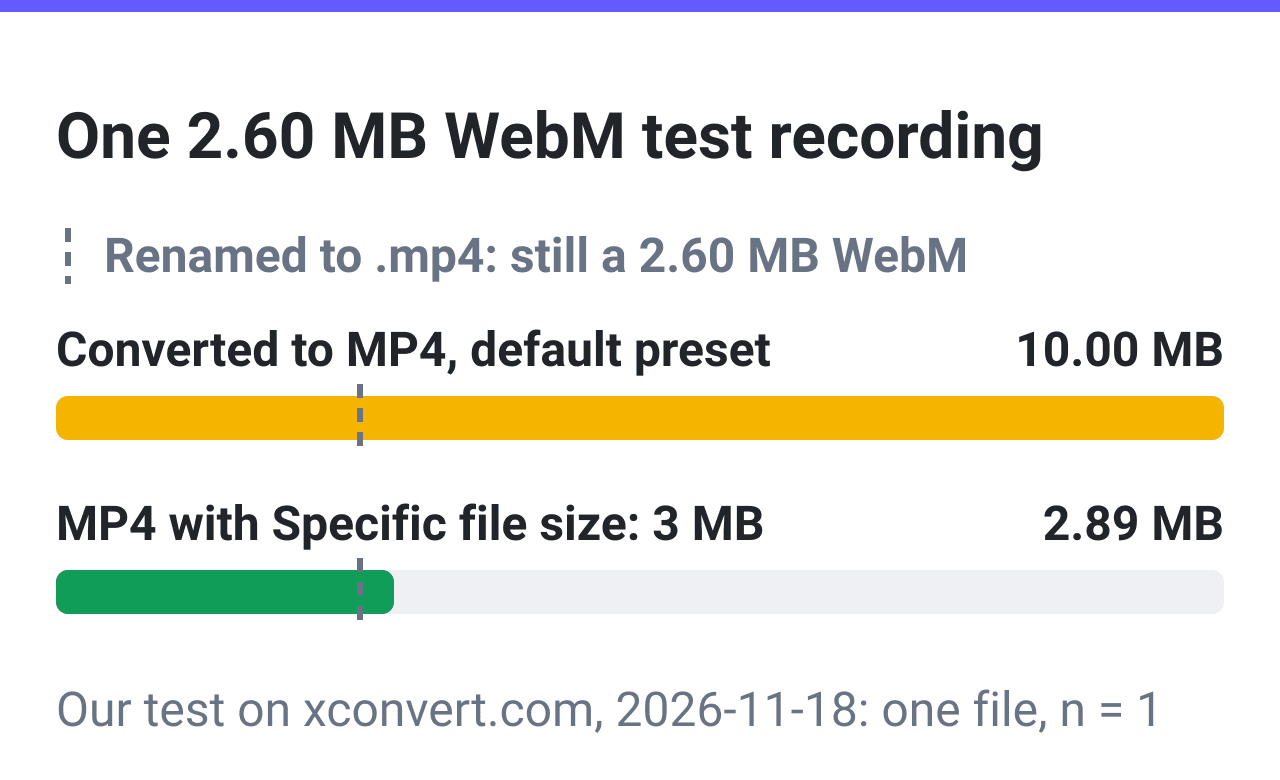
You do not need to install anything to convert a file on a Chromebook. For video, use the Video Converter: click Upload, keep MP4, click Convert. For documents, use Google Docs: File, then Download. Renaming a file does not convert it.
Checked on 2026-11-18 on xconvert.com/video-converter and five other tool pages, in Chromium on Linux. No Chromebook was used: ChromeOS steps follow Google’s help pages. Sources at the end.
Does your Chromebook open it? Google’s list of supported file types, read November 2026.
| Your file | On Google’s list | What to do |
|---|---|---|
| MP4 or MOV video with H.264 | Yes (codec table) | Open it in Files |
| WebM, MKV, 3GP or M4V video | Yes | Convert to MP4 only when a site or app refuses it |
| AVI video | No: “Chromebooks no longer support AMR, GSM, AVI, and MPEG4” | Convert to MP4 (steps below) |
| MP3, M4A, WAV or OGG audio; JPG, PNG, GIF, WebP or BMP image; PDF, TXT, ZIP or RAR | Yes | Open it in Files |
| HEIC photo | Not listed | Convert to JPG |
| Word, Excel or PowerPoint file | Yes (.ppt and .pptx read-only) | For another type: Google Docs, File, Download |
Before you start
In the Files app, a file you saved or recorded is in Downloads; Google says screen recordings are saved there as .webm files. A cloud file is under Google Drive. For the web route:
- Each file can be up to 400 MB without a paid plan; 1,000 MB on Basic, 4,000 MB on Pro.
- The file is sent over an encrypted connection and processed on our servers, not in your browser, so it needs an internet connection.
- Uploads and results are deleted automatically about 5 hours after they were written, or sooner if a server runs short of disk space.
How do I convert a video on a Chromebook?
To change a file type on a Chromebook, convert the file: renaming it changes only the name, as the last row under “What you get (measured)” shows.
These steps turn a .mov, .mkv, .avi or .webm video into an MP4.
- In Chrome, open xconvert.com/video-converter.
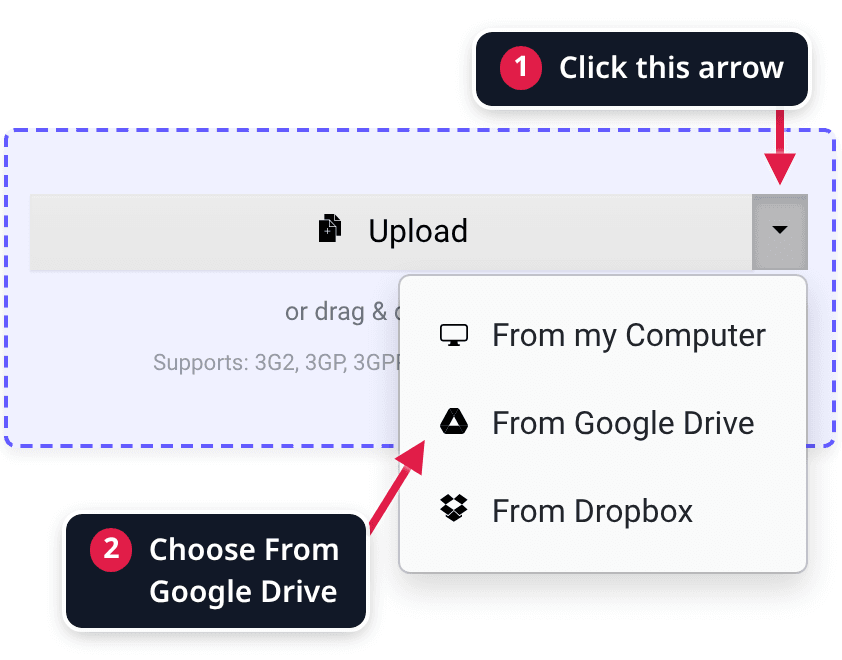
- Click Upload and pick the file. For a file in Google Drive, click the arrow next to Upload and choose From Google Drive: a Google sign-in window opens.
- Under Video File Extension, leave MP4, which is preselected.
- Click Convert. A card on the site’s Downloads page shows the job.
- When the card reads “Completed”, click Download. Chrome saves the file to the Downloads folder unless you changed that setting.
Nothing on the card saves to Google Drive. To keep the result, move it there: Google calls Downloads “a temporary folder” and says a Chromebook “will sometimes delete downloaded files to clean up space”.
Convert other files on a Chromebook
From 19 October to 17 November 2026, 801 sessions on ChromeOS selected a file on our tools and 604 finished a job.
The types selected most: MP4 (221 sessions), MP3 (130), WebM (77), AVI (57), MOV (51).
| You have | Page | What to pick |
|---|---|---|
| A WebM screen recording, an AVI or a MOV | Video Converter | MP4: the steps above |
| A WAV or another audio file, wanted as MP3 | Audio Converter | Audio File Extension: MP3 (the page opens on AAC) |
| HEIC photos | HEIC to JPG | Nothing: the output is JPG |
| Photos or scans for one PDF | Image to PDF | Combine?: Single PDF (preselected) |
| A PNG, a WebP or another image | Image Converter | The format you need (the page opens on JPG) |
You can select several files at once; a folder dropped on the page is not opened.
Each file is its own job with its own download, except on Image to PDF, where Single PDF puts them all into one file. On a phone or a PC, see combine photos into one PDF.
Convert MP4 to MP3 on a Chromebook
- Open MP4 to MP3.
- Click Upload and pick the file.
- Click Convert, then Download. There is no format to choose: the output is MP3.
Measured on 2026-11-18: a 30 s MP4 of 2.55 MB gave an MP3 of 178.54 KB in 5 seconds.
A .webm screen recording goes the same way: the same day, the 20 s test recording of 2.60 MB gave an MP3 of 115.53 KB in 4 seconds. The test sound is a pure tone; speech will give a larger MP3.
What you get (measured)
Measured on 2026-11-18 with generated test files: expect other sizes from your own files. Time is the job card’s “Took N seconds”, without the upload.
| Input | Setting | In | Out | Time |
|---|---|---|---|---|
| WebM (VP9, Opus), 1280 x 720, 20 s | none: MP4 at Very High (Recommended) | 2.60 MB | MP4, 10.00 MB | 7 s |
| same WebM | Specific file size: 3 MB | 2.60 MB | MP4, 2.89 MB, still 1280 x 720 | 8 s |
| AVI (MPEG-4, MP3), 640 x 480, 10 s | none | 1.80 MB | MP4, 2.60 MB | 5 s |
| MOV (H.264, AAC), 640 x 360, 6 s | none | 645.43 KB | MP4, 964.81 KB | 5 s |
| 2 HEIC photos | none | 228.25 KB and 219.72 KB | 2 JPG, 461.59 KB and 453.81 KB, one download each | 4 s each |
| same WebM, renamed to .mp4 | not converted | 2.60 MB | still WebM (VP9, Opus), 2.60 MB | – |
All three videos came out larger at the default, as H.264 video with AAC audio: the converter encodes video and audio again and opens on the preset Very High (Recommended).
Keep the MP4 small
To keep the MP4 small, choose Specific file size under File Compression and type the size in MB. It is a target: to reach it, the converter may scale the picture down by up to 25 % in width.
If it does not work
| What you see | Cause | Fix |
|---|---|---|
| “Unknown file type” in Files | Google: “this file type isn’t working on your Chromebook at this time” | Convert it to a type from the first table, or, as Google advises, save it to Google Drive and open it in the browser |
| A video plays without sound | Possibly an audio codec outside Google’s codec table (Opus, Vorbis, MP3, AAC). Not tested on a Chromebook | Convert to MP4: the result has AAC audio. One audio track is kept; extra tracks are dropped |
| A school or work Chromebook blocks the page | Not tested on a managed Chromebook. Google says only that at work or school “some devices or files might not work” | Ask your administrator; for documents use Google Docs |
Another way: built in, Android apps or Linux
HandBrake’s download page lists macOS, Windows and Linux, and no ChromeOS. Besides web pages, Google’s help covers two more kinds of software on a Chromebook, Android apps and Linux tools, each with conditions.
Does a Chromebook have a built-in file converter?
For documents, PDFs, GIF recordings and ZIP files, yes. In Google Docs, File, Download saves another file type, and File, Print, Save as PDF makes a PDF.
The screen recorder can record a GIF instead of a video (the Video Converter has no GIF output). Files zips and unzips (unzip files on a Chromebook, open a RAR file).
Trimming a recording is editing, not converting. Google’s Gallery page says “WebM video file types can’t be edited with Google Photos”, the app it opens for video editing: convert first and edit the MP4.
Android apps and Linux
- Android apps. Google says the Play Store is “available for only some Chromebooks”, and at work or school “you might not be able to add the Google Play Store”.
- Linux. Settings, About ChromeOS, Developers, then Set up; Google says “Setup can take 10 minutes or more”, and that at work or school “you might not be able to use Linux”. The Debian environment installs tools with APT, and FFmpeg, a command-line converter, has Debian packages.
Use Linux when the file must stay on the Chromebook or is over the size limit, or when hundreds of files need the same conversion.
Sources
The Google, FFmpeg and HandBrake pages were read on 2026-11-18.
- File types & external devices that work on Chromebooks, Google Chromebook Help: the file-type list, the codec table, “no longer support AMR, GSM, AVI, and MPEG4”, the “Unknown file type” message, the work or school note.
- Take a screenshot or record your screen, Google Chromebook Help: recordings are .webm or .gif and are saved to Downloads.
- Open, save, or delete files on your Chromebook, Google Chromebook Help: Files, Downloads as the default and “a temporary folder”, Chrome’s download setting, zip and unzip.
- Use Google Drive files offline on your Chromebook, Google Chromebook Help: Google Drive in the Files app.
- Open & edit Office files on your Chromebook, Google Chromebook Help: Office files open in Google Docs, Sheets or Slides.
- Create, view, or download a file, Google Docs Editors Help: File, Download, “Choose a file type”; File, Print, Save as PDF.
- Open & edit photos, Google Chromebook Help: what the Gallery app does; “WebM video file types can’t be edited with Google Photos”.
- Install & use Android apps on your Chromebook, Google Chromebook Help: Play Store “available for only some Chromebooks”; work or school.
- Set up Linux on your Chromebook, Google Chromebook Help: the setup path, “Setup can take 10 minutes or more”, the work or school note, Debian and APT.
- About FFmpeg and Download FFmpeg, FFmpeg: what the ffmpeg tool is (“A command line tool to convert multimedia files between formats”); Debian packages.
- HandBrake: Downloads, HandBrake: downloads for macOS, Windows and Linux; no ChromeOS version is listed.
- XConvert tool pages (Video Converter, MP4 to MP3, Audio Converter, HEIC to JPG, Image to PDF, Image Converter): labels and measurements from our runs of 2026-11-18. ChromeOS session counts: our own tool events, 19 October to 17 November 2026, sessions whose browser reports ChromeOS.