 By Stephanie Taylor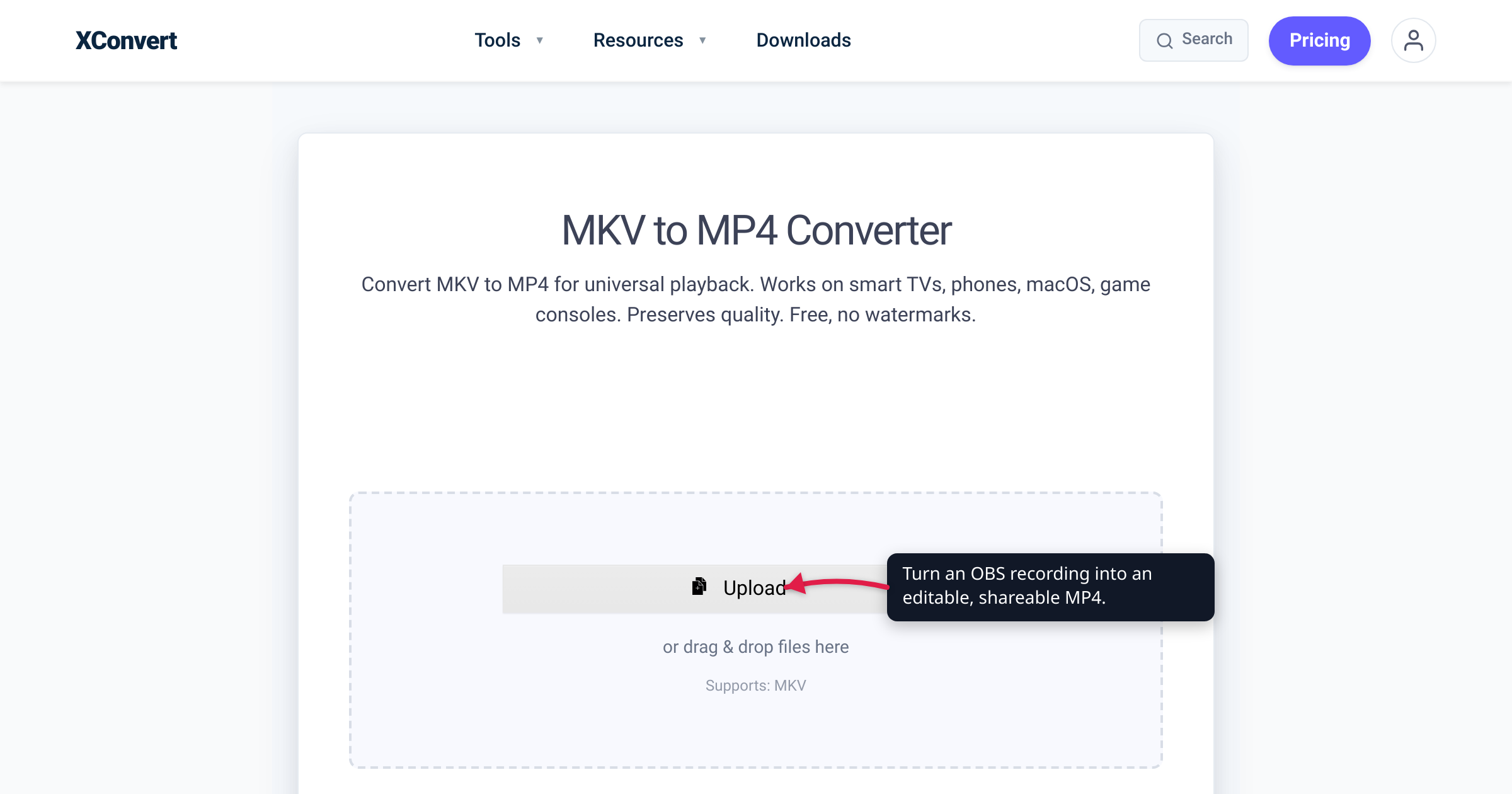
You finish a two-hour stream or a gameplay capture in OBS Studio, and the file it leaves behind is a .mkv — or a .flv if you set OBS up years ago. Then you drag it into Premiere, DaVinci Resolve, or CapCut and the import quietly fails, or a client’s upload form spits it back. That’s not a broken recording: MKV and FLV are recording formats, not delivery formats. The fix is to repackage the video as MP4, and because of what OBS puts inside the file, that’s usually a fast, lossless container swap — no quality lost. This guide explains why OBS records the way it does, when the conversion is free and instant, and when you actually need to re-encode. We verified OBS’s recording behavior against OBS’s own knowledge base, the container facts against MDN, and the compatibility claims against YouTube’s own supported-formats list.
Quick answer: OBS records to MKV because MKV survives a crash or power-loss without corrupting the whole file — OBS’s docs explicitly recommend it. But MKV (and OBS’s legacy FLV) don’t drop cleanly into every editor or upload target, so you convert to MP4 to edit and share. Since OBS encodes H.264 video + AAC audio — exactly what MP4 carries — the conversion is normally a remux (container swap, streams copied untouched, zero quality loss, near-instant). If you still have OBS and the file, its built-in File → Remux Recordings does this locally for free. Use xconvert when you don’t have OBS, you’re on another device, or you also need to compress or resize (which requires a re-encode).
Jump to a section
- Why OBS records to MKV (and sometimes FLV)
- What’s actually inside an OBS recording
- Remux vs re-encode — and OBS’s own free Remux
- Where MKV and FLV actually break
- Convert OBS recordings to MP4 on xconvert
- FAQ
Why OBS records to MKV (and sometimes FLV)
Hit record in OBS Studio and, for years, the file it produces has been a Matroska .mkv — because that’s what OBS’s own documentation recommends. The Standard Recording Output Guide puts it plainly: “MKV is recommended in case of unforeseen issues arising, since MKV will not corrupt the whole file if there is no graceful stoppage of recording.”
The reason is structural. A traditional MP4 writes its index — the table that tells a player where every frame lives — only when the recording ends cleanly. If OBS crashes, your GPU driver dies, or the power drops mid-session, that finalizing step never runs, and the MP4 can be unrecoverable — the whole take gone. MKV writes its metadata alongside the video as it goes, so a crash just truncates the file to the last good moment and the rest still plays. OBS’s Hybrid MP4 documentation confirms the same trade-off from the other side: a recoverable format “remains recoverable even if writing the file is aborted, e.g. due to system crashes or power outages” — the thing plain MP4 can’t promise.
FLV is OBS’s other crash-tolerant option, and the reason some older setups still produce .flv files: like MKV, FLV writes its metadata alongside the stream, so it survives an ungraceful stop too. It was OBS’s original default years ago and remains a selectable Recording Format — but it’s a legacy container that most editors reject outright, so it needs the same trip to MP4 (more on FLV specifically in convert FLV to MP4).
One honest update: newer OBS versions (30.2 and later) added a crash-safe “Hybrid MP4” format, so a recent, reconfigured OBS may already output a compatible MP4. But plenty of existing recordings — and OBS’s long-standing recommendation — are still MKV, and that’s the file most people need to convert.
What’s actually inside an OBS recording
To see why the conversion is usually painless, separate the container from the codec. As MDN explains, a container “encapsulates one or more media streams… along with metadata” — it’s just the wrapper. The picture and sound are compressed inside it by codecs, and that’s where quality lives; MKV, FLV, and MP4 are all only boxes. The part that matters for OBS: by default, OBS encodes video as H.264 and audio as AAC — the exact pair MP4 was built to carry (switch OBS to HEVC or AV1 and MP4 handles those too). So the streams inside your .mkv or .flv are already MP4-compatible, and moving them into an MP4 wrapper needn’t touch the video at all — the “conversion” is really a re-labeling.
Remux vs re-encode — and OBS’s own free Remux
This distinction decides whether you lose any quality — and whether you even need xconvert.
Remux (the fast, lossless path). When the streams inside your OBS file are already MP4-friendly — H.264 video + AAC audio, the OBS default — a remux copies those compressed streams into a new MP4 container without decoding them. Because the encoded data is copied rather than re-encoded, there’s no quality loss and essentially no change in file size, and it’s near-instant. (OBS writes an MP4’s index only when the recording finishes — which is why recording straight to MP4 is riskier than recording to MKV and remuxing afterward.)
OBS does this for you, for free. If you still have OBS Studio and the recording on the same machine, you don’t need any website: click File → Remux Recordings, pick the file, and hit Remux. You can also tick Automatically remux to mp4 in Settings so every recording is rewrapped the moment you stop (both documented in OBS’s Standard Recording Output Guide). This is genuinely the fastest local option, and it’s the honest recommendation when it applies.
Re-encode (when you need more than a rewrap). A remux only changes the wrapper — it can’t shrink a bloated file. A raw OBS session can run many gigabytes; if it’s too big to upload, or you want to drop the resolution or change codec (H.264 → H.265 to save space), the video must be decoded and re-compressed. That’s a re-encode: slower and lossy for the recompressed stream, though controllable to visually transparent.
So where does xconvert fit, honestly? Use it when OBS’s built-in Remux isn’t the answer: you don’t have OBS (you were handed the file, or you’re on a phone or locked-down work machine), the recording has moved off the capture PC, or — the common one — you need to compress, resize, or trim as well as rewrap, which a pure remux can’t do. xconvert can remux or re-encode with real size and quality controls, on any device.
Where MKV and FLV actually break
If MKV is so robust, why not keep it? Because almost nothing downstream of your capture PC wants it.
- Editors. MKV is a workshop format, not an editing interchange format. Adobe Premiere Pro doesn’t import
.mkvnatively, DaVinci Resolve’s support is limited and platform-dependent, and CapCut often rejects it — while all of them take MP4 without complaint (FLV is worse still). Convert to MP4 and the timeline import just works. - Upload targets. Here’s the honest surprise: even YouTube — about the most permissive uploader there is — does not list MKV among its supported formats. YouTube’s own Supported file formats page lists
.MOV, .MPEG-1, .MPEG-2, .MPEG4, .MP4, .MPG, .AVI, .WMV, .MPEGPS, .FLV, 3GPP, WebM, DNxHR, ProRes, CineForm, HEVC— MKV isn’t on it. (Curiously, OBS’s other output, FLV, is on YouTube’s list, even though editors reject FLV — so neither OBS default is a safe universal.) MP4 is on the list, and MDN calls it “the industry standard for video content, widely supported across devices and browsers.” - Browsers and devices. MP4 with H.264 sits at roughly 96.9% global browser support per caniuse — effectively universal — while MKV has no native browser playback (MDN notes Matroska underlies WebM but isn’t itself a web-native container). Phones, TVs, and consoles overwhelmingly expect MP4.
The whole trade is simple: MKV keeps your recording safe while capturing; MP4 makes it usable everywhere afterward. If you’re weighing the two formats in general, MKV vs MP4 digs into the container differences — but for OBS output headed to an editor or an upload box, MP4 is the answer.
Convert OBS recordings to MP4 on xconvert
If OBS’s built-in Remux doesn’t fit — no OBS on hand, another device, or you also need to shrink the file — the xconvert MKV to MP4 converter does the job on our servers, so it works identically on Windows, Mac, Linux, and mobile with nothing to install:
- Open xconvert.com/convert-mkv-to-mp4 and click Upload to add your recording — From my Computer, From Google Drive, or From Dropbox, or drag and drop the
.mkv(or.flv) straight in. - To just make it play everywhere with zero quality loss, leave the defaults. A standard OBS recording is H.264 + AAC, so it moves into an MP4 container untouched — a fast, lossless swap.
- Need a smaller file too? Open Advanced Options (the gear icon), or Show All Options, and under File Compression choose a Quality Preset (it defaults to Very High (Recommended)), a Specific file size, or a rate mode — Constant Bitrate, Variable Bitrate, or Constant Quality. This re-encodes, so it’s the route when a multi-gigabyte session is too big to upload.
- To shrink the frame or cut dead air, set a Video resolution or pick from Preset Resolutions, and use Trim with a Time Range to keep only the part you want.
- Run the conversion and download your MP4 — it now imports into Premiere, DaVinci Resolve, and CapCut, and uploads anywhere. If a setting misfires, hit Reset to defaults and start over.
Your file uploads over an encrypted connection, is processed on our servers and deleted automatically a few hours later. There’s no sign-up, and nothing is kept.
FAQ
Why does OBS record in MKV instead of MP4?
Because MKV survives an interrupted recording and MP4 often doesn’t. OBS’s guide recommends MKV since it “will not corrupt the whole file if there is no graceful stoppage of recording.” A traditional MP4 writes its index only when recording ends cleanly, so a crash or power loss mid-session can leave it unrecoverable. MKV (and FLV) write metadata as they go, so a crash merely truncates the file.
What’s the fastest way to convert an OBS recording to MP4?
If you still have OBS Studio and the file on the same PC, OBS’s built-in remux is fastest and free: File → Remux Recordings, choose the file, hit Remux — it rewraps to MP4 with no quality loss and no re-encode. Use a tool like xconvert when you don’t have OBS, you’re on another device, or you also need to compress or resize.
Does converting an OBS recording to MP4 lose quality?
Not when it’s a remux — and for a standard OBS file (H.264 video + AAC audio) it is exactly that: the streams are copied into the MP4 container bit-for-bit, so the result is identical to the original with no change in file size. Quality only comes into play if you deliberately re-encode to make the file smaller or lower its resolution, and even then it’s controllable to visually transparent.
Can I upload an OBS MKV recording straight to YouTube?
Not reliably — MKV isn’t on YouTube’s list of supported upload formats. YouTube’s own support page lists MOV, MPEG-1/2/4, MP4, MPG, AVI, WMV, MPEGPS, FLV, 3GPP, WebM, DNxHR, ProRes, CineForm, and HEVC — but not Matroska/MKV. Convert your recording to MP4 first and the upload is safe on YouTube and everywhere else.
Why won’t my OBS recording import into Premiere or CapCut?
Because MKV and FLV aren’t native editing formats. Adobe Premiere Pro doesn’t import .mkv natively, DaVinci Resolve’s MKV support is limited, and CapCut frequently rejects it — while all of them accept MP4. Converting your OBS recording to MP4 (a lossless remux, if it’s the usual H.264/AAC) makes it drop straight onto the timeline.
Should I just set OBS to record in MP4 instead?
You can, but a traditional MP4 recording can be destroyed by a crash or power cut mid-session, which is exactly why OBS recommends MKV. The better middle ground on recent OBS (30.2+) is the crash-safe Hybrid MP4 format, or simply record in MKV and let OBS automatically remux to mp4 when you stop. Either way you get a compatible MP4 without gambling the recording.
Sources
Last verified 2026-07-16.
- OBS — Standard Recording Output Guide — OBS recommends MKV because it “will not corrupt the whole file if there is no graceful stoppage of recording”; documents File → Remux Recordings and the Automatically remux to mp4 setting.
- OBS — Hybrid MP4 & Hybrid MOV Formats — Hybrid MP4 introduced in OBS 30.2; “remains recoverable even if writing the file is aborted, e.g. due to system crashes or power outages” (the recoverability plain MP4 lacks); “soft-remux” finalization.
- OBS Forums — Simple questions about OBS Studio’s Remux — community discussion of remux (a lossless container change with no re-encode) and why realtime MP4 recording is fragile: the file’s index is written only when the encode completes. (OBS community forum, on OBS’s own domain.)
- YouTube Help — Supported YouTube file formats — the documented upload-format list (MOV, MPEG-1/2/4, MP4, MPG, AVI, WMV, MPEGPS, FLV, 3GPP, WebM, DNxHR, ProRes, CineForm, HEVC); MKV is not listed, FLV is.
- MDN — Media container formats — container-vs-codec distinction; MP4 is “the industry standard for video content, widely supported across devices and browsers”; Matroska underlies WebM but isn’t a native web container.
- caniuse — MPEG-4 / H.264 video format — MP4/H.264 at ~96.9% global browser support; effectively universal.