 By Stephanie Taylor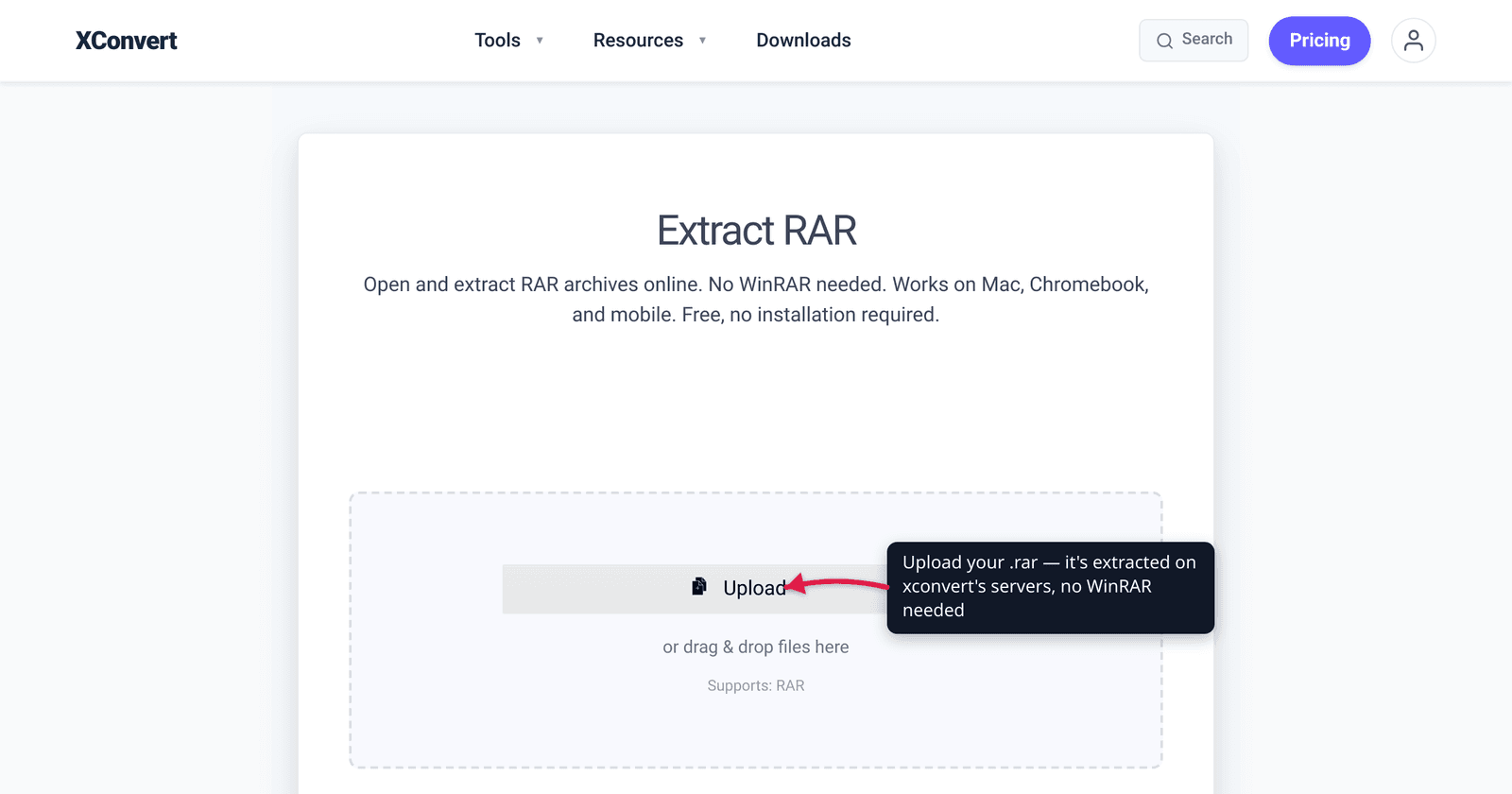
You downloaded a file ending in .rar, double-clicked it, and nothing useful happened — or Windows offered to “search the Store for an app.” RAR is a proprietary archive format, so for years no operating system could open one out of the box. The good news: extracting a RAR is well-supported everywhere now, even though creating one still isn’t free. This guide shows the fastest route on any device — including the online option that needs no install — and handles the two things that trip people up: password-protected archives and multi-part sets (.part1.rar, .r00). We verified the Windows 11 native-RAR situation and the licensing against Microsoft’s own support docs and RARLAB.
Quick answer: On Windows 11 (23H2 or later) you can right-click a .rar and Extract All with no extra software — native RAR support shipped in late 2023. On older Windows or macOS, you need a tool: extract it online at xconvert’s RAR extractor (no install), or install a free app (7-Zip on Windows; The Unarchiver or Keka on Mac). For a password-protected RAR you’ll be prompted for the password; for a multi-part set, point the tool at the first volume and keep all parts in one folder.
Jump to a section
- What a RAR file actually is
- Open a RAR on Windows
- Open a RAR on Mac, Chromebook, or phone
- Password-protected and multi-part RARs
- Extract a RAR online with xconvert
- FAQ
What a RAR file actually is
A .rar file is a compressed archive — one container holding one or more files, squeezed smaller, much like a ZIP. The name stands for Roshal Archive, after Eugene Roshal, who created the format in 1993. The key thing that makes RAR different from ZIP is that it’s proprietary: the copyright and the compression algorithm are owned by Alexander Roshal / win.rar GmbH (RARLAB), the makers of WinRAR.
That ownership has one practical consequence worth understanding:
- Extracting a RAR is free and universal. RARLAB publishes the UnRAR source code as freeware, with a license that lets any software unpack RAR archives. That’s why 7-Zip, The Unarchiver, your file manager, and online tools can all open them.
- Creating a RAR is not. The license explicitly permits software to unpack but not create RAR archives, and forbids reverse-engineering the proprietary compression algorithm. To make a
.raryou need WinRAR (paid after its trial). This is the opposite of ZIP, which anyone can both read and write.
So if a tool says it can “open RAR” but not “convert to RAR,” that’s the licensing — not a missing feature. If you’re choosing a format to create and share, ZIP (universal) or 7z (free, high-ratio) avoid this entirely — see ZIP vs RAR vs 7z.
Open a RAR on Windows
What you do depends on your Windows version.
Windows 11, version 24H2 (or 23H2 with the Oct 2023 update) — no software needed. Microsoft added native support for RAR, 7z, and TAR to File Explorer, built on the open-source libarchive project. Per Microsoft’s own support page, “Windows 11, version 24H2 supports ZIP, RAR, 7z and TAR archive formats.” To use it:
- Right-click the
.rarfile in File Explorer. - Choose Extract All…, pick a destination, and click Extract.
One honest caveat from Microsoft: the built-in handler does not support encrypted (password-protected) archives. For those you still need a third-party tool (see the tricky cases below).
Windows 10 and earlier — install a free tool, or extract online. These versions never gained native RAR support, so a double-click does nothing. Two free routes:
- 7-Zip (free, open-source): right-click the
.rar→ 7-Zip → Extract Here / Extract to "folder". It handles passwords and multi-part sets. - No-install route: upload it to the xconvert RAR extractor and download the contents — handy on a locked-down work PC where you can’t install anything.
(WinRAR also works on every Windows version, but it’s the paid tool — you only need it if you want to create RARs, not just open them.)
Open a RAR on Mac, Chromebook, or phone
macOS does not open RAR natively — and never has. The built-in Archive Utility handles ZIP, TAR, and gzip, but not RAR; double-clicking a .rar in Finder gives you nothing useful. You need one of:
- The Unarchiver (free, Mac App Store / theunarchiver.com) — the standard free choice. Extraction-only, handles passwords and multi-part RARs, good at non-English filenames.
- Keka (free from keka.io, or a small fee on the App Store) — also creates archives (7z, ZIP, etc.), so it’s the better pick if you compress as well as extract.
Chromebook / Linux: a Chromebook’s Files app can often peek inside a .rar, but for reliable extraction (and passwords) use the online route. On Linux, install unrar or 7z (p7zip-rar) from your package manager.
iPhone / iPad / Android: the easiest universal answer is to extract it online — open xconvert’s RAR extractor in the phone’s browser, add the file from your downloads, and download the contents. No app to install, same on every platform. (Native apps like iZip or RAR for Android also work if you’d rather install one.)
Password-protected and multi-part RARs
Two situations need a little extra care.
Password-protected (encrypted) RARs. If the archive was encrypted, any tool will prompt you for the password before it can extract — there’s no way around that, by design. Paste the password exactly as the creator set it (it’s case-sensitive). Important honesty: a password you don’t have cannot be recovered or bypassed by a converter or extractor; the encryption is real. Note too that Windows 11’s built-in extractor can’t do encrypted archives at all — use 7-Zip, The Unarchiver, or the online tool, which do prompt for the password.
Multi-part (split / multi-volume) RARs. Large RARs are often split into several files so they’re easier to transfer. You’ll see one of two naming patterns:
| RAR version | First part | Following parts |
|---|---|---|
| RAR5 (modern) | name.part1.rar | name.part2.rar, name.part3.rar, … |
| Older RAR (RAR4) | name.rar | name.r00, name.r01, … |
To extract a split set:
- Put every part in the same folder — a missing part means an incomplete or failed extraction.
- Open or extract only the first volume —
name.part1.rarorname.rar(not.part2.rar, not.r00).
The tool automatically pulls in the rest of the parts in order. You never extract .r00 directly; it’s just a continuation of the first file. If you’re missing a part, you generally can’t extract — re-download the complete set.
Extract a RAR online with xconvert
When you can’t (or don’t want to) install software — a Chromebook, a work laptop, a phone — the xconvert RAR extractor opens the archive on our servers and hands back the files. No WinRAR, no account.
- Go to xconvert.com/extract-rar and click + Add Files to upload your
.rar(From my Computer, From Google Drive, or From Dropbox). - For a multi-part set, add the first volume (
.part1.raror.rar) — and add the other parts too so they’re all available. - Defaults are fine for almost everyone; Advanced Options (the gear) is there if you need it.
- Click Extract. If the archive is encrypted, you’ll be prompted for the password — paste it exactly as the creator set it.
- Download the results — grab individual files, or get everything at once as a single ZIP.
Your file is uploaded over an encrypted connection, processed on our servers, and deleted automatically a few hours later — nothing lingers. (xconvert cannot recover or bypass a forgotten archive password; only the person who set it can.)
If your goal is the reverse — getting files out of a .zip instead — see unzip files online. And if you’re deciding which archive format to create in the first place, ZIP vs RAR vs 7z breaks down the trade-offs.
FAQ
How do I open a RAR file for free?
On Windows 11 (23H2 or later), right-click it and choose Extract All — native RAR support is built in, no software needed. On older Windows install free 7-Zip; on Mac install free The Unarchiver or Keka. On any device with no install allowed, extract it online with the xconvert RAR extractor. All of these are free for extracting — only creating a RAR costs money (it needs WinRAR).
Can Windows open RAR files without WinRAR?
Yes — on Windows 11 23H2 or later (native archive support shipped in the October 2023 update). Microsoft added native support for RAR, 7z, and TAR to File Explorer, so a right-click → Extract All works with no third-party app. Windows 10 and earlier cannot — you’ll need 7-Zip or an online extractor. Note the built-in Windows extractor can’t handle password-protected RARs.
Why won’t my Mac open a RAR file?
Because macOS has never supported RAR natively. The built-in Archive Utility opens ZIP, TAR, and gzip but not RAR, so double-clicking does nothing. Install The Unarchiver (free) or Keka, or extract the file online. This isn’t a bug — RAR is a proprietary format Apple doesn’t bundle support for.
How do I extract a multi-part RAR (.part1.rar or .r00)?
Put all the parts in one folder, then open or extract only the first volume — name.part1.rar (modern RAR5) or name.rar (older RAR4). The tool automatically reads the rest in sequence. Never start from .part2.rar or .r00; those are continuations. If a part is missing, the extraction will be incomplete — re-download the full set.
How do I open a password-protected RAR without the password?
You can’t. RAR encryption is genuine — no extractor, converter, or online tool can recover or bypass a password you don’t have. Any tool will prompt you for the password and extract once you enter it correctly (it’s case-sensitive), but the password has to come from whoever created the archive.
What’s the difference between RAR and ZIP?
Both are compressed archives, but ZIP is open — any tool can create and read it — while RAR is proprietary: extracting is free everywhere, but creating a RAR requires the paid WinRAR. RAR often compresses a little tighter and supports recovery records, but ZIP’s universal compatibility is why it’s the safer choice for sharing. See ZIP vs RAR vs 7z for the full comparison.
Sources
Last verified 2026-06-25.
- Microsoft Support — Compress and uncompress files (zip files) — “Windows 11, version 24H2 supports ZIP, RAR, 7z and TAR archive formats”; built-in extractor does not support encrypted archives.
- Engadget — Windows 11 finally gets native RAR support / TechSpot — native RAR/7z/TAR support announced May 2023, shipped via the October 2023 (KB5031455) update, built on the open-source libarchive library.
- RAR (file format) — Wikipedia — RAR is proprietary, created by Eugene Roshal in 1993 (“Roshal Archive”); copyright held by Alexander Roshal / win.rar GmbH; UnRAR source is freeware that can unpack but not create RAR; multi-volume naming (
.part1.rarin RAR5;.rar/.r00/.r01in older versions). - RARLAB — UnRAR / WinRAR downloads — UnRAR is published as command-line freeware; creating RAR archives requires WinRAR.
- The Unarchiver and Keka — free macOS extractors for RAR (macOS Archive Utility has no native RAR support).