 By James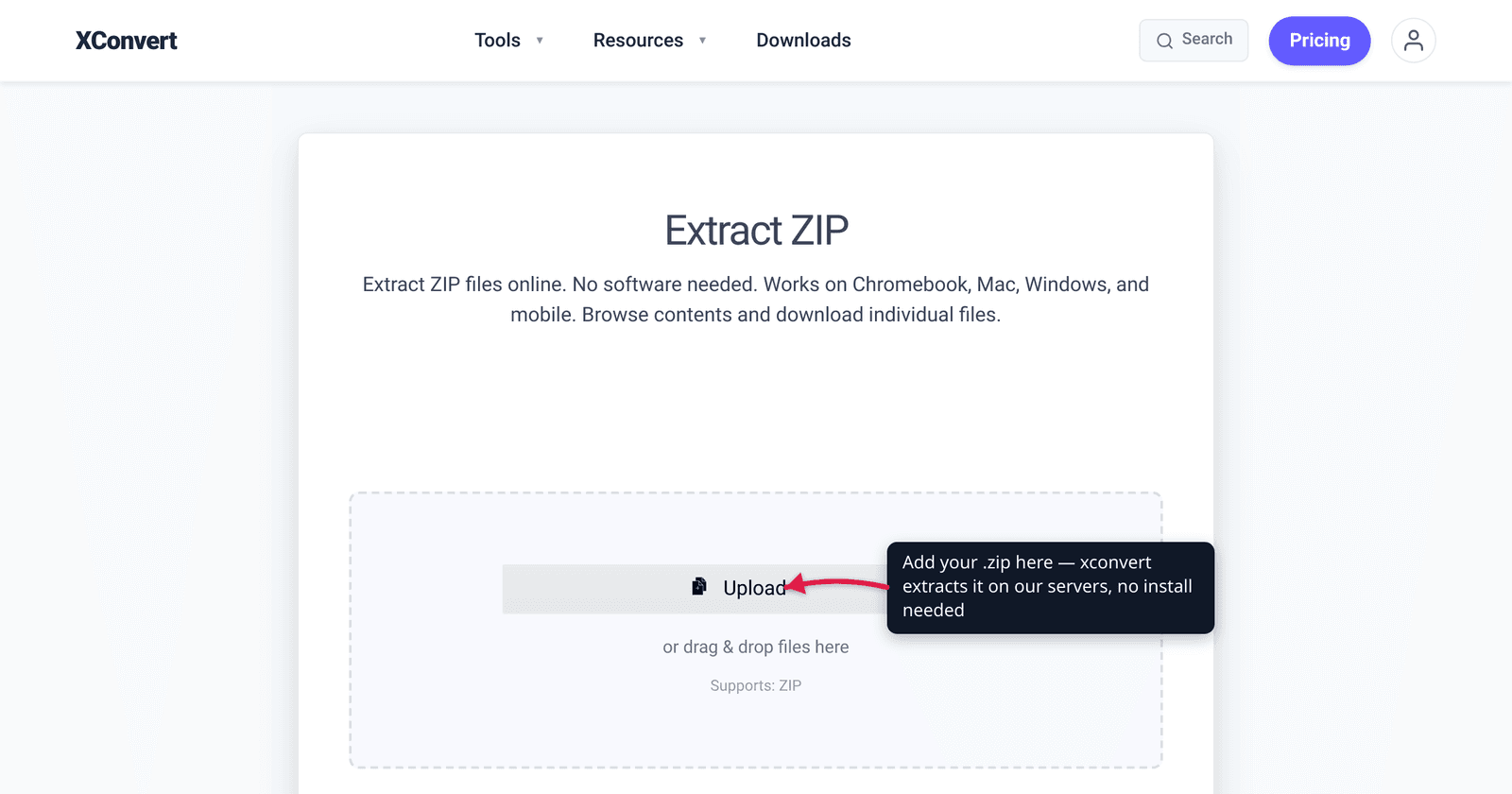
Someone emails you a .zip of 30 vacation photos, or a contractor sends a ZIP of project files, and you just need the contents out. Good news: ZIP is the one archive format every major operating system opens with zero extra software — Windows, macOS, ChromeOS, and Android all extract ZIP natively. This guide gives you the exact, verified steps for each, plus when an online extractor is the better call: a locked-down work laptop, a Chromebook, or a password-protected archive your built-in tool chokes on. We checked every step against Microsoft, Apple, and Google’s own support pages.
Quick answer: On Windows, right-click the ZIP and choose Extract All…. On a Mac, just double-click the .zip — it expands in the same folder. On a Chromebook, double-click to browse it, then right-click and Extract all. On Android, open Files by Google, tap the ZIP, then Extract. No download or install needed on any of them. Use an online ZIP extractor when you’re on a restricted machine, the native tool fails, or you need to handle a password-protected ZIP.
Jump to a section
- What “unzipping” actually does
- Unzip on Windows
- Unzip on Mac
- Unzip on Chromebook and Android
- When to use an online ZIP extractor instead
- Unzip a file online with xconvert
- FAQ
What “unzipping” actually does
A ZIP file is an archive: one container that bundles many files (and folders) into a single .zip and compresses them so they take less space and travel as one attachment. “Unzipping” — also called extracting, expanding, or decompressing — reverses that: it pulls the original files back out into a normal folder you can open and edit.
Two things worth knowing up front:
- Opening a ZIP is not the same as extracting it. Most systems let you browse the contents of a ZIP by double-clicking it — you can see the file list and even peek at individual files. But until you extract, the files are still locked inside the archive. Editing or running programs reliably usually requires extracting first.
- ZIP is the universal format. Unlike RAR or 7z, ZIP support is built into every modern OS. That’s the whole reason it remains the default for “send this to anyone.” If you’re dealing with a
.rarinstead, see how to open and extract a RAR file — RAR needs a bit more care. And if you’re deciding which format to create, ZIP vs RAR vs 7z breaks down the trade-offs.
Unzip on Windows
Windows has extracted ZIP files natively since Windows XP — no WinZip, no 7-Zip required. Per Microsoft’s own support page, here’s the documented way on Windows 10 and 11:
- In File Explorer, locate the zipped folder you want to open.
- Right-click (or press and hold) the
.zipfile and select Extract All… - In the dialog, confirm or change the destination folder, then click Extract.
- The extracted files open in a new window in the location you chose.
To grab just one file without extracting everything, you can also open the zipped folder by double-clicking it, then drag the file you want out to a new location — Microsoft documents this as the single-file route.
One bonus on recent Windows: starting with Windows 11 version 24H2, File Explorer can natively open RAR, 7z, and TAR archives too (it uses the open-source libarchive library), not just ZIP. The catch: password-encrypted archives are not yet supported by the built-in extractor — that’s one of the cases where an online tool earns its place.
Unzip on Mac
macOS is the simplest of all. Per Apple Support, there’s nothing to click through:
- In Finder, find the
.zipfile. - Double-click the
.zipfile. - macOS’s built-in Archive Utility expands it, and — in Apple’s exact words — “the unzipped item appears in the same folder as the .zip file.”
That’s the entire process. If you double-clicked and nothing useful happened, it’s usually one of two things: not enough free disk space for the expanded contents, or a damaged download — Apple’s guidance there is to ask the sender to zip and resend. macOS does not extract password-protected ZIPs through this double-click route, so an encrypted archive is another reason to reach for an online extractor or a dedicated app.
Unzip on Chromebook and Android
Chromebook (ChromeOS). The built-in Files app handles ZIP without any extension. Per Google’s Chromebook help:
- Open the Files app and double-click the
.zipfile — it mounts and appears in the left sidebar so you can browse inside it. - To pull everything out, right-click the folder and select Extract all.
- When you’re done, select Eject to remove the mounted ZIP from the sidebar.
ChromeOS’s Files app also natively handles password-protected ZIPs — it prompts you for the password and lets you unlock. That makes a Chromebook one of the few “no-install” environments that does encrypted ZIPs out of the box.
Android. Use the Files by Google app, which Google documents for this:
- Open Files by Google and navigate to the folder with your
.zipfile. - Tap the
.zipfile — a popup shows its contents. - Tap Extract.
- Review the extracted files (you can tick Delete ZIP file if you no longer need the archive), then tap Done.
Google notes the extracted files land in the same location as the original ZIP, and that only .zip files are supported by Files by Google — RAR and 7z need a different app.
When to use an online ZIP extractor instead
Native tools cover the common case beautifully. An online extractor is the right move in three specific situations:
- Locked-down or shared machines. A managed work laptop, a library or school computer, or a kiosk where you can’t install software — but the OS extractor is sometimes disabled or the file is parked somewhere you can’t write to. A browser-based tool sidesteps that.
- The native tool fails or isn’t available. A corrupted-looking archive, an unusual ZIP variant, or a device whose built-in extractor doesn’t cooperate. A second, independent extractor often opens what the first one wouldn’t.
- Password-protected ZIPs where your OS can’t help. As noted above, Windows’ built-in extractor and macOS’s double-click route don’t open encrypted ZIPs. An online tool that accepts the password fills that gap.
The trade-off is honest: an online tool uploads your file to a server, so it’s not the right choice for truly sensitive material. For everyday archives on a restricted device, it’s the path of least resistance.
Unzip a file online with xconvert
The xconvert ZIP Extractor runs in any browser — handy on a Chromebook, a locked-down work PC, or any device without an archive tool installed:
- Open xconvert.com/extract-zip and click + Add Files to upload your
.zip(from your computer, Google Drive, or Dropbox). You can also drag and drop it onto the page. - If the archive is password-protected, xconvert prompts you for the password before extraction — enter it.
- Click Extract.
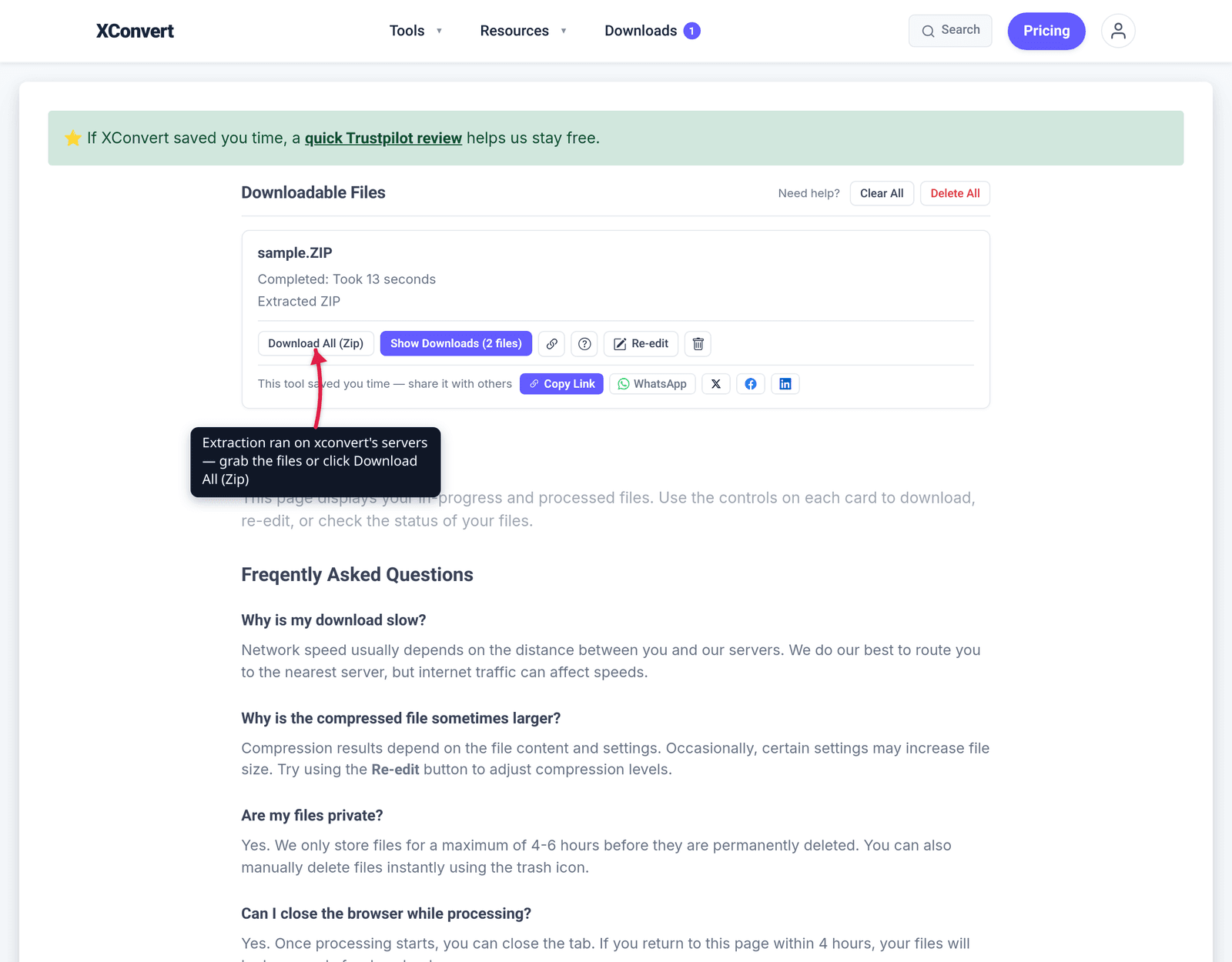
- Browse the file-list preview showing the contents and folder structure.
- Download files individually, or click Download All to grab the whole bundle at once.
Your file uploads over an encrypted connection, is processed on our servers, and is automatically deleted a few hours later. Nothing stays around.
For other archive types: open and extract a RAR file, or read ZIP vs RAR vs 7z to decide which format to use next time.
FAQ
How do I unzip a file for free?
Every major OS unzips ZIP files for free, with no extra software. On Windows, right-click the ZIP and choose Extract All…; on a Mac, double-click it; on a Chromebook, double-click then right-click and Extract all; on Android, use Files by Google and tap Extract. An online extractor like xconvert is the free fallback when you’re on a restricted device or the built-in tool won’t cooperate.
What’s the difference between opening and extracting a ZIP?
Opening lets you browse the archive; extracting pulls the files out into a normal folder. Double-clicking a ZIP on most systems shows you what’s inside, but the files stay compressed in the container until you extract. To edit documents or run programs, extract first.
Can I open a password-protected ZIP without software?
Sometimes — it depends on the device. A Chromebook’s Files app prompts for the password and opens encrypted ZIPs natively. Windows’ built-in extractor and macOS’s double-click route, however, do not handle password-protected ZIPs — for those you need an online extractor that accepts the password, or a dedicated app like 7-Zip.
Why won’t my ZIP file extract on a Mac?
Apple’s two documented causes are not enough free disk space for the expanded contents, or a damaged file. Free up space and try again; if it still fails, ask the sender to re-zip and resend. A second extractor (online or an app) can also open archives that Archive Utility rejects.
Can a Chromebook open ZIP files without an app?
Yes. ChromeOS’s built-in Files app opens and extracts ZIP natively — double-click to browse, right-click the folder and select Extract all to pull everything out. It even handles password-protected ZIPs by prompting for the password, so no Play Store install is needed.
Does Windows need WinZip or 7-Zip to unzip files?
No. Windows has extracted ZIP natively since Windows XP via right-click → Extract All…. As of Windows 11 24H2, File Explorer also natively opens RAR, 7z, and TAR. You only need a third-party tool for less common formats or for password-encrypted archives, which the built-in extractor doesn’t yet support.
How do I unzip just one file from a big ZIP?
Open the ZIP and drag out the single file you need. On Windows, double-click the zipped folder, then drag the one file to a new location (Microsoft documents this). On a Mac you extract the whole archive, but with an online extractor you can preview the file list and download just the files you want individually.
Sources
Last verified 2026-06-25.
- Microsoft Support — Zip and unzip files — Windows 10/11 native steps: right-click → Extract All…; drag a single file out to extract just one.
- Apple Support — Zip and unzip files and folders on Mac — “Double-click the .zip file”; “the unzipped item appears in the same folder”; disk-space / damaged-file caveats.
- Google — Open, save, or delete files on your Chromebook — ChromeOS Files app: double-click to mount, right-click folder → Extract all, Eject when done.
- Google — Unzip your files (Files by Google) — Android steps: tap ZIP → Extract → optional Delete ZIP file → Done; “Only .zip files are supported.”
- TechSpot — Windows 11 adds native RAR/7z/TAR support via libarchive — corroborates the 24H2 native multi-format extraction and the no-encrypted-archive limitation.