 By James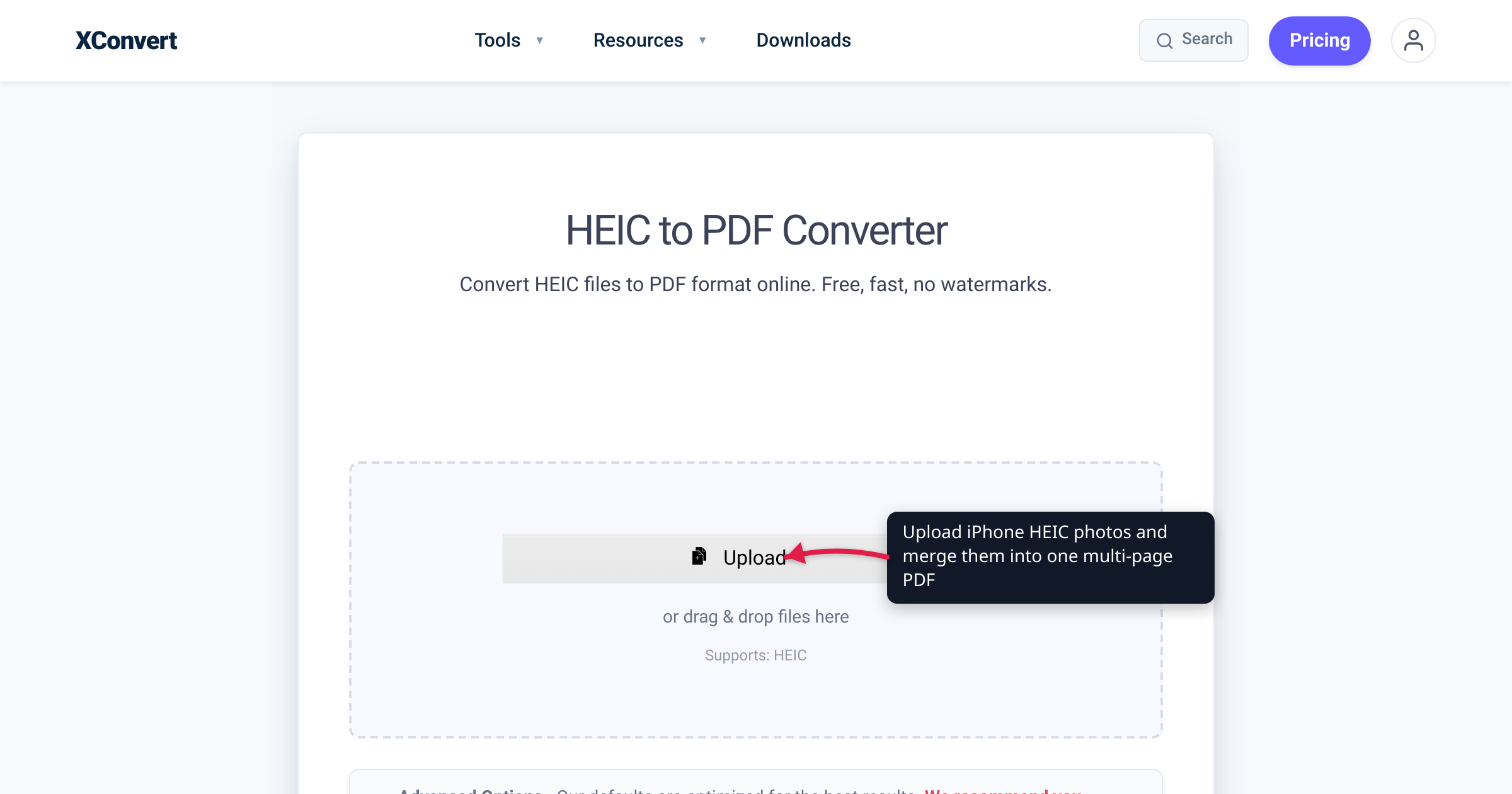
You photographed your driver’s license, a signed lease, or a benefits form with your iPhone, went to upload it to the application portal — and the box rejected the file. The reason is almost always the same: your iPhone saved the photo as a .heic file, and the portal only accepts PDF. Most upload forms don’t understand HEIC at all, so the fix is to turn that photo (or a stack of photos) into a PDF. This guide explains why your phone shoots HEIC, how to combine several photos into one document, and how to keep an ID or form legible — with the tool’s real merge behavior verified on the live page and the HEIC facts checked against Apple’s support docs and caniuse.
Quick answer: Your iPhone saves photos as HEIC (a HEIF container using the HEVC codec) to save space, and most upload portals only accept PDF, so you convert. On the xconvert HEIC to PDF converter, drop in your photos and keep the mode on Single PDF to merge them into one multi-page document — one photo per page, in the order you arranged — or switch to Individual PDFs for a separate file per image. For an ID or form, keep the quality high (the default is 75%) and lay the document flat before you shoot, because converting fixes the format, not a blurry photo.
Jump to a section
- Why your iPhone document is a .heic the portal won’t take
- One multi-page PDF, or one file per photo?
- Keep a photographed ID or form legible
- Convert HEIC to PDF on xconvert
- FAQ
- Sources
Why your iPhone document is a .heic the portal won’t take
Two things collide here: what your iPhone captures, and what the portal accepts.
Why the file is HEIC. Since iOS 11 (2017), iPhones (the iPhone 7 and later) default to Apple’s High Efficiency capture format. A .heic file is a HEIF container — the ISO standard ISO/IEC 23008-12 — whose still image is compressed with the HEVC (H.265) codec. Apple’s whole reason for using it is space: HEIF/HEVC “offer better compression than JPEG and H.264… so they use less storage space.” That’s great for your camera roll and terrible for a document upload, because the format barely exists outside Apple’s ecosystem.
Why the portal rejects it. Upload forms for banks, universities, landlords, and government agencies are built around formats they know their reviewers can open — overwhelmingly PDF, sometimes JPG or PNG. HEIC almost never makes the list, and for good reason: outside Apple devices, native HEIC support is thin. On the web, only Safari 17 and later decodes HEIC — Chrome, Firefox, and Edge do not — which puts HEIF/HEIC at roughly 14% of global browsers, per caniuse. A portal that can’t reliably display your file simply won’t accept it.
The “Most Compatible” setting only helps going forward. You can switch your camera to shoot JPEG instead — Settings → Camera → Formats → Most Compatible captures JPEG (and H.264 video) rather than HEIC. But that only changes the photos you take after you flip it. The photo you already shot of your ID is still HEIC, so for the document sitting in your camera roll right now, converting is the route. PDF is the safer target than JPG, too, because it’s the format portals ask for by name and it holds multiple pages in one file.
One multi-page PDF, or one file per photo?
This is the decision most people get wrong, so it’s worth being precise — and the behavior below is verified on the live xconvert HEIC to PDF converter, not assumed.
Many documents are more than one photo: the front and back of an ID, a two-page lease, or a stack of bank statements. A portal that wants “your ID” usually wants one file, not two separate images. The tool handles both cases with a mode you choose before converting:
| You have… | Choose | You get |
|---|---|---|
| A multi-page document (front+back ID, a lease, several statement pages) | Single PDF | One PDF, one photo per page, in the order you arranged them |
| Several unrelated documents the portal wants uploaded separately | Individual PDFs | A separate PDF per image |
Single PDF is the default, and it’s the one you want most of the time: drop in multiple HEIC files and they become one multi-page document, one photo per page. Individual PDFs is for when a form has separate upload slots (“upload your ID,” “upload your utility bill”) and each needs its own file.
Page order is set before you convert. The images are combined in the order shown, so arrange them first — the first photo becomes page 1, the second becomes page 2, and so on. Put the front of the ID before the back; put page 1 of the lease before page 2. Getting the sequence right up front saves you re-doing the whole PDF. (For the native iPhone, Android, and Windows “photos to PDF” routes when you’re not dealing specifically with HEIC, see combine photos into one PDF.)
Keep a photographed ID or form legible
A document PDF has one job the portal cares about above all: someone has to be able to read it. Two things affect that — the compression you apply, and the photo you started with.
Don’t crush the quality. Placing a photo into a PDF re-compresses it, and the converter’s Image Quality slider controls how hard. The default is 75%, which keeps text and fine print sharp while holding the file size down. For an ID, a form with small print, or anything with a signature, that’s a sensible floor — you can raise it toward 100% if the file size budget allows. Over-compressing to shrink the file is a false economy on a document: a name or account number that’s unreadable gets the upload bounced. In the tool’s Advanced Options you can also set the paper size (A4, Letter, Legal, A3, or Original), margins, orientation, and how the image sits on the page (Contained keeps the whole photo visible rather than cropping to fill), so a portrait ID and a landscape form both land cleanly.
Converting fixes the format, not the photo. This is the honest part: turning a HEIC into a PDF changes the wrapper, not what’s inside the frame. If the original shot is blurry, tilted, glared, or half in shadow, the PDF will be too — and a portal’s automated check or the human reviewing it can still reject an unreadable document regardless of format. Before you convert, lay the document flat, use even light with no glare, fill the frame straight-on (not at an angle), and make sure the whole edge is in view and in focus. A clean capture is what makes the PDF actually acceptable. If the portal happens to accept image files instead, converting the same photo to a plain HEIC-to-JPG may be all you need.
Convert HEIC to PDF on xconvert
The xconvert HEIC to PDF converter takes the photos straight off your iPhone — no need to convert to JPG first — and assembles the PDF for you:
- Open xconvert.com/convert-heic-to-pdf and click + Add Files to upload your
.heicphoto(s) — from My Computer, Google Drive, or Dropbox. You can add one photo or many at once. - Arrange the photos in reading order — the first is page 1, the second is page 2, and so on. They’re combined in the order shown.
- Choose the mode: keep Single PDF to merge everything into one multi-page document (one photo per page), or pick Individual PDFs to get a separate file per image.
- (Optional) Open Advanced Options to set Paper size (A4, Letter, Legal, A3, Original), Margin, Orientation (Portrait/Landscape), Image placement (Contained keeps the full photo visible), and the Image Quality slider — leave it at 75%, or raise it for a text-heavy ID or form.
- Click Convert.
- Download your PDF and upload it to the portal.
Your photos upload over an encrypted connection, are processed on our servers, and deleted automatically a few hours later — with no sign-up and no watermark on the output.
FAQ
Why won’t the upload portal accept my iPhone HEIC photo?
Because most portals only accept PDF (sometimes JPG or PNG), and HEIC isn’t widely supported outside Apple devices. On the web, only Safari 17+ decodes HEIC — Chrome, Firefox, and Edge don’t — so a form that can’t reliably open the file rejects it. Converting the photo to PDF gives the portal the format it asks for.
Can I combine several photos into one PDF for one document?
Yes. Keep the mode on Single PDF and the tool merges every photo into one multi-page PDF, one photo per page, in the order you arranged them — ideal for the front and back of an ID or a multi-page lease. Switch to Individual PDFs only when the portal wants each document uploaded as a separate file.
How do I get the pages in the right order?
Arrange the photos before you convert — they’re combined in the order shown, so the first image becomes page 1, the second page 2, and so on. Put the front of an ID before the back, and page 1 before page 2, so the finished PDF reads correctly with no re-doing.
Will converting to PDF make my ID blurry or hard to read?
Placing a photo in a PDF re-compresses it, but at the default 75% Image Quality the loss is hard to spot, and you can raise it for small print. The bigger factor is the original photo: converting fixes the format, not focus or glare. Shoot the document flat, well-lit, and straight-on so it stays legible.
Should I just switch my iPhone to shoot JPEG instead?
You can — Settings → Camera → Formats → Most Compatible captures JPEG rather than HEIC. But that only affects future photos; the shot you already took of your document is still HEIC, so you’ll convert this one either way. Many people leave the camera on High Efficiency and convert only the files they need to upload.
What happens to my ID or document after I upload it?
Your files upload over an encrypted connection and the PDF is built on xconvert’s servers, then your uploaded images and the finished PDF are deleted automatically a few hours later. There’s no account required and no watermark is added to the document.
Sources
Last verified 2026-07-16.
- Apple Support — Using HEIF or HEVC media on Apple devices — confirms HEIF/HEVC were introduced in iOS 11 / macOS High Sierra (2017), are the default capture format on iPhone 7 and later, “offer better compression than JPEG and H.264… so they use less storage space,” and that the Most Compatible camera format reverts to JPEG/H.264.
- caniuse — HEIF/HEIC image format — current browser support: native only in Safari 17+; Chrome, Firefox, and Edge unsupported; roughly 14% (13.6%) of global browsers — the reason most upload portals reject HEIC.
- ISO/IEC 23008-12 — High Efficiency Image File Format (HEIF) — the container standard; documents that
.heicis the conventional extension for an HEVC-coded HEIF image, and that HEVC is HEIF’s implied default codec. - xconvert HEIC to PDF converter — the live tool; UI labels (+ Add Files), the Single PDF (multi-page, one photo per page) vs Individual PDFs merge modes, page order (“combined in the order shown”), the Advanced Options (paper size, margin, orientation, image placement, quality), and the 75% default Image Quality were all verified against the rendered page on the date above.