 By Stephanie Taylor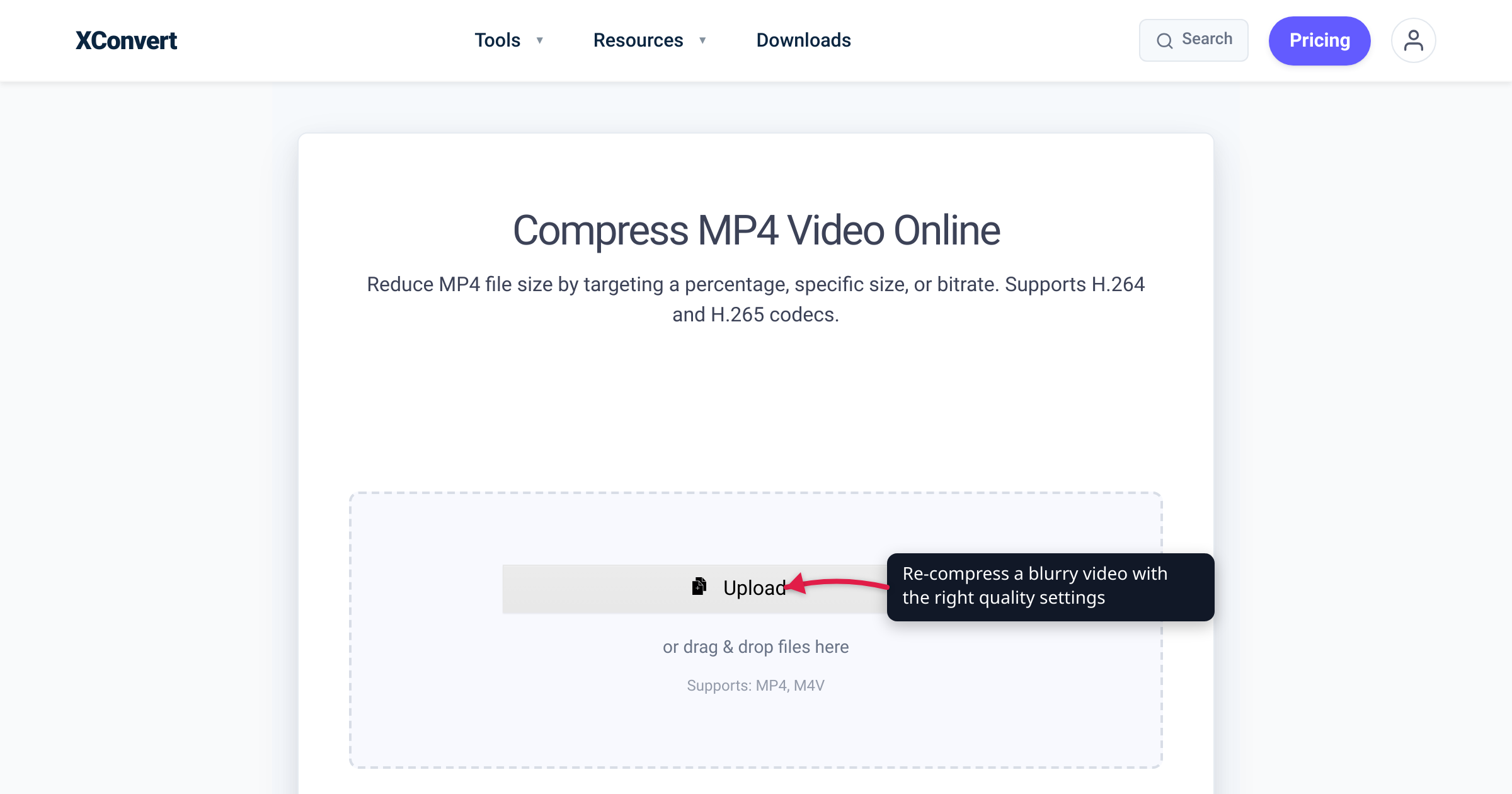
You shrank a crisp phone clip to fit an upload limit, and the download looks wrong — faces gone soft, edges smeared, a fast pan dissolving into blocky mush. The file is smaller, but it’s also worse than it should be. Blurry-after-compression is not random bad luck; it has a short list of specific causes, and each one maps to a setting you can change. This guide walks through the five that account for almost every case — too-low bitrate, silent auto-downscaling, upscaling on playback, generation loss, and high motion — and the exact fix for each. The bitrate figures here are checked against YouTube’s own encoding spec, the codec and motion facts against MDN and Fraunhofer HHI, the CRF ranges against the x264/FFmpeg maintainer, and every control against the live tool.
Quick answer: A video goes blurry after compressing when the encoder wasn’t given enough bits for the detail and motion you asked it to keep. The usual culprits: (1) the bitrate / target size was too low, so the codec smeared detail and blocked up motion; (2) Auto Scale quietly dropped the resolution to hit a tiny target, and your player stretched it back up; (3) you’re viewing a low-resolution source enlarged; (4) you re-compressed an already-compressed file (generation loss); or (5) fast motion outran a fixed bit budget. Fixes: raise the target size or switch to Constant Quality (CRF), set the resolution to match the screen, and always start from the highest-quality source. Honest caveat — lossy compression always softens a little; the goal is to make the loss invisible, not zero.
Jump to a section
- Cause 1: the bitrate is too low
- Cause 2: Auto Scale downscaled it, your player blew it back up
- Cause 3: you’re watching it bigger than it was shot
- Cause 4: you compressed an already-compressed video
- Cause 5: fast motion needs more bitrate
- Fix a blurry compression on xconvert
- FAQ
Cause 1: the bitrate is too low
This is the number-one reason, so start here. Bitrate is how much data the encoder spends per second of video. Hand it a budget that’s too small for the resolution, detail, and motion you’re keeping, and it has no choice but to throw information away — it quantizes more aggressively, and the picture goes soft first, then breaks into faint blocks. MDN puts the tradeoff plainly: “anything that makes the encoded video look more like the original, uncompressed, video will generally make the resulting data larger as well. Thus, it’s always a tradeoff of size versus quality” (MDN — Web video codec guide). When you drag a “target file size” slider down to a tiny value, you are explicitly choosing the low-bits, low-quality side of that curve.
How much is “enough”? YouTube’s own recommended upload bitrates are a good reference for what looks clean at each resolution (SDR, H.264, in an MP4 container): roughly 8 Mbps for 1080p at 30 fps (12 Mbps at 60 fps), 5 Mbps for 720p (7.5 at 60), and 35–45 Mbps for 4K (YouTube — Recommended upload encoding settings). If your compressor is squeezing a 1080p clip down to a small fraction of ~8 Mbps, softness is the expected result, not a bug.
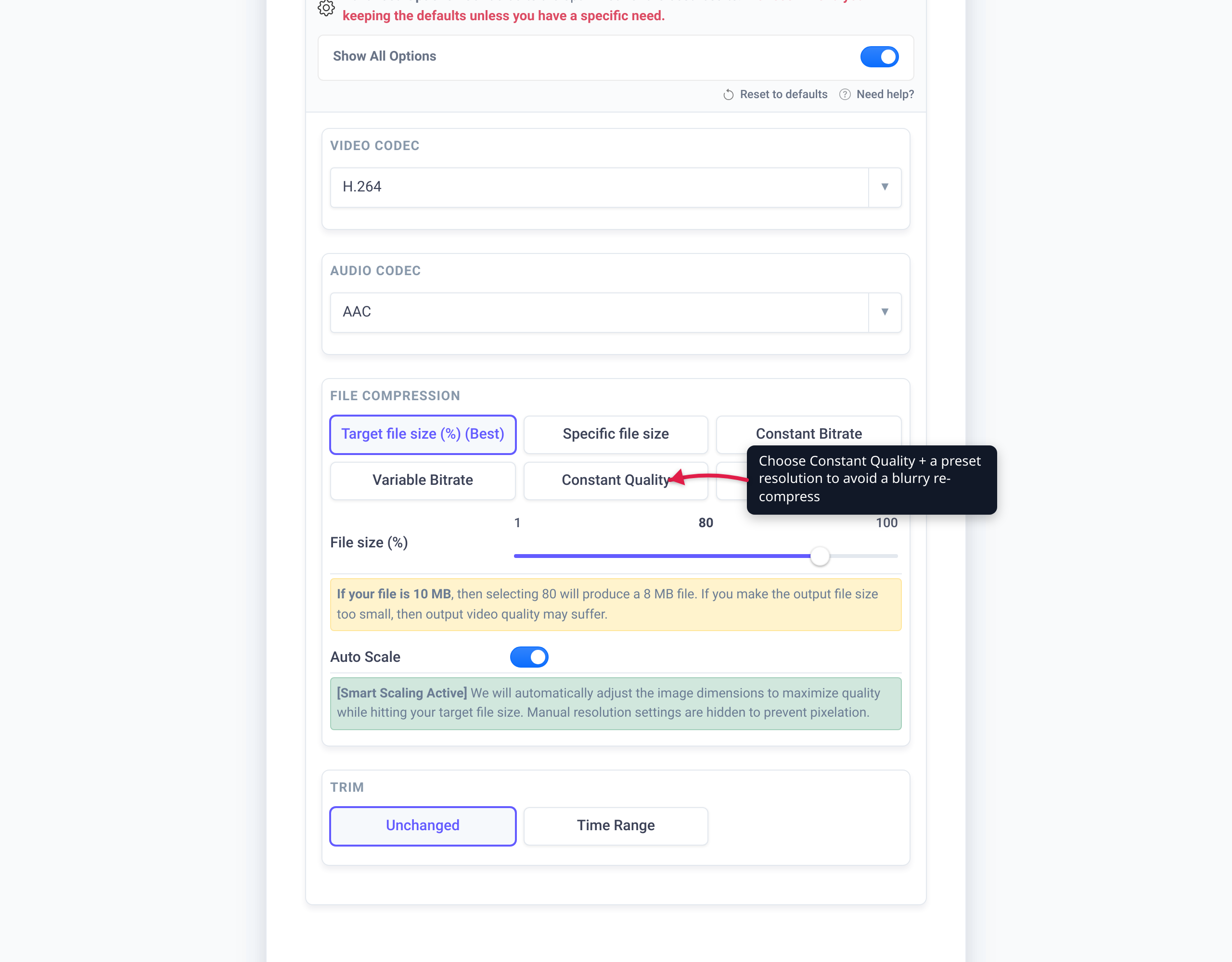
The fix: give the encoder more room. Raise the Target file size (%), or set a larger Specific file size. Better still, stop guessing a size and switch to Constant Quality — the constant-rate-factor (CRF) approach, which holds perceived quality steady and spends the bits each moment needs instead of forcing a flat budget. For H.264 (x264) the CRF scale runs 0–51 (lower is higher quality), the default is 23, and the maintainer-recommended “sane range” is 18–28; a change of ±6 roughly doubles or halves the file (CRF Guide — Werner Robitza). Sitting toward the low end keeps the picture sharp — the opposite of blur.
Cause 2: Auto Scale downscaled it, your player blew it back up
The xconvert MP4 compressor defaults to Target file size (%) with Auto Scale (“Smart Scaling”) switched on. Its own note explains what that does: it “will automatically adjust the image dimensions to maximize quality while hitting your target file size.” In plain terms, when your target is small, the smartest way to hit it is to lower the resolution — so a 1080p clip can come out as 720p or 480p without you asking. That’s often the right call: MDN notes that reducing “a 1080p video… to 720p prior to encoding” can be “much smaller while having much higher visual quality” than cramming full resolution into a starved budget.
The blur comes at playback. Your video player takes that smaller frame and scales it back up to fill the window — and upscaling can’t restore detail that was removed (see the next section). So what reads as “the compressor blurred my video” is really downscale, then upscale. It looks soft because you’re watching a 720p image stretched across a 1080p space.
The fix — two options. Either (a) accept a bigger file: raise the target so Auto Scale doesn’t have to drop the resolution as far; or (b) take control: switch from Target file size to Constant Quality, which turns Auto Scale off and reveals the Video resolution picker so you choose the output resolution instead of letting the size target decide it silently.
Cause 3: you’re watching it bigger than it was shot
Sometimes the source was low-resolution to begin with, and compression gets blamed for it. Compress a 480p clip, watch it full-screen on a 1080p display, and it looks blurry — but the compressor didn’t do that. Enlarging any raster image fills the new pixels by interpolation (bilinear or bicubic math that estimates in-between values), and interpolation cannot invent detail that was never captured (Wikipedia — Image scaling). A 480p video holds 480p worth of detail no matter how large the window is; stretching it just makes each stored pixel bigger and softer.
The tell: if the softness is visible before you compress, or if you set the output resolution higher than the source, the culprit is upscaling, not compression. The fix: match the output resolution to the source and never set it higher; view the clip at the resolution it was actually shot. If you genuinely need a higher-resolution master, re-export from the original camera file — there’s no setting that adds back detail that was never recorded. For how much each resolution step costs and saves, see lower a video’s resolution.
Cause 4: you compressed an already-compressed video
Every MP4 you’ve ever made is already lossy — it discarded data to get small. Compress that file again and the encoder starts from the already-degraded pixels, bakes the previous artifacts in as if they were real detail, and adds a fresh round of loss on top. Wikipedia describes the mechanism: “Converting between lossy formats – be it decoding and re-encoding to the same format, between different formats, or between different bitrates or parameters of the same format – causes generation loss,” and “Repeated applications of lossy compression and decompression can cause generation loss” (Wikipedia — Generation loss). Each pass compounds the last, so a clip you’ve squeezed three times over is measurably softer than one compressed once.
The fix: always start from the highest-quality source you have — the camera original or the first export — and compress that a single time, not the shrunk copy you made yesterday. Keep the master; compress a duplicate. As Wikipedia puts it, “the only way to avoid generation loss is by using uncompressed or losslessly compressed files” — so the practical goal is to minimize the number of lossy passes to one.
Cause 5: fast motion needs more bitrate
If only the action looks blurry while static shots stay crisp, the cause is motion. Video compression works by storing the differences between frames: “Compression of video typically works by comparing frames, finding where they differ… The more successive frames differ from one another, the larger these differences are, and the less effective the compression is at avoiding the introduction of artifacts into the compressed video” (MDN — Web video codec guide). So “the more motion there is in a video, the larger the output file will typically be.” A bit budget that looks flawless on a talking head — where almost nothing changes frame to frame — can smear during a fast pan, a sports play, or falling confetti, because there’s far less redundancy for the codec to exploit.
Frame rate pushes the same direction: YouTube recommends 12 Mbps for 1080p at 60 fps versus 8 Mbps at 30 fps, because more frames per second means more change to encode (YouTube — Recommended upload encoding settings). The fix: for high-motion footage, give the encoder more headroom — a higher target size, or (best) Constant Quality, which automatically spends more bits on the busy scenes and fewer on the calm ones rather than forcing one flat budget across both.
Fix a blurry compression on xconvert
The xconvert MP4 compressor exposes the exact controls behind every cause above, so you can redo a soft compression properly:
- Open xconvert.com/compress-mp4 and click Upload to add your video — From my Computer, From Google Drive, or From Dropbox. Start from your highest-quality source, not an already-compressed copy.
- Open Advanced Options (the gear icon) and click Show All Options to reveal every control.
- If a small target blurred the last attempt, give the encoder more bits: raise the Target file size (%) (marked Best), or switch to Specific file size and set a larger cap. More data per second means less smearing.
- To hold quality steady instead of chasing a size, switch to Constant Quality — the constant-rate-factor (CRF) mode. This also turns off Auto Scale (Smart Scaling), so the tool stops silently dropping your resolution.
- With Constant Quality on, the Video resolution section appears. Set Preset Resolutions to match the screen it’ll play on — and never higher than your source, since you can’t add detail that isn’t there.
- Optionally pick a more efficient video codec — H.265/HEVC or AV1 fits more quality into the same size than H.264 (about 50% less bitrate for the same look, per Fraunhofer HHI), at the cost of narrower playback support. Click Compress, download, and compare against the original.
Your file uploads over an encrypted connection, is processed on our servers, and is deleted automatically a few hours later. Nothing stays around.
For the full quality-first recipe, see reduce MP4 file size without losing quality; to understand the resolution trade-offs behind Auto Scale, see lower a video’s resolution.
FAQ
Why is my video blurry after compressing it?
Almost always because the encoder got too few bits for the detail and motion you kept. A small target file size forces the codec to throw information away — soft first, then blocky — or Auto Scale quietly dropped the resolution and your player stretched it back up. Give it more bits (raise the target) or switch to Constant Quality (CRF), and match the output resolution to the screen it’ll play on.
How do I compress a video without making it blurry?
Use Constant Quality (CRF) instead of a tiny size target: it holds perceived quality steady and spends the bitrate each scene needs. For H.264 the x264 default is CRF 23 and the recommended range is 18–28 (lower is sharper) (CRF Guide). Switching to a more efficient codec (H.265/HEVC or AV1) also keeps quality at a smaller size — and always start from the best source you have.
Does lowering the bitrate too much cause blur?
Yes — it’s the leading cause. Bitrate is data per second; set it too low and the encoder quantizes harder, producing soft, blocky output that’s worst during motion. As a reference, YouTube suggests around 8 Mbps for clean 1080p at 30 fps (YouTube); pushing a 1080p clip well below that will look soft. Raise the target or use Constant Quality.
Why does my compressed video look worse full-screen?
Because it’s being upscaled. If the output ended up 720p or 480p (Auto Scale hitting a small target), or the source was low-resolution to begin with, your player enlarges it to fill the screen — and interpolation “cannot add detail that was never captured” (Image scaling). Match the resolution to the screen, and never set the output higher than the source.
Can I un-blur a video I already over-compressed?
No. The detail discarded by lossy compression is gone, and each pass is permanent (Generation loss). Re-compress from the original source, not the blurry output — that stops it getting worse. AI “enhancers” don’t recover the original; they invent plausible-looking detail to fill the gap.
Why does only the fast-moving part look blurry?
High-motion scenes have far less frame-to-frame redundancy, so they need more bits to stay sharp; a fixed budget that’s fine for still shots smears during action (MDN). Use Constant Quality so the encoder automatically spends more on the busy scenes, or raise the overall target for action-heavy footage.
Is some quality loss unavoidable when compressing video?
Yes. All common video compression is lossy, so every pass softens the picture a little — it’s “always a tradeoff of size versus quality” (MDN). The goal isn’t zero loss; it’s making the loss invisible by giving the encoder enough bits (Constant Quality) and, where playback allows, a modern codec.
Sources
Last verified 2026-07-16.
- YouTube — Recommended upload encoding settings — official SDR bitrate reference: 1080p 8 Mbps (30 fps) / 12 Mbps (60 fps), 720p 5 / 7.5, 4K 35–45 / 53–68; container MP4, codec H.264.
- MDN — Web video codec guide — the size-versus-quality tradeoff; more motion produces larger files and more artifacts; higher frame rate increases size; downscaling before encoding can be smaller and higher quality.
- Fraunhofer HHI — H.265 / HEVC — “HEVC achieves about 50% bit-rate reduction at the same subjective video quality” versus H.264.
- CRF Guide — Werner Robitza (FFmpeg encoding-wiki maintainer) — x264 CRF scale 0–51, default 23, sane range 18–28, ±6 ≈ half/double the file size.
- Wikipedia — Generation loss — re-encoding between lossy formats/bitrates compounds degradation; only uncompressed or losslessly compressed files avoid it.
- Wikipedia — Image scaling — enlarging fills new pixels by interpolation and cannot add detail that was never captured.