 By James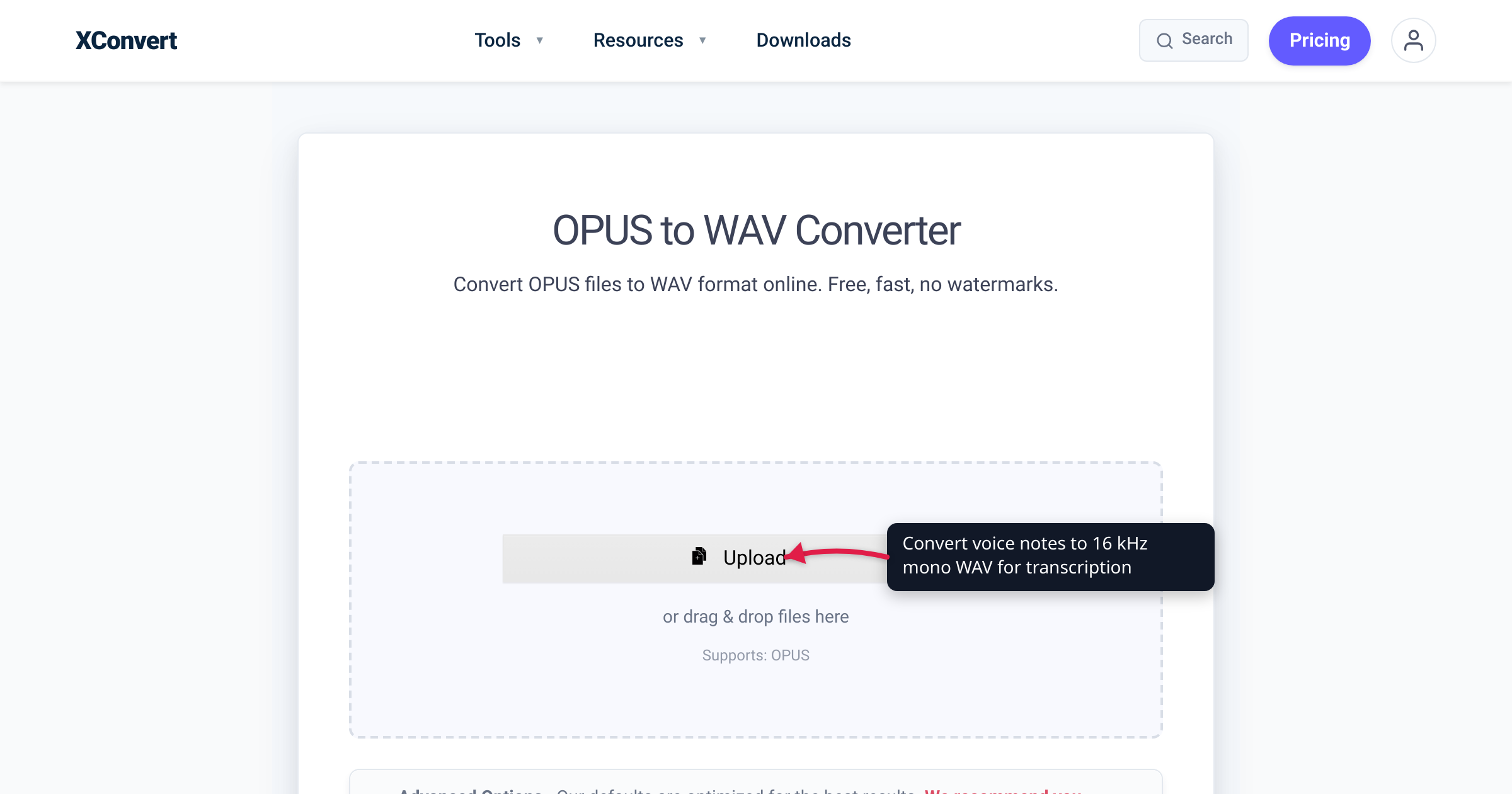
You have a phone full of WhatsApp voice notes — or a folder of old .amr voicemails and Android recorder clips — and you want a text transcript, not another afternoon of scrubbing audio. So you point Whisper, whisper.cpp, Otter, or a cloud speech-to-text API at the files and hit a wall: the tool rejects the upload, or the transcript comes out garbled. The fix is almost always the same — hand the transcriber a clean, uncompressed WAV instead of a compressed OPUS or AMR. This guide covers exactly which WAV settings speech models want (16 kHz, mono, 16-bit PCM), why, and how to convert without guesswork. We verified every setting against OpenAI’s Whisper, whisper.cpp, and Google Cloud Speech-to-Text’s own documentation.
Quick answer: Most speech-to-text engines want an uncompressed 16-bit PCM WAV, and the speech sweet spot is 16 kHz, mono. whisper.cpp “currently runs only with 16-bit WAV files,” OpenAI’s Whisper resamples everything to 16,000 Hz, and Google Cloud Speech-to-Text recommends a lossless codec (LINEAR16 / FLAC) at 16,000 Hz or higher. WhatsApp voice notes (.opus) and older Android/voicemail recordings (.amr) are compressed — and often rejected outright by transcription APIs (OpenAI’s doesn’t even list .opus or .amr as accepted). Convert them to WAV with the xconvert OPUS to WAV converter. One honest caveat: OPUS and AMR are lossy, so WAV gives the transcriber clean PCM to work from — it does not restore audio the codec already discarded.
Jump to a section
- Why transcription tools want a WAV, not an OPUS
- The speech sweet spot: 16 kHz, mono, 16-bit PCM
- Does OPUS/AMR → WAV actually improve the transcript?
- Getting the voice notes off your phone
- Convert voice notes to WAV on xconvert
- FAQ
Why transcription tools want a WAV, not an OPUS
Speech-to-text models don’t “hear” a compressed file — they operate on a stream of raw PCM samples (the plain, uncompressed waveform). OPUS and AMR are encoded bitstreams that have to be decoded back to PCM before any recognition happens. WAV is the container that holds that raw PCM directly, so it’s the format that lands in a transcriber’s lap with no surprises. Two concrete things go wrong when you skip the conversion:
- Outright rejection by file type. The OpenAI speech-to-text API accepts only mp3, mp4, mpeg, mpga, m4a, wav, and webm (with a 25 MB per-file limit). Neither
.opusnor.amris on that list — so a WhatsApp voice note handed straight to the API comes back as an error, not a transcript. - Reduced accuracy from lossy input. Google Cloud Speech-to-Text is blunt about it: “Use a lossless codec to record and transmit audio.
FLACorLINEAR16is recommended,” and it advises avoiding “mp3, mp4, m4a, mu-law, a-law or other lossy codecs,” which “may reduce accuracy.”LINEAR16is uncompressed PCM WAV.
And for the popular local tool, whisper.cpp’s own README states it “currently runs only with 16-bit WAV files, so make sure to convert your input before running the tool.” In other words: WAV is the lingua franca of transcription input. Getting there first removes a whole class of “why won’t it work” problems.
The speech sweet spot: 16 kHz, mono, 16-bit PCM
WAV is only half the answer — the right WAV matters. Speech models converge on a very specific, modest spec, and it’s smaller than CD audio, not bigger.
| Setting | Use this | Why |
|---|---|---|
| Sample rate | 16,000 Hz (16 kHz) | Whisper resamples all audio to 16 kHz; Google wants “16,000 Hz or higher.” A voice has almost nothing above 8 kHz. |
| Channels | Mono | One speaker, one microphone = mono content. Whisper works in mono internally; mono also halves the file. |
| Bit depth / codec | 16-bit PCM | The exact spec whisper.cpp (“16-bit WAV”) and Google (“LINEAR16”) ask for. More bits don’t help a transcript. |
Why 16 kHz and not 44.1? OpenAI’s Whisper hard-codes SAMPLE_RATE = 16000 and resamples every input to 16,000 samples per second before it does anything else; Google recommends capturing at “16,000 Hz or higher.” The reason is physics. By the Nyquist limit, a 16 kHz sample rate reproduces frequencies up to 8 kHz — and intelligible speech, even “wideband” HD voice, tops out around 7–8 kHz. Sampling at 44.1 or 48 kHz just stores treble a human voice never produced, inflating the file for no accuracy gain — and a model like Whisper will downsample it back to 16 kHz anyway. 16 kHz is the sweet spot: enough for every phoneme, nothing wasted.
Why mono? A voice note is a single speaker through a single mic — genuinely mono content, even when it’s stored as a two-channel file. Whisper processes audio in mono, and Google only recommends keeping separate channels when each speaker was recorded on their own channel. For a normal voice note, mono is the correct choice and it cuts the file in half. (These are the same speech levers that shrink a recording for email — see compress a voice or call recording.)
Why 16-bit PCM? It’s exactly what the transcribers ask for, and xconvert’s WAV output is uncompressed 16-bit PCM by default — the LINEAR16 / “16-bit WAV” spec, with no extra dial to set.
Does OPUS/AMR → WAV actually improve the transcript?
Here’s the honest part, because it’s the most misunderstood. Converting a lossy OPUS or AMR file to WAV does not restore audio quality. OPUS and AMR permanently threw away parts of the signal when they were encoded; decoding them to WAV gives you a bit-perfect copy of that already-reduced audio, not the pristine original. Anyone promising that WAV “enhances” or “recovers” your recording is selling a bigger file, not a better one.
What the conversion genuinely does for a transcription workflow is still worth it:
- It clears the format gate — no more “unsupported file type” from an API that only takes WAV/MP3/M4A.
- It hands the engine clean PCM instead of asking it to decode a compressed stream on the fly, removing a step where things can go wrong.
- It stops further loss. If your pipeline would otherwise re-encode to another lossy format, converting to WAV once and staying there prevents a second generation of compression damage — the exact thing Google warns reduces accuracy.
One nuance: don’t upsample past the source’s native rate. Google specifically says to “avoid re-sampling” and notes that “in telephony the native rate is commonly 8000 Hz, which is the rate that should be sent to the service.” WhatsApp’s Opus voice notes are already around 16 kHz mono (community-reported), so 16 kHz WAV is a natural match. Older AMR-NB recordings are 8 kHz narrowband — so pushing them to 16 kHz invents no new detail. If your tool requires 16 kHz (whisper.cpp does), convert the 8 kHz AMR up to 16 kHz WAV and move on; if your cloud STT accepts the native rate, keep it at 8 kHz (xconvert exposes an 8000 option too). Either way, format alone can’t rescue a genuinely noisy recording — clean audio in still beats clean format.
Getting the voice notes off your phone
You’ll usually need the raw file on a device with a browser first:
- WhatsApp (
.opus): on iPhone, long-press the message → Forward → the share icon → Save to Files (or email it to yourself). On Android, the file is already in your WhatsApp media/audio folder — grab it with a file manager. (For the full export walk-through and the OPUS background, see convert OPUS to MP3: WhatsApp voice notes.) - AMR voicemails / recorder clips: export from your recorder or voicemail app, or copy the
.amroff the device’s storage.
Once the .opus or .amr file is on your computer or phone browser, you’re ready to convert.
Convert voice notes to WAV on xconvert
The xconvert OPUS to WAV converter outputs uncompressed 16-bit PCM WAV and lets you set the two settings that matter for speech:
- Open xconvert.com/convert-opus-to-wav and click Upload to add your voice note (From my Computer, From Google Drive, or From Dropbox).
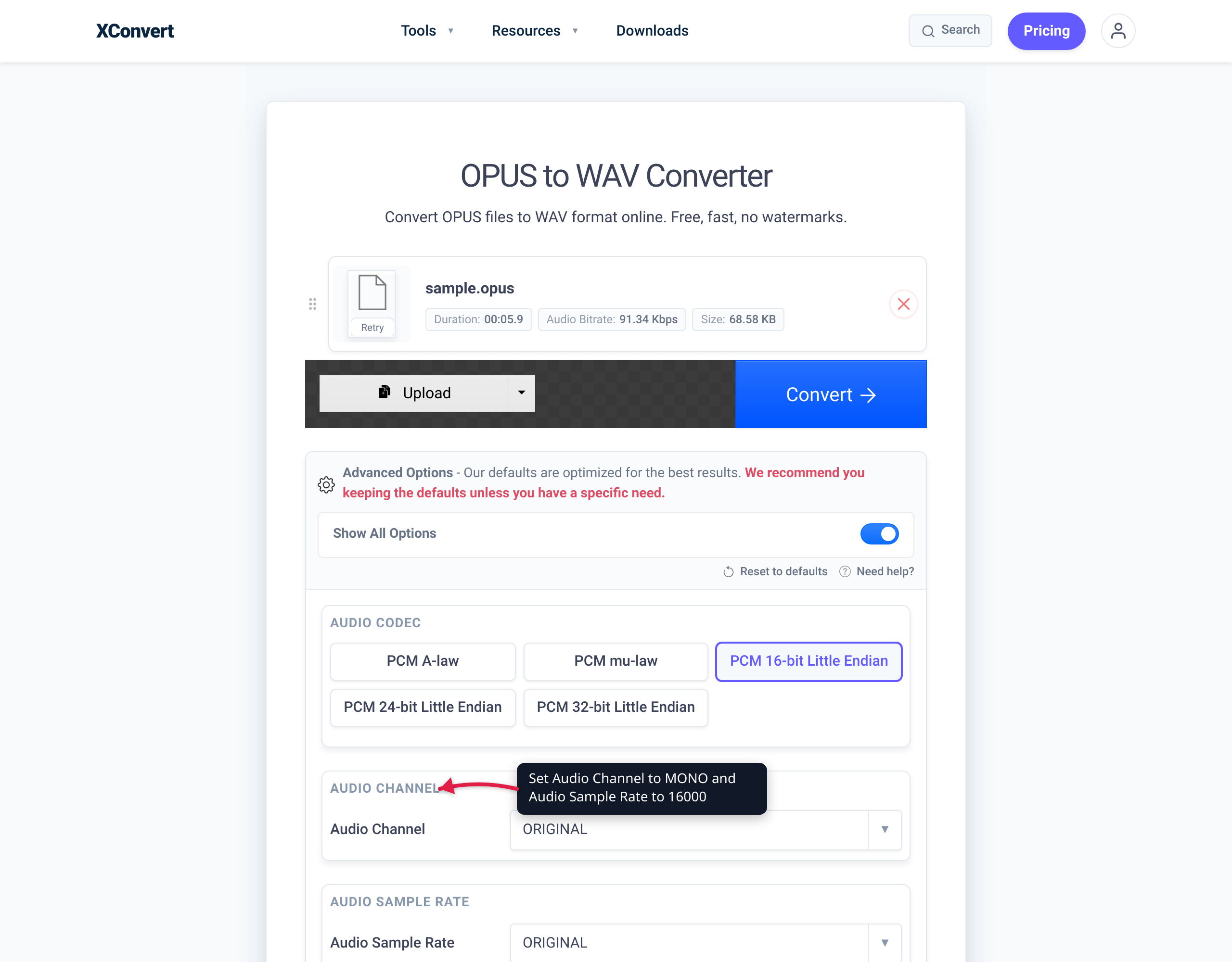
- Open Advanced Options (the gear icon) and click Show All Options to reveal the audio controls.
- Set Audio Channel to MONO (it defaults to ORIGINAL — switch it explicitly for a single-speaker note).
- Set Audio Sample Rate to 16000 — 16 kHz, the rate Whisper and most speech models expect. (For an 8 kHz AMR-NB source going to a cloud STT that takes the native rate, choose 8000 instead.)
- (Optional) Use Trim to cut silent intros or dead air before transcribing.
- Click Convert, then download your WAV.
Got AMR files instead? The xconvert AMR to WAV converter works the same way, with the same Audio Channel and Audio Sample Rate controls.
Your file uploads over an encrypted connection, is processed on our servers, and is deleted automatically a few hours later. Nothing is kept.
FAQ
What audio format is best for transcription?
An uncompressed 16-bit PCM WAV (Google calls it LINEAR16) or FLAC, at 16 kHz, mono. That’s what whisper.cpp requires (“16-bit WAV files”), what OpenAI’s Whisper resamples everything to (16,000 Hz), and what Google Cloud Speech-to-Text recommends (a lossless codec at “16,000 Hz or higher”). Lossy formats like MP3, M4A, OPUS, and AMR work in some tools but Google warns they “may reduce accuracy.”
Does converting OPUS or AMR to WAV improve transcription accuracy?
It won’t restore quality the lossy codec already discarded — WAV is a clean copy of the compressed audio, not the original. But it helps in three real ways: it clears format-rejection errors (many APIs only accept WAV/MP3/M4A), it hands the engine ready-to-read PCM, and it prevents a further round of lossy re-encoding that would hurt accuracy.
What sample rate should I use for speech-to-text?
16 kHz (16,000 Hz) is the standard — Whisper operates at exactly that rate and Google recommends “16,000 Hz or higher.” Don’t upsample past the source’s native rate, though: Google advises against re-sampling, and an old AMR-NB file is 8 kHz. Convert AMR up to 16 kHz only when your tool demands it (whisper.cpp does); otherwise 8 kHz is fine.
Should transcription audio be mono or stereo?
Mono for a normal single-speaker voice note — Whisper processes audio in mono anyway, and mono halves the file. Keep separate channels only when each speaker was recorded on their own channel, which Google says to send separately for the best results.
Can I feed a WhatsApp .opus file straight into Whisper or a cloud API?
Often no. The OpenAI API accepts only mp3, mp4, mpeg, mpga, m4a, wav, and webm — a .opus or .amr upload is rejected by extension. whisper.cpp needs a 16 kHz 16-bit WAV specifically. Converting to WAV first sidesteps both problems, so the transcriber just runs.
Do I still need to convert if my transcription tool accepts the file?
Even when a tool can ingest compressed audio, feeding it a 16 kHz mono WAV removes the on-the-fly decode step, dodges any file-type gate, and guarantees the exact input speech models are tuned for. It’s the reliable, no-surprises path — and it keeps your original untouched, so convert a copy and keep the source.
Sources
Last verified 2026-07-16.
- whisper.cpp — README (GitHub) — states the tool “currently runs only with 16-bit WAV files” and shows the
ffmpeg -ar 16000 -ac 1 -c:a pcm_s16leconversion (16 kHz, mono, 16-bit PCM WAV). - OpenAI Whisper —
whisper/audio.py(GitHub) —SAMPLE_RATE = 16000; Whisper resamples all input audio to 16 kHz. - OpenAI — Speech to text guide — accepted upload formats (mp3, mp4, mpeg, mpga, m4a, wav, webm) and the 25 MB file-size limit;
.opusand.amrare not listed. - Google Cloud — Speech-to-Text best practices — capture at “16,000 Hz or higher,” use a lossless codec (
FLACorLINEAR16), avoid lossy codecs that “may reduce accuracy,” avoid re-sampling, and channel-handling guidance. - xconvert — OPUS to WAV converter and AMR to WAV converter — the funnel tools; Upload, Advanced Options → Show All Options, Audio Channel (MONO), Audio Sample Rate (16000), and 16-bit PCM WAV output.