 By James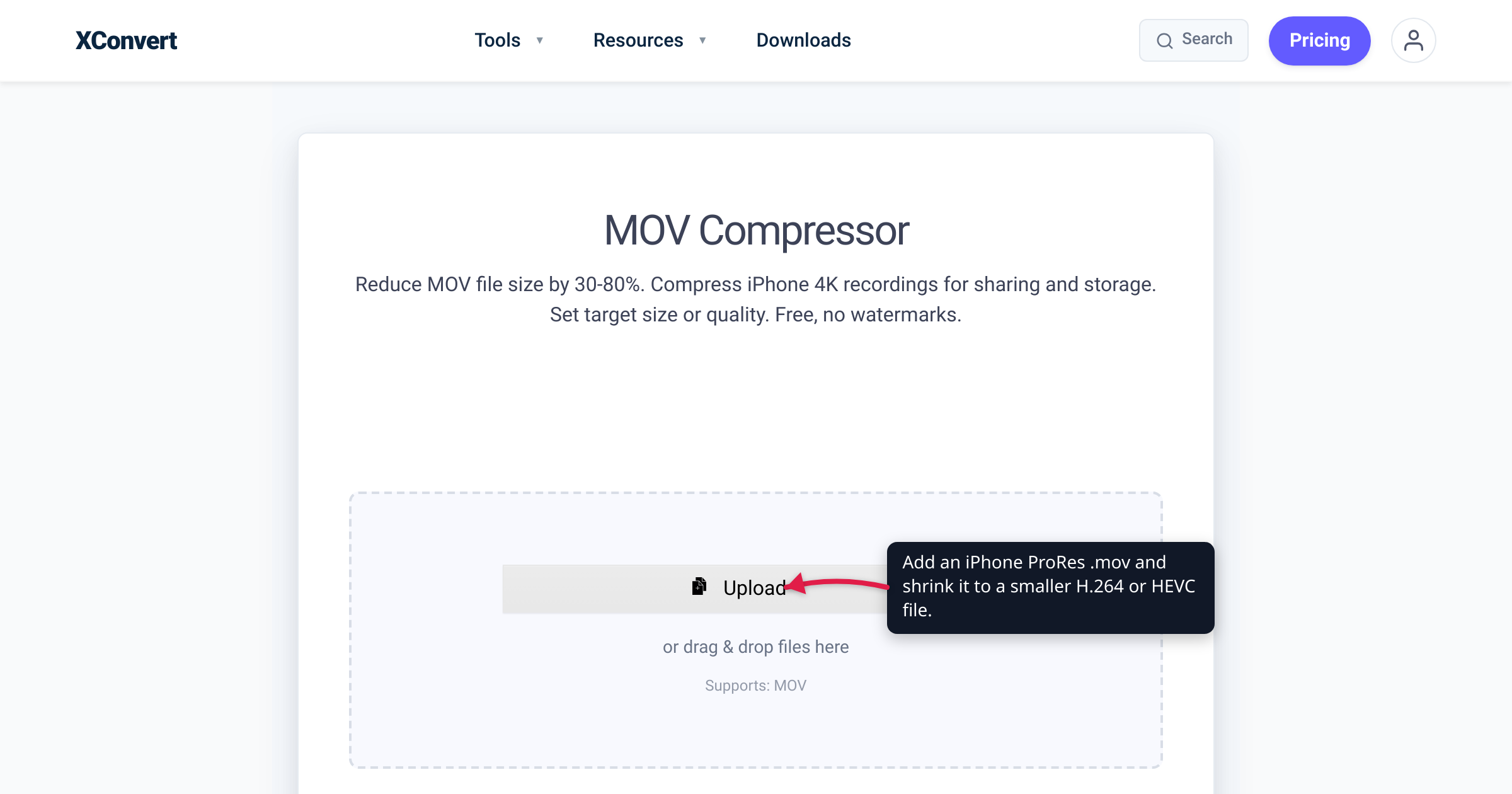
You switched your iPhone Pro to ProRes to shoot something you actually care about — a school recital, a short film, a product demo — and now a three-minute clip is eating 5, 10, even 18 GB, your storage warning is back, and the file is far too big to text, email, or upload anywhere. That is ProRes working exactly as designed: it is a professional editing codec, not a delivery format. The good news is that once you are done editing (or if you were never going to edit at all), you can convert that giant .mov to a normal MP4 or MOV that looks essentially identical for watching while shedding 90%+ of the size. We verified the recording facts and file-size claims below against Apple’s own support documentation.
Quick answer: iPhone ProRes files are enormous because ProRes is a high-bitrate, near-lossless editing codec — Apple says ProRes files are “up to 30 times larger than HEVC files.” ProRes’s quality advantage exists for editing and color grading, not for final viewing, so re-encoding a finished clip to H.264 or HEVC (as MP4 or MOV) at a normal delivery bitrate looks virtually the same on any screen while cutting size dramatically. Keep the ProRes original if you still need to edit; make a compressed copy to store and share. To do it in a browser, upload the .mov to the xconvert MOV compressor, choose a codec and a target size, and download the smaller file.
Jump to a section
- Why iPhone ProRes files are so huge
- ProRes is for editing, not for watching
- Keep the master, convert a copy
- MP4 or MOV, H.264 or HEVC?
- Convert an iPhone ProRes video on xconvert
- FAQ
Why iPhone ProRes files are so huge
Apple ProRes is a mastering-quality codec built for real-time editing, not for small file sizes. Per Apple’s ProRes technical overview, the variant the iPhone Camera app records — ProRes 422 HQ — has a target data rate of about 220 Mbit/s at 1920×1080 and roughly 30 fps. That works out to ~1.6 GB for every minute of 1080p footage before you even add audio. Community measurements land in the same place, at roughly 1.7 GB/min for 1080p30.
4K quadruples the pixel count, so the rate climbs steeply. Apple doesn’t print a per-minute 4K figure on its iPhone page, but scaling its published 1080p rate (~220 Mbit/s) to 4K’s roughly four-times-larger frame implies around 6 GB per minute for 4K/30 ProRes — meaning a single 10-minute take can approach 60 GB. Treat that 4K number as a content-dependent estimate rather than a fixed constant; the load-bearing, Apple-published fact is blunter: ProRes files are “up to 30 times larger than HEVC files.”
Apple’s iPhone ProRes documentation makes the storage squeeze concrete in two more ways, and both are worth knowing:
- On a 128 GB iPhone, ProRes is capped at 1080p. Per Apple’s iPhone ProRes support page, 128 GB models can record ProRes only at “1080p HD, 30 fps, 25 fps.” You need a 256 GB or larger model to record 4K ProRes to the iPhone’s built-in storage — Apple built that limit in precisely because 4K ProRes is so large (an iPhone 15 Pro or later can still record 4K ProRes to an external USB-C drive on any capacity).
- Your camera will start freeing space for you. Apple states you need “at least 10 percent of your device’s storage to be free” to record ProRes, and that “if ProRes is turned on and less than five minutes of recording time is available, the Camera app might free storage automatically.” When your phone is deleting things to make room for a codec, that codec is heavy.
None of this is a defect. ProRes trades storage for editing headroom on purpose. The fix isn’t to stop shooting ProRes — it’s to convert the footage to a delivery codec once you no longer need that headroom.
ProRes is for editing, not for watching
Here is the reassurance the “without losing the look” promise rests on: ProRes’s advantage is invisible during normal playback. Apple describes ProRes 422 HQ as offering “visually lossless preservation” that stays clean “through many generations of decoding and reencoding.” That last phrase is the whole point: ProRes keeps its quality while you cut, stack effects, color-grade, and re-render repeatedly. Each of those steps re-compresses the video, and a lossy delivery codec would visibly degrade a little each time. ProRes barely does.
But if you are just watching the clip — on your phone, on a TV, uploaded to a social platform — none of that multigeneration headroom is doing anything for you. The screen shows one decode of the final frame. At a sane delivery bitrate, a modern H.264 or HEVC encode of that same frame is, to the eye, indistinguishable from the ProRes source. The enormous ProRes bitrate is buying editing resilience you will never see and never use on a finished, watch-only clip.
So “convert without losing the look” is honest for the viewing case: you are discarding editing headroom, not visible picture quality. The one thing to be clear-eyed about is that the discard is permanent — see the next section.
Keep the master, convert a copy
Re-encoding ProRes down to H.264 or HEVC is a lossy, one-way step. You can’t later recover the data the smaller codec threw away, and re-grading a heavily compressed file will show the strain that the ProRes master wouldn’t. So the rule is simple:
- If you still plan to edit or color-grade: keep the ProRes original as your master. Offload it off the phone fast — to a computer, an external SSD, or full-resolution iCloud — to reclaim space without destroying quality. Apple notes that newer Pro models (iPhone 15 Pro and later) can even record ProRes directly to a USB-C drive, and that any ProRes device can export originals to external storage.
- If the clip is finished, or you were only ever going to watch and share it: convert a copy to a normal MP4/MOV, keep that as your everyday version, and delete the ProRes once it’s safely backed up (if you want to keep it) or immediately (if you don’t).
The pattern that keeps both storage and quality happy: archive the master where storage is cheap, carry the compressed copy where you actually use it.
MP4 or MOV, H.264 or HEVC?
Two separate decisions, and it’s worth not conflating them:
Container — MOV vs MP4. .mov is Apple’s QuickTime wrapper; .mp4 is the near-universal one. Keep MOV if the clip lives in the Apple ecosystem (Photos, iMovie, Final Cut). Choose MP4 if it needs to play reliably on Windows, Android, smart TVs, or social uploads. We cover the tradeoff in depth in MOV vs MP4 for iPhone video — the short version is that a container swap alone doesn’t shrink anything; the size drop comes from re-encoding.
Codec — H.264 vs HEVC. From ProRes, either is a massive reduction. HEVC (H.265) is more efficient — smaller files at the same visual quality, and the natural choice for Apple-to-Apple sharing. H.264 is the safest bet for maximum compatibility with older devices and stubborn upload forms, at a somewhat larger size. If you want the full menu of size levers (target size vs quality vs bitrate, and how far you can push each), our guide to compressing a MOV file walks through all of them.
For most people converting finished ProRes to share: HEVC in an MP4 is the sweet spot of small-and-still-plays-widely; switch the codec to H.264 if a specific destination refuses HEVC.
Convert an iPhone ProRes video on xconvert
The xconvert MOV compressor takes your ProRes .mov directly and lets you pick exactly how small to go — no app to install; it runs in any browser, including Safari on the iPhone itself.
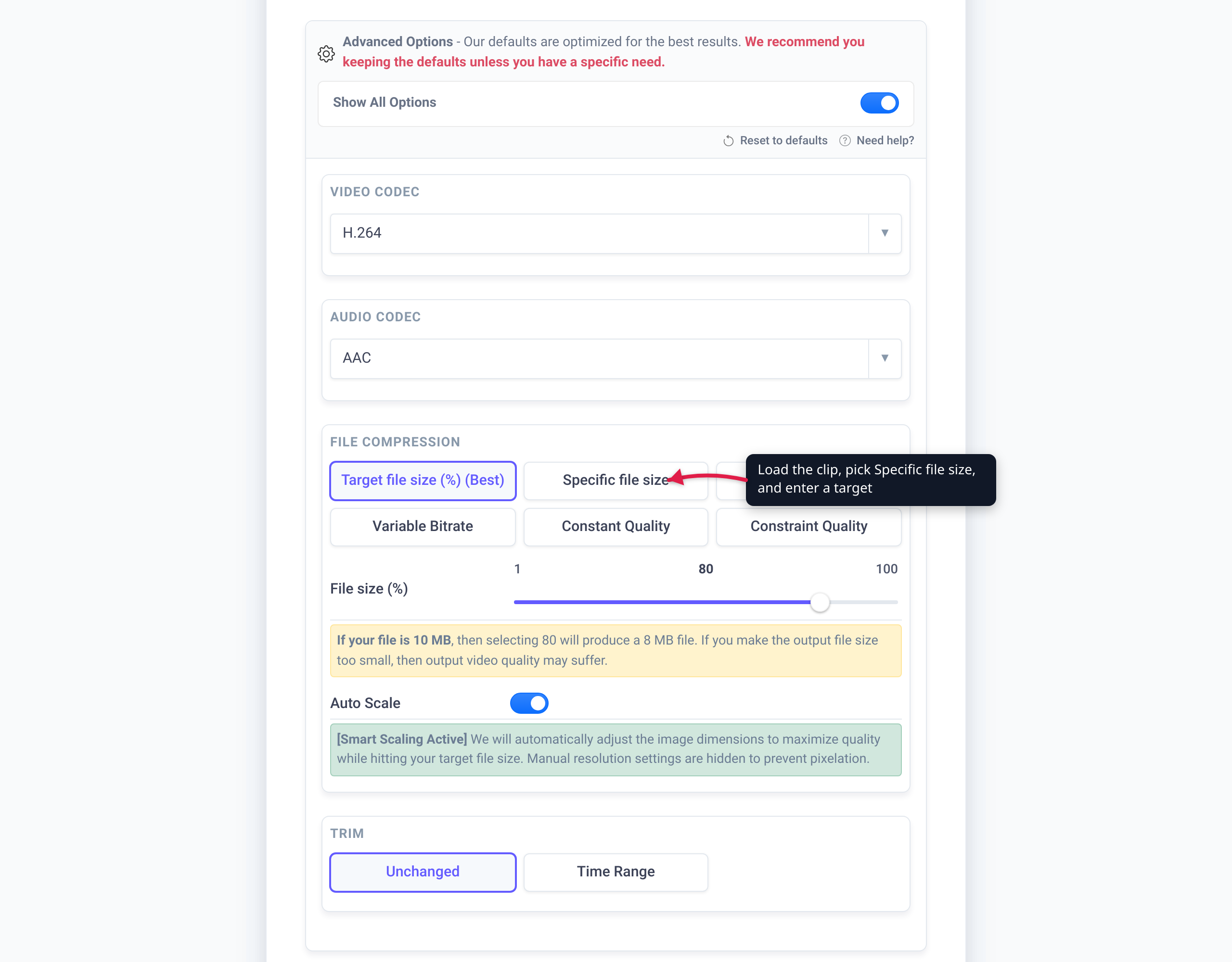
- Open xconvert.com/compress-mov and click Upload to add your clip — From my Computer, From Google Drive, or From Dropbox. Your iPhone ProRes
.movuploads as-is. - Open Advanced Options (the gear icon) to reveal the size and codec controls.
- Choose how to control size. The default is Target file size (%) (marked Best) — drag the File size (%) slider, where, as the page explains, “if your file is 10 MB, then selecting 80 will produce a 8 MB file.” To hit a hard cap for email or chat, pick Specific file size and type an exact MB target. For a quality-first result, use Constant Quality; to set the bitrate yourself, use Constant Bitrate or Variable Bitrate.
- Set the codec to H.265/HEVC for the smallest file at the same visual quality, or H.264 for the widest compatibility. Leave Auto Scale on to let it lower resolution intelligently, or use Trim → Time Range to keep only the part you need.
- Click Compress, then download your much smaller file. Because you’re re-encoding from a very high bitrate, the size drop is large; HEVC encodes a little more slowly than H.264, so allow extra time.
Your file is uploaded over an encrypted connection, is processed on our servers, and deleted automatically a few hours later. Nothing stays around — so keep your own copy of anything you want to hold onto, especially the ProRes master.
FAQ
Why are my iPhone ProRes videos so huge?
Because ProRes is a near-lossless editing codec with a very high bitrate, not a compressed delivery format. Apple’s ProRes spec rates the iPhone’s ProRes 422 HQ variant at about 220 Mbit/s at 1080p/30 — roughly 1.6 GB per minute — and Apple states ProRes files are “up to 30 times larger than HEVC files.” 4K ProRes is several times heavier again (scaling that 1080p rate to 4K’s larger frame puts 4K/30 near ~6 GB/min).
How do I make an iPhone ProRes file smaller?
Re-encode it to a normal delivery codec. Upload the .mov to a compressor, switch the codec to H.264 or HEVC, and pick a target size or quality. Coming down from ProRes’s enormous bitrate, the reduction is dramatic — often 90% or more — while a finished clip looks essentially the same when you watch it.
Will converting ProRes lose quality?
For viewing, no visible loss at a reasonable bitrate — ProRes’s extra data is editing headroom you don’t see during playback. For editing, yes: re-encoding is lossy and one-way, so re-grading the compressed copy won’t hold up like the ProRes master. Keep the master if you’ll still edit; convert a copy for everything else.
Should I keep the ProRes original after converting?
Keep it only if you’ll still edit or color-grade, and move it off your phone (computer, external SSD, or full-resolution iCloud) to reclaim space. If the clip is finished or was only ever going to be watched and shared, you can delete the ProRes once your converted copy is in hand.
Can I record ProRes in 4K on a 128 GB iPhone?
No. Per Apple, 128 GB iPhone Pro models can record ProRes only at 1080p (30/25 fps) to built-in storage; you need a 256 GB or larger model to record 4K ProRes internally (an iPhone 15 Pro or later can record 4K ProRes to an external USB-C drive on any capacity). Apple also requires at least 10% free storage to record ProRes at all, and the Camera app may free space automatically when under five minutes of recording time remain.
Which iPhones can shoot ProRes?
Apple lists ProRes support on iPhone 13 Pro and iPhone 13 Pro Max and later Pro models (14 Pro, 15 Pro, 16 Pro, 17 Pro and their Max variants), running iOS 15.1 or later. Non-Pro iPhones don’t offer ProRes recording.
Sources
Last verified 2026-07-16.
- Apple Support — About Apple ProRes on iPhone — supported models (iPhone 13 Pro and later, iOS 15.1+), the 128 GB → 1080p-only recording table, the 10%-free-storage and auto-free-space requirements, and “ProRes files are up to 30 times larger than HEVC files.”
- Apple Support — About Apple ProRes — ProRes 422 HQ target data rate (~220 Mbit/s at 1920×1080, 29.97 fps) and “visually lossless” through “many generations of decoding and reencoding.”
- Apple ProRes — Wikipedia — cross-reference that the iPhone Camera app records the ProRes 422 HQ variant (cites Apple’s specs).
- MASV — iPhone ProRes files — notes that iPhone ProRes files are very large. (The ~6 GB/min 4K figure in this article is derived by scaling Apple’s published ~220 Mbit/s 1080p ProRes rate to 4K, not an Apple- or MASV-published number.)
- xconvert — MOV compressor — Upload sources, Advanced Options, Target file size (%) / Specific file size / Constant Quality / Constant & Variable Bitrate modes, H.264 & H.265/HEVC codecs, Auto Scale, Trim, and the in-page size-slider example.