 By Stephanie Taylor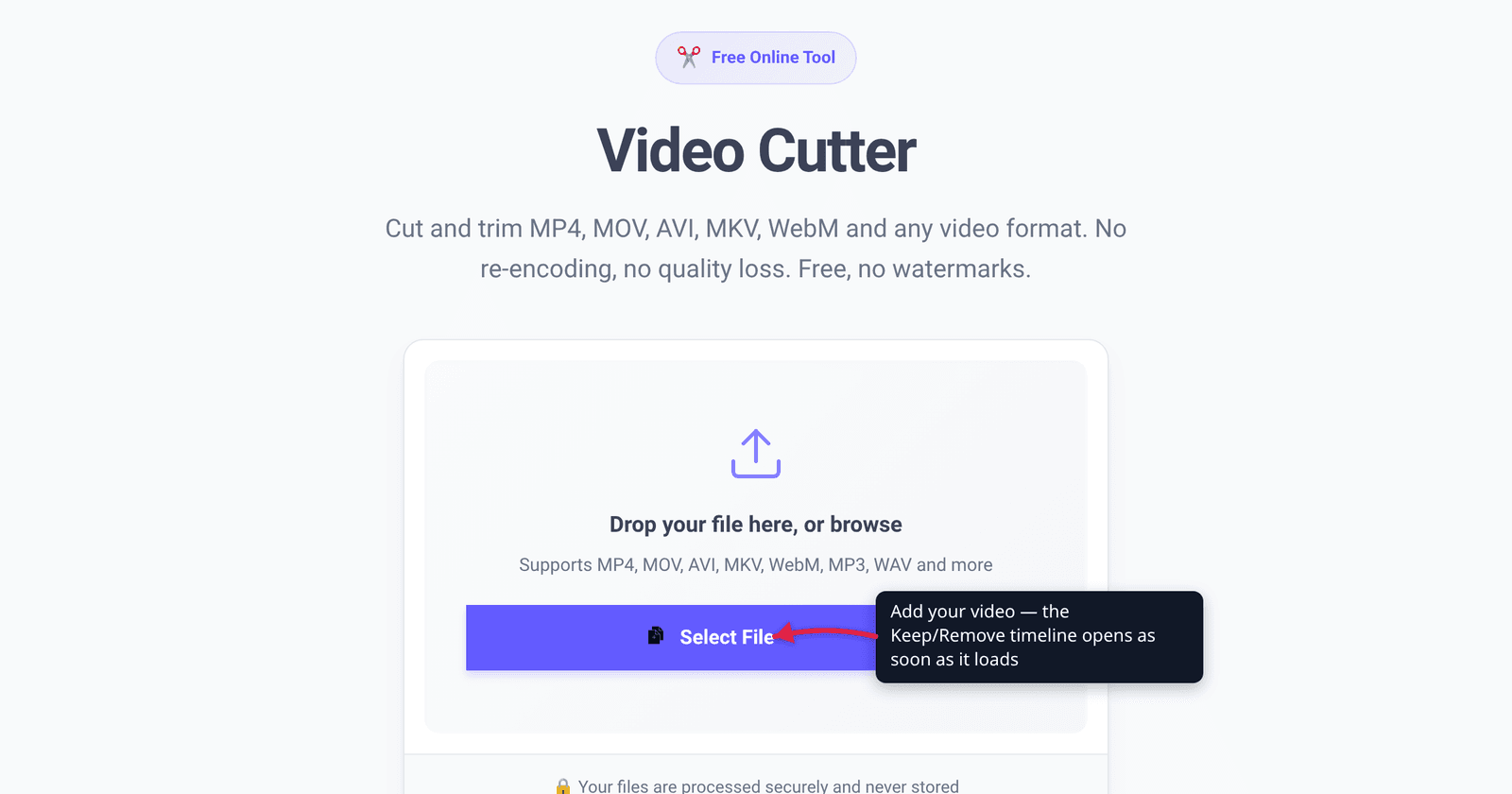
You have a 40-minute screen recording and you need the 90 seconds where the thing actually happens. Or a phone clip with 12 seconds of pocket at the start and a dead-air ending. Neither job needs an editor, an install, or an account — but the online tools that do it split into two camps that behave very differently, and nobody tells you which one you’re using. This guide explains the difference, shows what xconvert’s cutter actually does to your file, and walks the real interface.
Quick answer: Open xconvert.com/video-cutter, click Select File (or drop the video in), and the timeline appears. Use ✂️ to split the clip at the playhead, then click each block to toggle it between Keep and Remove — the output is every Keep segment joined together, so you can trim the ends and cut chunks out of the middle in one pass. Pick a container under OUTPUT SETTING (Same As Input, MP4, MKV, MOV, WebM, MTS, AVI) and press Cut & Download. Kept segments are re-encoded, at the original resolution and with a bitrate budget set to 100% of the source file’s size — which is exactly why the cut lands on the frame you asked for instead of snapping to a keyframe.
Jump to a section
- Trim, cut, split: they’re not the same job
- The trade-off nobody mentions: keyframes vs re-encoding
- What actually happens to your file
- Choosing the output container
- Cut a video on xconvert
- FAQ
Trim, cut, split: they’re not the same job
The words get used interchangeably, but they describe three different shapes of edit:
- Trim — keep one continuous range and throw away the ends. “Start at 0:12, end at 1:45.”
- Cut — remove something from the middle and close the gap. The result has two or more surviving pieces joined together.
- Split — turn one file into several separate files.
Most online “trimmers” only do the first one: two handles, one range, one output. That’s fine until you need to drop the 30 seconds where someone’s phone rang. xconvert’s cutter uses a Keep / Remove model instead — you slice the timeline into segments and mark each one — so trim and cut are the same operation with different marks. Splitting into separate files is the one it doesn’t do; for that, run the tool once per piece.
The trade-off nobody mentions: keyframes vs re-encoding
Every video cutter picks one of two strategies, and each buys you something at the other’s expense.
Stream copy hands the compressed bytes straight through without decoding them. It’s near-instant and bit-identical — but a video isn’t a stack of independent pictures. Most frames only describe the difference from an earlier frame, so a cut can only begin at a keyframe, a frame that stands on its own. FFmpeg’s own documentation puts it plainly: “Using -ss with -c copy alike may not be accurate: since ffmpeg may only split on I-frame (keyframe independently decodable) alike.” If the file was encoded with keyframes several seconds apart, your “start at 0:12” becomes “start at whatever keyframe came before 0:12.”
Re-encoding decodes the frames, keeps the ones you asked for, and encodes them again. FFmpeg’s documentation is equally clear on the payoff: “when transcoding with ffmpeg (i.e. not stream copying): -ss is also ‘frame-accurate’.” The cost is time and one generation of lossy compression.
xconvert’s cutter takes the second route, and aims the re-encode at the source’s own average bitrate.
| Stream-copy cut | Re-encoded cut (xconvert) | |
|---|---|---|
| Where the cut lands | Nearest preceding keyframe | The exact time you set |
| Typical error | Up to the file’s keyframe interval — often several seconds | None |
| Quality | Bit-identical to the source | One generation, at a bitrate budget equal to the source’s own |
| Speed | Near-instant | Proportional to the length you keep |
| Output codec | Locked to the source codec | Can change when the container requires it |
| Best when | You don’t care where the cut lands | The cut point matters |
The cutter does not expose a quality slider, and it does not hand the encoder a quality target. It hands it a size target: keep the output at 100% of the input file’s size, at the input’s resolution, with automatic downscaling switched off. Divide that budget by the clip’s duration and you get a bitrate ceiling equal to the source’s own average bitrate — so a kept segment is re-encoded at roughly the bitrate it already had. In practice that is hard to tell from the original on ordinary footage, but it is not mathematically lossless, and anyone who tells you an online cutter is lossless while it re-encodes is selling you something. What you’re buying is precision.
What actually happens to your file
Worth knowing, because it explains where the quality cost is and isn’t:
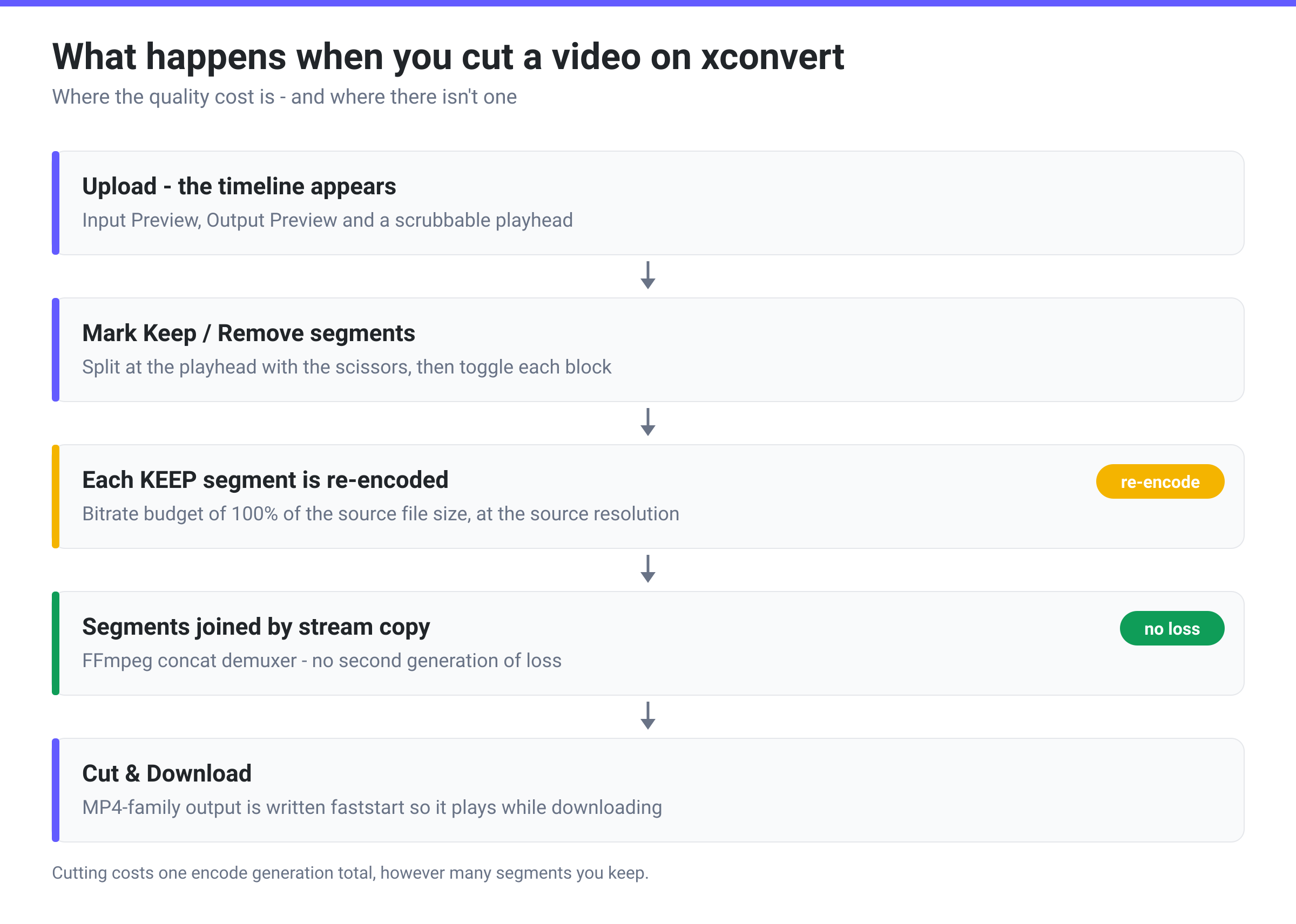
Each Keep segment is extracted and encoded on its own. Then, if you kept more than one, the pieces are joined with FFmpeg’s concat demuxer using a stream copy — the already-encoded segments are stitched together without being decoded a second time. So a five-segment cut costs you one generation of encoding, not five, and the joins themselves are free.
Two side effects worth knowing: for MP4, MOV and the other MP4-family containers the output is written with faststart, so the file’s index sits at the front and it can begin playing while it downloads instead of after. And timestamps are reset at every segment boundary, which is what stops the joined output from stuttering or reporting a wrong duration.
Choosing the output container
OUTPUT SETTING is the only output control on this page, and it selects a container, not a quality level. Six choices plus “leave it alone”:
| Choice | What it is | When to pick it |
|---|---|---|
| Same As Input | Keeps the source container | The default, and right most of the time |
| MP4 | The universal delivery container | Uploading anywhere, sharing with anyone |
| MKV | Matroska — carries almost any codec, plus multiple audio/subtitle tracks | Archiving, or files with several tracks |
| MOV | Apple’s QuickTime container | Final Cut, iMovie, Apple-centric workflows |
| WebM | The open web container | Embedding directly in a web page |
| MTS | AVCHD transport stream | Feeding back into camcorder-oriented software |
| AVI | Legacy Microsoft container | Old software that refuses anything newer |
One of these is not like the others. The WebM Project defines the format narrowly: “WebM files consist of video streams compressed with the VP8 or VP9 video codecs and audio streams compressed with the Vorbis or Opus audio codecs.” An H.264 video cannot simply be poured into a WebM file — choosing WebM means the video is genuinely converted to a VP codec, which takes longer and is a bigger change than a container swap. Pick it when you specifically want an open-codec web file, not as a generic “make it smaller” button.
There’s no bitrate, resolution or codec control on the cutter, which is deliberate — it does one job. If the clip also needs to be smaller, cut first and compress second; how to compress a video for email covers the second half, and cutting first usually does most of the work anyway, since size scales roughly with duration.
Cut a video on xconvert
- Open xconvert.com/video-cutter and drop your file on Drop your file here, or browse, or click Select File. MP4, MOV, MKV, WebM, AVI, WMV, FLV, MTS, MPG, TS, VOB and HEVC are all accepted, among roughly 35 formats in total.
- When the file loads you get Input Preview, Output Preview and a TIMELINE & PLAYBACK strip. Drag the playhead handle to scrub; the -5s and +5s buttons nudge it when you’re hunting for an exact moment.
- Park the playhead where you want a boundary and click ✂️ to split. Repeat for every boundary you need — the clip becomes a row of segments under CUT SEGMENTS.
- Click a segment to toggle it between Keep and Remove. Drag a segment’s edges to fine-tune, or type exact values into its Start and End fields. Hit Output Preview to watch only the Keep segments before you commit.
- Under OUTPUT SETTING, leave Same As Input or choose a container. Then click Cut & Download.
Your video is uploaded over an encrypted connection, cut on our servers, and deleted automatically a few hours later. No account, no watermark.
Doing the same job on an audio file? How to cut or trim an audio file online covers the audio-side tool.
FAQ
Does cutting a video online lose quality?
Yes, a little — and any tool claiming otherwise is either stream-copying (in which case your cut points snap to keyframes) or being loose with the word “lossless”. xconvert re-encodes the kept footage to a bitrate budget equal to 100% of the source file’s size, at the source’s resolution — so the encoder is given roughly the same bitrate the original already used, and on ordinary footage you’d need a side-by-side comparison and a good eye to see the difference. The upside is that the cut starts on the frame you chose rather than up to several seconds earlier.
Why did my cut start a few seconds early on another tool?
Because that tool stream-copied. Most video frames are stored as differences from a previous frame, so a copy-only cut has to begin at a self-contained keyframe. FFmpeg’s documentation notes that with -c copy, cuts “may only split on I-frame”. If the encoder wrote keyframes every few seconds, that’s the granularity you get. Re-encoding is the only way around it.
Can I remove a section from the middle instead of just trimming the ends?
Yes, and that’s the main reason to use a Keep/Remove timeline instead of a two-handle trimmer. Split the clip either side of the part you don’t want, mark that middle segment Remove, and the surviving pieces are joined into a single output. You can do this as many times as you like in one pass; every kept piece is encoded once and then stitched together with a stream copy.
Will the cut file still play everywhere?
If you leave OUTPUT SETTING on Same As Input, it plays wherever the original played — same container, same codec family. Choose MP4 if the original was in something exotic and you need it to open on someone else’s machine. The one choice that meaningfully changes compatibility is WebM, which mandates VP8 or VP9 video: great for a web page, less universal on older hardware players.
How long does a cut take?
It scales with the length you keep, not with the length of the source, because only the Keep segments are encoded. Cutting 30 seconds out of a two-hour recording is quick; keeping 90 minutes of it is not. Higher resolutions cost more time per second of footage, and HEVC is slower to encode than H.264.
Can I cut a video on my phone?
Yes — the tool runs in a mobile browser and the file is processed on our servers rather than your device, so an old phone doesn’t slow it down. The practical limit is your upload: a large 4K file takes as long to send as your connection allows. If the clip is huge and you only need a short piece, that’s an argument for cutting rather than sending the whole thing anywhere.
Sources
Last verified 2026-08-31.
- FFmpeg Wiki — Seeking — “when transcoding with ffmpeg (i.e. not stream copying):
-ssis also ‘frame-accurate’”, and that with-c copyffmpeg “may only split on I-frame (keyframe independently decodable)”. - The WebM Project — About — “WebM files consist of video streams compressed with the VP8 or VP9 video codecs and audio streams compressed with the Vorbis or Opus audio codecs.”
- xconvert’s own pipeline — the cutter submits each job with a file-size-percentage compression target of 100% at the source resolution and auto-scaling off, so the encoder gets a bitrate budget rather than a CRF quality target; the kept segments are then joined with FFmpeg’s concat demuxer using stream copy, with
faststartapplied to MP4-family output. Control names checked against the live tool on 2026-08-31.