 By Stephanie Taylor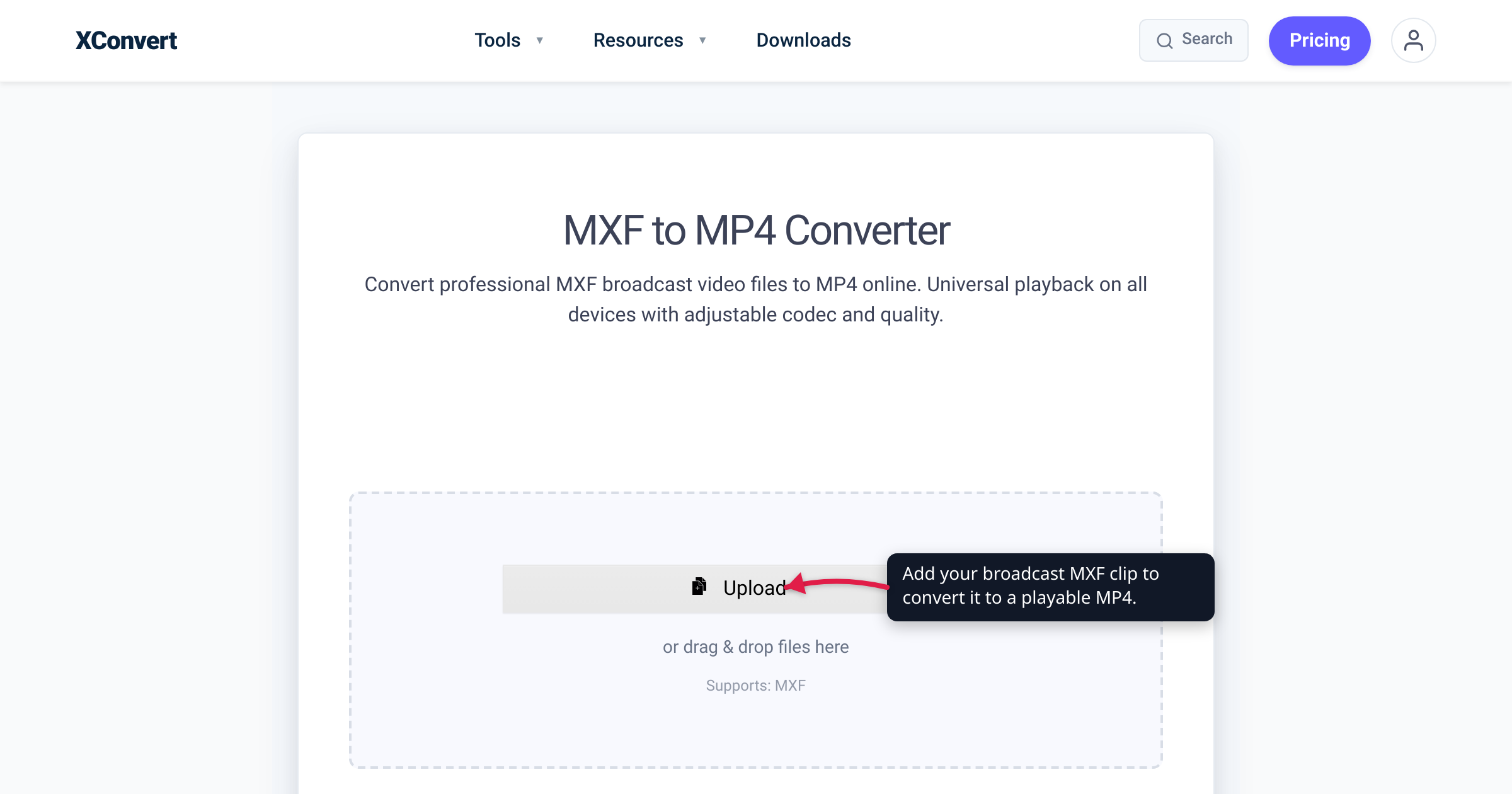
Someone hands you an .mxf file off a Sony, Panasonic, or ARRI camera — footage a broadcaster would call pristine — and yet nothing consumer will touch it. Windows Media Player shrugs, a <video> tag won’t load it, and YouTube and your phone reject it. That’s not a broken file: MXF is the professional broadcast and cinema container, built for interchange between production systems, not for playing on a phone. This guide covers what MXF is, which cameras produce it, the OP1a-vs-OP-Atom split-file gotcha that catches editors, and how to make a clean, shareable MP4 review copy. We verified the SMPTE standard, the operational patterns, and the camera formats against SMPTE, the Library of Congress, and the manufacturers’ own documentation.
Quick answer: MXF (Material Exchange Format) is the SMPTE-standardized professional video container — defined by SMPTE ST 377-1, first released in 2004. It’s a wrapper that carries professional “essence” (codecs like XDCAM HD422, Avid DNxHD, AVC-Intra, IMX) plus rich metadata, used by Sony XDCAM, Panasonic P2, Canon XF, ARRI Alexa, Avid, and broadcast/DCP delivery. It won’t play on phones, browsers, smart TVs, or YouTube because it’s a production interchange/mastering format, not a delivery format — consumer players simply don’t include an MXF demuxer. To share, review, or import into consumer tools, convert it to MP4 (H.264), which plays essentially everywhere.
Jump to a section
- What an MXF file actually is
- The cameras and workflows that produce MXF
- Why MXF won’t play on your phone, browser, or TV
- OP1a vs OP-Atom: the split-file gotcha
- Convert MXF to MP4 on xconvert
- FAQ
What an MXF file actually is
MXF stands for Material Exchange Format, and the key thing to understand is that it’s a container — a wrapper — not a codec. It’s defined by SMPTE ST 377-1, the Material Exchange Format — File Format Specification, first released (as SMPTE 377M) on 22 September 2004; the current edition is SMPTE ST 377-1:2019.
Per the specification, an MXF file wraps one or more streams of coded “essence” — the actual audio and video — “encoded in any of a variety of video and audio compression formats, together with a metadata wrapper which describes the material contained within.” So the .mxf extension tells you almost nothing about the codec inside — only that the file follows a professional interchange structure. The same wrapper can hold Sony’s XDCAM HD422 (MPEG HD422), Avid DNxHD, Panasonic’s AVC-Intra, Sony IMX (D10), or the JPEG 2000 used in Digital Cinema Packages — very different pictures in an identical box.
That codec-agnostic design is the whole point. MXF was created so that a Sony deck, an Avid edit bay, a Panasonic camera, and a broadcaster’s playout server could all exchange the same file with its timecode, audio layout, and metadata intact. It is built for production interchange, mastering, and archiving — the Library of Congress lists it as a preservation-grade wrapper — and it is a core part of the Digital Cinema Package (DCP) that delivers films to theaters. None of those jobs is “play on a laptop,” which is exactly why a laptop struggles with it.
The cameras and workflows that produce MXF
If an .mxf file landed on your desk, it almost certainly came from professional gear. Here’s the lineage:
| Source | Where it’s used | Common MXF essence (codec) |
|---|---|---|
| Sony XDCAM / XDCAM HD422 | ENG, broadcast acquisition | MPEG HD422 — 4:2:2, 1920×1080, at least 50 Mbit/s, 8-channel 24-bit audio |
| Panasonic P2 | Broadcast & ENG cameras | AVC-Intra (intra-only H.264/AVC), DVCPRO |
| Canon XF / XF-AVC | Pro camcorders (e.g. C300 line) | XF-AVC, with LPCM audio, wrapped as OP-1a |
| ARRI ALEXA | Cinema & high-end TV | Avid DNxHD 145 (8-bit 4:2:2) or 220x (10-bit 4:2:2) — alternative to QuickTime/ProRes |
| Avid Media Composer | Editing & post media | DNxHD / DNxHR |
| Broadcast delivery / DCP | Station delivery, cinema | AS-11 packages (OP1a); JPEG 2000 in DCP |
Sony states that “XDCAM products record material as data files in the industry-standard MXF file format.” Panasonic P2 cameras record AVC-Intra as MXF; Canon XF-AVC clips are MXF; and ARRI’s ALEXA records DNxHD with sound and metadata in an MXF container straight to the card, so dailies drop into Avid without a transcode. In broadcast and cinema, the AS-11 delivery spec and the DCP package are both MXF-based. This is the format’s home turf — professional, tapeless, metadata-rich — which is precisely why consumer devices were never taught to read it.
Why MXF won’t play on your phone, browser, or TV
The frustration is real and the cause is structural: MXF is an interchange and mastering format, not a delivery format. Delivery formats — MP4, and to a lesser extent MOV/WebM — are what consumer software is built to open. MXF was designed to move material between professional systems, so support for it lives in professional software, not in the things you play video on every day.
- Web browsers have zero MXF support. MXF is not a web format — there’s no
<video>path for it. Embed it or upload it to a site and nothing happens. - Consumer players don’t include an MXF demuxer. QuickTime and Windows Media Player generally can’t open MXF, and even the pro-friendly VLC handles only some MXF essence types — high-end codecs like DNxHD or AVC-Intra may still fail to decode.
- Phones, smart TVs, and YouTube uploads reject it. These target consumer containers; MXF isn’t one.
- Even pro editors can be fussy. Premiere Pro, DaVinci Resolve, Final Cut Pro, and Avid do import MXF, but frequently expect the camera’s complete card folder structure intact — stray single files may import without audio or refuse outright.
Converting to MP4 with H.264 fixes every one of these at once. H.264-in-MP4 is the most broadly playable combination there is — near-universal across browsers, phones, TVs, and editors, per caniuse. That’s why the standard move for a review copy, a client-shareable link, or an import into a consumer tool is: keep your MXF as the master, and hand out an MP4 proxy.
OP1a vs OP-Atom: the split-file gotcha
Here’s the part that trips up even experienced editors. MXF defines several Operational Patterns (OPs) — standardized layouts for how essence is arranged in the file(s). Two matter in practice, and the difference is not academic:
- OP1a — a single, self-contained file with the picture, all audio tracks, and metadata interleaved together. This is what most cameras write for a finished clip and what broadcast delivery (AS-11) uses. ARRI’s ALEXA MXF/DNxHD recordings, for example, use OP1a with frame-wrapping, and Canon XF-AVC clips are OP-1a. One clip, one file, sound included.
- OP-Atom — one essence track per file. This is the native layout of Avid Media Composer media. A single video clip with stereo sound isn’t one MXF — it’s three separate
.mxffiles: one for the picture and one for each audio channel, tied together by the project’s metadata (an AAF), not by the media files themselves. Panasonic P2 similarly separates streams into aCONTENTSfolder with distinct video and audio subfolders.
Why it matters: if your source is Avid (or another OP-Atom workflow) and you grab a lone .mxf, that file may be video-only (silent) or a single audio track with no picture. Converting it produces exactly that — a silent MP4, or an audio-only one — and it looks like the converter “lost the sound” when the sound was never in the uploaded file.
The honest guidance: convert from a self-contained clip. Camera OP1a clips (Sony XDCAM, Canon XF, ARRI DNxHD) carry audio and video in one .mxf and convert cleanly with sound. For Avid OP-Atom media, export or “consolidate” a self-contained clip first, or handle the video and audio files separately — one conversion can only contain what that one file holds.
Convert MXF to MP4 on xconvert
The xconvert MXF to MP4 converter turns a broadcast MXF clip into a standard, playable MP4 — a proxy you can review, share, or import anywhere. Here’s the flow, using the tool’s actual controls:
- Open xconvert.com/convert-mxf-to-mp4 and click Upload to add your file — From my Computer, From Google Drive, or From Dropbox. Upload a self-contained clip; if your source is Avid OP-Atom, a single track file will be video-only or audio-only (see above).
- The defaults produce a clean H.264 MP4, so for a straightforward proxy you can go straight to converting. To adjust anything, open Advanced Options (the gear icon).
- Under the Video Codec control, the default is H.264 — the right pick for maximum compatibility and the classic review-copy proxy. You can switch to H.265 / HEVC or AV1 for a smaller file if your viewers are on modern hardware, though fewer devices support those.
- Choose how to control size and quality: a Quality Preset (e.g. Very High (Recommended)), a Specific file size, Constant Quality, or a Constant/Variable Bitrate. Broadcast MXF is high-bitrate, so keep the quality high if this proxy is for grading or client review.
- Under Video resolution, leave it on Keep original to preserve the source frame size, or pick a Preset Resolution to scale down for a lighter review file. Need just a section? Use Trim → Time Range.
- Click Convert, then download your MP4. It will now play on phones, browsers, editors, and upload targets that rejected the MXF.
Your file uploads over an encrypted connection, is processed on our servers, and is deleted automatically a few hours later. Nothing lingers.
For neighboring camcorder and disc formats, see convert MTS/M2TS (AVCHD camcorder) to MP4 and the VOB, M2TS, and MTS explainer.
FAQ
What is an MXF file?
MXF (Material Exchange Format) is a professional video container defined by SMPTE ST 377-1, first released in 2004. It’s a wrapper that holds professional “essence” (codecs like XDCAM HD422, Avid DNxHD, AVC-Intra, or IMX) plus timecode and metadata, used for broadcast acquisition, editing, mastering, and cinema delivery. The .mxf extension tells you the file is a pro interchange format, not which codec is inside.
Why won’t my MXF file play or open?
Because MXF is a production interchange format, not a consumer delivery format, and everyday players don’t include an MXF demuxer. Web browsers have no MXF support at all; QuickTime and Windows Media Player generally can’t open it; and even VLC only decodes some MXF essence types. The reliable fix is to convert it to MP4 (H.264), which plays essentially everywhere.
What opens MXF files?
Professional editing software — Adobe Premiere Pro, DaVinci Resolve, Final Cut Pro, and Avid Media Composer — can import MXF, though they often want the camera’s complete card folder structure intact. For simple playback, VLC opens some MXF files but not all codecs. If you just need it to play on a normal device, phone, or browser, convert it to MP4 first — that’s the format everything opens.
How do I convert MXF to MP4?
Upload the .mxf to an MXF to MP4 converter, leave the Video Codec on the default H.264 for maximum compatibility, keep the quality high (broadcast MXF is high-bitrate), and convert. Processing happens on the server, so it doesn’t matter that your own machine can’t play the source — download the MP4 and it plays and imports anywhere.
My converted MXF has no audio — what happened?
Most likely your source was an Avid OP-Atom (or Panasonic P2) file, where each track is stored in a separate .mxf. A lone video-track file has no audio in it to begin with, so the MP4 comes out silent — the conversion didn’t drop the sound, the uploaded file never contained it. Export a self-contained clip (audio and video combined) from your editor and convert that instead. Camera OP1a clips (Sony XDCAM, Canon XF, ARRI DNxHD) already bundle everything in one file.
What cameras and devices record MXF?
MXF is recorded by Sony XDCAM / XDCAM HD422, Panasonic P2 (AVC-Intra), Canon XF / XF-AVC, and ARRI ALEXA (Avid DNxHD), among other professional cameras and decks. It’s also Avid Media Composer’s native media format and the basis of broadcast delivery specs (AS-11) and the cinema DCP. If your footage has an .mxf extension, it came from a professional production pipeline.
Does converting MXF to MP4 lose quality?
There’s a re-encode, since MXF’s mastering codecs (DNxHD, XDCAM HD422, AVC-Intra) differ from MP4’s H.264 — but at a high enough bitrate or quality preset, an MP4 proxy is visually indistinguishable for review and sharing. Keep the original MXF as your master for grading and finishing; use the MP4 as the playable, shareable copy. Only drop resolution or bitrate when you want a smaller file.
Sources
Last verified 2026-07-16.
- SMPTE ST 377-1 — Material Exchange Format (MXF), File Format Specification — the standard that defines MXF; prepared by SMPTE Technology Committee 31FS; current edition ST 377-1:2019.
- Wikipedia — Material Exchange Format — MXF as a “container format for professional digital video and audio media”; wrapper carries essence “in any of a variety of video and audio compression formats” plus metadata; initial release 22 September 2004; use in broadcast delivery, archiving, and the Digital Cinema Package; OP1a vs OP-Atom.
- Library of Congress — Sustainability of Digital Formats: MXF (fdd000013) — MXF as a preservation-grade wrapper; the family of SMPTE MXF standards including operational patterns.
- Library of Congress — MXF Operational Pattern Atom (OP-Atom) (fdd000265) — OP-Atom as the highly constrained “one essence track per file” layout used by Avid.
- Sony Professional — XDCAM basics (FAQ) — XDCAM records material “as data files in the industry-standard MXF file format”; XDCAM HD422 is 4:2:2, 1920×1080, at least 50 Mbit/s.
- Wikipedia — AVC-Intra — Panasonic’s intra-only H.264/MPEG-4 AVC profiles “encapsulated in MXF-format files,” recorded by P2-equipped broadcast cameras.
- ARRI — ALEXA MXF/DNxHD White Paper — ALEXA records DNxHD-encoded images with sound and metadata “in an MXF container using a file structure according to Operational Pattern 1a (OP1a) with frame-wrapping”; codecs DNxHD 145 and 220x; alternative is QuickTime/ProRes.
- Autodesk — Canon Format Settings (Smoke/Flame) — Canon XF-AVC clips are OP-1a MXF clips with LPCM audio, recorded to a folder structure.
- caniuse — MPEG-4 / H.264 video format — H.264-in-MP4 has near-universal playback across browsers and devices.