 By James
You exported a thumbnail from Canva or Photoshop, went to swap it in from your phone, and YouTube refused it. Every guide you find says “1280×720, under 2 MB” — so you shrank the image, and now the text you spent twenty minutes kerning looks like it was faxed. Both problems come from the same place: the numbers everybody repeats are out of date, and the 2 MB figure only applies to one of the two ways you can upload. Here is what YouTube’s own help page actually says today, and how to get under a size cap without turning your headline into mush.
Quick answer: YouTube now recommends 3840×2160 for video thumbnails (2160×3840 for Shorts), with a minimum width of 640 px, a 16:9 aspect ratio, and JPG or PNG. The famous 2 MB limit is mobile-only — “Mobile: 2 MB for video thumbnails or 10 MB for podcasts. Desktop: 50MB for video, Shorts, and podcast thumbnails.” So if you upload in YouTube Studio on a computer you have 50 MB and almost certainly need no compression at all. If you’re stuck on mobile, compress to just under 2 MB with xconvert’s JPG compressor using Specific file size, and keep resolution above 640 px wide. You also need a verified account to upload custom thumbnails at all.
Jump to a section
- What YouTube actually publishes in 2026
- The 2 MB number is a mobile-only cap
- Why 4K thumbnails hit the cap and 720p ones never do
- Why thumbnails go soft — and how to stop it
- Compress a thumbnail on xconvert
- FAQ
What YouTube actually publishes in 2026
Straight from Google’s help page Add custom thumbnails on YouTube, in YouTube’s own words:
| Requirement | What YouTube’s help page says |
|---|---|
| Eligibility | “You can choose from auto generated suggested options, or upload your own if your account is verified.” |
| Recommended resolution | “3840 x 2160 pixels for videos and 2160 x 3840 for Shorts” |
| Minimum size | “a minimum width of 640 pixels for videos and a minimum height of 640 pixels for Shorts” |
| File formats | “Be uploaded in image formats such as JPG or PNG.” |
| Size cap — mobile | “2 MB for video thumbnails or 10 MB for podcasts” |
| Size cap — desktop | “50MB for video, Shorts, and podcast thumbnails” |
| Aspect ratio | 16:9 for videos, 9:16 for Shorts, 1:1 for podcast playlists |
| Guiding principle | “Your custom thumbnail image should be as large as possible. It will be used as the preview image in the embedded player.” |
Two things on that list will surprise most creators. 3840×2160 is now the recommendation — not the 1280×720 that has been copy-pasted across the web for a decade. And the old list of accepted formats that included GIF and BMP is gone; the current page names JPG and PNG.
One more constraint worth knowing before you design anything: custom thumbnails for Shorts can currently only be added in YouTube Studio on a computer, per the same page. That single sentence means Shorts thumbnails always fall under the desktop cap.
The 2 MB number is a mobile-only cap
This is the correction that matters, and it’s stated plainly under “Image size & resolution”: limits “depend on the device you’re using to upload your thumbnail.”
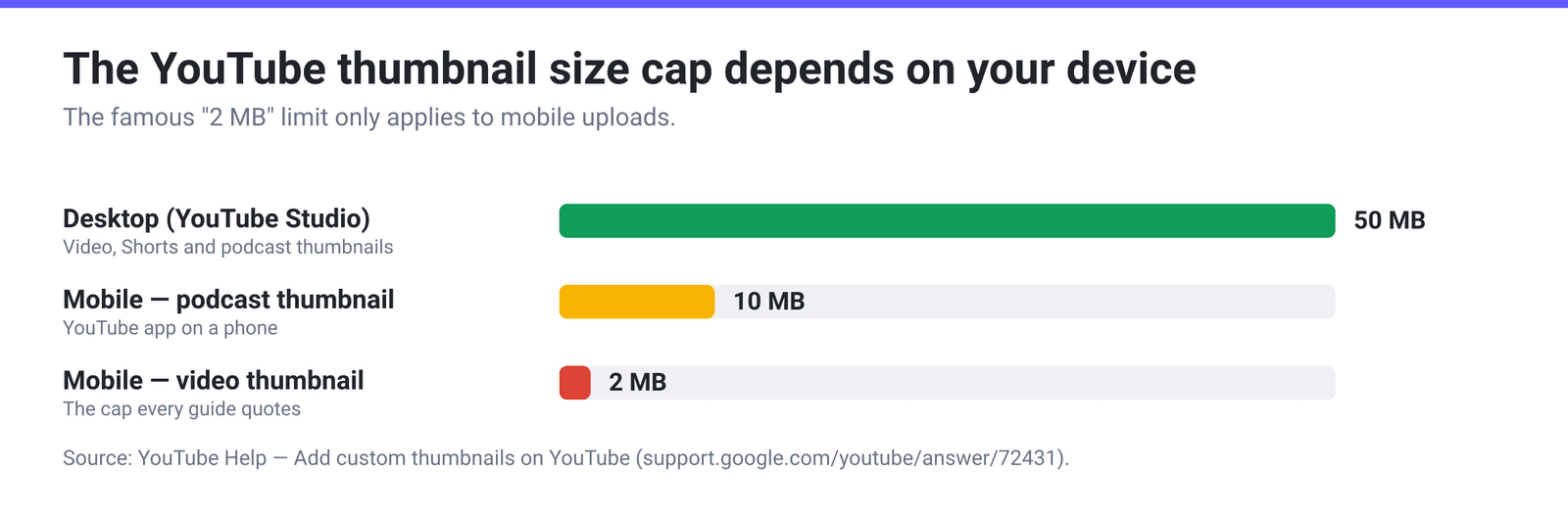
That is a 25× difference between the two routes, and it completely changes the advice:
| You’re uploading from… | Your cap | What to do |
|---|---|---|
| YouTube Studio on a computer | 50 MB | Nothing. Export at 3840×2160 at high quality and upload it as-is. |
| The YouTube mobile app — video thumbnail | 2 MB | Compress. This is the only case where the famous number applies. |
| The YouTube mobile app — podcast thumbnail | 10 MB | Rarely a problem; compress only if your export is unusually heavy. |
| A Shorts custom thumbnail | 50 MB (desktop only) | Nothing — Shorts thumbnails can only be added on a computer anyway. |
So the first question isn’t “how do I get under 2 MB?” It’s “can I just do this on a computer instead?” If you can, the whole problem evaporates and you keep every pixel of the export you made.
Why 4K thumbnails hit the cap and 720p ones never do
It’s worth doing the arithmetic, because it explains why the old advice appeared to work and the new recommendation doesn’t.
A 2 MB budget is 16,777,216 bits. Spread that over the pixels:
| Resolution | Pixels | Bits per pixel in a 2 MB file |
|---|---|---|
| 1280×720 | 921,600 | ≈ 18.2 |
| 1920×1080 | 2,073,600 | ≈ 8.1 |
| 2560×1440 | 3,686,400 | ≈ 4.6 |
| 3840×2160 | 8,294,400 | ≈ 2.0 |
Uncompressed 8-bit colour is 24 bits per pixel. At 1280×720, a 2 MB budget gives you roughly three quarters of uncompressed — you essentially cannot make a normal JPEG that big, which is exactly why nobody ever bumped into the limit when 1280×720 was the recommendation. At 3840×2160 you get about 2 bits per pixel, which is a real constraint for a busy, high-contrast, text-heavy thumbnail.
That’s the whole story in one line: YouTube raised the recommended resolution by 9× in pixel count and left the mobile cap where it was.
Why thumbnails go soft — and how to stop it
When you have to fit a cap, you’re choosing between two ways to lose information, and they fail differently.
Reducing resolution keeps every remaining pixel crisp but throws away detail wholesale. Fine lines, thin type and small faces disappear. Hard floor: YouTube’s stated minimum width is 640 px for videos, and going anywhere near it wastes the large preview slot in the embedded player.
Reducing JPEG quality keeps the dimensions but coarsens the compression, and it does the most visible damage exactly where thumbnails live or die — hard edges between saturated colours, which is what big outlined display text is. Below a certain point you also lose colour resolution: JPEG can store chroma at half the resolution of luma, which smears the edges of red or blue text against a contrasting background. libvips, the imaging library xconvert encodes with, automatically turns chroma subsampling off at quality 90 and above — so if crisp coloured text is the priority, staying at 90+ is not a superstition, it’s a specific switch. JPEG quality settings explained covers exactly what the number does.
The practical route through this:
- Start from the largest export you have. Compressing once from the original always beats compressing a file that has already been through an export cycle.
- Prefer a modest resolution reduction over a big quality cut. Going from 3840×2160 to 2560×1440 costs you 56% of the pixels and typically drops the file size below 2 MB on its own — with the quality slider left high, where text stays sharp.
- Never go below 640 px wide, and in practice don’t go below 1280 px wide.
- If your thumbnail is a photo with soft focus and no type, the opposite advice applies: hold the resolution and let the quality slider do the work. Photographic detail hides compression far better than lettering does.
Compress a thumbnail on xconvert
The xconvert JPG / JPEG Compressor accepts JPG, JPEG and JFIF — if your design tool exported a PNG, run it through the PNG to JPG converter first, or upload the PNG to YouTube unchanged if it’s already under your cap.
- Open xconvert.com/compress-jpeg and click Upload to add your thumbnail — from your computer, Google Drive or Dropbox.
- Open Advanced Options.
- Under Image Compression, choose Specific file size and type a value a little under your cap — 1.8 MB rather than 2 MB, so you have headroom.
- Decide what Auto Scale should do. Leave it on and the tool adjusts the image dimensions itself to hit your target while protecting quality (it shows “[Smart Scaling Active]” and hides the manual resolution controls). Turn it off and you keep full manual control under Image resolution — which is what you want if you need to guarantee a specific pixel width.
- Want to control quality instead of size? Pick Image Quality (%) and set the slider to 90 or above to keep chroma subsampling off, then check the resulting file size against your cap.
- Click Compress and download. Under File extension you can force JPG or JPEG if you care which one the filename says.
Your file uploads over an encrypted connection, is processed on our servers, and is automatically deleted a few hours later. Nothing stays around.
Thumbnail sorted, the video itself has its own set of specs — best video format for YouTube covers codec, container and bitrate.
FAQ
Is the YouTube thumbnail limit 2 MB or 50 MB?
Both, depending on where you upload from. YouTube’s help page states the limits “depend on the device you’re using”: mobile is 2 MB for video thumbnails and 10 MB for podcasts; desktop is 50 MB for video, Shorts and podcast thumbnails. The 2 MB figure everyone quotes is the mobile cap, and it’s the reason a thumbnail can be rejected on your phone and accepted ten seconds later on your laptop.
Is 1280×720 still the right thumbnail size?
It’s still valid — it’s 16:9 and comfortably above the 640 px minimum width — but it is no longer what YouTube recommends. The current guidance is 3840×2160 for videos and “your custom thumbnail image should be as large as possible,” because the same image is used as the preview in the embedded player. Uploading at 1280×720 isn’t an error; it just gives the player less to work with.
Can I still upload a GIF or BMP thumbnail?
YouTube’s current help page names JPG or PNG. Older versions of the guidance listed more formats, which is why you’ll still find GIF and BMP in third-party articles. Use JPG for photographic thumbnails and PNG when you have flat colour and crisp type — then check the size, because PNG files of a busy 4K design get large fast.
Why does my thumbnail look worse on YouTube than in my editor?
Two causes stack. First, whatever compression you applied to fit a size cap. Second, YouTube generates and serves multiple smaller versions of your thumbnail for feeds, search results and sidebars — the version a viewer sees is usually far smaller than the one you uploaded, so thin type and fine detail suffer at the sizes that matter for clicks. Designing so the text survives at a couple of hundred pixels wide matters more than any compression setting.
My vertical video’s thumbnail keeps getting replaced. Why?
That’s documented behaviour, not a bug. YouTube notes that “vertical videos with 16:9 custom thumbnails will be replaced by an auto-generated 4:5 thumbnail on the home, explore, and subscription pages,” while your custom thumbnail still appears on the watch feed, watch history and non-mobile platforms. If the video is vertical, a 16:9 thumbnail will be overridden in the places most people browse.
I keep getting “Daily custom thumbnail limit reached” — is my file too big?
No — that error is unrelated to file size. YouTube caps how many custom thumbnails a channel can upload per day, and says the limit “may vary by country/region or channel history,” with copyright and Community Guidelines strikes affecting it. Compressing the image won’t help; you have to wait for the limit to reset.
Sources
Last verified 2026-08-31.
- YouTube Help — Add custom thumbnails on YouTube — verified-account requirement; recommended resolution 3840×2160 for videos and 2160×3840 for Shorts with a minimum width/height of 640 px; “image formats such as JPG or PNG”; “Mobile: 2 MB for video thumbnails or 10 MB for podcasts. Desktop: 50MB for video, Shorts, and podcast thumbnails”; 16:9 / 9:16 / 1:1 aspect ratios; Shorts custom thumbnails “currently only available to add in YouTube Studio on a computer”; the vertical-video 4:5 auto-thumbnail replacement note; and the daily custom thumbnail limit.
- libvips —
Image.jpegsave— “Chroma subsampling is normally automatically disabled for Q >= 90,” which is why quality 90+ preserves hard colour edges in text. - ITU-T Recommendation T.81 — the JPEG standard (W3C’s copy) — defines the baseline DCT process and the chroma subsampling that softens saturated colour edges at lower quality settings.
- xconvert’s own live tool and configuration, checked 2026-08-31 — /compress-jpeg accepts JPG, JPEG and JFIF; the Image Compression modes (Target file size (%), Specific file size, Image Quality (%)); the Auto Scale switch and its “[Smart Scaling Active] We will automatically adjust the image dimensions to maximize quality while hitting your target file size” note; and the File extension group.