 By James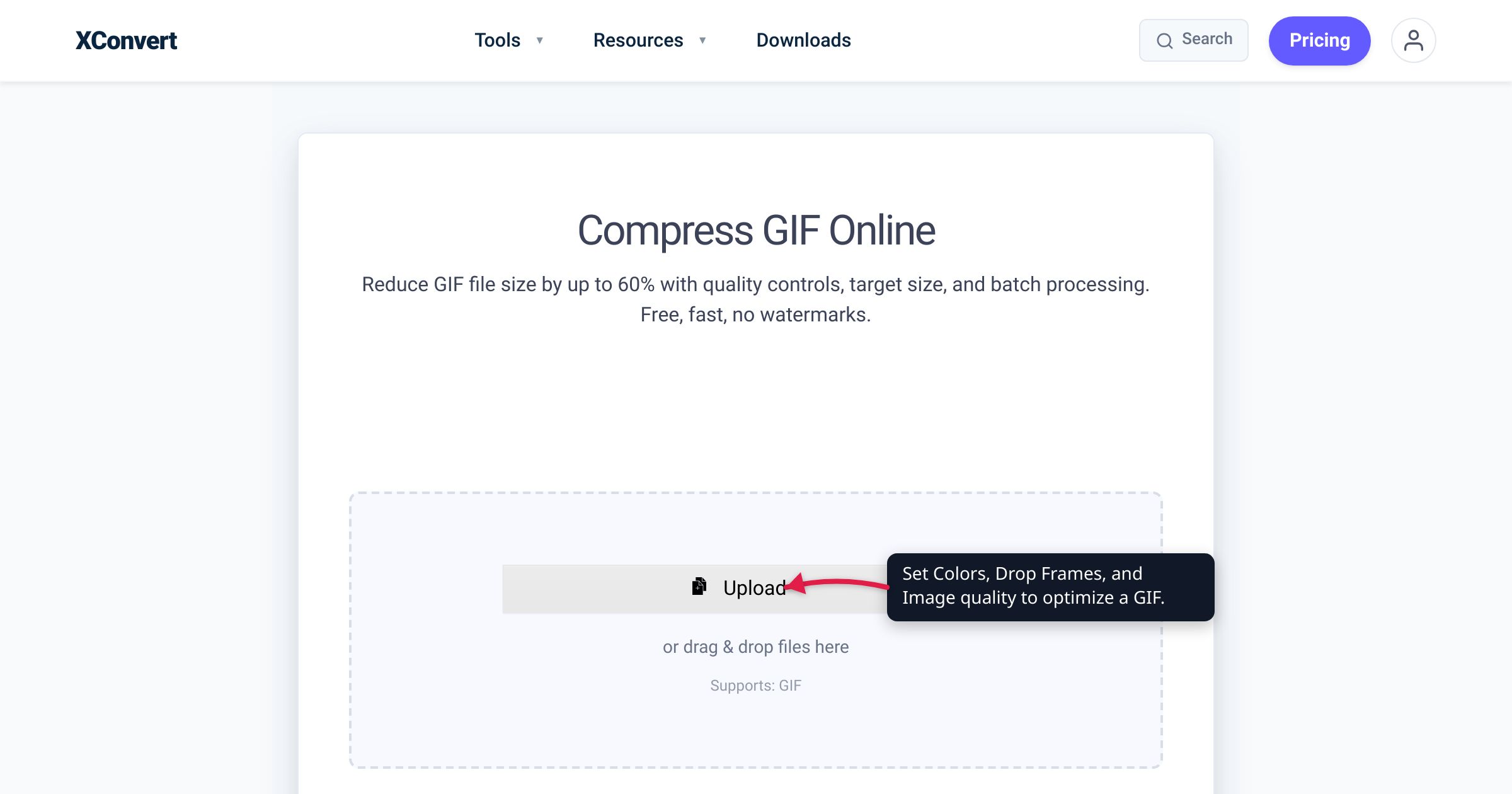
You drop a GIF into an “optimizer,” nudge a slider, and the file comes out 60% smaller — but nothing on screen tells you what changed. Fewer colors? Fewer frames? Some magic “compression”? GIF optimization isn’t magic; it’s a handful of concrete mechanisms working on a file format finalized in 1989, plus one older trick to squeeze its ancient compression harder. This guide opens the hood on each lever — what it does to the bytes, whether it costs quality, and which control drives it — checked against the GIF89a specification and the gifsicle optimizer’s own documentation.
Quick answer: A GIF optimizer pulls three real levers. (1) Palette: GIF stores each pixel as an index into a table of at most 256 colors, so using fewer colors means fewer bytes per pixel and longer repeating runs for the compressor to catch. (2) Frames: an optimizer stores only the changed part of each frame (frame differencing — lossless) and can also drop whole frames (lossy). (3) Lossy GIF: GIF’s LZW compression is lossless, so “lossy” tools quietly nudge pixels to similar colors so LZW finds longer matches. Resolution (fewer pixels) is the fourth big lever. On xconvert they surface as the Colors, Drop Frames, Image quality (%) and Image resolution controls — which live under File Compression → Custom, because the compressor’s default route is a size target instead.
Jump to a section
- First, the one thing every lever really feeds: LZW
- Lever 1: the color palette
- Lever 2: frame differencing vs. dropping frames
- Lever 3: “lossy GIF” — bending a lossless codec
- Putting it together (and where resolution fits)
- How the levers map to xconvert’s GIF compressor
- FAQ
First, the one thing every lever really feeds: LZW
Every animated GIF’s pixel data is squeezed with LZW — Lempel–Ziv–Welch, the dictionary compressor Terry Welch published in 1984 and that CompuServe baked into GIF in 1987. What LZW rewards is the key that makes all three levers stop looking arbitrary.
Per the GIF89a specification’s Appendix F (“Variable-Length-Code LZW Compression”), the encoder scans the pixel values and builds a dictionary of patterns as it encounters them: each new run of pixels is added to a code table, and when that run repeats, the encoder emits one short code instead of the pixels. Codes grow from 9 up to a maximum of 12 bits. And it is lossless — LZW never discards information, it only finds and shortens exact repeats.
That is load-bearing: LZW only saves space on long, exactly-repeating runs of identical pixel values. A flat band of one color collapses to almost nothing; speckle where every pixel differs from its neighbor saves almost nothing. So here’s the spine of the article — almost every GIF optimization is a way to give LZW longer, more-exact runs to find, or to shrink how much data it runs over.
Lever 1: the color palette
GIF is an indexed-color format. Instead of storing red/green/blue for every pixel, it stores a small color table — the palette — and each pixel is just an index pointing at one row of that table. Per the spec, the table holds at most 256 entries, because the index is 8 bits (2⁸). A file can carry one Global Color Table for the whole animation, or a Local Color Table attached to an individual frame.
Reducing the palette shrinks the file two ways:
- Directly — a smaller palette can be described with fewer bits per pixel.
- Indirectly, and this is the bigger effect — quantizing down to, say, 64 colors forces neighboring pixels that were almost the same color onto the same index, manufacturing exactly the long, identical runs LZW rewards. That’s why color reduction usually shrinks a file more than the raw bit-count math predicts.
A color-quantization step (median-cut and similar algorithms) picks the most representative colors and maps every pixel to its nearest survivor. Optional dithering then scatters two palette colors in a fine checker to fake a shade the palette no longer holds.
The catch follows straight from the LZW rule above: dithering deliberately makes neighboring pixels differ to fool the eye — the opposite of the identical runs LZW needs. So turning dithering up can increase the file even as it hides banding; it’s a quality tool, not a size tool. On xconvert this lever is the Colors control (“By Color Reduction + Dither”), under File Compression → Custom; its Dither toggle is off by default, for exactly this reason.
Lever 2: frame differencing vs. dropping frames
Two very different things get lumped together as “frame optimization.” Separating them is where most explanations go fuzzy.
Frame differencing (lossless). GIF89a doesn’t require every frame to repaint the whole canvas: each image carries its own position and size (Image Left/Top Position, Width, Height), so a frame can redraw just a small rectangle. It also supports a transparent index — transparent pixels are simply not drawn (“the corresponding pixel of the display device is not modified”) — and a disposal method governing what stays on screen between frames. An optimizer uses all three: it diffs each frame against the previous one, stores only the rectangle that changed, and marks the untouched pixels transparent so they inherit what was already there. On a screen recording where only a cursor moves, that turns most of every frame into one giant transparent run — which compresses to almost nothing. gifsicle documents exactly this as its optimization levels: -O1, “store only the changed portion of each image,” and -O2, which adds “use transparency.” It’s lossless — the animation looks identical — and it’s housekeeping a good optimizer does automatically, not a slider you set.
Frame dropping (lossy). The other lever throws frames away: keep every 2nd or 3rd frame and lengthen the survivors’ display time. Fewer stored images means proportionally fewer bytes, but you spend motion smoothness — fast action turns choppy, while slow pans and talking heads survive fine. This one is a control you set: on xconvert, Drop Frames under File Compression → Custom, whose Frames To Drop dropdown runs from Every 2nd frame to Every 10th and starts on Every 3rd frame.
Lever 3: “lossy GIF” — bending a lossless codec
The paradox that trips people up: LZW is lossless — it can’t throw detail away — yet tools advertise “lossy GIF.” How?
They don’t touch LZW; they change the pixels fed into it. A normal encoder, building its dictionary, looks for the longest run of pixels that exactly matches something it has already seen. A lossy encoder relaxes “exactly” to “similar enough”: if nudging one pixel to a neighboring palette color lets the run continue, it makes that swap, then dithers to disguise the small distortion. Longer runs → better LZW → smaller file. As Kornel Lesiński, who wrote the widely used lossy GIF encoder, puts it, the lossy encoder “picks the longest string of pixels that’s ‘similar enough’ to pixels in the image (plus some magic to hide the distortions with dithering).”
What it costs is a little noise; what it buys is typically a 30–50% smaller animated GIF, per the lossy encoder’s own figures. gifsicle exposes it as the –lossy option — “alter image colors to shrink output file size at the cost of artifacts and noise,” with a lossiness number (default 20) where higher means smaller and noisier. On xconvert this lever is the Image quality (%) slider under File Compression → Custom, which starts at 80% — “a balanced lossy LZW setting,” as the tool page puts it.
Putting it together (and where resolution fits)
There’s a fourth lever, often the biggest: resolution. A GIF’s data is roughly pixels-per-frame × frames, and pixel count scales with area — so halving width and height keeps only a quarter of the pixels, a quarter as many indices for LZW to store. It’s “lossy” only in that you discard detail you may not be displaying. Here’s every mechanism in one view:
| Mechanism | What it changes in the bytes | Lossless? | xconvert control |
|---|---|---|---|
| Palette reduction | Fewer color-table entries; more identical runs | Lossy (color) | Colors (Custom) |
| Frame differencing | Store only the changed region + transparency | Lossless | Automatic |
| Frame dropping | Fewer stored frames | Lossy (motion) | Drop Frames (Custom) |
| Lossy LZW | Pixels nudged to lengthen LZW matches | Lossy (noise) | Image quality (%) (Custom) |
| Resolution | Fewer pixels per frame | Lossy (detail) | Image resolution (Custom) |
| All of the above, aimed at a number | Combinations searched until the output fits a ceiling you name | Lossy (mixed) | Max file size → Size limit |
The lossless mechanisms (frame differencing, trimming dead frames, resizing) reorganize data so LZW works harder; the lossy ones (palette, frame dropping, lossy LZW) remove information — so lean on the lossless ones first.
Note the last row, because it changes how you drive the tool. Every control in the first five rows is a knob you set and then measure. The compressor’s default route inverts that: you state the size you need and it works the knobs, which is why those five now sit behind a Custom switch rather than greeting you on arrival.
For why a GIF is so oversized to begin with, see why is my GIF file so big; for how hard to pull each lever without visibly hurting the image, see make a GIF smaller without losing quality.
How the levers map to xconvert’s GIF compressor
The xconvert GIF compressor offers each lever as a direct control — but it doesn’t open on them. File Compression greets you with Max file size, the aim-at-a-number route; Custom is the switch that reveals the knobs this article has been describing.
Route A — name the size, let it search the levers.
- Open xconvert.com/compress-gif and click Upload to add your GIF (from your computer, Google Drive, or Dropbox).
- File Compression is already on Max file size. Set the Size limit dropdown: Custom size % (the default, capping output at a percentage of the original — 75% to start), Custom size value for a typed number in B / KB / MB, or a Discord (10 MB max) / Email (25 MB max) / Forum (2 MB max) preset.
- Click Compress, then download. The output comes back at or under the ceiling where the content allows — best-effort, not a guaranteed landing size, so a very aggressive ask on a large source gets as close as the format permits.
Route B — pull the levers yourself. Switch File Compression to Custom and the four groups appear:
- Colors → By Color Reduction + Dither shrinks the palette — Lever 1. The Color Palette Size dropdown starts at 128; the Dither toggle starts off.
- Drop Frames — the lossy frame lever — opens already switched on with Every 3rd frame picked in Frames To Drop (the alternative for this group is ORIGINAL, keeping every frame).
- Image quality (%) — the “lossy LZW” lever — starts at 80.
- Image resolution takes a Resolution Percentage, a Preset Resolution, or a Width / Height with aspect ratio kept.
- Click Compress, then download. Custom mode applies exactly what you set and doesn’t chase a number, so read the output size and pull a lever harder — or hand the problem back to Max file size.
Your file is processed on our servers and deleted automatically a few hours later — nothing stays around.
FAQ
How does a GIF optimizer actually make the file smaller?
It works on GIF’s LZW compression, which only shrinks long, exactly-repeating runs of identical pixels. Optimizers manufacture more of those runs and cut how much data there is: reduce the color palette (more pixels share an index), frame differencing (store only the changed part of each frame, the rest transparent), drop frames, lower resolution, and lossy encoding (nudge pixels to similar colors so runs get longer). Palette, frames, and lossy are the three core levers; resolution is the fourth.
If GIF’s compression is lossless, what is “lossy GIF”?
GIF’s LZW is genuinely lossless. “Lossy GIF” doesn’t change LZW — it changes the pixels before they reach it. A lossy encoder accepts a run that’s “similar enough” rather than an exact match, swapping a pixel for a neighboring palette color when that lengthens a match, then dithers to hide it — commonly 30–50% smaller at the cost of a little noise. On xconvert it’s the Image quality (%) slider, which appears once you switch File Compression to Custom and starts at 80%.
What is frame differencing (transparency optimization)?
It’s the lossless frame lever: instead of storing every frame whole, the optimizer stores only the rectangle that changed and marks the unchanged pixels transparent to inherit what’s already on screen. GIF supports this via per-frame position/size, a transparent index, and a disposal method; gifsicle calls it levels -O1/-O2. On a static-background clip like a screen recording it’s a huge, quality-free win applied automatically.
Does reducing the number of colors really shrink a GIF, and why?
Yes — two ways. A smaller palette needs fewer bits to describe, but the bigger effect is that quantizing to fewer colors makes neighboring pixels collapse onto the same index, creating the long identical runs LZW compresses best. That’s why 256 → 64 colors often shrinks a file more than the raw math predicts — though photos and gradients start to show banding.
Why does turning on dithering sometimes make the GIF bigger?
Because dithering deliberately scatters different palette colors to fake shades the palette lacks — and that speckle is the opposite of the repeating runs LZW needs. So dithering is a quality tool (it hides banding), not a size tool, and paired with color reduction it can reverse the savings. Reduce colors for size; add dithering only when appearance demands it.
Is optimizing a GIF lossless or does it degrade the image?
It’s a mix. Frame differencing, trimming dead frames, and resizing to display size are effectively lossless to the viewer. Palette reduction, frame dropping, and lossy encoding trade quality — color fidelity, motion smoothness, or a little noise. The reliable approach: exhaust the lossless mechanisms first, then spend the lossy ones only as far as your content tolerates.
Sources
Last verified 2026-08-31.
- W3C — GIF89a specification — the 256-entry color table (8-bit index), Global vs. Local Color Tables, per-frame position/size (sub-region redraw), the transparent index and disposal method, and Appendix F, “Variable-Length-Code LZW Compression.”
- gifsicle man page (Eddie Kohler, LCDF) — optimization levels (-O1 “store only the changed portion,” -O2 “and use transparency,” -O3) and the
--lossyoption (“alter image colors to shrink output file size at the cost of artifacts and noise”; default lossiness 20). - Kornel Lesiński — “Lossy GIF compressor” — how lossy LZW works (the longest “similar enough” run plus dithering) and the 30–50% size-reduction figure.
- Welch, T. A. (1984). “A Technique for High-Performance Data Compression.” IEEE Computer 17(6):8–19 — the original description of the LZW dictionary algorithm GIF adopted in 1987.
- xconvert GIF compressor — live tool; verified that File Compression opens on Max file size with a Size limit dropdown (Custom size % at 75%, Custom size value in B/KB/MB, and Discord/Email/Forum presets), and that switching to Custom reveals Colors (“By Color Reduction + Dither”, palette 128, dither off), Drop Frames (Frames To Drop starting at “Every 3rd frame”), Image quality (%) (default 80%, “a balanced lossy LZW setting”), and Image resolution.