 By James
Drop a photo’s JPEG quality from 100 to 95 and the file often halves. Go from 95 to 90 and it barely moves. Go from 50 to 45 and the picture visibly falls apart. That behaviour makes no sense if you think the number is a percentage of anything — and it isn’t. “Quality 95” is an index into a formula that scales the table JPEG uses to throw information away, and once you know the formula the whole slider stops being mysterious.
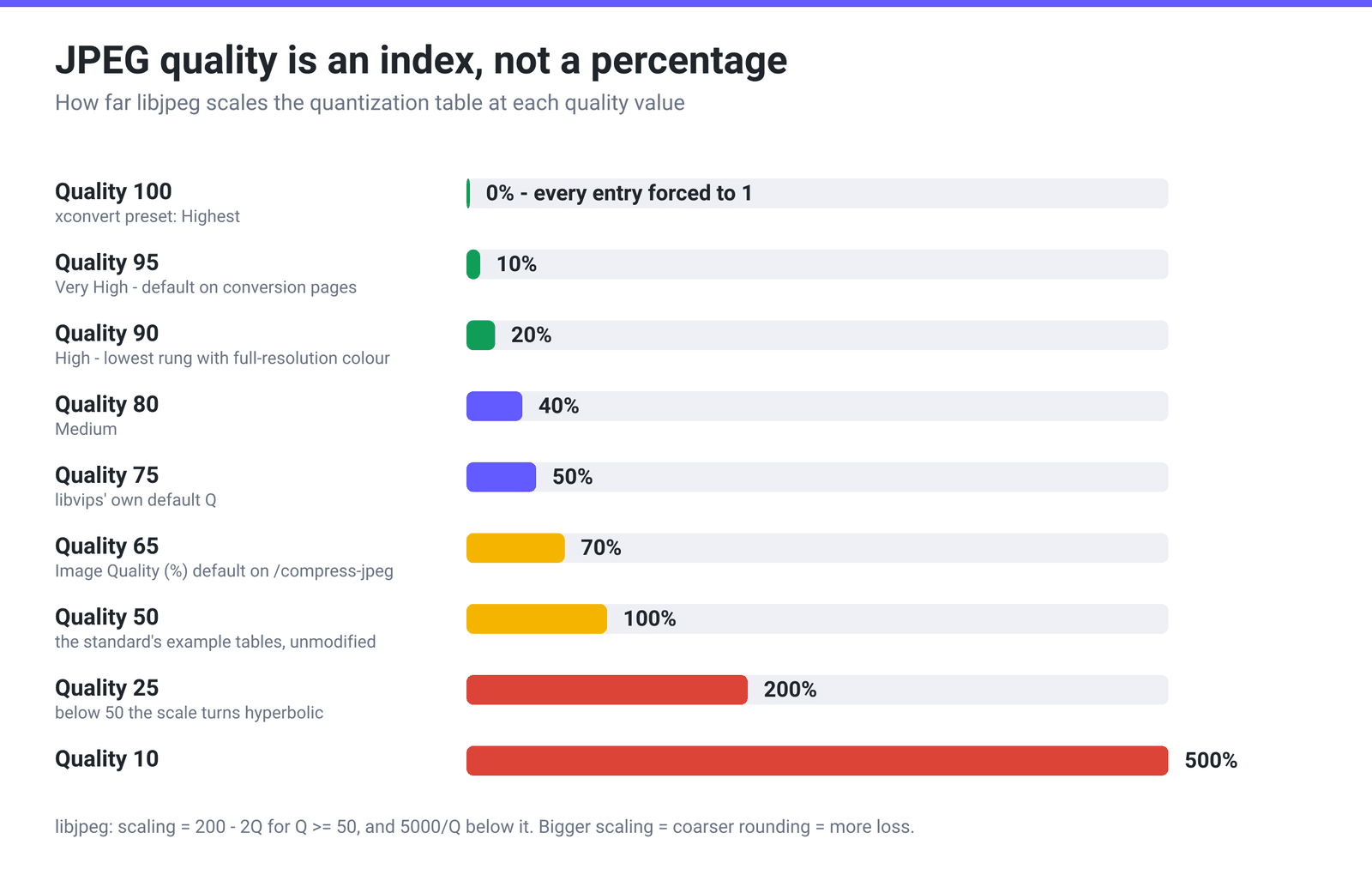
Quick answer: JPEG quality is not a percentage of retained detail. It’s an index that scales the quantization tables. In libjpeg — the reference implementation almost everything descends from — quality 50 uses the standard’s example tables unchanged, quality 50–100 scales them by 200 − 2Q percent, and quality 1–50 scales them by 5000 ÷ Q percent. So 95 → 10% of the base table, 90 → 20%, 80 → 40%, 50 → 100%, 25 → 200%. There’s also a hard step you can’t see in the number: libvips, which xconvert encodes with, automatically turns chroma subsampling off at Q ≥ 90, so 90 and 89 differ by more than one point. On xconvert, JPEG conversion pages give you a preset ladder (Highest 100 · Very High 95 · High 90 · Medium 80 · Low 70 · Very Low 60 · Lowest 50); /compress-jpeg hides that ladder and hands you the raw slider, which sits at 65 when you select it.
Jump to a section
- The number is an index, not a percentage
- The cliff at 90: chroma subsampling
- Why quality 100 still isn’t lossless
- What xconvert’s presets and sliders actually set
- Compress a JPEG on xconvert
- FAQ
The number is an index, not a percentage
JPEG discards detail in one specific place. Each 8×8 block of the image is converted into frequency coefficients, and then every coefficient is divided by a number from a quantization table and rounded. Big divisors mean coarse rounding, which means fewer distinct values to store and a smaller file. That rounding is the loss — everything else in JPEG is reversible bookkeeping.
The quality slider does exactly one thing: it scales that table. libjpeg’s own source spells out the mapping:
"The basic table is used as-is (scaling 100) for a quality of 50. Qualities 50…100 are converted to scaling percentage 200 – 2Q; note that at Q=100 the scaling is 0, which will cause jpeg_add_quant_table to make all the table entries 1 (hence, minimum quantization loss). Qualities 1…50 are converted to scaling percentage 5000/Q."*
Written out, that’s scaling = 200 − 2Q above 50 and scaling = 5000 / Q below it — and the second half is a hyperbola, not a line.
Two consequences explain everyday behaviour:
- The top of the range is squeezed. Between Q 90 and Q 100 the scaling runs 20% → 0%: a huge relative change in how precisely coefficients are stored, which is why file size climbs so steeply at the top while the picture barely changes. You’re paying a lot of bytes for precision below the threshold of vision.
- The bottom is a cliff. Between Q 20 and Q 10 the scaling goes 250% → 500%. Each step down multiplies the divisors far faster than the number suggests, which is why low-quality JPEGs collapse suddenly rather than degrade gracefully.
Quality 50 is the anchor, not the midpoint of anything: it’s the setting at which JPEG uses the example quantization tables published in the standard, untouched.
The cliff at 90: chroma subsampling
There’s a second lever hiding behind the same slider. JPEG splits an image into brightness (luma) and colour (chroma), and because human vision is far more sensitive to brightness than to colour, encoders usually store the colour channels at half resolution — chroma subsampling. It’s a big, cheap saving on photographs and a disaster on anything with hard colour edges: red text on white, screenshots, logos, charts.
xconvert encodes JPEG through libvips, whose documentation states the rule plainly: “Chroma subsampling is normally automatically disabled for Q >= 90.”
So the slider is really controlling two things at once, and one of them is a step function:
| Quality | Chroma | What it’s good for |
|---|---|---|
| 100 | Full resolution (4:4:4) | Archival masters. Size balloons for detail nobody can see |
| 95 | Full resolution | xconvert’s Very High default on conversions — safe for photos you’ll edit again |
| 90 | Full resolution | The lowest rung with full colour. A strong “high-quality web” setting |
| 85 | Subsampled | Common web default. Colour detail starts being averaged across pixel pairs |
| 80 | Subsampled | xconvert’s Medium. Fine for photographs, visible on flat colour and text |
| 75 | Subsampled | libvips’ own default Q |
| 65 | Subsampled | Where xconvert’s Image Quality (%) slider sits on /compress-jpeg |
| 50 | Subsampled | The standard’s example tables, unmodified. Ringing around edges is visible |
If your image is a screenshot, a diagram, coloured text, or a logo, that table is the reason to either stay at 90 or above — or to not use JPEG at all. PNG vs WebP vs JPG covers which format that content actually wants.
Why quality 100 still isn’t lossless
libjpeg’s comment is careful with its words: at Q=100 every table entry becomes 1, giving “minimum quantization loss” — minimum, not zero. Even with divisors of 1, three things have already happened to your pixels: RGB is converted to YCbCr in finite precision and doesn’t convert back to exactly the same integers; the frequency transform is computed and rounded in fixed-point arithmetic; and below Q 90, half your colour resolution is gone before quantization even starts.
So a quality-100 JPEG is enormous and still not bit-identical to the source. If you need bit-exact pixels, the answer is a lossless format, not a high JPEG number.
The same logic explains generation loss. Every save re-runs the transform-and-round, so re-saving a JPEG — even at a higher quality number — cannot recover what the previous save discarded; it only adds fresh rounding on top of the damage. Make all your edits, then export once. Never chain compressions.
What xconvert’s presets and sliders actually set
xconvert exposes JPEG quality two different ways, and which one you see depends on the kind of page you’re on.
On conversion pages — anything of the form X to JPG — you get a Quality Preset dropdown. Those words map to exact numbers:
| Preset | Quality value | Quantization scaling | Chroma |
|---|---|---|---|
| Highest | 100 | 0% | Full resolution |
| Very High (Recommended) — the default | 95 | 10% | Full resolution |
| High | 90 | 20% | Full resolution |
| Medium | 80 | 40% | Subsampled |
| Low | 70 | 60% | Subsampled |
| Very Low | 60 | 80% | Subsampled |
| Lowest | 50 | 100% | Subsampled |
On /compress-jpeg the preset ladder is deliberately hidden, because a preset can’t promise a smaller file — it promises a quality setting, and a photo already saved at 70 gets bigger if you “compress” it at 95. Instead, Image Compression offers three modes:
- Target file size (%) (Best) — the default, opening at 80. The page states the arithmetic itself: “If your file is 10 MB, then selecting 80 will produce a 8 MB file.”
- Specific file size — an exact number with a B / KB / MB unit.
- Image Quality (%) — the raw libjpeg-style number, a 1–100 slider that opens at 65.
One thing worth knowing before you reach for the third one. In the size-target modes, Auto Scale is on and the panel says so: “[Smart Scaling Active] We will automatically adjust the image dimensions to maximize quality while hitting your target file size. Manual resolution settings are hidden to prevent pixelation.” Switch to Image Quality (%) and Smart Scaling steps aside — which also reveals the Image resolution group, and that group opens on Resolution Percentage at 80%. The page does tell you — an Estimated impact panel appears under the slider reading “dimensions reduced to 80.00% of the original” — but it is easy to scroll straight past, and it means a quality-mode pass shrinks your pixel dimensions by 20% as well unless you set Image resolution to Keep original. If you want to see what the quality number alone does, set that first.
Compress a JPEG on xconvert
- Open xconvert.com/compress-jpeg and click Upload to add your image (from your computer, Google Drive, or Dropbox). The header shows the file’s WxH, its Size, and a live Est. Size for your current settings.
- Open Advanced Options. IMAGE COMPRESSION opens on Target file size (%) (Best) with the File size (%) slider at 80 — leave it there if “20% smaller, decide the quality for me” is what you want.
- To drive the quality number yourself, click Image Quality (%) and set the Quality Percentage slider. Use 90 or above for screenshots, logos and coloured text (that’s where chroma subsampling switches off); 75–85 is ample for photographs.
- Still in that mode, check the Image resolution group that just appeared. It opens on Resolution Percentage 80 — switch it to Keep original if you don’t want the dimensions changed too.
- Leave FILE EXTENSION on Same as source (or pick JPEG / JPG), click Compress, and download.
Your file is uploaded over an encrypted connection, processed on our servers, and deleted automatically a few hours later. No account, no watermark.
For the wider view of what shrinks a JPEG — quality, dimensions, and metadata together — see how to compress a JPG/JPEG.
FAQ
Is JPEG quality 100 lossless?
No. At Q=100 libjpeg forces every quantization entry to 1, which its own source describes as “minimum quantization loss” — the least possible, not none. The RGB-to-YCbCr colour conversion and the frequency transform are both computed in finite precision, so a round trip won’t return your exact original pixels. What you do get is a very large file for detail you can’t see. If bit-exact matters, use a lossless format.
What quality should I use for photos on the web?
For photographs, 75–85 is the honest working range: below 85 you’re subsampling colour, which photographs tolerate well, and the scaling factor at 80 (40%) still keeps fine detail. Go to 90 or above only when the image has hard colour edges — screenshots, diagrams, coloured text, logos — because that’s where the encoder stops halving the colour resolution. Above 95 you’re mostly buying file size.
Why does the file get bigger when I re-save at a higher quality?
Because the quality number sets how precisely the current pixels are stored, not how good they were. If a photo was already saved at 70, its detail is gone; saving it again at 95 stores the surviving, already-damaged pixels with far more precision — including the blocking artifacts, which are expensive to encode faithfully. You get a larger file that looks no better. This is also why “compress” tools that only offer a quality preset can inflate a file.
Does “quality 80” mean the same thing in every program?
No, and it’s a common source of confusion. The 0–100 scale comes from libjpeg’s convention, but an encoder is free to use different base tables or a different mapping, and some applications expose an entirely different scale — a 0–12 slider, for example. Two files both labelled “quality 80” from different tools can differ noticeably in size and appearance. The scaling formula quoted above describes libjpeg and the encoders that follow it, which is most of them.
Isn’t 65 too low for the /compress-jpeg default?
It’s a deliberate choice for a compressor: the page’s job is to make the file smaller, and 65 reliably does that for photos coming out of phones and cameras, which are typically saved in the 85–95 range. It is on the low side for graphics, so if you’re compressing a screenshot or anything with text, raise it to 90+ or use the Target file size (%) mode instead and let Smart Scaling protect the detail.
Does lowering the quality make the image blurry?
Not blurry exactly — JPEG’s failure modes are specific and recognisable. You get blocking (visible 8×8 squares in smooth gradients like skies), ringing (ghostly halos next to sharp edges, especially text), and colour bleeding where subsampling averages chroma across neighbouring pixels. Blur is what resizing does. If your image looks soft rather than blocky, the dimensions were reduced — check whether Image resolution was left on Resolution Percentage 80.
Sources
Last verified 2026-08-31.
- libjpeg-turbo —
jcparam.c—jpeg_quality_scaling: “The basic table is used as-is (scaling 100) for a quality of 50. Qualities 50…100 are converted to scaling percentage 200 – 2*Q … at Q=100 the scaling is 0, which will cause jpeg_add_quant_table to make all the table entries 1 (hence, minimum quantization loss). Qualities 1…50 are converted to scaling percentage 5000/Q.” - libvips —
Image.jpegsave— “UseQto set the JPEG compression factor. Default 75” and “Chroma subsampling is normally automatically disabled for Q >= 90.” - ITU-T Recommendation T.81 — the JPEG standard (W3C’s copy of the specification) — defines the DCT-based baseline process and publishes the example quantization tables that libjpeg scales.
- xconvert’s own configuration and live tool, checked 2026-08-31 — the preset-to-number map (Highest 100 · Very High 95 · High 90 · Medium 80 · Low 70 · Very Low 60 · Lowest 50), the Image Quality (%) slider default of 65 on /compress-jpeg, the Target file size (%) default of 80, and and the Image resolution → Resolution Percentage 80 that appears in quality mode. Confirmed by uploading a 1600×1200 JPEG to /compress-jpeg on 2026-08-31: switching to Image Quality (%) revealed the Image resolution group with Resolution Percentage selected, the By Percentage slider at 80, and an Estimated impact panel reading “dimensions reduced to 80.00% of the original”.