 By Stephanie Taylor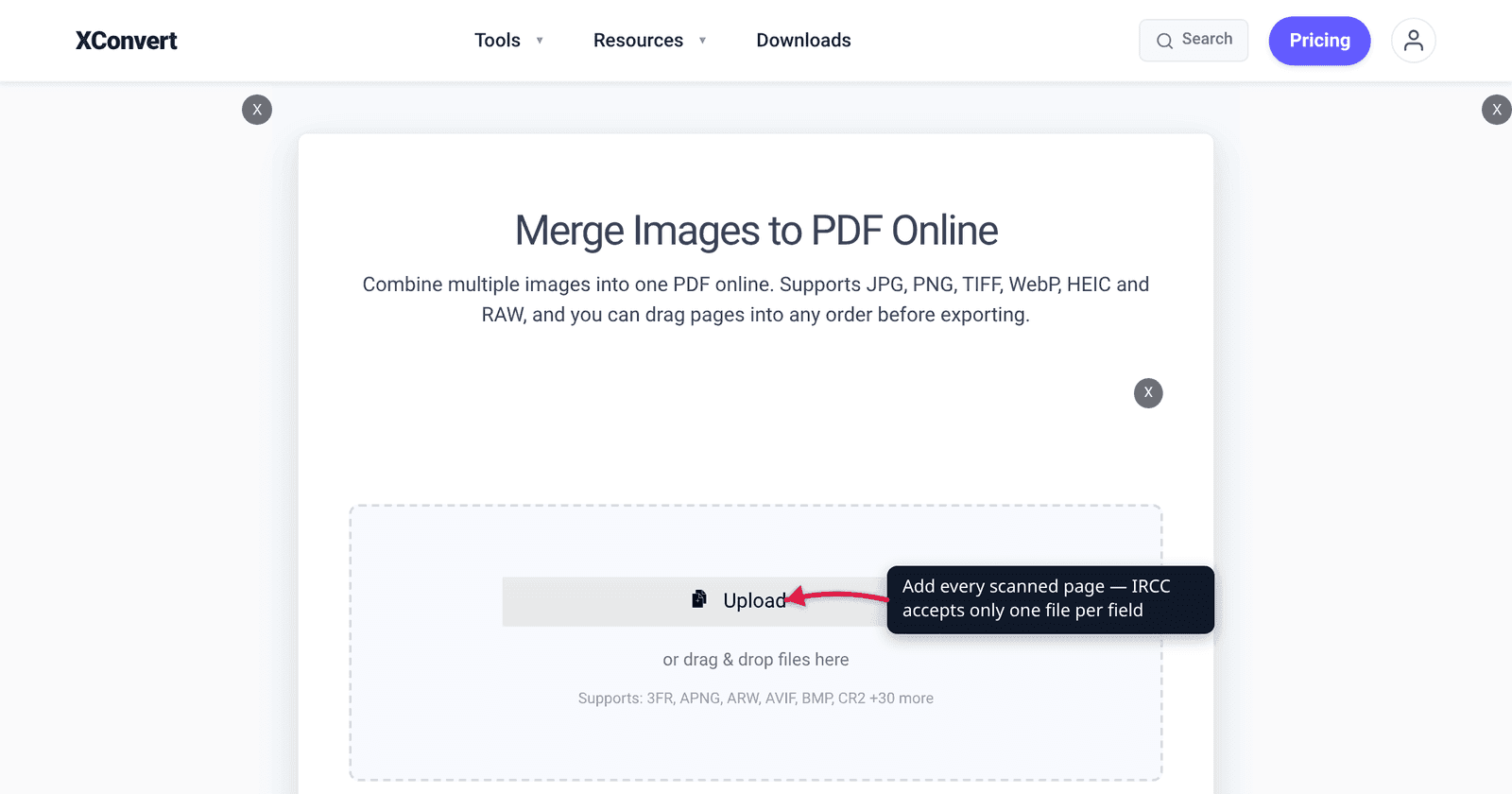
You’ve scanned six pages of bank statements, three rental receipts and a letter of employment, and the IRCC portal gives you exactly one upload button for the lot. Worse, if you try to add them one after another into the same field, IRCC’s own help page warns that only the last one survives. So the job isn’t “upload my documents” — it’s “produce a single PDF, under the limit, in an accepted format, without making the text unreadable.” Here’s how, with every number taken from IRCC’s own help centre rather than a forum post.
Quick answer: IRCC allows one file per field, so multiple documents must be merged into a single file first. The per-file size limit depends on which portal you’re using: 4 MB for the IRCC secure account, the online citizenship application, the Asylum portal and the Permanent Residence Portal; 5 MB for the IRCC Portal (both versions) — and IRCC notes that for some applications it can be as low as 2 MB. PDF is accepted everywhere. Combine your scans with xconvert’s Merge Images to PDF, set Paper size to match your scans, drag the pages into order, and drop Image Quality (%) from its default 75 if the result is over the limit.
Jump to a section
- The rule that catches everyone: one file per field
- IRCC’s actual size limits and formats, by portal
- Getting under 4 MB without wrecking legibility
- Combine your documents on xconvert
- About using a third-party tool for this
- FAQ
The rule that catches everyone: one file per field
IRCC’s help centre is unusually direct about this one:
“You need to combine all your documents into 1 file. You can only upload 1 file per field. If you try to upload multiple files in the same field, only 1 (the last one you upload) will be saved.”
That last clause is the dangerous part. The portal doesn’t reject the extra files or warn you — it silently keeps only the last upload. An applicant who uploads six statements into the “Proof of funds” field one at a time ends up submitting a single page and has no visual cue that anything went wrong until an officer asks for the missing evidence months later.
So the workflow for any multi-page item on your document checklist is always the same: merge first, upload once, then open the uploaded file in the portal and check the page count.
IRCC’s actual size limits and formats, by portal
There is no single “IRCC limit” — the number depends on which account you’re applying through. IRCC publishes both tables, last updated 2026-04-17:
| Online account type | Size limit (per file) | Accepted file types |
|---|---|---|
| IRCC secure account | 4 MB | .jpg, .png, .doc, .tiff, .pdf |
| IRCC Portal | 5 MB | .jpg, .png, .doc, .docx, .tiff, .pdf |
| IRCC Portal – New version | 5 MB | — |
| Online citizenship application | 4 MB | .jpg, .jpeg, .png, .tif, .tiff, .pdf |
| Asylum portal | 4 MB | .jpg, .png, .tiff, .doc, .docx, .pdf |
| Permanent Residence Portal | 4 MB | .pdf (forms and supporting documents), .jpg, .jpeg, .doc, .docx, .png |
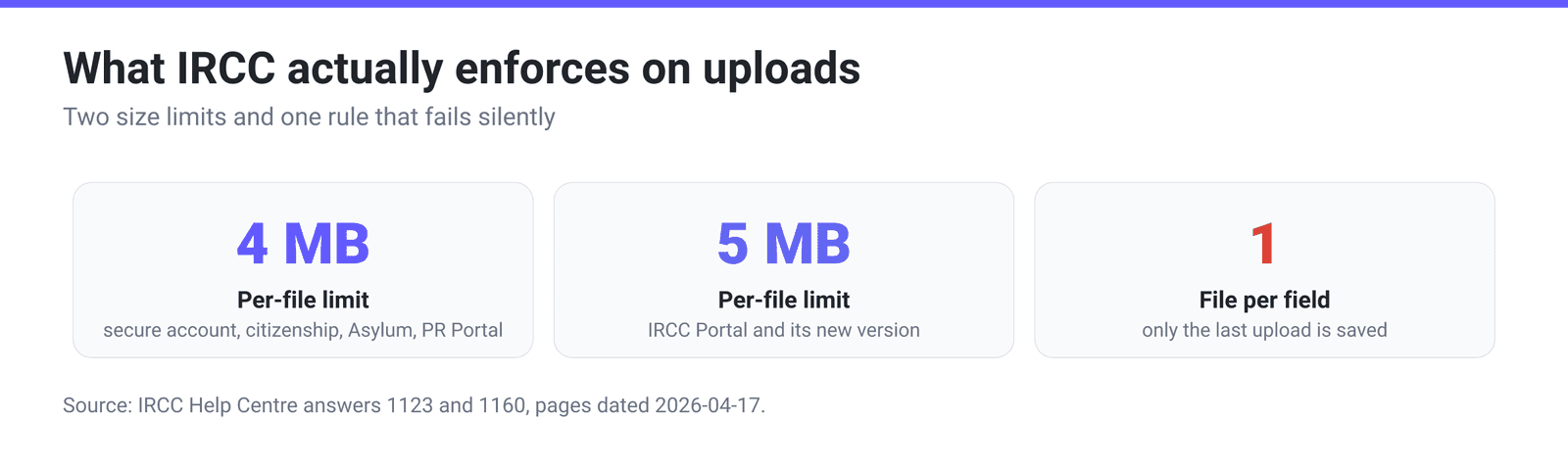
Three details in those tables that trip people up:
- PDF is the only format accepted by every portal. That alone is a good reason to merge to PDF rather than uploading a stack of JPGs into whatever field will take them.
- The lists are not identical. The IRCC secure account lists
.docbut not.docx; the Permanent Residence Portal lists neither.tiffnor.tif, so a TIFF scan that uploads fine in one portal will be rejected in another. Converting to PDF sidesteps the whole problem. - 4 MB is not a floor. On the “documents are too large” page IRCC adds that “depending on what you’re applying for, the limit can be as low as 2 MB.” If your checklist screen states a number, trust that number over any general guidance — including this article.
Getting under 4 MB without wrecking legibility
The instinct is to compress hard. The better move is to stop creating the problem: a phone photo of a bank statement at full resolution is 4–8 MB per page before you merge anything, and almost all of those pixels are wasted on a document that only needs to be readable.
IRCC’s own advice points the same way. On combining files it says to “select a low resolution (150 DPI or less) or a minimum size setting to keep the document under the file size limit”, and its size-reduction page recommends scanning at “a lower resolution, such as 96 DPI” and using “the ‘Crop’ feature to remove all empty space around the image.”
Translated into an order of operations that actually works:
- Crop first. Trim the desk, the shadow and the margin around the page. On a phone photo that alone can remove a third of the pixels, and it costs nothing in legibility.
- Scan or shoot at 150–300 DPI, not maximum. For printed text, 150 DPI is comfortably readable and 300 DPI is generous. Anything above that stores paper texture.
- Merge once, then judge the result. Only reach for quality reduction if the merged PDF is actually over your portal’s limit.
- Lower quality last, and not below the point where small print blurs. Officers have to read this.
- If it’s still too big, split the evidence across fields where the checklist allows it rather than compressing a 40-page bundle into 4 MB. A single unreadable file is worse than two upload rounds.
One thing not to do: don’t shrink the pixel dimensions of a text scan to hit a target. Text survives quality reduction far better than it survives downscaling — a JPEG artifact around a letterform is annoying, a letterform rendered across two pixels is gone.
Combine your documents on xconvert
Merge Images to PDF takes JPG, PNG, TIFF, WebP, HEIC and RAW files and produces one PDF, which is the format every IRCC portal accepts.
- Open xconvert.com/merge-image-to-pdf and click Upload to add every page — from your computer, Google Drive or Dropbox. Drag the thumbnails into the order an officer should read them.
- In Advanced Options, leave COMBINE? on Single PDF. (Individual PDFs does the opposite of what you want here — one PDF per image.)
- Set PAPER SIZE to match your scans. It defaults to A4; choose LETTER if your documents are North American 8.5 × 11 in, or Original to keep each image’s own proportions. IRCC doesn’t specify a page size, so this only affects how the pages look and whether anything gets letterboxed.
- Check MARGIN (Narrow (0.5") by default), PAGE LAYOUT (Portrait) and IMAGE PLACEMENT. Leave placement on Contained — Cover fills the page by cropping, which can slice the edge off a document.
- If the merged file lands over your portal’s limit, come back and lower IMAGE COMPRESSION → Quality Percentage from its default 75, then merge again. Click Merge and download.
Your files are uploaded over an encrypted connection, processed on our servers, and deleted automatically a few hours later. No account, no watermark.
If your evidence is already PDFs rather than images, or the merged file is still too heavy, compress a PDF without losing quality covers that end. Filing in the United States instead? Combine documents into one PDF for USCIS covers the equivalent 12 MB rules.
About using a third-party tool for this
IRCC explicitly contemplates people doing this with an outside tool, and attaches a warning worth quoting in full:
“If you don’t have Acrobat DC or similar software, there are websites and apps you can use to combine your PDF files. Make sure to read their terms of service and privacy policy before using these. We can’t guarantee the security of these third-party tools. Use them at your own risk.”
That’s fair advice and it applies to us as much as anyone. So, plainly: xconvert is a server-side service. Your files travel over an encrypted connection, are processed on our servers, and are deleted automatically a few hours later. We don’t require an account to use the merge tool and we don’t watermark the output. Read our privacy policy before you upload anything containing your passport number, and if a document is sensitive enough that you’d rather it never left your machine, use offline software instead — that is a legitimate choice, and no online tool can honestly tell you otherwise.
FAQ
Is the IRCC upload limit 4 MB or 5 MB?
Both, depending on the portal. IRCC’s help centre lists 4 MB for the IRCC secure account, the online citizenship application, the Asylum portal and the Permanent Residence Portal, and 5 MB for the IRCC Portal and its new version. It also warns that for some applications the limit “can be as low as 2 MB.” Build to whatever number your own checklist screen shows; when in doubt, 4 MB is the safe target.
What happens if I upload several files into the same field?
Only the last one is kept. IRCC states it outright: “If you try to upload multiple files in the same field, only 1 (the last one you upload) will be saved.” There’s no error and no warning, which is why this quietly costs people months. Merge everything into one file, upload it, then open it back up in the portal and count the pages before you submit.
Can I upload a TIFF scan to the Permanent Residence Portal?
No. The PR Portal’s accepted list is .pdf, .jpg, .jpeg, .doc, .docx and .png — TIFF isn’t on it, even though the IRCC secure account and the Asylum portal both accept .tiff. Since PDF is accepted by every portal, converting or merging to PDF is the reliable answer rather than memorising which list you’re on.
What resolution should I scan documents at for IRCC?
IRCC’s own guidance points low: it suggests saving at “150 DPI or less” when creating a PDF and scanning at “a lower resolution, such as 96 DPI” if your files are too big. In practice 150 DPI is a good working target for printed text — clearly readable, and roughly a quarter of the bytes of a 300 DPI scan. Go to 300 DPI only for something with fine detail like a stamped seal or handwriting.
The merged PDF is 6 MB. Do I compress it or split it?
Check your checklist first — if the item genuinely allows only one field, you have to compress. Start by cropping and re-scanning the worst offenders (a full-resolution phone photo is usually one or two pages doing all the damage), then lower quality. If the checklist offers several fields for the same category, spreading pages across them keeps every page legible, which matters more than tidiness.
Does IRCC care what page size or orientation my PDF uses?
Its published requirements cover file size and file type, not page dimensions — so A4 versus Letter is a presentation choice, not a compliance one. What does matter is that nothing is cut off: keep Image placement on Contained rather than Cover, since Cover fills the page by cropping and can shave the edge off a scanned document.
Sources
Last verified 2026-08-31.
- IRCC Help Centre — Is there a file size limit for documents I upload to my account? — the per-portal size table (4 MB for the IRCC secure account, online citizenship application, Asylum portal and Permanent Residence Portal; 5 MB for the IRCC Portal and its new version). Page dated 2026-04-17.
- IRCC Help Centre — What file formats can I upload to my account? — the per-portal accepted-format table, including the Permanent Residence Portal’s list, which omits TIFF. Page dated 2026-04-17.
- IRCC Help Centre — I need to add multiple files to my online application, but there is only one field — “You can only upload 1 file per field. If you try to upload multiple files in the same field, only 1 (the last one you upload) will be saved”; the 150 DPI guidance; and the third-party-tool warning quoted above. Page dated 2026-04-17.
- IRCC Help Centre — My documents are too large to upload. How do I reduce the file size? — “the limit can be as low as 2 MB”, plus the 96 DPI and crop advice. Page dated 2026-04-17.
- xconvert’s Merge Images to PDF, control names and defaults checked against the live tool on 2026-08-31 — Single PDF, Narrow (0.5") margin, A4 paper size, Portrait, Contained placement, Center alignment, and a Quality Percentage default of 75.