 By James
You made a three-second loop, exported a crisp 112 × 112 GIF, and Twitch’s emote uploader still says no. The advice you find next is usually answering a different question — it quotes the static PNG rules, or Discord’s emoji spec, or an old 25 KB figure from before animated emotes existed. Twitch’s animated emotes have their own rulebook, and it contains one limit almost nobody mentions: a hard cap of 60 frames. Get that one right and the rest is a single pass through a compressor.
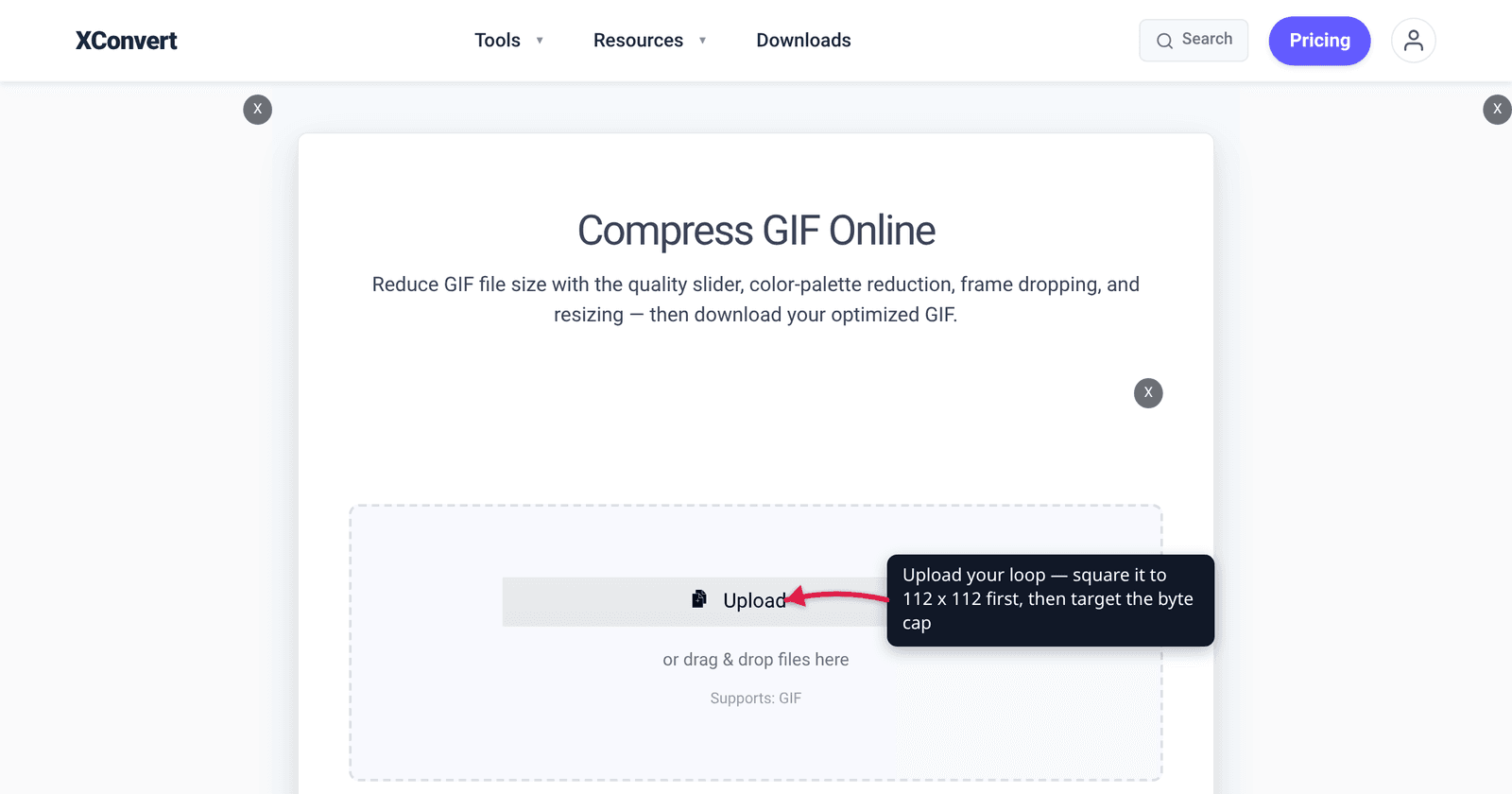
Quick answer: A Twitch animated emote must be a square GIF. In auto-resize mode you upload one square GIF between 112 × 112 and 4096 × 4096 at 1 MB max; in manual mode you upload three GIFs at 28 × 28, 56 × 56 and 112 × 112, and each one must be under 512 KB. Either way the GIF cannot exceed 60 frames, and the emote’s thumbnail is the first frame unless you supply a separate static image. On xconvert’s GIF compressor, set File Compression → Custom to resize and drop frames, then run a second pass with Max file size → Size limit → Custom size value to land under the byte cap.
Jump to a section
- Twitch’s animated emote rules, from Twitch
- 60 frames is the constraint nobody mentions
- Auto-resize or manual: two different byte budgets
- Which lever to pull at 112 pixels
- Fit a Twitch emote on xconvert
- FAQ
Twitch’s animated emote rules, from Twitch
Twitch publishes these in its Emote Formatting article. The static and animated rules are close enough to be confused and different enough to get you rejected.
| Animated emote | Static emote | |
|---|---|---|
| File format | GIF only | PNG only |
| Shape | Must be square (same width and height) | Square (28 / 56 / 112 sizes) |
| Auto-resize upload | one GIF, 112 × 112 to 4096 × 4096 | one PNG, 112 × 112 to 4096 × 4096 |
| Manual upload | three GIFs: 28 × 28, 56 × 56, 112 × 112 | three PNGs at the same three sizes |
| Size cap — auto-resize | 1 MB | 1 MB |
| Size cap — manual | 512 KB per file | 1 MB |
| Frame limit | 60 frames maximum | n/a |
| Flashing | must not flash or flicker more than 3 times in any 1-second period | n/a |
| Background | not stated in the animated list | “Please submit your emote with a fully transparent background” |
| Thumbnail | first frame of the GIF, or a custom static image | the image itself |
Two clarifications worth pinning down, because they are where most rejected uploads come from:
- It is GIF, not APNG or WebP. Twitch’s wording is unambiguous: for animated emotes “the image must be in .gif format.” That is a real difference from Discord, where the API accepts several animated formats — so a file you already prepared for a Discord emoji is not automatically a Twitch one.
- The upload has to be square before Twitch sees it. Auto-resize will scale a large square down to the three rendered sizes for you, but it will not crop a rectangle into a square. A 400 × 300 loop is rejected on shape, not on size.
- There is a flashing rule, and it is the last line of Twitch’s animated list. The emote “must not flash or flicker more than 3 times within a 1 second period.” It is an accessibility limit, not a technical one — a hard strobe, a rapid colour cycle or a fast blink loop can be rejected even when the dimensions, the byte count and the frame count are all inside the caps. If your loop is built on a flash, slow it to three or fewer per second before you export.
- Transparency is a rule for the static emote, not the animated one. Twitch asks for “a fully transparent background” in its Standard Emotes section; the animated list says nothing about backgrounds either way. GIF’s 1-bit transparency makes a clean cut-out hard on anti-aliased artwork anyway, so treat a transparent background as a nice-to-have here rather than a requirement someone will reject you for.
Twitch also maintains a separate content-focused Emote Guidelines covering what an emote may depict; the numbers above are the formatting side only.
60 frames is the constraint nobody mentions
This is the limit that quietly fails most reaction loops, and it is not a size limit at all — it is a count. A GIF exported from a two-second clip at 30 fps has 60 frames and is exactly at the ceiling. The same clip at 30 fps for three seconds has 90 and is over it, no matter how small the file is.
Frame count and duration are linked through the delay stored per frame. The GIF89a specification stores Delay Time as “the number of hundredths (1/100) of a second to wait”, so only frame rates that divide 100 cleanly are exactly representable — 50, 25, 20, 12.5 and 10 fps among them. Spend all 60 frames and you get:
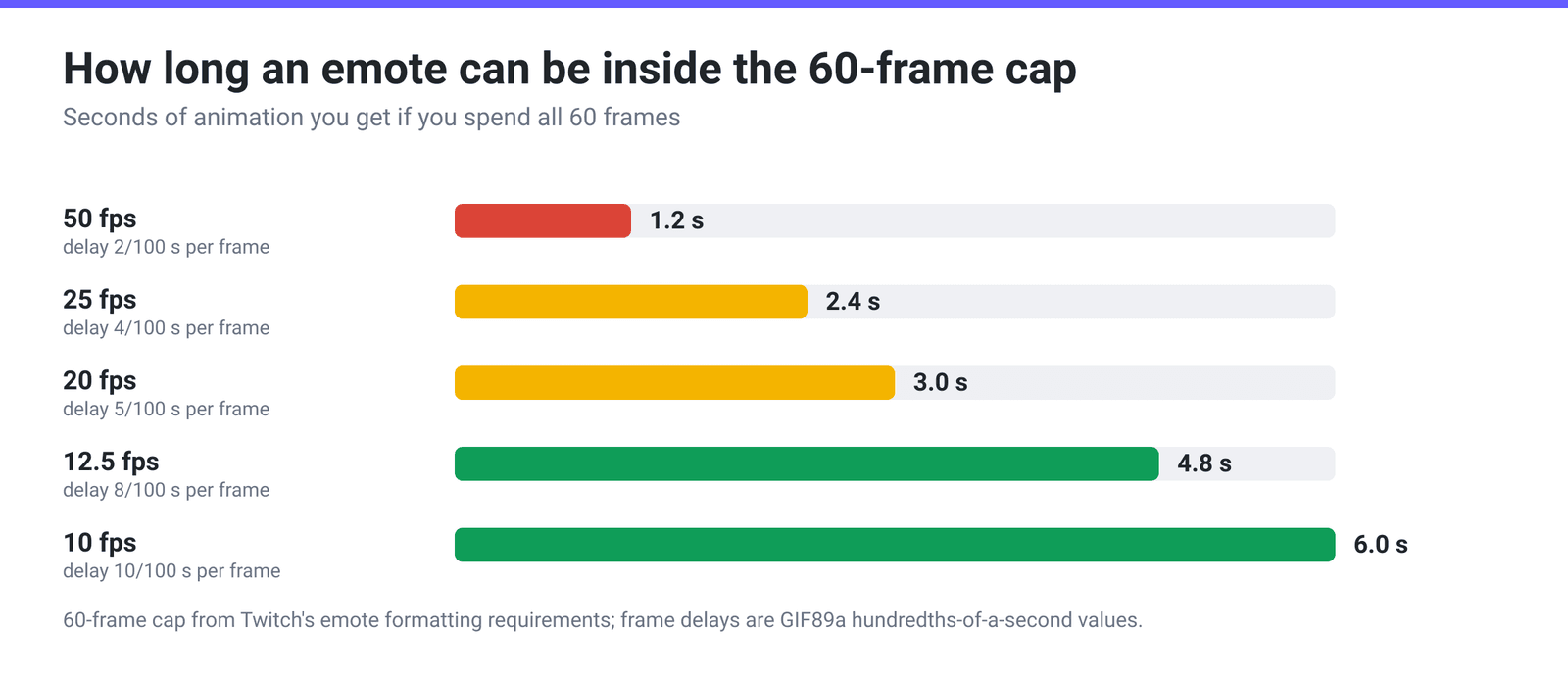
| Frame rate | Delay per frame | Seconds you get from 60 frames |
|---|---|---|
| 50 fps | 2/100 s | 1.2 s |
| 25 fps | 4/100 s | 2.4 s |
| 20 fps | 5/100 s | 3.0 s |
| 12.5 fps | 8/100 s | 4.8 s |
| 10 fps | 10/100 s | 6.0 s |
So the design decision is made before you compress anything: a smooth emote is a short emote, and a long emote is a choppy one. For a small looping face or a bouncing object, 10–12.5 fps at 112 pixels reads perfectly well and buys you five or six seconds. Reserve 25 fps and above for loops under two seconds.
If your GIF is already over 60 frames, you do not have to re-export from the source. Dropping frames is a legitimate way down, and on xconvert it preserves the loop’s wall-clock length: when a frame is deleted, the surviving frames’ delays are extended to compensate, so the animation runs at the same speed rather than speeding up. Frames To Drop → Every 3rd frame removes one frame in three, which turns a 90-frame GIF into a 60-frame one. Every 2nd halves it, which rescues a 120-frame export. More on how frame rate and GIF delays interact in GIF frame rate explained.
Auto-resize or manual: two different byte budgets
Twitch gives you two upload paths, and they do not share a size limit.
Auto-resize takes a single square GIF anywhere from 112 × 112 up to 4096 × 4096 and generates the 28, 56 and 112 renditions itself. The cap is 1 MB for that one file. This is the easier path and the one to default to.
Manual means you supply all three sizes yourself, and there the cap is 512 KB for each of the file sizes — half the budget, but applied per file, on images that are much smaller to begin with. A 28 × 28 GIF has one sixteenth the pixel area of a 112 × 112 one, so the small sizes come in under 512 KB almost automatically; the 112 × 112 file is the one that will fight you.
Use auto-resize unless you want different artwork at different sizes. That is the genuine reason to go manual — a detailed emote often needs a simplified, chunkier redraw at 28 px to stay readable, and auto-resize will just shrink the complicated one into mush.
One byte-counting note: aim a little under whichever number applies. Type 950 with the unit on KB for the 1 MB path and 500 KB for the manual path. “1 MB” is read as 1,000,000 bytes by some tools and 1,048,576 by others, and a file that reads as “1 MB” in your file manager can still be 1,030,000 bytes.
Which lever to pull at 112 pixels
A GIF’s size is roughly pixels per frame × frame count × palette cost. At emote scale those three terms are wildly unequal, and people usually reach for the wrong one first.
1. Get to 112 pixels before you do anything else. Going from 512 × 512 to 112 × 112 cuts the pixel count by about 95% in one step. Nothing else on the page comes close. Compressing a full-size GIF harder just spends your entire quality budget on pixels that are about to be thrown away.
2. Then cut frames, because the 60-frame cap forces it anyway. Once the canvas is 112 px, frame count dominates the byte total, and Twitch’s own limit is telling you where to land. Dropping every 3rd frame is also the sweet spot we measured across GIF compression jobs in production.
3. Palette and dither are the fine tuning — and dither is a trap this small. Dropping Color Palette Size from 256 to 64 usually costs very little on a 112 px emote. Dither works against you: in our production measurements ordered dithering costs about +12% bytes at 64 colours and Floyd–Steinberg about +25%, and Floyd–Steinberg also flickers between frames because the pattern is not temporally stable. On something that renders at 28 px in chat, that spend buys nothing — see why your GIF looks grainy.
Also not worth it: a per-frame local palette, which we measured at roughly 3× the bytes for about 0.001 SSIM, and trusting an “optimise” flag to be free — a gifsicle -O1 pass over an already-optimised GIF made one of our test files 200% bigger.
Fit a Twitch emote on xconvert
Do it in two passes on the xconvert GIF compressor — geometry first, then bytes.
Pass 1 — square it up and cut frames:
- Open xconvert.com/compress-gif and add your GIF.
- Switch File Compression to Custom. Resizing and frame dropping only appear in this mode.
- Under Image resolution, choose Width x Height and enter 112 and 112 with the unit on Pixels. (If your source is not square, crop it square first — scaling a rectangle to 112 × 112 will squash it.)
- Under Drop Frames, set Frames To Drop to Every 3rd frame if you are over 60 frames by less than half, or Every 2nd frame if you are well over.
- Leave Image quality (%) at its default of 80 for now and download the result.
Pass 2 — land under the byte cap:
- Re-upload the file from pass 1. Leave File Compression on Max file size, set Size limit to Custom size value, and type 950 with the unit dropdown on KB — or 500 KB if you are uploading the three sizes manually.
- Click compress and download. The solver aims at or under the target rather than making you drag a slider until a readout clears.
Your file uploads over an encrypted connection, is processed on our servers, and is deleted automatically a few hours later — no sign-up, no watermark. The equivalent walkthrough for the other big emote platform is Discord custom emoji at 128 × 128 and 256 KB, and Slack’s much tighter budget is covered in Slack animated emoji under 128 KB.
FAQ
Can I upload an APNG or WebP animated emote to Twitch?
No. Twitch’s formatting requirements state that an animated emote “must be in .gif format”, with PNG reserved for static emotes. This is one of the places Twitch and Discord genuinely differ — Discord’s API accepts several animated formats for emoji — so a file prepared for one platform is not automatically valid on the other.
Why does my emote get rejected when it is well under 1 MB?
Check the frame count and the shape before anything else. Twitch caps animated emotes at 60 frames, and the GIF must be square. A 3-second export at 30 fps is 90 frames and fails on count alone; a 400 × 300 loop fails on shape. Neither has anything to do with the file size.
What frame rate should I export at?
10 to 12.5 fps is the sweet spot for most emotes: it looks smooth at the size an emote actually renders in chat, and inside the 60-frame budget it buys you 4.8–6 seconds. Those rates are also exactly representable, because GIF stores each frame’s delay in hundredths of a second — 10 fps is a delay of 10, 12.5 fps a delay of 8. Rates that do not divide 100 cleanly get rounded by the encoder.
My animation looks fine but the emote thumbnail is blank. Why?
Because Twitch takes the thumbnail from the first frame of the GIF. If your loop opens on an empty canvas, a fade-in, or a single-pixel wipe, that is what viewers see in the emote picker. Either re-cut the loop so frame 1 is the readable pose, or use Twitch’s option to override the thumbnail with a custom static image that meets the same requirements as a normal emote.
Should I use auto-resize or upload all three sizes?
Auto-resize, unless you have drawn different artwork for the small sizes. Auto-resize gives you a single 1 MB budget and generates 28, 56 and 112 from your square source. Manual gives you three separate 512 KB budgets but no scaling help — its real purpose is letting you ship a simplified 28 × 28 version rather than a shrunken one.
Can I resize the GIF with the resize-GIF tool instead?
Not for an animated file. xconvert’s /resize-gif page opens the on-page image editor, which works on a single frame and exports still formats — it will not give you back an animation. For an animated GIF, resize inside the compressor: File Compression → Custom → Image resolution → Width x Height.
Sources
Last verified 2026-08-31.
- Twitch Help — Emote Formatting & Instant Emote Upload Requirements — animated emotes: “The image must be in .gif format”; a single square GIF between 112 × 112 and 4096 × 4096 for auto-resize, or three GIFs at 28 × 28, 56 × 56 and 112 × 112 for manual; “GIF images must be square shape”; “1MB file size max for auto-resize mode. If using manual mode, each of the file sizes cannot exceed 512KB”; “GIF images cannot be more than 60 frames”; “The thumbnail for the animated emote will default to the first frame of the GIF” with a custom-image override; and, closing the animated list, “Must not flash or flicker more than 3 times within a 1 second period”. Static emotes: PNG, same dimension ranges, “The file size cannot exceed 1MB”, and “Please submit your emote with a fully transparent background” — a line that appears only in the static section. Note for anyone re-checking this page: help.twitch.tv is a Salesforce-rendered site that returns an empty shell to an ordinary browser user agent and the full article only to a crawler user agent. If it looks like the page has gone blank or the source has died, it has not — re-request it as a crawler.
- CompuServe — GIF89a specification — Graphic Control Extension, Delay Time: “the number of hundredths (1/100) of a second to wait before continuing with the processing of the Data Stream.”
- xconvert GIF compressor — live tool; the File Compression modes (Max file size default, Custom), the Size limit dropdown and its Custom size value / Max size field with B / KB / MB units, the Image quality (%) default of 80, Drop Frames → Frames To Drop (Every 2nd through Every 10th, Every 3rd frame preselected), Image resolution → Width x Height, and the Colors group were read from the page.
- xconvert production measurements — dropping every 3rd frame as the measured sweet spot; ordered dither ≈ +12% bytes at 64 colours and Floyd–Steinberg ≈ +25% with temporal flicker; per-frame local palettes ≈ 3× the bytes for ≈ 0.001 SSIM; a
gifsicle -O1pass that made an already-optimised GIF 200% larger. Frame-drop retiming (surviving frames’ delays extended so playback length is preserved) is the behaviour of our own GIF pipeline.