 By James
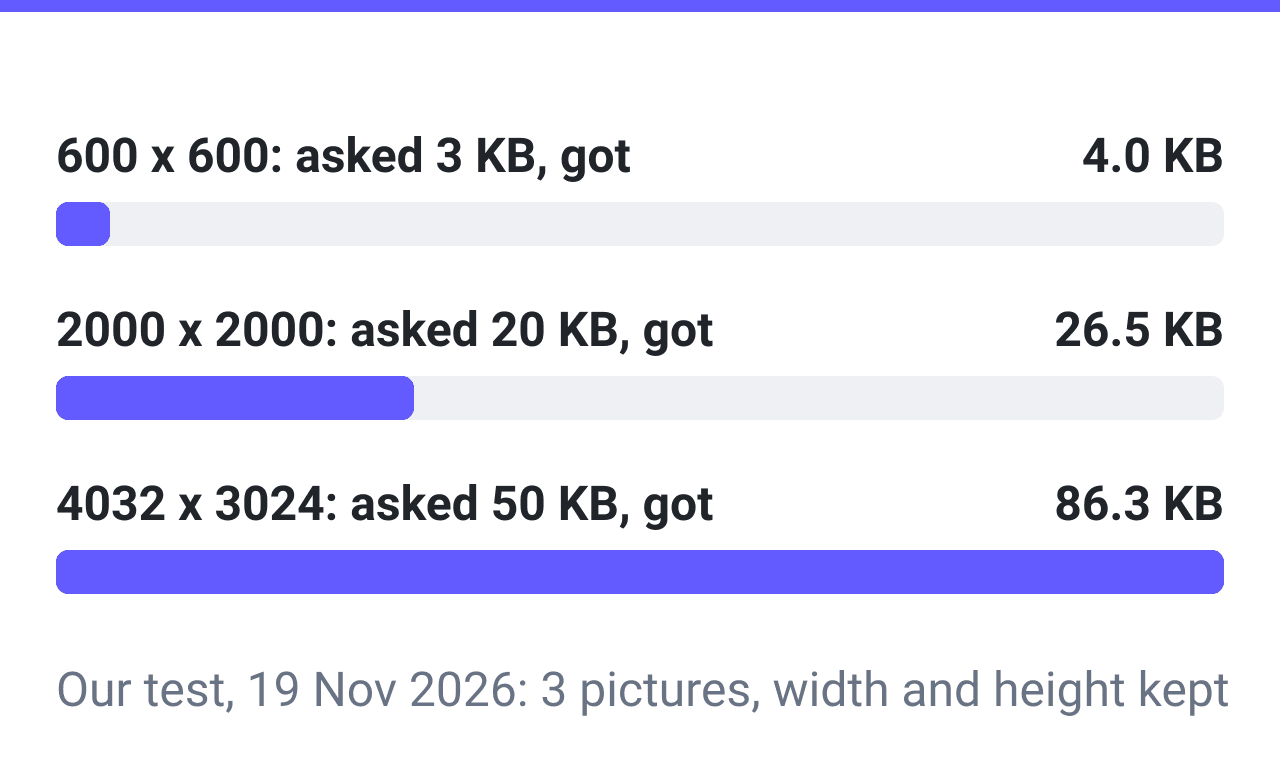
To cut an image’s size in KB at the same width and height, lower its JPEG quality. In the JPEG compressor, pick Specific file size, turn Auto Scale off and choose Keep original. A 4032 x 3024 test photo could not go below 86.3 KB.
Checked on 2026-11-19 on the JPEG compressor. Sources at the end.
Before you start
Note the picture’s width and height in pixels and the largest file the form takes. Some forms state both a pixel size and a file size.
| Form | Pixels | File size | Read |
|---|---|---|---|
| US visa photo | 600 x 600 to 1200 x 1200 | JPEG, at most 240 kB | Nov 2026, in the archive copy of 13 July 2026 |
| UK passport photo | at least 600 wide and 750 tall | 50 KB to 10 MB | Nov 2026 |
| UPSC signature | 350 to 500 | 20 to 100 KB | Nov 2026 |
For exam boards, see photo and signature sizes for government exam forms.
Cropping is a separate job. A form that asks for a square photo needs a square cut of the picture, and that cut decides what stays in the frame. That is an editing step, and it comes before compressing.
The compressor does not crop. If the picture is not yet at the pixel size the form wants, resize it to the exact dimensions first.
Steps on the JPEG compressor
- Click Upload and choose the JPG. Its card shows WxH: and Size:.
- Under IMAGE COMPRESSION, click Specific file size.
- Click the unit button MB and choose KB.
- Type the size into File size. The field keeps its old number when the unit changes. The tool counts 1 KB as 1,000 bytes; for a hard cap, type a little less.
- Switch Auto Scale off. The group IMAGE RESOLUTION appears with Resolution Percentage selected and its slider at 80.
- Click Keep original. The line “Estimated impact — dimensions reduced to 80% of the original.” goes away.
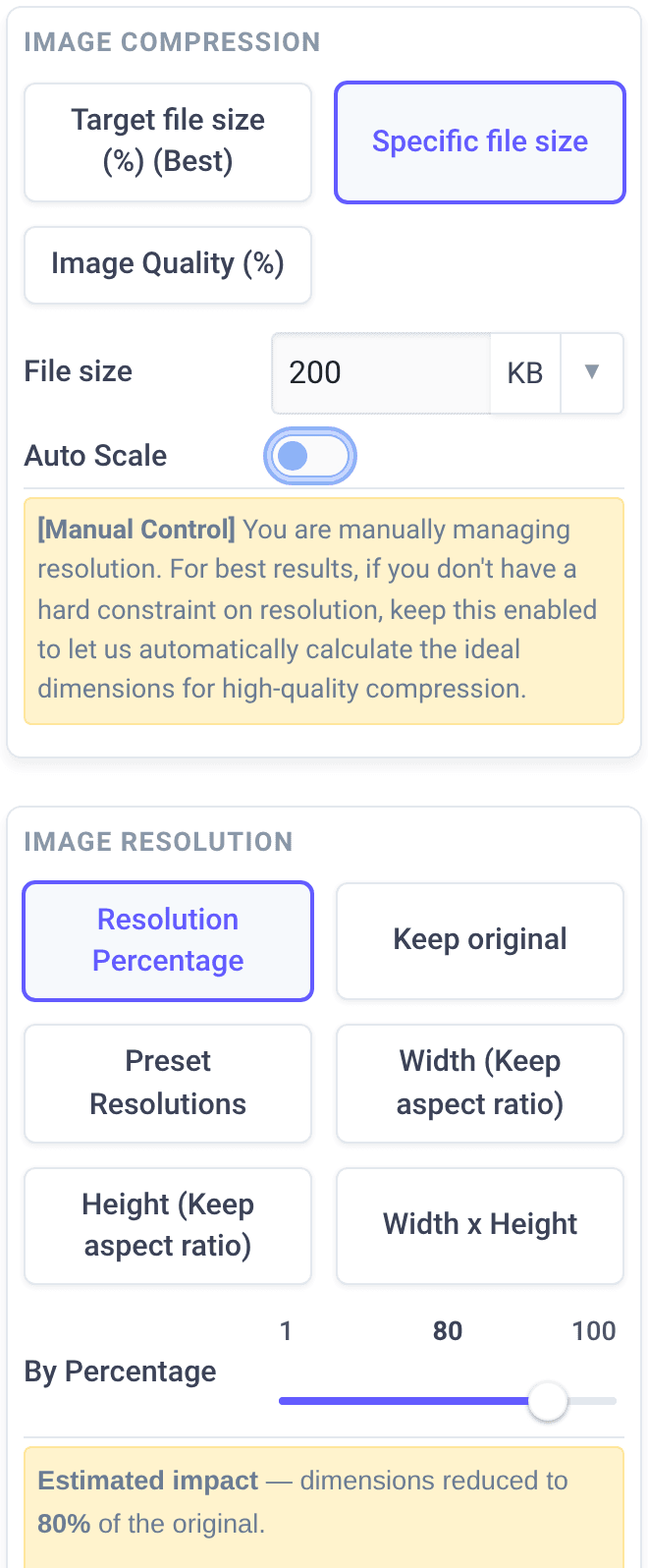
- Click Compress. The Downloads page opens with the result card.
- Compare New size: on the card with your cap, then click Download.
The size fits when the card reads “Completed” and “Compressed JPG” with a New size: at or under your cap. Our results are in the table below.
The card names no width and height. To check them, load the downloaded file on the compressor page as in step 1: its card shows them beside WxH:.
No cap to meet? Image Quality (%) sets the quality number itself; click Keep original there too. At 65, where the slider opens, the 2000 x 2000 picture came out at 164.6 KB, and at 30 at 95.1 KB.
What you get (measured)
Fifteen jobs on the steps above, one per row, on 19 November 2026. The uploads: a 600 x 600 portrait (135.9 KB), a 2000 x 2000 shop picture (605.7 KB) and a 4032 x 3024 landscape (4.68 MB).
Quality is the JPEG quality read from the result (what that number does). SSIM scores its likeness to the upload, and 1 is identical: a number, not a verdict on how the picture looks.
Each job took 4 to 9 seconds, by its card.
| Picture | Asked (KB) | Delivered (KB) | Quality | SSIM |
|---|---|---|---|---|
| 600 x 600 | 100 | 70.8 | 89 | 0.983 |
| 600 x 600 | 50 | 49.4 | 80 | 0.973 |
| 600 x 600 | 20 | 20.0 | 30 | 0.931 |
| 600 x 600 | 10 | 10.3 | 11 | 0.862 |
| 600 x 600 | 3 | 4.0 | 1 | 0.703 |
| 2000 x 2000 | 500 | 495.5 | 92 | 0.996 |
| 2000 x 2000 | 200 | 195.6 | 73 | 0.982 |
| 2000 x 2000 | 100 | 99.5 | 32 | 0.963 |
| 2000 x 2000 | 50 | 49.3 | 12 | 0.931 |
| 2000 x 2000 | 20 | 26.5 | 1 | 0.875 |
| 4032 x 3024 | 1000 | 982.4 | 72 | 0.983 |
| 4032 x 3024 | 500 | 494.5 | 30 | 0.962 |
| 4032 x 3024 | 200 | 182.8 | 8 | 0.887 |
| 4032 x 3024 | 100 | 92.9 | 3 | 0.787 |
| 4032 x 3024 | 50 | 86.3 | 1 | 0.767 |
All fifteen results kept the width and height of the upload. In the first four rows of each picture, eleven of twelve were at or under the size asked; the 10 KB row was 293 bytes over (10,293 bytes).
The last row of each picture asks for less than its pixels can carry. The tool returned its smallest file, at quality 1, and the card had no note that the size was missed.
That file is the picture’s floor at its pixel size, and each picture has its own. Outside the tool, libjpeg-turbo at quality 1 with half color resolution and optimized tables wrote the three at 3.9, 26.6 and 86.1 KB.
A result can also land well under: 100 KB asked for the portrait gave 70.8 KB, because under quality 90 the tool stores color at half resolution.
With Auto Scale left on, the tool kept the upload’s quality (95 to 97) and removed pixels instead. Three jobs on the same day:
| Upload | Asked | Came back as |
|---|---|---|
| 600 x 600 | 20 KB | 142 x 142, 12.4 KB |
| 2000 x 2000 | 100 KB | 518 x 518, 48.4 KB |
| 4032 x 3024 | 200 KB | 379 x 284, 67.5 KB |
The card says so: “Resolution reduced by 74% to 518×518 to fit your size limit”.
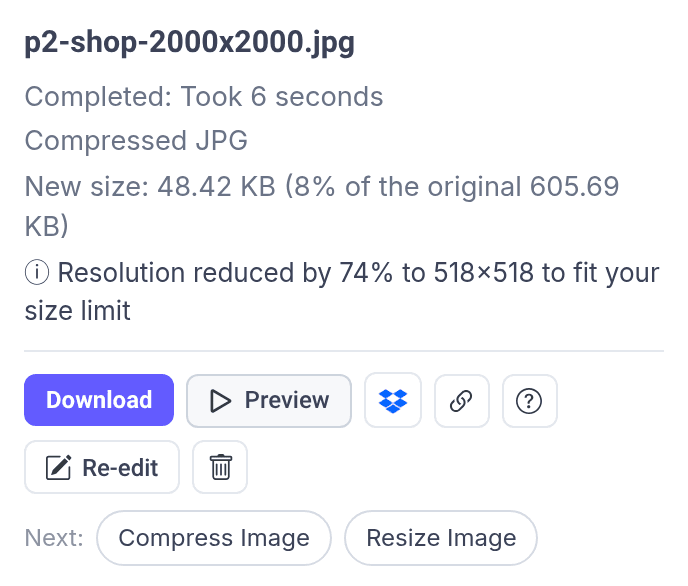
From 20 October to 18 November 2026 that note was on 3,327 of the 3,539 finished jobs in the compressor’s two size modes with Auto Scale on (94.0 %). Jobs, not visitors.
If it does not work
| Symptom | Cause | Fix |
|---|---|---|
| Fewer pixels, and the card says “Resolution reduced by …” | Auto Scale was on. Each of the two size modes has its own switch | Step 5, in the mode you use |
| Fewer pixels, and the card says nothing | Resolution Percentage stayed selected: at 80, the 2000 x 2000 test picture came back at 1600 x 1600 | Step 6 |
| New size: is over the size asked | The size lies under the picture’s floor, or the result landed just over, as in the 10 KB row | Repeat step 4 with a smaller number. Under the floor only fewer pixels help: use the smallest pixel size the form allows |
| The result is the upload, unchanged | The upload was already under the size asked | Nothing to do |
| The file is a PNG | The JPEG compressor takes JPG, JPEG and JFIF. A PNG has no quality number: the PNG compressor reduces colors, and with Auto Scale off it can miss the size without a warning | Why a PNG is so big, or a JPG if the form takes one |
The second row is the common one. Of 415 Specific file size jobs sent with Auto Scale off from 20 October to 18 November 2026, 214 kept Resolution Percentage at 80 and 145 had Keep original.
The third is rarer: of 131 jobs on this route that asked for less than the upload in the same 30 days, 10 came out over the size asked, 8 of them by more than 10 %.
Another way
ImageMagick, on your own computer. One command caps the size:
magick photo.jpg -define jpeg:extent=200KB result.jpgIn fifteen encodes of the three test pictures on 19 November 2026 (ImageMagick 7.1.2), every result kept its pixel size. Ten were at or under the size asked and five over, with no message.
It kept full color resolution, so its floor was higher: the 2000 x 2000 picture stopped at 50.2 KB, where the compressor reached 26.5 KB.
Use it when the picture should not leave your computer. The compressor processes files on our servers, not in your browser; uploads and results are deleted about 5 hours after they were written.
On a Mac, Apple’s Preview guide says to reduce a file’s size through Tools > Adjust Size with “Resample image” and a smaller Resolution value. That changes the pixel count.
Its page on exporting says “You can also select options to reduce the file size.” Its page on converting image types says “If you choose JPEG or JPEG-2000, you can adjust the image’s quality.” No Mac was tested.
Sources
- US Department of State, digital image requirements: the pixel range, the JPEG format and the 240 kB cap of a visa photo; read in the archive copy of 13 July 2026, on 2026-11-19.
- GOV.UK, rules for digital photos: the smallest pixel size and the size range of a UK passport photo; read 2026-11-19.
- UPSC, instructions for uploading the photo and signature (PDF), created 4 February 2026: the pixels and the size of the signature; read 2026-11-19.
- Apple, Preview User Guide, the page on resizing an image: reducing a file’s size through Tools > Adjust Size; read 2026-11-19.
- Apple, Preview User Guide, Export PDFs and images in Preview on Mac: File > Export and the sentence quoted; read 2026-11-19.
- Apple, Preview User Guide, Convert image file types using Preview on Mac: the sentence quoted; read 2026-11-19.
- ImageMagick, defines:
jpeg:extent, “Restrict max JPEG file size”; read 2026-11-19. - The three test pictures are cut from Wikimedia Commons photographs: a NASA portrait (public domain), a museum’s photograph of a pair of shoes (CC0) and a landscape (CC0); file pages read 2026-11-19.
- Our measurements of 2026-11-19: 21 jobs on the JPEG compressor with those three pictures (15 on the steps above, 3 with Auto Scale left on, 1 with Resolution Percentage left selected, 2 in Image Quality (%)); 15 ImageMagick encodes and one libjpeg-turbo encode of each picture at quality 1, outside the tool; counts over the 5,177 job records of the JPEG compressor from 20 October to 18 November 2026.


