 By James
Someone sends you a logo as a 400-pixel PNG and asks for it on a banner. Or you need artwork a cutting machine can follow, and all you have is a screenshot. So you run it through a PNG-to-SVG converter — and the result is either a clean, infinitely scalable file or a heavy pile of coloured blobs that looks worse than the PNG did. The outcome isn’t luck, and it isn’t the converter. Tracing has one input that decides almost everything, and it’s the picture you feed it.
Quick answer: Tracing works when the image is made of flat areas of solid colour with hard edges — logos, icons, line art, simple screenshots. It makes a mess of anything with continuous tone: photographs, soft gradients, drop shadows, heavy anti-aliasing. xconvert’s PNG to SVG converter runs VTracer, which clusters an image into colour regions and fits curves around them — so a photo comes back posterised, not sharpened. There is exactly one control on the page, Number precision, and it defaults to 6.
Jump to a section
- What tracing actually does
- The 60-second test: will this PNG trace?
- What a trace can never recover
- The one control: Number precision
- Feed it a format the tracer can read
- Trace a PNG to SVG on xconvert
- FAQ
What tracing actually does
“Converting” PNG to SVG is a misleading phrase, because nothing is converted. A PNG is a grid of pixels; an SVG is a set of drawing instructions. Nothing in the pixel grid tells you where a shape starts, so a tracer has to infer the shapes and redraw them.
VTracer, the engine behind xconvert’s converter, does it in a pipeline: group pixels into regions of similar colour, find each region’s boundary, then fit curves to those boundaries. The project describes having “an image processing pipeline which can handle colored images”, in contrast to Potrace’s black-and-white-only approach, and its documented default clustering strategy is stacked — layers drawn over one another rather than cut apart — which it says avoids “producing shapes with holes.”
The output is real vector geometry, not a bitmap in disguise. xconvert’s page is direct about that in its own FAQ: the SVG “contains real <path> elements with Bézier curve data and solid fill colours — not a base64-encoded copy of your bitmap inside an <image> tag.” Some tools do the latter and call it conversion; the file gets an .svg extension and scales exactly as badly as the PNG did.
The consequence of that pipeline is the whole story: every distinct colour region becomes at least one path. Eight flat colours produce a handful of paths; thousands of subtly different pixels produce thousands of paths.
The 60-second test: will this PNG trace?
Count the distinct flat colours in your image. If you can count them, tracing will go well. If the answer is “thousands, they blend”, it won’t.
| Source | How the tracer sees it | Verdict |
|---|---|---|
| Flat-colour logo or icon | A few large regions, hard boundaries | Ideal — this is the case tracing was built for |
| Black-and-white line art | Two regions, high contrast | Ideal |
| UI screenshot, flat design | Many small regions, but each one flat | Good, though text becomes outlines |
| Map, diagram, chart | Flat fills with defined borders | Good |
| Logo with a gradient fill | Continuous tone forced into discrete steps | Mixed — expect bands, or one flat colour, where the gradient was |
| Drop shadows, soft glows | A blur is a gradient by another name | Poor — an opaque blur bands or merges into its background; a semi-transparent one traces solid |
| Photograph | Thousands of subtly different regions | Poor — xconvert’s page says plainly it “comes back posterised” |
| Screenshot of a photo | Same as a photograph | Poor |
The line runs through flat versus continuous, not through simple versus complex. A detailed technical diagram with 200 flat-filled shapes traces beautifully. A single soft gradient sphere does not.
What a trace can never recover
Five limits worth setting expectations around before you convert anything.
Resolution is not restored. Tracing follows the edges that exist in the pixels you gave it. A 200-pixel-wide logo has jagged, anti-aliased edges at that size, and the tracer faithfully fits curves to those jagged edges — the result scales without blurring, but it scales the imprecision up too. Start from the largest PNG you have.
Text becomes shapes, not text. Letterforms trace into outlines. It looks right, but you cannot edit the wording, change the typeface or select the text, and screen readers see nothing. If the wordmark matters, set it in the real font in a vector editor and keep the trace for the symbol.
Anti-aliasing becomes geometry. The soft pixels along every edge are intermediate colours, and a colour-clustering tracer has to assign them somewhere — often as thin intermediate paths hugging each shape, invisible at a glance but inflating the path count.
The SVG can end up bigger than the PNG. Vector files are small when there are few paths; a trace of a busy image can carry tens of thousands of curve coordinates. An enormous output is the tracer reporting honestly that your source wasn’t a good candidate.
Transparency survives, but in a specific way. Per xconvert’s page: “Fully transparent areas are simply not drawn, so a logo on a transparent background stays transparent.” Partial transparency does not survive at all. xconvert measured alpha values from 1 through 255 and every one traced to a fully opaque fill, with no fill-opacity emitted — a 40%-opacity shadow comes back solid, not soft and not banded.
The one control: Number precision
Look at Advanced Options, already open under the upload box, and there is a single slider: Number precision, from 1 to 10, defaulting to 6. The page’s own help text explains the trade: “Lower precision will result in smaller file size, but may cause loss of detail. Number between 4 – 6 is recommended for most use cases.”
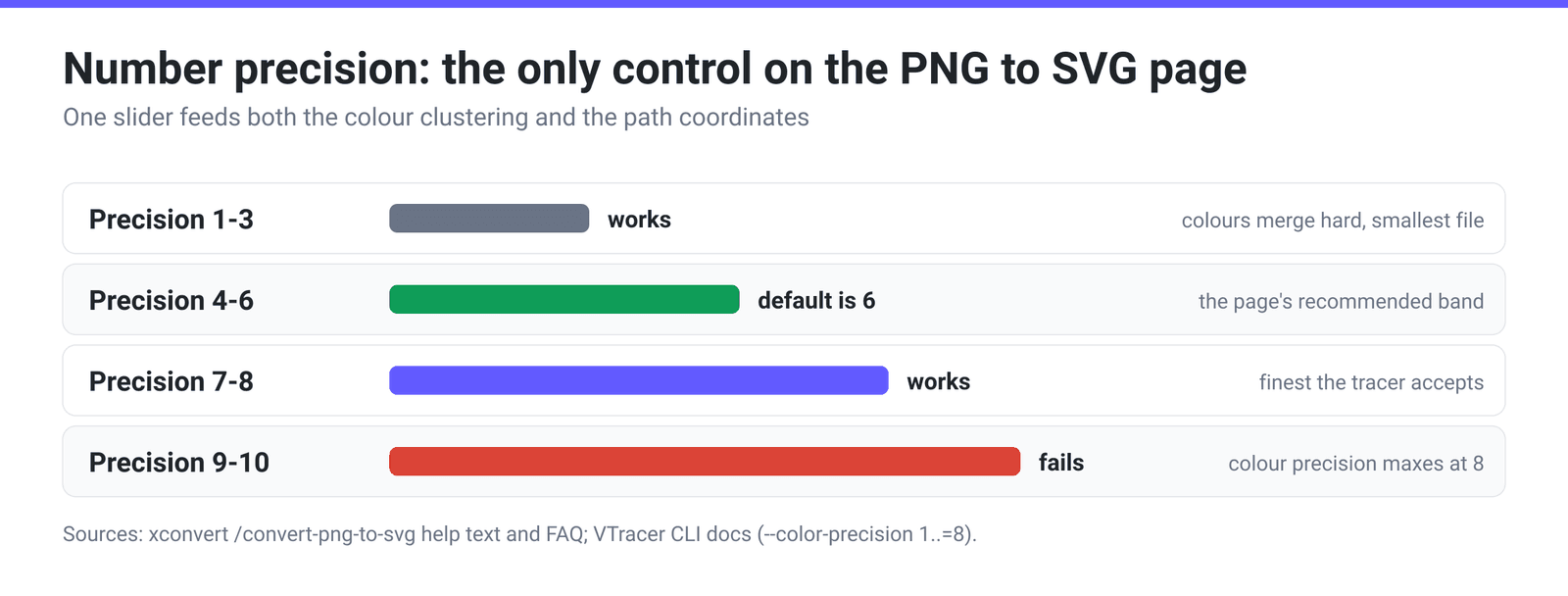
That single number drives two things at once: the significant bits per colour channel used for clustering, and the decimal places the path coordinates carry. Turn it down and similar colours merge while coordinates round off — fewer paths, smaller file, less detail. Turn it up and both get finer.
There is a real ceiling, and the slider overshoots it. VTracer’s colour-precision parameter accepts “Significant bits per RGB channel (1…=8)” per its own CLI documentation, while the slider runs to 10 — because one slider value feeds both the colour parameter and the path parameter, and only the colour one is capped at 8. The top of the slider doesn’t just degrade the output, it fails the job: positions 9 and 10 push colour precision out of range and the tracer aborts with Color precision is invalid at 9. It must be within [1,8]. On the page the job then ends with “Processing failed” (test at 9 on 18 November 2026). Stay at or below 8, and inside the recommended 4–6 unless you have a reason not to.
Feed it a format the tracer can read
A tracer only ever sees decoded pixels. VTracer’s own WebAssembly build documents decoding PNG, JPEG, GIF, BMP and WebP, and tells you to decode anything else yourself; the native binary leans on the Rust image crate and reaches a little further. Everything exotic — HEIC from an iPhone, camera RAW, EPS, PSD — has to be decoded to pixels before a tracer can see it. xconvert’s page puts the same point in its FAQ: “none of those are decoded pixels yet, and a tracer only ever sees decoded pixels.”
The page’s upload area now reads “Supports: PNG, APNG, JPG, JPEG, HEIC, WEBP +28 more” (rendered 18 November 2026). From that list a JPG and a HEIC traced, a lossy WebP came back as grey shapes with none of its colours, and two lossless WebP files ended with “Processing failed” (tests on 22 November 2026). We have not test-traced the other types; a PNG you have looked at first is still the input you can check. Our HEIC to PNG and AVIF to PNG converters cover the common cases, and Why won’t my WebP, HEIC or AVIF upload? covers the general problem.
Prefer PNG over JPG even when both are on the supported list: PNG is lossless, while JPEG’s block-transform compression softens edges and leaves ringing artifacts around high-contrast boundaries — exactly the boundaries the tracer is trying to follow. Feeding a JPG asks it to fit curves around compression noise.
Trace a PNG to SVG on xconvert
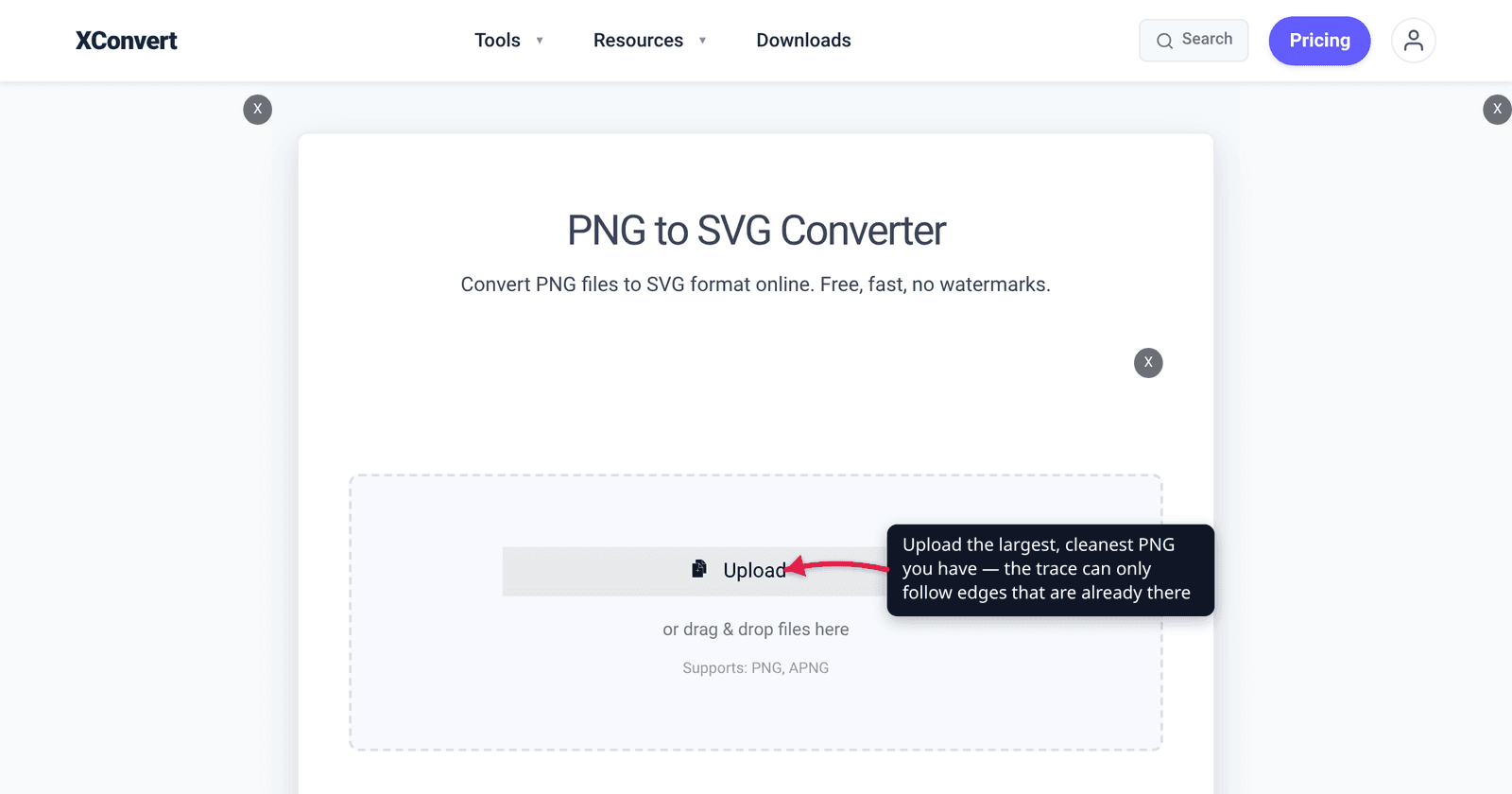
- Open xconvert.com/convert-png-to-svg and click Upload to add your PNG. Use the largest, cleanest version you have — a trace can only follow the edges that are actually in the file.
- Look at Advanced Options, already open under the upload box, if you want to change anything. There is one control: Number precision.
- Leave Number precision at its default of 6, or move it within the recommended 4–6 band. Lower it towards 4 for a smaller file with merged colours; keep it at or below 8 — 9 and 10 error out.
- Convert and download the
.svg. Open it in a browser or a vector editor to check the shapes before you rely on it — caniuse put full SVG support at 97.41% of tracked global browser usage in its data file read on 18 November 2026.
Your file is processed on our servers, not in your browser. Uploads and results are deleted automatically about 5 hours after they were written, or sooner if a server runs short of disk space.
Going the other way — a vector you need as a bitmap at a specific size — is a different and much more reliable operation; see Convert SVG to PNG.
FAQ
Does this actually vectorise, or just wrap the PNG in an SVG file?
It vectorises. Some converters embed a base64 copy of your bitmap inside an <image> element, hand you an .svg, and call it done — that file scales exactly as badly as the original. xconvert’s output contains real <path> elements with Bézier curve data and solid fill colours. You can confirm this on any SVG by opening it in a text editor: if you see a long base64 string, it was wrapped, not traced.
Will a photograph convert into a clean, scalable vector?
No. Tracing approximates continuous tone as a set of flat colour regions, so a photo comes back posterised — recognisable, stylised, and usually with a large path count. That can be a legitimate look if you want it. It is not a route to a “sharper” or “higher resolution” photograph, and no setting on the page changes that, because it’s a property of what tracing is.
Why does my traced SVG have a bigger file size than the PNG?
Because every distinct colour region becomes at least one path, and every path carries coordinate data. A busy or noisy source produces thousands of paths, and vector coordinates are not cheap to store. Lowering Number precision merges similar colours and rounds coordinates, which reduces both counts. If the file is still huge at precision 4, the source is the problem — that image isn’t a tracing candidate.
What does the Number precision slider actually change?
One value feeds two parameters: the significant bits per RGB channel used to cluster colours, and the number of decimal places written into the path coordinates. Lower means coarser colour grouping and shorter coordinates, so a smaller file with less detail; higher means the reverse. VTracer’s colour-precision parameter tops out at 8, so settings of 9 and 10 do not merely coarsen the result — they push the parameter out of range and the tracer aborts the job with an “Out of Range Error”. Stay at 8 or below, and inside the recommended 4–6 band unless you have a specific reason.
Can I trace a HEIC, RAW, AVIF or PSD file directly?
VTracer’s WebAssembly build documents decoding PNG, JPEG, GIF, BMP and WebP, and tells you to decode anything else yourself; the native binary handles a few more. The page’s own upload list is longer: “Supports: PNG, APNG, JPG, JPEG, HEIC, WEBP +28 more” (rendered 18 November 2026). Converting to PNG first is still worth it: it gives you a chance to check the intermediate image, which is the thing that actually determines the trace quality.
Does my PNG’s transparency survive?
Partly, and in a specific way: fully transparent areas are simply not drawn, so a logo on a transparent background stays transparent in the SVG. Partial transparency is different: every partially-transparent pixel traces to a fully opaque fill, so a semi-opaque shadow, glow or 50%-opacity overlay comes back solid.
Sources
Last verified 2026-11-22.
- VTracer (visioncortex) — project README — the tracing engine behind the converter: the colour-capable pipeline versus Potrace, the stacking strategy that avoids shapes with holes, the CLI reference giving
--color-precisiona range of1..=8with--hierarchical stackedas the default clustering, and the Node package’s documented decode list — “Decodes PNG, JPEG, GIF, BMP, and WebP; for other formats, decode yourself and pass raw RGBA toconvertPixels.” - xconvert measurement, VTracer 0.6.4, 2026-08-31 — a 120×120 PNG carrying five bands at alpha 1, 64, 128, 192 and 255 traced to a single fully opaque
fill="#DC1E3C"path with nofill-opacityanywhere in the output;--color_precision 9and10abort with “Out of Range Error: Color precision is invalid at 9. It must be within [1,8].” Measured again on the page on 2026-11-22, at Number precision 6 unless stated: a PNG carrying every alpha value from 1 to 255 traced to one fully opaquefill="#DC1E3C"path with nofill-opacity; a smooth gradient fill traced to one flat colour and a noisy one to 23 colour bands; an opaque blurred shadow under a flat card came back as 2 paths at 6, the shadow merged into the background, and as 25 paths at 8; a JPG and a HEIC of one logo traced, a lossy WebP of that logo came back as 3 grey paths with none of its colours, and two lossless WebP files ended with “Processing failed”; Number precision 9 and 10 each ended with “Processing failed”. - xconvert PNG to SVG converter — the page’s own statements quoted above: real
<path>output rather than an embedded bitmap, the posterised result for photographs, the transparency behaviour, the Number precision help text and default, and the 1–10 slider versus 1–8 parameter mismatch. - caniuse — SVG (basic support) — full SVG support at 97.41% of tracked global browser usage (data file
features-json/svg.json, read 2026-11-18).