 By James
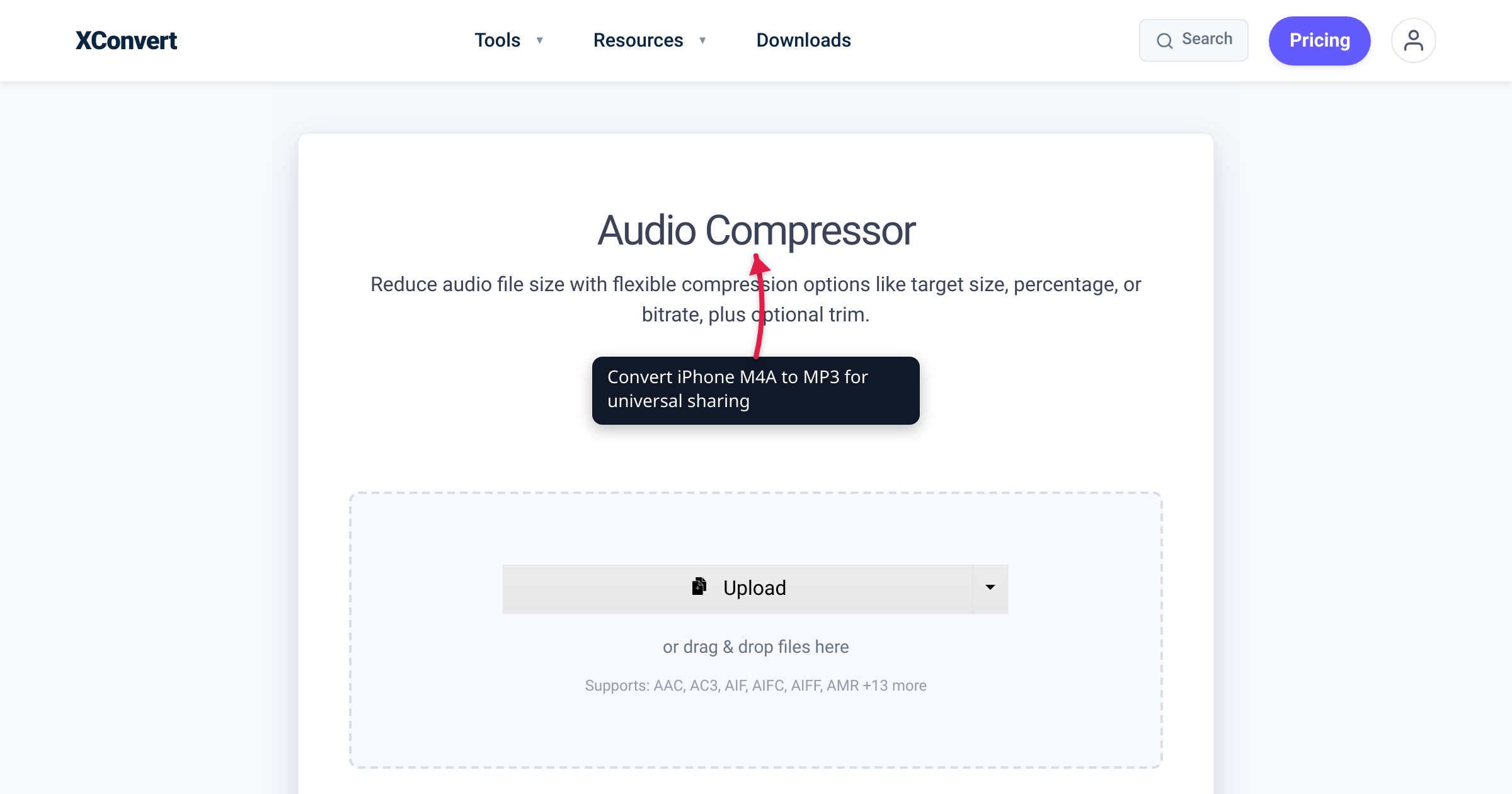
iPhone Voice Memos save as M4A files (Apple’s AAC container). For short clips that’s fine; for a multi-hour interview recorded in Lossless mode it can land in the hundreds of MB and starts to hit limits — Gmail’s 25 MB attachment cap, AirDrop reliability on long transfers, and recipients on Windows or Android who may not have a clean way to play .m4a. This guide gets your voice memos to a sharable size in the universal MP3 format.
Quick answer: iPhone Voice Memos save as M4A (AAC) — long recordings hit 100 MB+. For email, compress it to MP3 with xconvert and set Specific file size to 20 MB (for a 60-minute memo that works out to about 44 kbps). AirDrop has no size cap; the constraint is your email attachment limit.
Jump to a section
- Why iPhone voice memos are bigger than they need to be
- Getting the voice memo off your iPhone
- Compression settings for voice memos
- Step by step in xconvert
- Worked example: 3-hour interview
- FAQ
Why iPhone voice memos are bigger than they need to be
iPhone records Voice Memos in M4A at one of two quality settings:
- Compressed (default, all iOS versions): mono AAC at ~32 kbps, 22.05 kHz — ~14 MB per hour
- Lossless (added in iOS 14, opt-in): mono ALAC inside an M4A container — roughly 10× larger, 100+ MB per hour
You can check / switch in Settings → Voice Memos → Audio Quality. The default is Compressed — most people never change it, so most voice memos are already the small AAC version. The big files arrive when someone has switched to Lossless for higher fidelity, or when the recording is genuinely long (multi-hour interview). For Lossless memos, post-recording compression is what gets the size down — that’s where xconvert comes in.
Getting the voice memo off your iPhone
Voice Memos doesn’t natively let you upload to a web tool from inside the app. To get the file to xconvert (or any browser-based tool), use one of:
1. Share to email (works for files under 25 MB). Open the memo, tap Share, choose Mail. Email it to yourself, then download the .m4a attachment on your computer.
2. Share via AirDrop to a Mac. Tap Share → AirDrop, pick the Mac. The file lands in your Downloads folder.
3. Share to Files (iCloud Drive). Tap Share → Save to Files → iCloud Drive. Then on any device with iCloud, open Files and the .m4a is there for upload.
4. Use the iPhone’s web browser to upload directly to xconvert. Open Safari on your iPhone, navigate to xconvert.com/audio-compressor, tap Upload and choose the voice memo (in Files, or wherever it is). You do everything from the iPhone’s browser; the file itself is compressed on our servers, and the download lands in Files. This is the simplest path if you’re going phone-only.
Compression settings for voice memos
Voice memos are speech, almost always — that opens up aggressive compression options that wouldn’t work for music.
| Goal | Bitrate | Channels | Sample rate | Output format |
|---|---|---|---|---|
| Email-safe (under 25 MB) up to about 50 minutes | 64 kbps | Mono | 24 kHz | MP3 |
| Outlook-safe (under 20 MB) | 48 kbps | Mono | 24 kHz | MP3 |
| Smallest acceptable speech | 40 kbps | Mono | 24 kHz | MP3 |
| Keep some headroom for music portions (interviews with music) | 96 kbps | Stereo | 44 kHz | MP3 |
| Match iPhone Compressed mode | 32 kbps | Mono | 24 kHz | MP3 |
Why MP3 instead of keeping M4A?
The MP3 format is universally readable on Windows, Android, Linux, web players, and every podcast app. M4A plays fine on Apple devices and modern Android, but older Windows installs and some web tools (especially older WordPress audio embeds) don’t handle it. For sharing with someone whose device you don’t know, MP3 wins on compatibility. The file size at the same bitrate is almost identical (within 5%).
Step by step in xconvert
- Get the voice memo to your computer or upload directly from iPhone Safari.
- Open xconvert.com/audio-compressor.
- Click Upload and pick the .m4a voice memo.
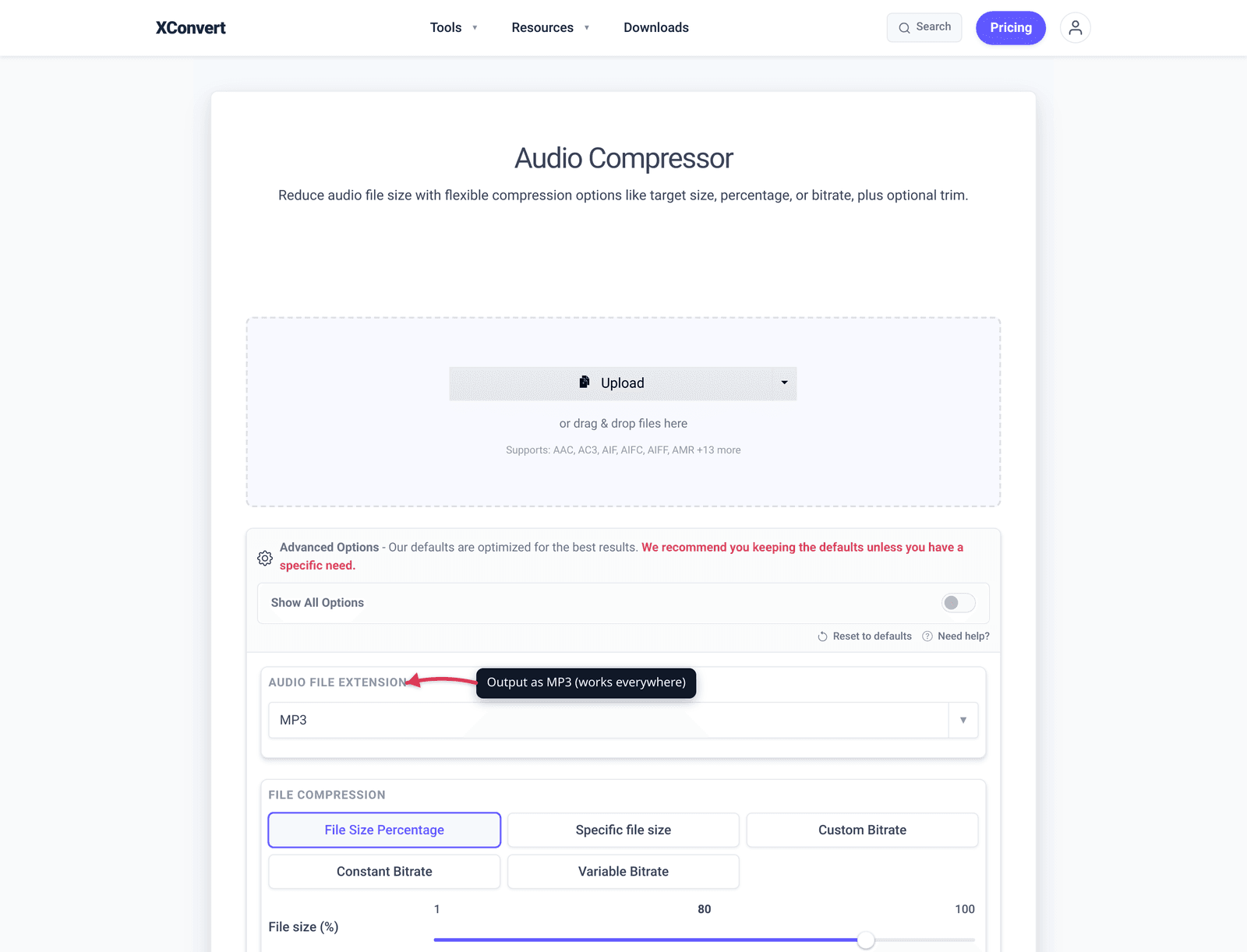
- A box titled “M4A File Upload Detected” asks whether to auto-select settings for M4A files. Choose No to keep MP3 as the output; Yes switches Audio File Extension to M4A.
- Audio File Extension → switch from MP3 (default) to confirm output is MP3 — though if your input is M4A and you want MP3 out, the default works.
- File Compression → click Specific file size and enter your target (e.g., 20 MB for any-email safety, 9 MB for Discord).
- Audio Channel → switch to Mono (it’s almost certainly mono already, but explicit is safe).
- Audio Sample Rate → drop to 24000 HZ for speech.
- Click Compress. Wait. Download.
Worked example: 3-hour interview recorded in Lossless mode
Source: 3-hour iPhone Voice Memo recorded in Lossless mode (mono ALAC). Original: ~330 MB.
Goal: Send via Gmail to a colleague (25 MB hard cap, 22 MB safer target).
Step 1 — Decide the bitrate. 22 MB / (180 × 60 s) ≈ 2 KB/s ≈ 16 kbps — too low for clean speech. Realistic floor is 32 kbps mono at 24 kHz, which lands at ~43 MB for 3 hours. That’s still over Gmail’s cap, so either send via Drive or split into two halves.
Step 2 — Compress. xconvert with 32 kbps mono, 24 kHz, MP3 output. For a 3-hour recording, expect ~43 MB.
Step 3 — If under 25 MB, attach. If over (as in this 3-hour case), use Gmail’s “Insert from Drive” option — the file uploads to Drive and Gmail sends a share link instead of an attachment. Recipient still gets the audio without needing a Drive account if you set link access to “Anyone with the link.”
Sanity check for the everyday case: If you’re recording in the default Compressed mode, a 60-minute memo is only ~14 MB and a 90-minute one ~21 MB — both already fit Gmail’s 25 MB cap with no compression needed. Compression is only necessary when (a) you switched to Lossless, or (b) the recording is genuinely multi-hour.
Frequently Asked Questions
Why is my iPhone Voice Memo so large?
Two common reasons. (1) You (or someone setting up the phone) switched the quality to Lossless in Settings → Voice Memos → Audio Quality — that produces ALAC files about 10× larger than the default. Switching back to Compressed shrinks future recordings; existing ones stay at the original quality. (2) The recording is genuinely long — even at the default Compressed bitrate, a 4-hour memo is ~56 MB and exceeds Gmail’s 25 MB cap. For long recordings, post-recording compression or splitting is the answer.
Will compressing a voice memo lose call-recording metadata?
iPhone Voice Memos store the recording date, location (if enabled), and waveform preview alongside the audio. Compressing through xconvert produces a new MP3 file, and not every tag is carried into it: in our test on 18 November 2026, with a file made for the purpose, the title and a location tag came through and the recording date did not. If you need the metadata, keep the original M4A as well as the compressed MP3.
Can I AirDrop a voice memo to a Mac and email from there?
Yes — AirDrop a high-quality voice memo to your Mac (it transfers fast even at 60 MB+), then upload to xconvert from the Mac, compress, and email. AirDrop has no practical file-size limit between devices on the same Wi-Fi network. The compression step is just for the email leg.
What’s the lowest bitrate that still sounds like a person, not a robot?
For mono speech at 24 kHz, 32 kbps is the practical floor — voices stay clearly intelligible. Below 32 kbps, MP3 starts producing audible warbling artifacts, especially on consonants. AAC handles low bitrates better — 24 kbps AAC sounds about like 32 kbps MP3 — but for cross-platform compatibility, MP3 is still preferred for sharing.
Does Trim hurt audio quality?
No more than compressing does: the audio is encoded again whether you trim or not, so a trim is not a lossless cut. If your voice memo has a long silent intro or outro, turn on Trim in the same pass and the file gets smaller because it is shorter.
Can I compress a voice memo without a computer (iPhone-only)?
Yes. Open Safari on the iPhone, go to xconvert.com/audio-compressor, tap Upload → choose Photo Library or Files → pick the voice memo (it shows up if you’ve shared it to Files first). Pick settings, tap Compress, download to Files. The whole flow works on iOS Safari.
What about Voice Memos longer than the iPhone recording limit?
iPhone Voice Memos has no built-in time limit, but xconvert accepts files of up to 400 MB each without a paid plan (1,000 MB on the Basic plan, 4,000 MB on Pro). If your recording is larger than that, split it in two on the iPhone first using Voice Memos’ built-in Edit → Trim, then compress each separately.
Try it now
Compress an iPhone voice memo with the xconvert audio compressor. For email use, set Specific file size to 20 MB. For any other M4A or AAC source files, the same workflow applies — xconvert auto-detects the format. For email-specific guidance with worked examples, see How to Compress an MP3 to Send by Email.
Related guides
- Compress an MP3 to Send by Email (Under Gmail’s 25 MB)
- Compress Audio for Discord: 10 MB Free, 50 MB Nitro Settings
- Compress HEVC (H.265) Video Without Re-encoding to H.264
Sources
Last verified 2026-05-19.
[…] Reduce iPhone Voice Memo File Size for Email and AirDrop […]