 By James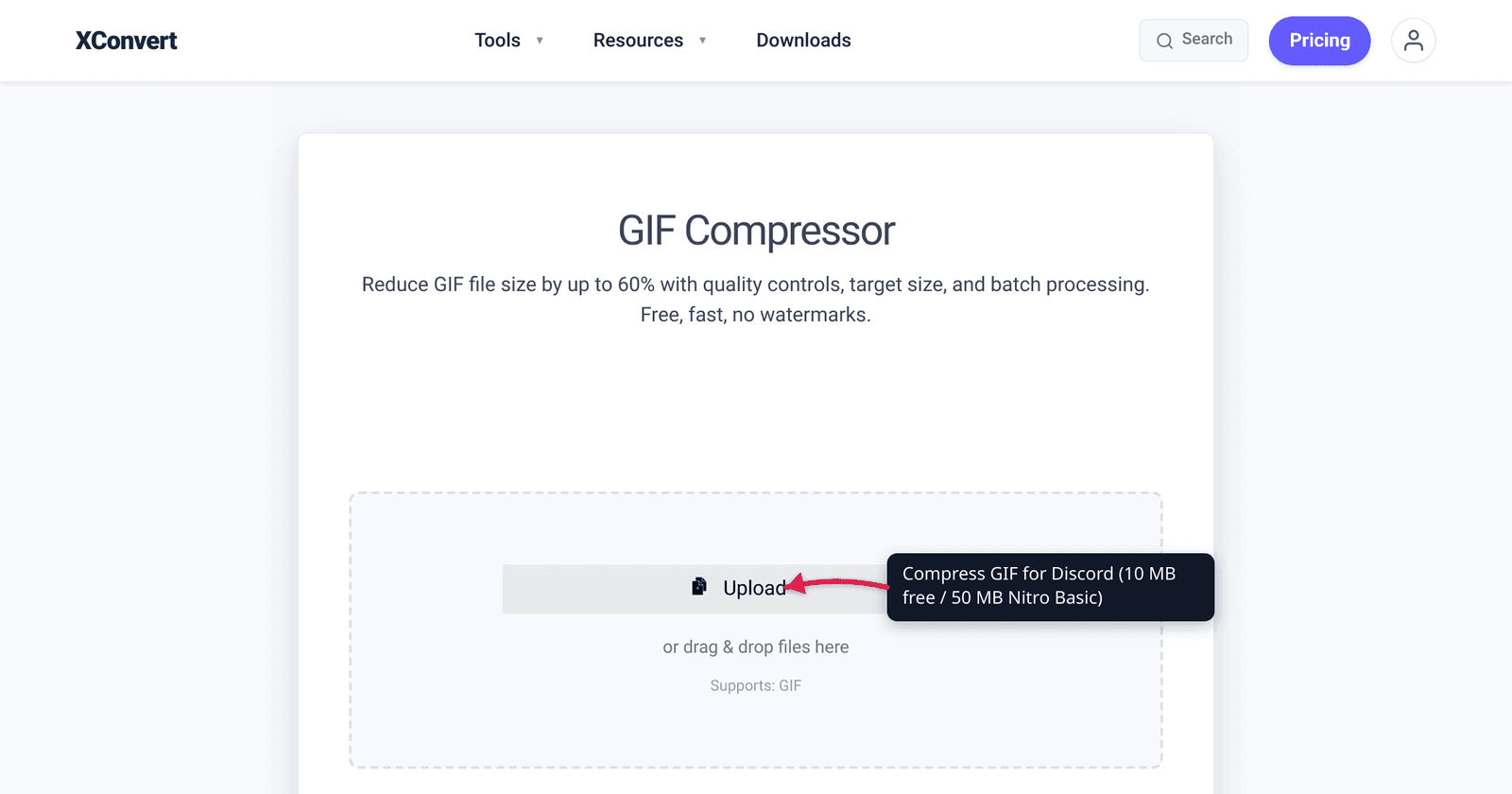
A typical 5-second screen-capture GIF lands at 18–25 MB straight out of a recording tool — well over Discord’s free-tier 10 MB cap (lowered from 25 MB in September 2024). Compressing without making the animation look choppy or pixelated is the trick. This guide gives you the three compression levers that actually move the needle, plus the exact xconvert settings to fit any GIF under 10 MB while keeping the animation watchable.
Quick answer: To fit Discord’s 10 MB free upload cap (or 50 MB Nitro): open the xconvert GIF compressor, add your GIF, leave File Compression on Max file size, then open the Size limit dropdown and pick Discord (10 MB max). Want a safety margin instead? Pick Custom size value and type 9 with the unit on MB. You name the ceiling and the compressor searches for the biggest GIF that still fits under it — no trial-and-error passes.
Jump to a section
- Discord upload limits (2026)
- The three compression levers
- Settings cheat sheet by GIF type
- Step by step in xconvert
- Worked example: 8-second screen recording GIF
- What if it’s still too big?
- FAQ
Discord upload limits (2026)
Discord’s per-message attachment cap depends on the account tier (and any active server boost):
| Tier | Per-file limit |
|---|---|
| Free | 10 MB |
| Nitro Basic ($2.99/mo) | 50 MB |
| Nitro ($9.99/mo) | 500 MB |
| Server Boost Tier 2 (any user in that server) | 50 MB |
| Server Boost Tier 3 (any user in that server) | 100 MB |
Discord lowered the free cap from 25 MB to 10 MB in September 2024. Most older guides still reference 8 MB or 25 MB — those numbers are out of date.
For safety, target 9 MB when uploading from a free account to avoid edge cases where Discord rejects files right at the 10 MB boundary.
The three compression levers
Three settings dominate GIF file size:
1. Resolution (width × height). GIF size scales roughly with pixel count. Halving the width reduces total pixels by 75% (50% × 50% = 25% of original). For a 1920×1080 screen recording, scaling to 960×540 or even 720×405 cuts the size by 75% with minimal visible difference at typical Discord viewing sizes (usually displayed at 480 px wide or less in chat).
2. Frame rate (FPS). A typical screen capture runs at 30 fps; most user-recorded GIFs are 24–30 fps. Dropping to 15 fps halves the file size for nearly all content; dropping to 10 fps for slow-motion tutorials or text-heavy content cuts it again. Below 10 fps, animations start to feel jerky on movement-heavy content.
3. Color palette. GIFs use up to 256 colors per frame. Most content (UI screen recordings, simple animations) doesn’t need 256 colors — 128 or 64 colors reduce file size 20–40% with no visible difference for most subject matter. Aggressive 32-color palettes work for very simple animations but can banding-distort gradients.
You do not have to balance the three by hand. xconvert’s Max file size mode drives them for you: you name a ceiling — a platform preset, a percentage of the original, or a byte value you type — and the compressor searches combinations until the output lands at or under it.
Settings cheat sheet by GIF type
Different content types have different sweet spots:
| GIF type | Resolution | FPS | Colors | Expected ratio |
|---|---|---|---|---|
| Screen recording (UI demo) | 50% of source | 15 | 64 | ~6× smaller |
| Reaction GIF (face/expression) | 50–70% of source | 15 | 128 | ~4× smaller |
| Animation / motion graphic | 70% of source | 20 | 128 | ~3× smaller |
| Text-heavy / slide content | 70% of source | 10 | 32 | ~8× smaller |
| Simple loop / minimal animation | 50% of source | 12 | 64 | ~7× smaller |
For a 25 MB source GIF heading to Discord (10 MB target), a 3× reduction barely makes it; you usually need 4–6× for safety, which is why the resolution lever (cutting width by half) is the dominant move.
Step by step in xconvert
The compressor opens on File Compression → Max file size, and Discord is one of the built-in ceilings, so the whole job is two clicks.
- Open xconvert.com/compress-gif and click + Add Files to pick your animated GIF.
- Leave File Compression on Max file size — it is already selected when the page loads.
- Open the Size limit dropdown and choose Discord (10 MB max). That is an absolute per-file ceiling, so the result comes back at or under 10 MB. (The dropdown opens on Custom size %, which caps the output at a percentage of the original — 75% by default — rather than at an absolute number, so move off it unless a relative cut is what you wanted.)
- Prefer the 9 MB safety margin from the section above? Choose Custom size value instead, type 9 into the Max size field, and leave the unit dropdown on MB.
- Click Compress. Wait 5–30 seconds depending on GIF length. Your file is processed on our servers and deleted automatically a few hours later.
- Download the result and check its size before uploading. The target is best-effort at-or-under, not an exact landing size: on a normal 20–30 MB screen-capture GIF a 9–10 MB ceiling is comfortable, but an extreme ask (9 MB out of a 200 MB source) gets as close as the format allows, and you can push further with the manual levers below.
Optional fallback: the manual levers (Custom mode)
Frame-dropping, resolution and palette are all still available — they just live one click away. Switch File Compression from Max file size to Custom and four groups appear:
- Drop Frames — the biggest win on an already-optimized GIF. It comes up already on Drop Frames (the alternative is ORIGINAL) with Every 3rd frame preselected in the Frames To Drop dropdown. Every 3rd is the measured sweet spot: it removes ~33% of frames with no visible smoothness loss on typical screen-recording or reaction content. Go to every 2nd only for a chat audience that won’t notice motion judder.
- Image resolution — the biggest single lever on an unoptimized GIF. Choose Resolution Percentage and drag By Percentage down as far as you can tolerate, ~50% or lower. For Discord chat at typical viewing widths (~480 px), even 30–40% of a 1080p source still looks crisp.
- Image quality (%) — already on Image Quality (%) (the alternative is ORIGINAL), with the Quality Percentage slider starting at 80. Pulling it down is worth a few percent; Discord’s chat rendering hides a moderate drop.
- Colors — choose By Color Reduction + Dither for a Color Palette Size dropdown (128 preselected) and a Dither toggle, which is off by default.
Custom mode is fully manual: it applies exactly what you set and does not aim at a byte target. If a specific number is what you need, stay on Max file size.
Heads-up — GIF will look worse than the source video. The format caps the palette at 256 colors per frame and stores every frame as a full image. For photographic / gradient-heavy content the GIF will visibly band and posterize compared to the MP4. That’s the GIF format itself, not the compressor — if you can post MP4 instead, do.
Worked example: 8-second screen recording GIF
Source: 8-second GIF of a UI flow, captured at 1920×1080, 30 fps, full 256-color palette. Original size: 24 MB.
Step 1 — Discord free target. 10 MB cap. Aim for 9 MB to be safe.
Step 2 — Calculate the reduction needed. 24 MB / 9 MB = 2.7× compression required.
Step 3 — Decide settings. Pure UI recording → text and crisp edges matter most. Strategy:
- Resolution: half (1920 → 960). That alone is ~4× reduction → 24 MB → ~6 MB.
- Frame rate: drop to 15 fps. That’s ~2× more reduction → ~3 MB.
- Color palette: leave at 256 (UI has lots of subtle colors).
Total expected: ~3 MB final, well under the 9 MB target.
Step 4 — Use xconvert. Either stay on Max file size, pick Custom size value and type 9 MB (the compressor works the three levers out for you), or switch to Custom and set width / frame-drop / palette by hand. Both land in the same neighbourhood for this content; the size target just saves you the arithmetic.
Step 5 — Verify. Download. Check size. Open in Discord preview to confirm animation still plays smoothly.
What if it’s still too big?
If even aggressive compression isn’t fitting under 10 MB:
1. Shorten the clip. A 15-second GIF squeezed to 9 MB looks worse than a 5-second highlight at the same size — fewer frames means more bytes per frame. Trim the source video before you convert it to GIF (xconvert’s video cutter takes MP4/MOV/WebM and friends, but not GIF), or re-record a shorter capture. If the wasted space is around the edges rather than in the timeline, xconvert’s GIF cropper cuts the frame down instead, which drops the pixel count directly.
2. Convert to MP4. Discord plays MP4 inline. A 5-second video at 720×405 takes about 1–2 MB at decent quality — way smaller than the GIF equivalent. The catch: MP4 doesn’t auto-loop in Discord (GIFs do). For most “look at this” use cases that’s fine.
3. Subscribe to Nitro Basic. $2.99/month raises the cap to 50 MB. If you upload large media frequently, it pays for itself in saved compression time.
4. Use a Tier 2+ boosted server. Some servers have permanent 50 MB caps because users have boosted them. Posting in those servers, free accounts get the higher limit.
Frequently Asked Questions
Why are GIF files so much bigger than equivalent videos?
GIF stores every frame as a full image; video formats (MP4, WebM) store only the differences between frames (delta encoding). For a 5-second clip with mostly static background and one moving element, MP4 stores the static parts once; GIF stores them 60+ times. That’s why a 5-second screen recording can be 20 MB as GIF and 1 MB as MP4.
Will compressing make the GIF look choppy?
If you reduce frame rate too aggressively, yes — animations start to feel jerky. The threshold depends on content: text and slow-paced animations are fine at 10 fps; fast motion needs at least 20 fps. Halving the source frame rate (30 → 15) is almost always safe.
Does Discord transcode the GIF when I upload?
Discord doesn’t re-encode the GIF — what you upload is what gets served. So your local compression IS the final state. (For videos, Discord does transcode for streaming bandwidth, but for GIFs it’s a direct file serve.)
Can I compress a GIF on mobile?
Yes. Open Safari / Chrome on the phone, navigate to xconvert.com/compress-gif, tap + Add Files, pick the GIF from your camera roll, and pick your ceiling from the Size limit dropdown. The file is uploaded and compressed on our servers, then the result downloads to your phone’s Files / Downloads folder. Uploads are deleted automatically a few hours later.
Why does my “compressed” GIF look pixelated?
Two common causes: (1) you reduced resolution too much for the target display size — Discord shows GIFs at variable widths up to ~600 px; if you scaled below 480 px wide, it’ll look blurry on desktop, (2) the color palette is too small — palette quantization at 32 or fewer colors causes visible banding on gradients and skin tones. Bump to 64 or 128 colors and re-test.
Should I use a different tool to convert GIF → MP4 for smaller files?
If the platform accepts MP4 (Discord, Twitter/X, Slack, most web platforms), converting GIF to MP4 typically gives 5–10× smaller files at higher visible quality. Use xconvert’s GIF to MP4 converter for that workflow. Keep GIF only when auto-loop matters (the platform doesn’t loop MP4 by default).
What’s the absolute smallest GIF I can make and still see what’s happening?
For typical UI/screen-recording content, 300 px wide at 10 fps with 32-color palette is the practical floor. Anything more aggressive starts looking like a slideshow. For reaction GIFs (single facial expression looping), you can go even smaller — 200 px wide at 8 fps still reads clearly because the brain fills in motion.
Try it now
Compress a GIF for Discord with the xconvert GIF compressor — leave File Compression on Max file size, pick Discord (10 MB max) from the Size limit dropdown, click Compress. For Twitter/X-specific compression (15 MB desktop / 5 MB mobile), see Compress GIF for Twitter. For Slack animated emoji (128 KB cap), see Slack Animated Emoji.
Related guides
- Compress GIF for Twitter/X: 15 MB Desktop / 5 MB Mobile
- Slack Animated Emoji: Fit a GIF Under 128 KB
- Convert Screen Recording (MP4) to GIF for Slack and Docs
Sources
Last verified 2026-08-31.
- Discord Help — Uploading Files
- Discord Help Center
- W3C — GIF89a Specification (original format reference)