 By James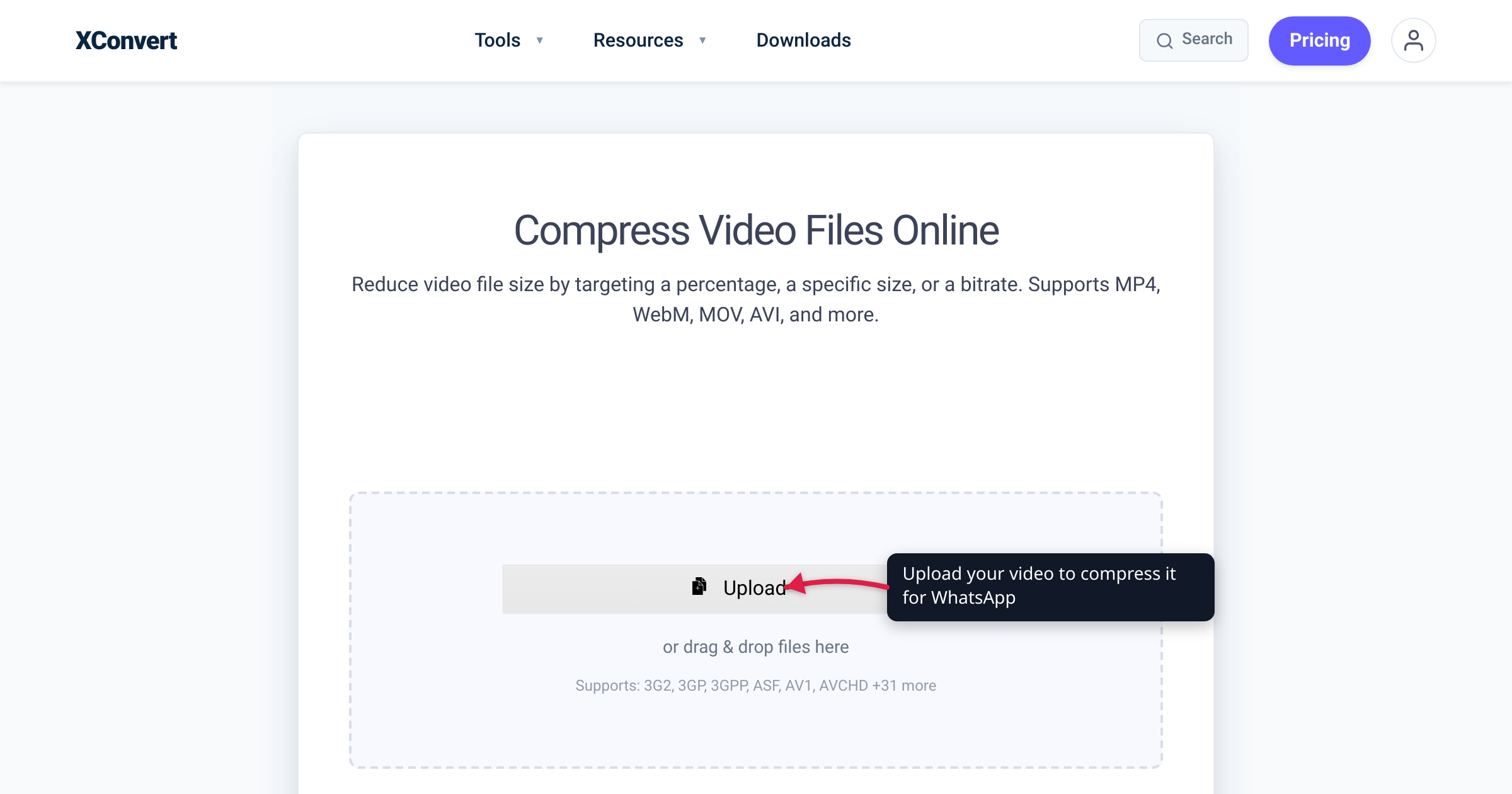
You shot a clip, you hit share to WhatsApp, and it stalls — or it sends, but the recipient just sees a thumbnail they have to download. The format question (“what’s the best video format for WhatsApp?”) has a short answer: MP4 with H.264 video and AAC audio — the combination WhatsApp handles most reliably across iPhone, Android, and WhatsApp Web. But the format is rarely what’s actually breaking. The real job is fitting under WhatsApp’s media size cap so your video sends as an inline, playable message instead of failing or getting force-trimmed. This guide covers the format, the two size limits that matter, and how to compress a clip to fit.
Quick answer: Use MP4 (H.264 video + AAC audio) — the most compatible container/codec combo on WhatsApp. Inline videos sent from your gallery are limited to 16 MB (about 90 seconds to 3 minutes on most phones), per WhatsApp’s Help Center. If your file is bigger, either compress it to fit or send it as a Document (up to 2 GB, per WhatsApp) — but a Document has no inline preview and won’t auto-play. To keep the inline preview, compress to MP4/H.264 under 16 MB.
Jump to a section
- Why MP4 (H.264 + AAC) is the right format
- The two size limits: 16 MB inline vs 2 GB as a Document
- Inline video vs sending as a Document — the real tradeoff
- How to compress a video to fit the 16 MB cap
- Worked example: a 40 MB phone clip down to inline size
- Format and codec quick reference
- Compress your video to fit WhatsApp
- FAQ
Why MP4 (H.264 + AAC) is the right format
A video file has two layers: the container (the wrapper — .mp4, .mov, .mkv) and the codecs inside it (a video codec like H.264 and an audio codec like AAC). For WhatsApp, the safe, universally-supported choice is:
- Container: MP4 — the format WhatsApp itself produces when you record in-app, and the one every recipient’s player handles.
- Video codec: H.264 (AVC) — decodes in hardware on essentially every phone in use, so it plays back instantly.
- Audio codec: AAC — the standard partner for H.264 in MP4.
The alternatives are riskier. .mov (the iPhone Camera default) usually works because modern iPhone files are H.264 or HEVC inside — but HEVC (H.265) playback isn’t guaranteed on older Android devices, so re-wrapping to MP4/H.264 is the conservative move when it has to “just work” for any recipient. .mkv and .webm are less consistently previewed inline, and .avi, .wmv, .flv, and .3gp are legacy and best converted first.
So if your clip is already MP4/H.264, the format is fine — your problem (if any) is size. If it’s .mov, .mkv, .avi, or anything exotic, converting to MP4/H.264 removes the format variable entirely.
The two size limits: 16 MB inline vs 2 GB as a Document
WhatsApp enforces two completely different ceilings depending on how you attach the video.
1. Inline media — limited to 16 MB. When you pick a video to send as a normal media message, WhatsApp’s Help Center states it is limited to 16 Megabytes, which “on most phones… will equal about 90 seconds to three minutes of video.” If the file is larger, WhatsApp offers to trim it before sending rather than sending it full-length inline. This 16 MB cap is the source of the “too long / won’t send” friction most people hit.
2. Documents — up to 2 GB. Separately, you can attach a file as a Document. Per WhatsApp’s official announcement, “you can now send files within WhatsApp up to 2GB in size at a time, protected by end-to-end encryption.” A video sent this way bypasses the 16 MB media cap — but it changes the recipient’s experience (below).
A third detail: for some send paths WhatsApp applies a connection-dependent default before upload — its Help Center notes roughly 100 MB at 720p on faster connections and 64 MB at 480p on slower ones. Those are WhatsApp-side defaults that can vary, not the inline-message cap — the 16 MB figure is the one that governs sending an existing video as a normal media message.
Inline video vs sending as a Document — the real tradeoff
The 2 GB Document path is tempting — just send the whole thing — but it’s not free. Here’s what changes:
| Inline media (≤ 16 MB) | As a Document (≤ 2 GB) | |
|---|---|---|
| In-chat preview | Yes — thumbnail + tap-to-play | No inline preview |
| Auto-plays in chat | Yes (muted preview on most clients) | No — recipient downloads first |
| Feels like | A video message | A file attachment |
| Max size | 16 MB (per WhatsApp) | 2 GB (per WhatsApp) |
| Best for | Clips you want watched immediately | Long videos, full-quality masters |
For a quick moment — a funny clip, a 30-second how-to, a highlight — you want the inline preview, because most recipients only watch what plays in-thread without an extra download. That means getting under 16 MB. For a long video where completeness matters more than the in-chat experience — a lecture recording, a wedding edit, raw footage to a collaborator — the Document path to 2 GB is the right call, and you’d convert to MP4/H.264 mainly for playback compatibility, not size.
Most “best video format for WhatsApp” searches want the inline preview, so the rest of this guide is about hitting 16 MB.
How to compress a video to fit the 16 MB cap
Three levers reduce file size, in rough order of impact-per-effort:
- Bitrate / target size. Bitrate is the dominant factor. The cleanest approach is to set a target file size directly and let the encoder solve for the bitrate, so you aim at 16 MB rather than guessing. Compression results are typical, not guaranteed: how small a clip goes while still looking acceptable depends on its length, motion, and resolution.
- Resolution. Dropping 4K or 1080p to 720p (or 480p for talking-head clips) cuts the pixel count dramatically — and on a phone screen for a quick watch, 720p is usually indistinguishable.
- Trim length. A 16 MB budget stretches much further on a 30-second clip than a 4-minute one; cutting dead air is often the easiest win.
You can do all three with xconvert’s video compressor. Files upload over an encrypted connection, are compressed on our servers, and are deleted automatically after a few hours. The relevant controls:
- Compression mode — choose “Specific file size” to type a target (e.g. 15 MB, leaving headroom under 16), or “Target file size (%)” to shrink by a percentage.
- Format / codec — keep the container MP4 and codec H.264 for maximum WhatsApp compatibility.
- Resolution — set a preset like 720p (or Auto Scale) to help hit the target.
- Trim — use the Time Range option to cut to just the part you want.
Worked example: a 40 MB phone clip down to inline size
Say you have a 40 MB, 1080p, 2-minute clip — well over the 16 MB inline cap, so WhatsApp would otherwise force a trim. To send the whole clip inline:
- Open the video compressor and upload the file.
- Set the mode to “Specific file size” and enter 15 MB (under 16 for margin — WhatsApp measures the final file, so you don’t want to land at 16.2 MB).
- Confirm container MP4 and codec H.264; drop resolution to 720p if the clip is 1080p or 4K.
- Compress, download, and send as a normal video — it should now send inline with a preview instead of triggering the trim prompt.
Whether 2 minutes at acceptable quality fits in 15 MB depends on the footage (a static talking-head compresses far smaller than fast-motion sports). If the result looks too soft, the honest fix is to trim rather than push the bitrate lower — or send the long version as a Document.
Format and codec quick reference
| Source format | What to do for WhatsApp |
|---|---|
| MP4 (H.264 + AAC), under 16 MB | Send as-is — already ideal |
| MP4 (H.264 + AAC), over 16 MB | Compress to under 16 MB (or send as Document) |
.mov (iPhone) | Usually plays; convert to MP4/H.264 for guaranteed compatibility |
.mov/.mp4 with HEVC (H.265) | Convert to H.264 for older-device playback |
.mkv, .webm | Convert to MP4/H.264 — may not preview inline otherwise |
.avi, .wmv, .flv, .3gp | Convert to MP4/H.264 before sending |
| Any format, long & high-quality | Convert to MP4/H.264, send as a Document (up to 2 GB) |
For a format change only (no size reduction), use the video converter and pick MP4 as the output. If your file is already MP4 and just too big, the MP4 compressor targets that directly.
Compress your video to fit WhatsApp
To get an over-the-limit clip down to a sendable inline size while keeping the format WhatsApp likes:
- Video Compressor — set a specific target size (e.g. 15 MB) and keep MP4/H.264. Best for any source format.
- Compress MP4 — when your file is already MP4 and you just need it smaller.
- Video Converter — when the file is
.mov,.mkv,.avi, or HEVC and you want a clean MP4/H.264 for compatibility.
Files upload over an encrypted connection, are processed on our servers, and are deleted automatically after a few hours.
FAQ
What is the best video format to send on WhatsApp?
MP4 with H.264 video and AAC audio — the container/codec combination WhatsApp produces itself and that plays reliably on iPhone, Android, and WhatsApp Web. If your video is already MP4/H.264 and under 16 MB, send it as-is. If it’s .mov, .mkv, .avi, or HEVC, convert to MP4/H.264 first to remove any playback-compatibility risk.
What is WhatsApp’s video size limit?
Two different limits apply depending on how you attach it. Sending an existing video as inline media is limited to 16 MB (about 90 seconds to 3 minutes on most phones), per WhatsApp’s Help Center — above that, WhatsApp prompts you to trim. Sending a video as a Document allows up to 2 GB, per WhatsApp’s own announcement, but it loses the in-chat preview.
How do I send a video over 16 MB on WhatsApp with a preview?
Compress it to under 16 MB so it qualifies as inline media. Use a video compressor, set a specific target size of around 15 MB, keep the output MP4/H.264, and drop to 720p if needed. The compressed file then sends as a normal video message with a thumbnail and tap-to-play, instead of being force-trimmed.
Should I send a long video as a Document instead?
Only if completeness matters more than the in-chat experience. A Document can be up to 2 GB (per WhatsApp), so the full video goes through untouched — but the recipient sees a file attachment with no inline preview and must download it before watching. For clips you want watched immediately, compress under 16 MB and send inline. For long masters or footage to a collaborator, the Document path is fine — just convert to MP4/H.264 so it plays for them.
Why does WhatsApp blur or shrink my video?
When a video exceeds the inline cap or WhatsApp’s connection-dependent send defaults (it documents roughly 100 MB/720p on faster connections and 64 MB/480p on slower ones for some send paths), WhatsApp re-encodes or trims it during upload, which can soften quality. Compressing to a clean MP4/H.264 under 16 MB before sending lets you choose the resolution and quality tradeoff yourself instead of letting WhatsApp’s automatic processing decide.
Does converting to MP4 reduce the file size?
Not necessarily — changing the container/codec to MP4/H.264 fixes compatibility, but size reduction comes from lowering the bitrate, resolution, or length. If your file is already MP4/H.264 and just too big, use the MP4 compressor and set a target size. Compression results are typical, not guaranteed: how small a clip goes while staying watchable depends on its length, motion, and starting resolution.
Sources
Last verified 2026-06-18.
- WhatsApp Help Center — How to send media, contacts, or location — states existing videos sent as media are limited to 16 MB (about 90 seconds to 3 minutes on most phones) with a trim prompt above that.
- WhatsApp Help Center — How to send media — media sending and the 16 MB media cap.
- WhatsApp Help Center — I get a message that my video is too long and it won’t send — trimming behavior for over-limit videos.
- WhatsApp Blog — Reactions, 2GB File Sharing, 512 Groups — official statement that files up to 2 GB can be sent, protected by end-to-end encryption.
- WhatsApp Help Center — Why can’t I send long videos in WhatsApp? — connection-dependent video size defaults (100 MB/720p and 64 MB/480p).