 By James
You hit “Send,” wait, and the message bounces back: attachment too large. Maybe it’s a 40 MB scanned contract, a 60 MB design proof, or a slide deck that ballooned with embedded images. Email was never built to move big files — every provider caps attachment size, and a PDF that opens fine on your laptop can still be too big to attach. The good news: in almost every case you don’t need a different file, you need a smaller one. This guide walks the decision tree in order — compress first; if it’s still over the cap, split it into mailable parts; use a cloud link only as a last resort — so the recipient gets a real PDF attachment instead of a link they have to chase.
Quick answer: First compress the PDF — most oversized PDFs are bloated by high-resolution images and shrink dramatically when downsampled, often landing under the cap in one pass. If it’s still too big, split it into smaller PDFs and send them across two or three emails. Use a cloud link (Google Drive, OneDrive, Dropbox) only when the file genuinely can’t be made small enough. Gmail’s attachment limit is 25 MB; Outlook.com’s documented limit is 20–25 MB depending on the help page — size your target below the smaller number to be safe.
Jump to a section
- Why your PDF is too big to email
- Know your recipient’s cap, not just yours
- Step 1: Compress the PDF (try this first)
- Step 2: Split it into mailable parts
- Step 3: Cloud link (last resort)
- A worked example: 48 MB contract → emailed
- Quick decision reference
- FAQ
Why your PDF is too big to email
A PDF’s size is almost never the text. It’s the images — scanned pages, photos, screenshots, and high-DPI graphics embedded at print resolution. A 20-page text contract might be under 1 MB; the same contract scanned at 600 DPI can be 50 MB or more. Other common bloat sources:
- Scans saved as full-resolution images rather than downsampled or OCR’d text.
- Embedded fonts and duplicated image objects that aren’t deduplicated.
- Uncompressed or lightly-compressed image streams inside the PDF.
This matters because it tells you the fix: shrinking the embedded images (downsampling and re-compressing them) is usually enough to get a “too big” PDF under an email cap without touching anything the reader cares about. You rarely need to delete pages or change the document — you need to compress what’s already there.
Know your recipient’s cap, not just yours
The attachment limit that matters is the smaller of your sending cap and your recipient’s receiving cap. A message that leaves your outbox fine can still bounce at the other end. Two of the most common consumer providers:
| Provider | Documented attachment limit | What happens when you exceed it |
|---|---|---|
| Gmail | 25 MB | Gmail automatically removes the attachment and inserts a Google Drive link instead (source). |
| Outlook.com | 20–25 MB (Microsoft’s help pages cite both) | Microsoft suggests uploading to OneDrive and sharing a link (source). |
A note on the Outlook number: Microsoft’s own documentation is inconsistent. The Outlook.com sending-limits page states “The attachment size limit for files is 25 MB,” while the reduce-attachment-size page says “for internet email accounts such as Outlook.com or Gmail, the email size limit is 20 megabytes (MB).” Because the email-size figure includes the message text and encoding overhead on top of the attachment, the practical ceiling is lower than the headline number. The safe move is to target well under 20 MB — that clears both Outlook readings and leaves headroom for the ~33% size inflation that MIME/base64 encoding adds to every email attachment.
Other providers and corporate mail servers set their own limits, and many company servers cap incoming mail more tightly than consumer services. If you don’t know the recipient’s limit, aim small: a PDF under ~10 MB clears almost every mainstream mailbox.
Step 1: Compress the PDF (try this first)
Compression is the first move because it’s the one that usually solves the whole problem in a single pass — and it leaves you with a normal, single PDF attachment, which is what most recipients actually want.
Open the xconvert PDF Compressor and:
- Click Upload (or drag and drop your PDF onto the drop zone). Your file is sent over an encrypted connection to be processed on our servers.
- Pick a compression level. The tool offers presets named Screen (Best), Ebook, Default, Prepress, and Printer — roughly in order from smallest output to highest fidelity. Screen downsamples images most aggressively (smallest file); Ebook is a good balance for email; Prepress and Printer preserve more resolution for printing.
- Click Compress, then download the result.
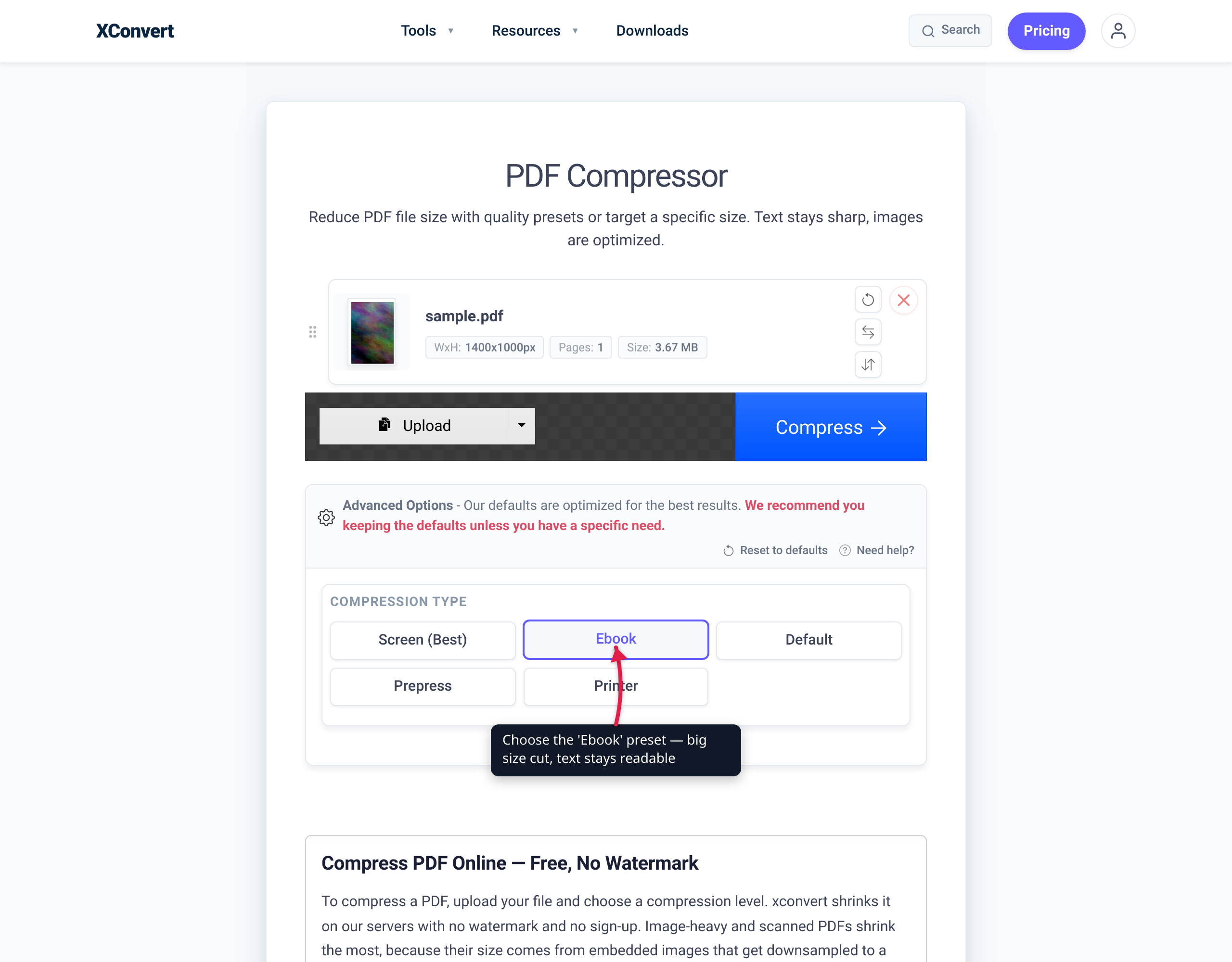
For an email attachment, start with Ebook or Screen — screen resolution is plenty for a document that’s going to be read on a monitor or phone. Processed files are deleted from our servers automatically after a few hours.
How much smaller will it get? It depends entirely on what’s inside. An image-heavy scanned PDF can drop by 70–90% because there’s so much redundant pixel data to squeeze; a PDF that’s already mostly text and was exported efficiently may barely move. Compress first, check the new size against your target, and only move to Step 2 if it’s still over the cap.
Step 2: Split it into mailable parts
If your PDF is genuinely large — a 200-page report, a high-resolution scan that’s still 30 MB after compression — splitting lets you send it as a few smaller attachments that each clear the cap. The recipient gets real PDFs (Part 1 of 3, Part 2 of 3, and so on) instead of a link to click.
Use the xconvert Split PDF tool:
- Click Upload and add your PDF (it’s uploaded over an encrypted connection and processed on our servers).
- Choose a split mode:
- Page by page — bursts the document into one PDF per page (good when each page stands alone, like separate forms).
- Pages by range — extract one contiguous section, e.g. pages 1–40.
- Pages by multi-range — carve the document into several chunks at once, e.g. 1–50, 51–100, 101–150.
- Click Split and download the parts (a single PDF or a ZIP bundle, depending on the mode).
The practical recipe: compress first, then split the compressed file by ranges so each chunk lands comfortably under your target size. If 150 compressed pages come to 30 MB, three 50-page ranges give you roughly 10 MB each — well within Gmail’s and Outlook’s caps. Name the files clearly (contract-part1of3.pdf) and tell the recipient in the email body how many parts to expect so nothing gets missed. Files you upload are deleted from our servers automatically after a few hours.
If you split a document and later need to hand someone a single file again, you can stitch the parts back with the Merge PDF tool.
Step 3: Cloud link (last resort)
When a file truly can’t be made small enough — a print-ready brochure that must stay at full resolution, a multi-hundred-megabyte archive — share a cloud link instead of an attachment. This is exactly what Gmail and Outlook fall back to automatically: Gmail substitutes a Google Drive link when you exceed 25 MB, and Microsoft recommends uploading to OneDrive and pasting the link.
It’s the last resort for good reasons:
- The recipient has to click out to a browser, sign in, or request access instead of just opening an attachment.
- The file lives in your cloud storage; if you move or delete it, the link breaks. An emailed attachment is the recipient’s permanent copy.
- Corporate spam filters and security policies sometimes block or flag external file-sharing links.
- The reader can’t always tell what they’re about to open from a bare link the way they can from a named attachment.
Reach for a link only after compress-then-split has genuinely failed to get the file mailable. For the overwhelming majority of “PDF too big to email” cases, a compress pass — or a compress-then-split — produces a real attachment that just sends.
A worked example: 48 MB contract → emailed
A signed, scanned 60-page contract comes in at 48 MB — far over Gmail’s 25 MB cap and well over Outlook’s documented limit. Walking the tree:
- Compress. Run it through the PDF Compressor at the Ebook preset. Scanned pages downsample heavily; the file drops to roughly 9 MB. That’s already under every cap discussed here — done. One attachment, sends fine.
- If it were still too big — say a higher-resolution scan that only compressed to 28 MB — split the compressed file into two 30-page ranges of ~14 MB each, and send across two emails labelled Part 1 and Part 2.
- Only if even that failed — a file that must stay at full print resolution — upload to cloud storage and send the link.
Most real-world cases stop at Step 1.
Quick decision reference
| Situation | Do this |
|---|---|
| PDF is over the email cap | Compress first — PDF Compressor, Ebook or Screen preset |
| Still over the cap after compressing | Split into ranges — Split PDF, send as Part 1 / Part 2 / … |
| You don’t know the recipient’s limit | Target under ~10 MB — clears nearly all mailboxes |
| Sending to Gmail | Stay under 25 MB (per attachment) |
| Sending to Outlook.com | Stay under ~20 MB to satisfy both of Microsoft’s documented figures |
| File must stay full-resolution and can’t shrink | Cloud link (Google Drive / OneDrive / Dropbox) — last resort |
| Need to recombine split parts later | Merge PDF |
FAQ
What is the maximum size PDF I can email?
It depends on the smaller of your provider’s sending cap and the recipient’s receiving cap. Gmail allows attachments up to 25 MB (Google support). Outlook.com’s documented limit is 20–25 MB depending on which Microsoft help page you read. Because email encoding (base64/MIME) inflates an attachment by roughly a third on the wire, and corporate servers often cap incoming mail lower, the safe target is under ~10 MB when you don’t know the recipient’s limit.
How do I make a PDF small enough to email?
Compress it. Most oversized PDFs are bloated by high-resolution embedded images, which downsample dramatically. Upload your file to the xconvert PDF Compressor, pick the Ebook or Screen preset, and download the smaller result. For a document that will be read on screen, screen resolution is more than enough and produces the smallest file.
Does compressing a PDF reduce its quality?
It reduces the resolution of embedded images, not the text — text stays crisp and selectable. For on-screen reading the difference is usually invisible. If you need print-quality output, use the Printer or Prepress preset (larger file); for email, the Screen or Ebook presets prioritize size and are fine for viewing.
Should I split the PDF or use a cloud link?
Split it if you can. Splitting gives the recipient real PDF attachments they keep permanently — no sign-in, no broken links, no security-filter friction. Use the Split PDF tool to break a compressed file into ranges that each clear the cap, and send them across a couple of emails. A cloud link is the right call only when the file genuinely can’t be made small enough.
How do I split a large PDF into smaller files?
Open the Split PDF tool, upload your PDF, and choose Pages by multi-range to carve it into several chunks at once (for example 1–50, 51–100, 101–150). Click Split and download the parts. Compress the PDF first so each split chunk is as small as possible, then size your ranges to land under the email cap.
Is it safe to upload my PDF to a converter?
Your file is uploaded over an encrypted connection, processed on our servers, and deleted automatically after a few hours — it isn’t kept around. For highly sensitive documents, the most private route is still to compress and attach so the file goes only to your intended recipient rather than through any cloud-sharing link.
Why does my PDF bounce even though it’s under 25 MB?
Two common reasons. First, email encoding inflates the size — an attachment is encoded for transport (base64), adding roughly a third, so a 24 MB file can cross a 25 MB message limit once the text and headers are added. Second, the recipient’s server may cap incoming mail lower than your provider caps outgoing mail; corporate servers in particular are often stricter. Compress further or split to be safe.
Sources
Last verified 2026-06-18.
- Gmail — Send & open confidential / size limits for attachments — Gmail’s 25 MB attachment limit and automatic Google Drive link behaviour.
- Microsoft — Sending limits in Outlook.com — states a 25 MB attachment limit for Outlook.com.
- Microsoft — Reduce attachment size to send large files with Outlook — cites a 20 MB email size limit for internet email accounts and recommends OneDrive links.