 By James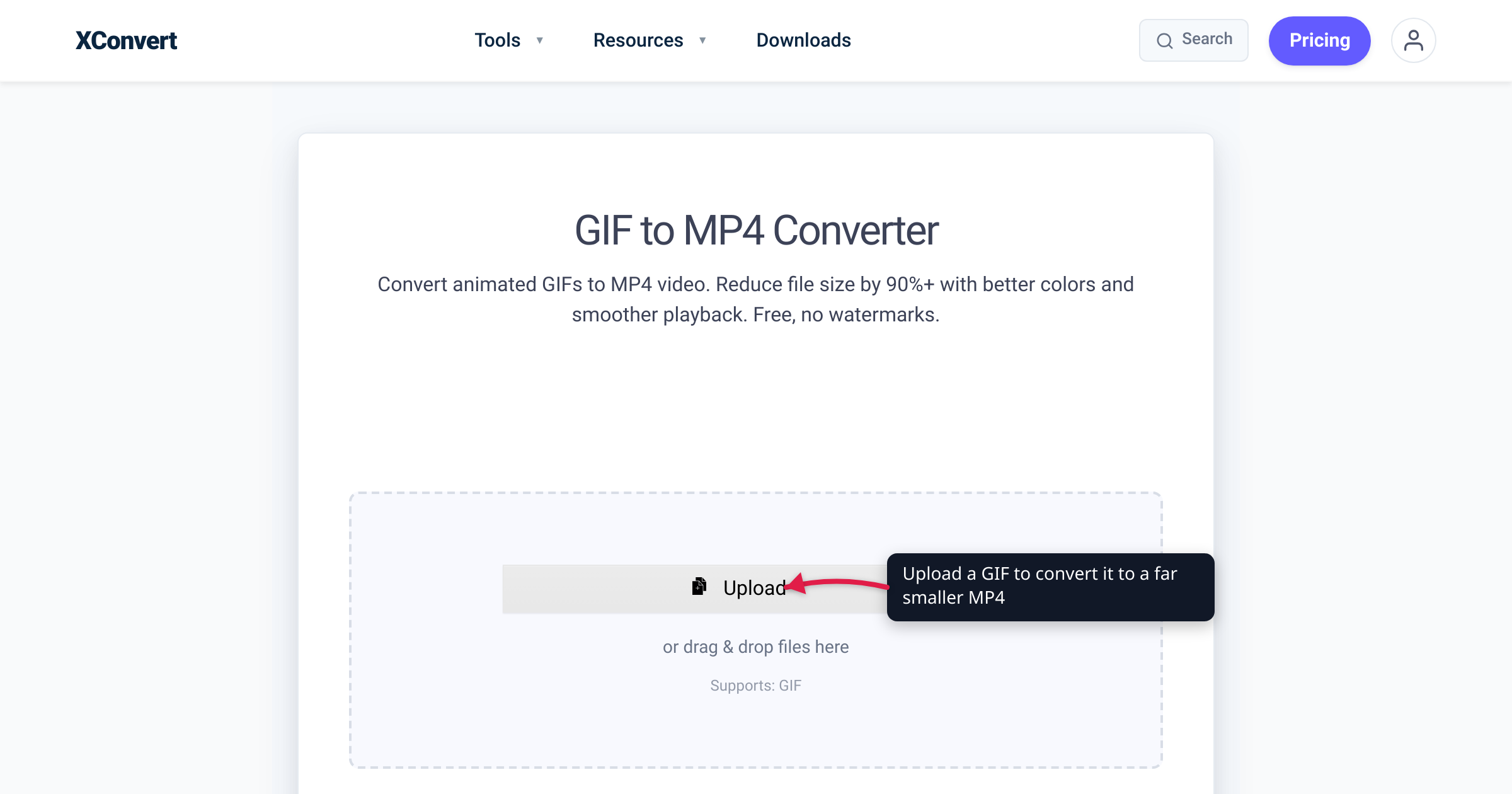
A short screen recording saved as an animated GIF can weigh several megabytes. The exact same clip exported as an MP4 often lands at a small fraction of that. People reach for “compress the GIF” tools, squeeze out maybe 20–30%, then wonder why it’s still huge. The real answer is almost never to compress the GIF harder — it’s to stop using GIF for video at all. GIF and MP4 store moving pictures in fundamentally different ways, and that difference, not the pixels or the length, is what makes one file balloon and the other stay small. This guide explains why, and what to do about it.
Quick answer: A GIF is huge because it stores animation as a sequence of full 256-color images compressed one frame at a time with LZW — it has no way to reuse pixels that didn’t change between frames. MP4 with the H.264 codec uses inter-frame (temporal) compression: it stores only what changed from frame to frame, plus full color, so the same animation is often several times to many times smaller. The fix is to convert the GIF to MP4, not to compress the GIF. Use the GIF to MP4 converter.
Jump to a section
- Why animated GIFs get so big
- How MP4 (H.264) shrinks the same animation
- The number people quote — and why we hedge it
- When you actually need a GIF instead of MP4
- How to convert a GIF to MP4
- If you truly must keep it a GIF
- FAQ
Why animated GIFs get so big
The GIF format dates to 1987 and was designed for small static graphics — logos, icons, simple line art — not video. Three properties of the format cause the bloat when you push an animation through it.
1. A 256-color ceiling. In a GIF, every pixel is an 8-bit value that points into a color palette, and that palette can hold at most 256 entries. As MDN puts it, “each pixel in a GIF is represented by a single 8-bit value serving as an index into a palette of 24-bit colors.” A photographic frame contains far more than 256 distinct colors, so the encoder crushes the palette — producing visible banding and dithering noise that, ironically, compresses badly.
2. Lossless LZW compression, applied per frame. GIF compresses its image data with the Lempel–Ziv–Welch (LZW) algorithm, losslessly. Lossless sounds like a virtue, and for a logo it is. But LZW works by finding repeated runs of identical indexed values within a single image. It has no model of motion — no concept of “this region looks like the previous frame shifted two pixels right.” It is a general-purpose data compressor pointed at one picture at a time.
3. No real inter-frame compression. This is the decisive one. GIF “supports simple animation, in which following an initial full-size frame, a series of images reflecting the parts of the image that change with each frame are provided,” per the spec description on MDN. A frame can be a partial region, but GIF has no motion estimation, no prediction from future frames, and no way to express “the background is identical, only this object moved.” In practice, for the screen recordings and video clips people turn into GIFs, large areas get re-encoded as fresh indexed-color image data frame after frame — a flipbook where each page is independently zipped.
Stack those together and a GIF of any real-world video clip becomes enormous. Length and resolution matter, but the format itself is the dominant cost.
How MP4 (H.264) shrinks the same animation
MP4 is a container; the compression comes from the codec inside it, most commonly H.264 (also called AVC). H.264 was engineered for exactly the job GIF was never meant to do: storing motion efficiently. Two ideas do the heavy lifting.
Full color. Most H.264 profiles use 8-bit color components with 4:2:0 chroma subsampling, meaning roughly 16.7 million possible colors per pixel rather than 256. No palette crushing, no dithering, no banding noise to store.
Inter-frame (temporal) compression. This is the core of why MP4 wins. As MDN describes it, video compression “generally works by comparing two frames and recording the differences between them, one frame after another.” Building on that, H.264 organizes a group of pictures around occasional full key frames (intra-frames, or I-frames) and encodes most frames as predictions (Wikipedia: Inter frame):
- P-frames record only the changes from a previous reference frame — the codec finds objects that moved, stores motion vectors describing the shift, and keeps only the leftover pixel differences (the “residual”).
- B-frames go further, predicting from both an earlier and a later frame.
So when a video has a still background and one moving subject, H.264 stores the background essentially once and then describes the motion. A GIF would re-encode large parts of that scene every frame. That structural difference — predicting frames from their neighbors versus storing each frame independently — is the single biggest reason the converted MP4 is so much smaller.
The number people quote — and why we hedge it
You’ll see claims that converting GIF to MP4 makes files “5× smaller,” “10× smaller,” even “20× smaller.” Those numbers are illustrative, not laws of physics. The real ratio depends on the content:
- A flat-color UI animation or short logo loop may shrink only modestly — GIF’s LZW already handles large flat regions reasonably well, and there’s little temporal redundancy for H.264 to exploit beyond what GIF already gets.
- A photographic or screen-recorded clip with motion is where MP4 pulls far ahead — full color avoids dithering bloat, and inter-frame prediction collapses the redundant background. This is where you see the dramatic multiples.
The honest framing: converting an animated GIF to MP4 very often produces a substantially smaller file, frequently by several times or more, but the exact factor varies with resolution, length, color complexity, and motion. Anyone quoting a single universal ratio is guessing — the mechanism is certain, the precise number is not.
When you actually need a GIF instead of MP4
MP4 is the right answer most of the time, but not always. Keep a GIF when:
- The destination only accepts GIF. Some chat inputs, older forums, email signature fields, and certain wiki or CMS upload boxes will embed an animated GIF but not autoplay an inline video. A GIF “just plays” everywhere an image can appear.
- You need autoplay-looping with zero controls and no JavaScript, embedded purely as an image. GIFs loop silently and automatically as
<img>content; an MP4 needs a<video>element (withautoplay muted loop playsinline) to behave the same way.
For nearly everything else — reaction clips, screen recordings, tutorials, product demos, anything with photographic content or real motion — MP4 is smaller, sharper, and better supported in modern browsers and apps.
How to convert a GIF to MP4
Converting is the fix, and it’s straightforward. Using the xconvert GIF to MP4 converter:
- Open the GIF to MP4 Converter and click + Add Files to select your GIF (from your computer, Google Drive, or Dropbox). Your file is uploaded over an encrypted connection and processed on our servers.
- Leave the Quality Preset on Very High (Recommended) for the best visual result, or open Advanced Options to adjust File Compression (Constant Quality vs. Constraint Quality) and Video resolution if you need a specific size or dimensions.
- Click Convert, then download the finished MP4.
Uploaded files are automatically deleted a few hours later. Because the conversion re-encodes the animation with H.264’s inter-frame compression and full color, the MP4 you get back is typically far smaller than the GIF you started with — without the extra quality loss you’d accept by squeezing the GIF further.
If you truly must keep it a GIF
Sometimes the target genuinely requires a GIF. In that case, compressing the GIF is the right move — just understand it works within the format’s hard limits (256 colors, no temporal compression), so the savings are bounded. Use the Compress GIF tool: click Upload, optionally open Advanced Options to trade quality for size, then Compress and Download. Reducing dimensions, trimming frames, or lowering the frame rate usually saves more than any palette tweak.
But if size is your real problem and the destination accepts video, convert to MP4 first — that addresses the cause, not the symptom.
FAQ
Why is my GIF so much bigger than the original video?
Because GIF is a poor fit for video. The format caps you at 256 colors (so photographic content gets dithered, which compresses badly), uses lossless LZW compression applied to one frame at a time, and has no inter-frame compression to reuse unchanged pixels between frames. A real video codec like H.264 stores only the differences between frames and supports full color, so the original video — and an MP4 you convert your GIF into — is far smaller than the GIF.
Does converting a GIF to MP4 lose quality?
H.264 is a lossy codec, so a re-encode is technically not bit-for-bit identical. In practice, because MP4 supports full color while GIF is limited to 256, a high-quality MP4 export usually looks as good or better than the GIF — without the GIF’s dithering and banding. On the converter, keeping the Quality Preset on “Very High (Recommended)” gives a visually clean result while still being much smaller than the source GIF.
How much smaller will my MP4 be than the GIF?
It varies with the content. Clips with photographic detail and motion — screen recordings, video reactions — shrink dramatically because inter-frame compression and full color both help. Flat, simple, or very short animations shrink less, because GIF already handles those reasonably. The reliable statement is that converting an animated GIF to MP4 very often produces a substantially smaller file, frequently by several times, but there’s no single universal ratio.
Should I compress my GIF or convert it to MP4?
If the destination accepts video, convert to MP4 — that addresses the actual cause of the bloat. Compressing a GIF only works within the format’s limits, so the savings are capped. Only compress the GIF if you’re locked into a place that requires GIF specifically.
Why can’t GIF just compress like video does?
GIF’s design predates modern video codecs and was built for small static graphics, not motion. Its LZW compressor finds repeated patterns within a single image but has no model of motion. Video codecs like H.264 are built around exactly that idea (motion vectors, P-frames, B-frames), which is why they compress animation so much more efficiently.
Is converting on xconvert private?
Your file is uploaded over an encrypted connection and processed on our servers, not stored long-term. Uploaded and converted files are automatically deleted a few hours after processing.
Sources
Last verified 2026-06-18.
- MDN — Image file type and format guide — GIF’s 256-color (8-bit indexed) palette, lossless LZW compression, and animation model.
- MDN — Web video codec guide — H.264 inter-frame/temporal compression (key frames, P-frames, B-frames, residuals, motion vectors), 8-bit color profiles, and the storage cost of uncompressed video.
- Wikipedia — Inter frame — overview of inter-frame prediction, P-frames and B-frames, and temporal redundancy (citing primary codec specifications).