 By James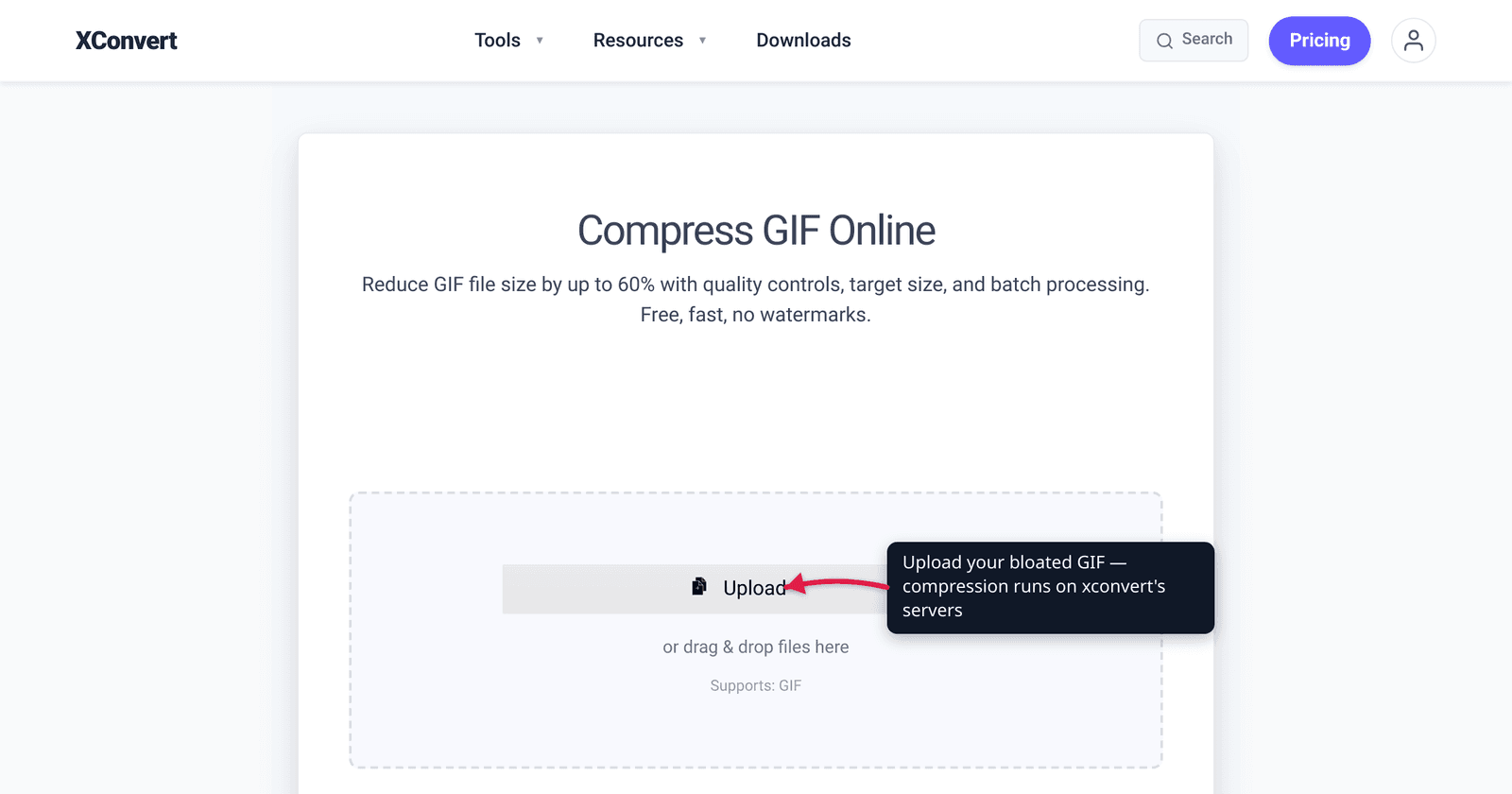
You record a three-second screen clip, export it as a GIF, and it comes out at 12 MB — bigger than a minute-long MP4 of the same footage. It feels backwards: GIFs are tiny cartoons and reaction clips, so why do they weigh more than “real” video? The answer is baked into the format itself. GIF was finalized in 1989, before modern video compression existed, and it stores animation in a way that is almost the worst case for file size. This guide explains exactly why your GIF is so big — every claim checked against the GIF89a specification and MDN — and then walks through the levers that actually shrink it.
Quick answer: A GIF is big because it stores every frame as a near-complete image with no compression between frames (unlike MP4/WebM, which only store what changed). On top of that it uses an old lossless LZW scheme and a 256-color palette that forces dithering on real footage, which compresses poorly. To shrink one: cut the frame rate / drop frames, reduce the dimensions, lower the color count, and trim the length. If the destination accepts video, converting to MP4 is usually several times smaller than any GIF you can produce.
Jump to a section
- Reason 1: every frame is a full image (no inter-frame compression)
- Reason 2: a 256-color palette + LZW that fights real footage
- Reason 3: frame rate, dimensions, and length multiply everything
- Why MP4 is so much smaller for the same clip
- How to shrink a GIF on xconvert
- FAQ
Reason 1: every frame is a full image (no inter-frame compression)
This is the big one. An animated GIF is, structurally, a stack of separate images played in sequence. The GIF89a specification allows “an unlimited number of images” in one file, each introduced by its own Image Descriptor and its own block of pixel data, with a Graphic Control Extension setting the delay before the next one appears.
Crucially, GIF has no concept of “what changed since the last frame.” Modern video codecs are built entirely around that idea: H.264 in an MP4 stores a few full “keyframes” and then, for everything in between, records only the differences from the previous frame using motion prediction (the P-frames and B-frames you may have heard of). If 90% of your clip is a static background and only a cursor moves, MP4 stores that background essentially once. GIF stores it again, in full, in every single frame.
So a 90-frame GIF is closer to 90 individually compressed pictures than to a video. That is why a screen recording — mostly unchanging pixels — balloons as a GIF: the format can’t take advantage of the very redundancy that makes the clip compressible. (The spec does let a frame redraw only a sub-rectangle, but most encoders don’t exploit it aggressively, and it doesn’t help footage where the whole frame shifts.)
Reason 2: a 256-color palette + LZW that fights real footage
GIF’s compression is genuinely old. Per the spec and MDN, each pixel is a single 8-bit index into a color table, and that table maxes out at 256 colors. The pixel data is then squeezed with LZW (Lempel-Ziv-Welch), a lossless algorithm — meaning it never throws information away to save space, the way a JPEG or an MP4 deliberately does.
Two things follow from that:
- Lossless is heavier by design. Because LZW can’t discard detail, it can only find and shorten exact repeating patterns. For flat-color graphics (logos, simple line animation) that works fine. For a photo-real screen recording or video clip — where almost no two pixels are identical — there’s little for LZW to compress, so the file stays large.
- 256 colors forces dithering, which compresses badly. Real footage has thousands or millions of colors. To fake that range inside a 256-color palette, encoders use dithering — scattering pixels of different palette colors to simulate in-between shades (MDN notes GIF uses it “to simulate more than 255 or 256 colors”). But dithering replaces smooth gradients with high-frequency speckle, and speckle is the opposite of the repeating patterns LZW needs. So the trick that makes a GIF look acceptable on real footage actively makes it bigger.
In short: GIF’s compression was designed for simple, flat 8-bit graphics in 1989. Point it at modern video content and it does the worst of both worlds — keeps every frame and compresses each one weakly.
Reason 3: frame rate, dimensions, and length multiply everything
Once you understand that a GIF is “N full images,” the size drivers are obvious — they all multiply the number or size of those images:
| Factor | Why it inflates the GIF |
|---|---|
| Frame rate (fps) | More frames per second = more full images stored. A 15 fps GIF holds half the frames of a 30 fps one for the same duration. |
| Duration | Twice as long = roughly twice as many frames = roughly twice the size. |
| Dimensions (width × height) | Pixel count scales with area. Going from 800px wide to 400px wide is one-quarter the pixels per frame, not half. |
| Color count | A fuller palette and heavier dithering both add bytes per frame. |
| Motion / detail | Busy, changing footage gives LZW fewer repeats to exploit, so each frame compresses less. |
Because dimensions scale by area and frames stack on top, these factors compound — a large, long, high-fps GIF of detailed video is exactly the kind people are surprised to find at 10–20 MB. The practical takeaway: the biggest, easiest wins come from the multipliers you can afford to cut — fewer frames (drop frame rate), smaller dimensions, and fewer colors — before you touch anything subtle.
Why MP4 is so much smaller for the same clip
If your destination accepts video at all, this is the single most effective fix. The same animation as an MP4 (H.264) is commonly several times smaller than the best GIF you can make — the exact factor depends on resolution, length, color complexity, and how much motion there is, so treat any single “10× smaller” headline as content-dependent rather than a law.
The reason is everything above, in reverse: MP4 uses inter-frame compression (storing only differences between frames), supports full color so it needs no dithering, and uses lossy compression that can discard imperceptible detail. GIF does none of those. This is why platforms like Twitter/X silently convert uploaded GIFs to video — the format you uploaded is not the one they serve.
For the full side-by-side on this, see GIF vs MP4 file size. If you specifically need to keep the .gif extension and just make it lighter without trashing the visuals, see make a GIF smaller without losing quality.
How to shrink a GIF on xconvert
The xconvert GIF compressor attacks the real size drivers described above, and it gives you two ways to do it.
If you know how small it has to be, say so.
- Open xconvert.com/compress-gif and click Upload to add your GIF (from your computer, Google Drive, or Dropbox).
- File Compression is already set to Max file size when the page loads. Pick your ceiling from the Size limit dropdown: Custom size % (the default — cap the result at a percentage of the original, 75% out of the box), Custom size value to type an exact number in B / KB / MB, or a ready-made Discord (10 MB max) / Email (25 MB max) / Forum (2 MB max).
- Click Compress, then download. You name the number and the compressor searches the frame / resolution / color combinations for you; the result lands at or under the ceiling wherever the source allows, which is most of the time but not a guarantee on extreme asks.
If you’d rather set the levers yourself, switch File Compression from Max file size to Custom. That reveals the four manual groups this article has been describing:
- Drop Frames arrives already switched on with Every 3rd frame selected in Frames To Drop (the alternative is ORIGINAL — keep every frame). Thinning frames is usually the single biggest size win on an animated GIF; Every 2nd frame is the harder cut.
- Image resolution shrinks the dimensions — use Resolution Percentage → By Percentage, a Preset Resolution, or type a Width / Height (aspect ratio is kept). Pixel count scales by area, so even a modest reduction helps a lot.
- Colors → By Color Reduction + Dither lowers the palette (a Color Palette Size dropdown, 128 preselected) with a Dither toggle that starts off. Fewer colors means fewer bytes per frame.
- Image quality (%) starts on Image Quality (%) with the Quality Percentage slider at 80 — the smallest of the four levers on GIF, so reach for it last.
- Click Compress, then download. Custom mode does exactly what you set rather than chasing a target, so tweak and re-run if it’s still too big.
Your file uploads over an encrypted connection, is processed on our servers, and is deleted automatically a few hours later. Nothing stays around.
If the clip is destined for somewhere that accepts video, converting to MP4 instead will almost always beat compressing the GIF — see GIF vs MP4 file size.
FAQ
Why is my GIF bigger than the video I made it from?
Because the video used inter-frame compression and your GIF doesn’t. The original MP4 stored only what changed between frames and used full color with lossy compression. The GIF re-stores every frame as a full image, can’t compress between frames, and is limited to 256 colors with weak lossless LZW compression — so the same clip ends up several times larger as a GIF.
Why are GIFs so big compared to MP4?
Three structural reasons: (1) GIF has no compression between frames — each frame is a near-complete image, while MP4 stores only frame-to-frame differences; (2) GIF uses lossless LZW that can’t discard detail, whereas MP4 is lossy; and (3) GIF’s 256-color palette forces dithering on real footage, which compresses poorly. MP4 of the same clip is commonly several times smaller.
How do I make a GIF smaller without ruining it?
Pull the levers that don’t hurt perception much first: drop the frame rate (fewer frames stored), reduce the pixel dimensions (size scales by area), and trim length. Then reduce the color count if you can tolerate it. Doing all of these on the GIF compressor typically cuts size dramatically while keeping the animation watchable.
Does reducing colors actually make a GIF smaller?
Yes — fewer palette entries mean fewer bytes per frame, and a smaller palette often reduces dithering noise, which lets LZW find more repeats. The trade-off is on detailed footage: too few colors can look posterized or banded. It’s one of several levers; combine it with frame and resolution cuts rather than relying on it alone.
Is there a maximum GIF size or color count?
There’s no fixed file-size limit in the format, but GIF is capped at a 256-color palette per the GIF89a specification (each pixel is an 8-bit index). That color ceiling is a core reason GIFs of full-color video look and compress worse than the source. Where a file size limit bites you is the destination — Discord, email, and similar each impose their own caps.
Should I just convert my GIF to MP4 instead of compressing it?
If the destination accepts video, yes. MP4 will almost always be several times smaller for the same clip because it has all the compression advantages GIF lacks. Keep the GIF only when you specifically need the .gif extension or a plain <img> embed with no video player. See GIF vs MP4 file size for the full comparison.
Sources
Last verified 2026-08-31.
- W3C — GIF89a specification — confirms the 256-color (8-bit indexed) palette, LZW compression, multiple Image Descriptor blocks per file, and Graphic Control Extension timing for animation.
- MDN — Image file type and format guide — GIF uses 8-bit indexed color (max 256), LZW lossless compression, dithering to simulate more colors, and animation via successive frames; recommends modern formats for animation.
- MDN — Web video codec guide — how MP4/H.264 use inter-frame prediction (keyframes plus difference frames) and full color, which GIF lacks.
- xconvert blog — GIF vs MP4 file size — companion comparison of the two formats’ size behavior.