 By Stephanie Taylor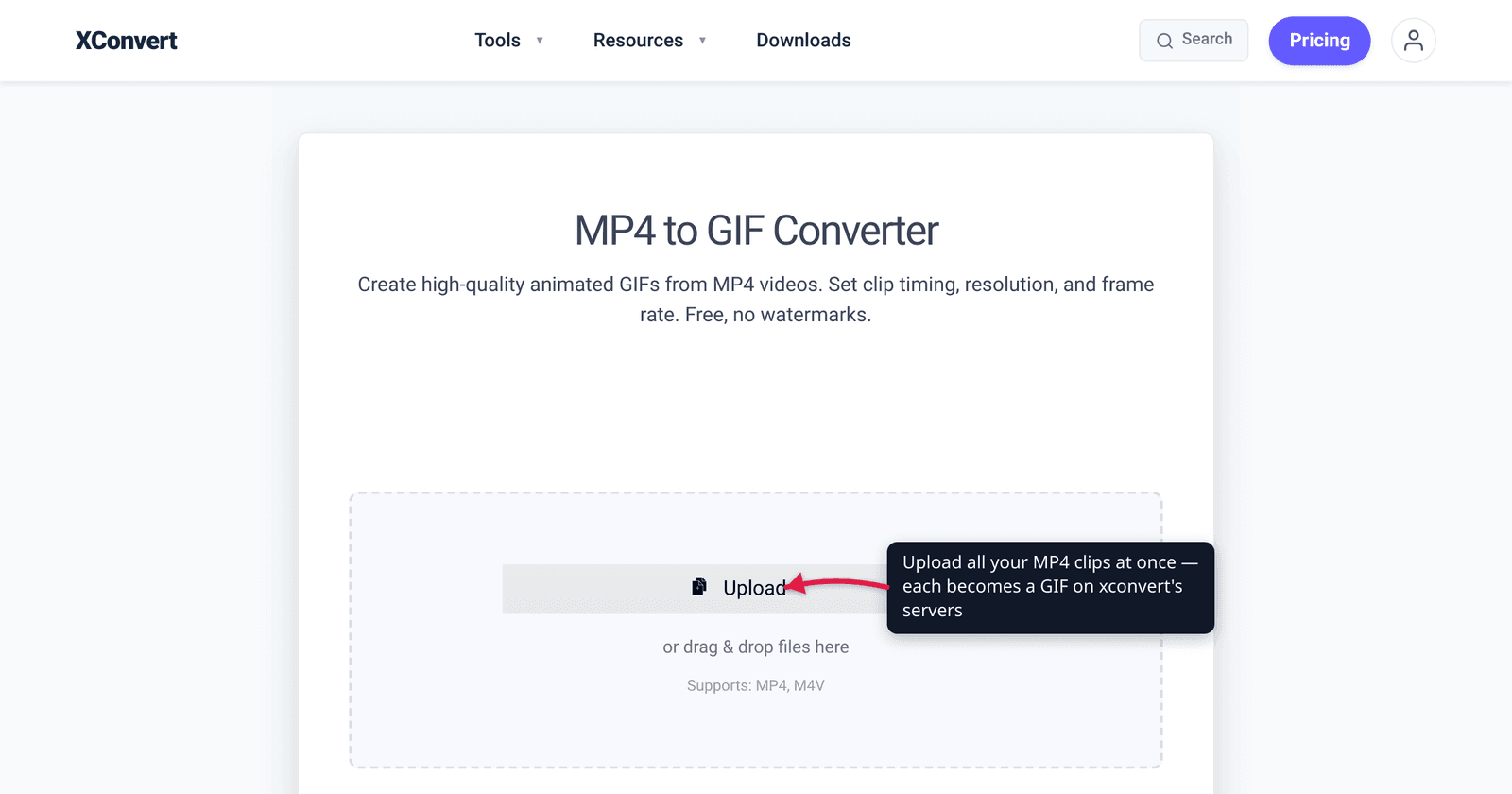
You shot a dozen short MP4 clips for a product page — or a stack of screen recordings for a tutorial — and now every one of them needs to become a GIF, at the same frame rate and quality so they look like a set. Doing that one file at a time, re-typing the settings each round, is the slow way. The faster way is a multi-file upload: drop all the clips in at once, set the frame rate, resolution, and quality a single time, and convert the whole group with those shared settings. This guide shows exactly how that works on xconvert — and, importantly, what its multi-file behavior actually is (we uploaded two clips and watched it run, so the steps below describe the real UI, not a marketing promise).
Quick answer: xconvert’s MP4-to-GIF converter accepts multiple MP4 files in one upload (the file picker is multi-select; you can drag in several at once). You set one shared set of options and they apply to every file in the list. Out of the box that means two controls: File Compression, which opens on Quality preset set to High (Recommended), and Framerate, which is always on screen at 10 FPS (Recommended). Switch File Compression to Custom and the manual knobs — Image quality (%), Image resolution / Width / Height, Colors — appear and are shared too; switch it to Max file size and you can cap every GIF in the batch at the same ceiling. Hit Convert once and each clip is processed into its own GIF, then listed individually on the Downloads page with a Download button per file. There is no single “Download All” zip — you grab each GIF from its own card. It is a batch upload with shared settings, not a one-at-a-time queue you babysit.
Jump to a section
- What “batch” actually means here
- Step 1: set your shared settings (do this first)
- Batch-convert multiple MP4s to GIFs on xconvert
- Keeping every GIF consistent
- When a true bulk pipeline beats a browser tool
- FAQ
What “batch” actually means here
It’s worth being precise, because “batch” gets used loosely. Here is the verified behavior on xconvert’s MP4-to-GIF tool:
- Multi-file upload. The Upload control’s file input is multi-select (
multiple), and the page supports drag-and-drop of several files. Add two, five, or a dozen MP4s and they all land in a single list. - One settings panel for the whole group. A single Advanced Options panel applies to every file in the batch. File Compression (Quality preset / Custom / Max file size) and Framerate are on screen from the start; flipping File Compression to Custom reveals the manual knobs — Image quality (%), Image resolution / Width / Height, Colors — which are shared across the batch just the same. You can’t tune each clip separately in one pass; that’s the point, and it’s what keeps the outputs consistent.
- One Convert click. Press Convert once and the group is processed on xconvert’s servers.
- Individual outputs. Each MP4 becomes its own GIF. On the Downloads page every file appears as a separate card (
yourclip.GIF) with its own Download button. There’s a Delete All / Clear All for housekeeping, but no single zip-everything button.
So if your mental model is “I’ll queue files and convert them one at a time,” that’s not it — and you don’t need to. The model is: load the set, set the look once, convert, collect each GIF. That’s faster and it guarantees they match.
Step 1: set your shared settings (do this first)
Because the settings apply to the whole batch, decide them up front. Start with the two controls that are always on screen, then decide whether you need the manual knobs at all:
- File Compression — the mode switch, and the first decision. It opens on Quality preset with High (Recommended) selected; the ladder runs Highest · Very High · High (Recommended) · Medium · Low · Very Low · Lowest, and one pick governs the whole batch. Choose Max file size instead if every clip has to clear the same ceiling: the Size limit dropdown offers Custom size %, Custom size value (a number plus B / KB / MB), or the ready-made Discord (10 MB max), Email (25 MB max) and Forum (2 MB max) caps — you type the target and the converter searches for settings that land at or under it, per file. Choose Custom only when you want to drive the individual knobs below yourself.
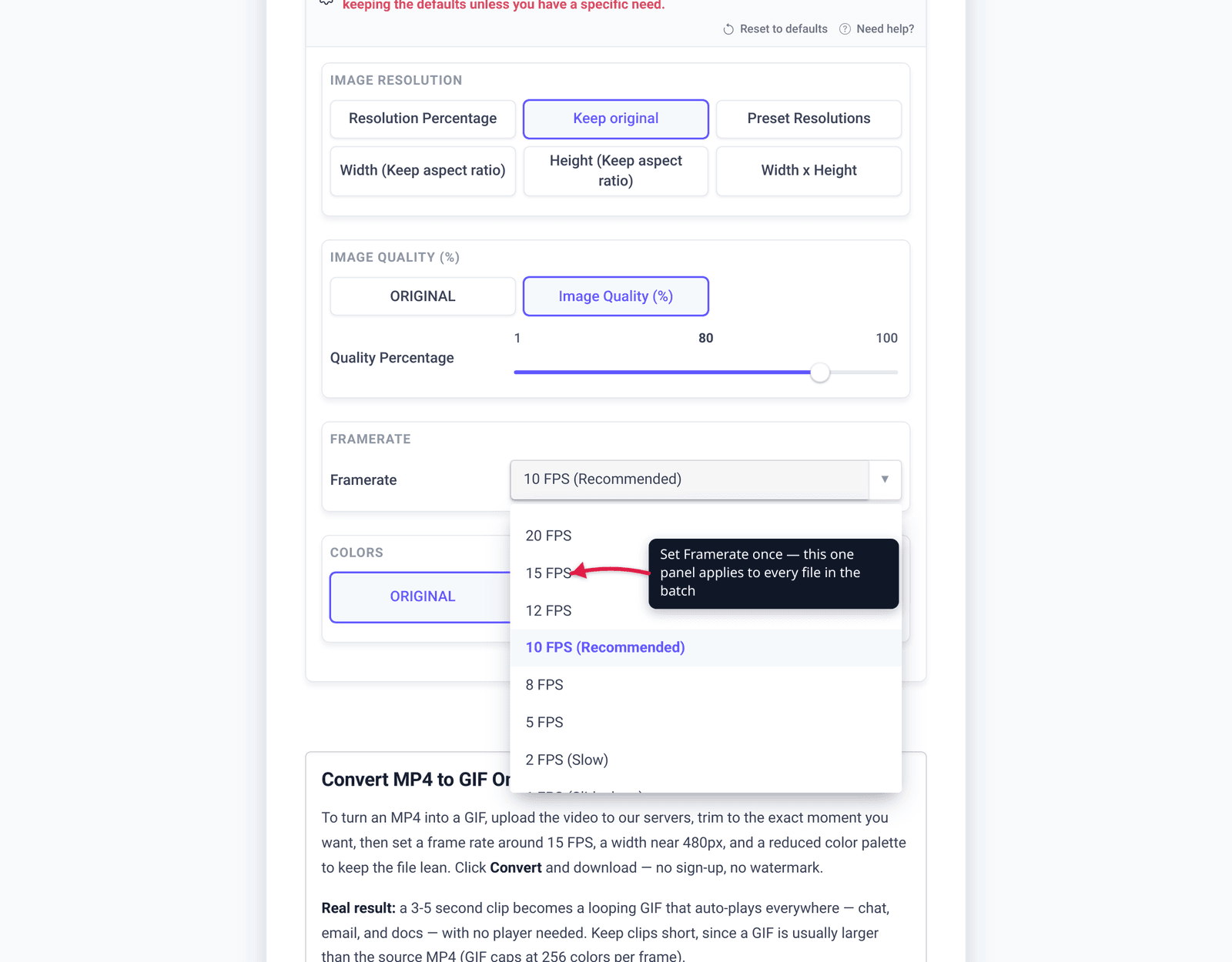
- Framerate — always visible whatever mode you’re in, and defaults to 10 FPS (Recommended). GIF playback is browser-limited (effectively around ~50 FPS in practice, and many viewers throttle short delays harder), so 10–15 FPS is the sweet spot: smooth enough, far smaller than 30. Pick one rate for the whole set.
The next three appear only after you set File Compression to Custom — they are not on the panel in Quality preset or Max file size mode:
- Image resolution / Width / Height — GIF file size scales with pixel count, so shrinking dimensions is the single biggest size lever. Set a Resolution Percentage, a Preset Resolution, or an explicit Width (Keep aspect ratio) (height follows). A common, consistent choice is a fixed width like 480 px across the whole batch.
- Image Quality (%) — controls the lossy step before palette mapping; it starts at 80 on this page. Lower it for smaller files; keep it high when fidelity matters.
- Colors — GIF is a palette format capped at 256 colors per frame (W3C GIF89a spec). The By Color Reduction + Dither option trades some palette size for smaller files; ORIGINAL keeps the fuller palette. Use the same choice across the set so none of your GIFs looks out of place.
Once those are dialed in, you never touch them again for this batch — every clip inherits them.
Batch-convert multiple MP4s to GIFs on xconvert
Here’s the actual workflow, using the labels that appear on the page:
- Open xconvert.com/convert-mp4-to-gif and click Upload (or drag your files onto the drop zone). In the picker, select all your MP4 files at once — the input is multi-select — or choose + Add Files to add more. You can also pull them From Google Drive or From Dropbox. All the clips appear together in one list; use the per-file remove control to drop any you didn’t mean to add.
- Open Advanced Options (the gear icon). Set Framerate (e.g. keep 10 FPS (Recommended) or bump to 15 FPS) — it’s shared by every clip.
- Decide the File Compression mode. Leaving it on Quality preset / High (Recommended) is the fastest path and gives the whole set a matching look. If every GIF has to fit a ceiling, pick Max file size and set Size limit — Custom size value to type a number, or Discord (10 MB max) / Email (25 MB max) / Forum (2 MB max) for the common ones. The cap is applied to each file individually, at or under the target, best effort.
- Only if you want the manual knobs: set File Compression to Custom. That reveals Image quality (%) (starts at 80), Image resolution — Resolution Percentage, a Preset Resolution, or a Width (Keep aspect ratio) such as 480 — and the Colors mode (ORIGINAL or By Color Reduction + Dither). All of them are shared across the batch.
- Click Convert. xconvert processes the whole group on its servers and takes you to the Downloads page.
- On Downloads, each clip is its own card —
clip1.GIF,clip2.GIF, … — with a Download button per file. Download each GIF; use Delete All to clear the list when you’re done. (Conversion runs server-side, so you can close the tab and come back to the Downloads page while it finishes.)
Your files are uploaded over an encrypted connection, processed on our servers, and deleted automatically a few hours later — nothing is kept around.
If you only need one high-fidelity GIF and want to understand every quality knob in depth, see How to Convert MP4 to GIF in High Quality — the settings logic there applies to each file in your batch too.
Keeping every GIF consistent
The whole reason to batch (rather than convert files individually) is consistency, and the shared-settings model gives it to you for free:
- Same frame rate → the clips animate at the same cadence, so a row of GIFs on a page doesn’t have one stuttering at 8 FPS next to another at 24.
- Same width → they line up visually and load with predictable weight. If your destination is a grid, a fixed width like 480 px (or 320 px for thumbnails) across the set is the move.
- Same quality and color mode → no odd one out with visible banding or a heavier palette.
One caveat that follows from “one settings panel for all files”: if your source clips have different aspect ratios, a fixed Width (Keep aspect ratio) is safer than forcing both Width and Height — fixing both would distort clips whose shape doesn’t match. Set width only and let height follow. If a few clips genuinely need different treatment (very different lengths or aspect ratios), run them as a second small batch with their own settings rather than fighting one shared panel.
If after conversion any GIF is still too heavy for where it’s going — Discord, Twitter/X, email — push it through How to Make a GIF Smaller Without Losing Quality rather than re-converting from scratch.
When a true bulk pipeline beats a browser tool
A multi-file upload is ideal for the common case: a handful to a few dozen clips, converted once with a shared look. For hundreds of files, or a step you need to run repeatedly and unattended (a build that regenerates GIFs nightly), a scripted pipeline fits better. The browser tool’s strength is the in-between zone most people are actually in: I have a batch of clips, I want them to match, and I want it done now without installing anything.
FAQ
Can I convert multiple MP4s to GIF at the same time?
Yes. xconvert’s MP4-to-GIF converter lets you select multiple MP4 files in one upload (the file picker is multi-select, and you can drag several in at once). You set the options once — File Compression and Framerate are on the panel by default, and switching File Compression to Custom adds resolution, quality and colors — and they apply to every file. After you click Convert, each clip becomes its own GIF on the Downloads page with its own Download button.
Does each file keep its own settings, or are they shared?
Settings are shared across the whole batch. There’s a single Advanced Options panel, and every choice on it — the File Compression mode, Framerate, and (once File Compression is set to Custom) resolution, quality and colors — applies to every clip in the list. That’s a feature, not a limitation — it’s what makes a set of GIFs look consistent. If a few clips need different settings, run them as a separate batch.
Is there a “Download All” button to grab every GIF at once?
No single zip-all button. Each converted GIF appears as its own card on the Downloads page with an individual Download button, and there’s a Delete All / Clear All to tidy up. You download each GIF from its card. (Tip: download them right after conversion, since files are removed from the server automatically a few hours later.)
Does it process the files one at a time or all together?
You upload and configure them together and convert with one click — it’s a batch upload, not a queue you advance manually. The outputs are then listed individually so you can grab each finished GIF. Because conversion runs on xconvert’s servers, you can close the tab and return to the Downloads page while it completes.
What’s the best frame rate and width for a batch of GIFs?
Around 10–15 FPS and a fixed width like 480 px is a solid, consistent default. Framerate is on the panel by default; the width lives under Image resolution, which only appears once you set File Compression to Custom. GIF playback is browser-limited (roughly ~50 FPS at the extreme, and many viewers throttle further), so 30 FPS rarely pays off in size. A fixed width keeps every GIF the same visual weight; let height follow via Width (Keep aspect ratio) so clips with different shapes don’t get distorted.
Why do my GIFs look worse than the MP4s?
GIF is a palette format limited to 256 colors per frame (W3C GIF89a spec), so gradients and rich color can band — that’s inherent to the format, not the converter. The quickest fix is to move File Compression / Quality preset up from High (Recommended) to Very High or Highest. For hand control, set File Compression to Custom, keep Image quality (%) high and try the ORIGINAL color mode for the most faithful palette; use By Color Reduction + Dither only when you need the size win. For truly color-critical, looping web video, an MP4 or WebM beats GIF outright — see GIF vs MP4: File Size.
Sources
Last verified 2026-08-31.
- xconvert MP4-to-GIF converter — the live tool; multi-file behavior and the per-file Downloads page were verified by uploading two clips and running a conversion. Control labels re-checked 2026-08-31 against the live option set: File Compression (Quality preset, default High (Recommended) / Custom / Max file size) and Framerate (default 10 FPS (Recommended)) render by default; Image quality (%) (default 80), Image resolution / Width / Height and Colors render only in Custom mode.
- W3C — GIF89a specification — the GIF Global/Local Color Table maximum is 256 entries (max field value yields 2^8 = 256 colors per frame).
- GIF — Wikipedia — cross-reference for the 256-color-per-frame palette model and per-frame local palettes (citation chain leads back to the GIF89a spec above).