 By Stephanie Taylor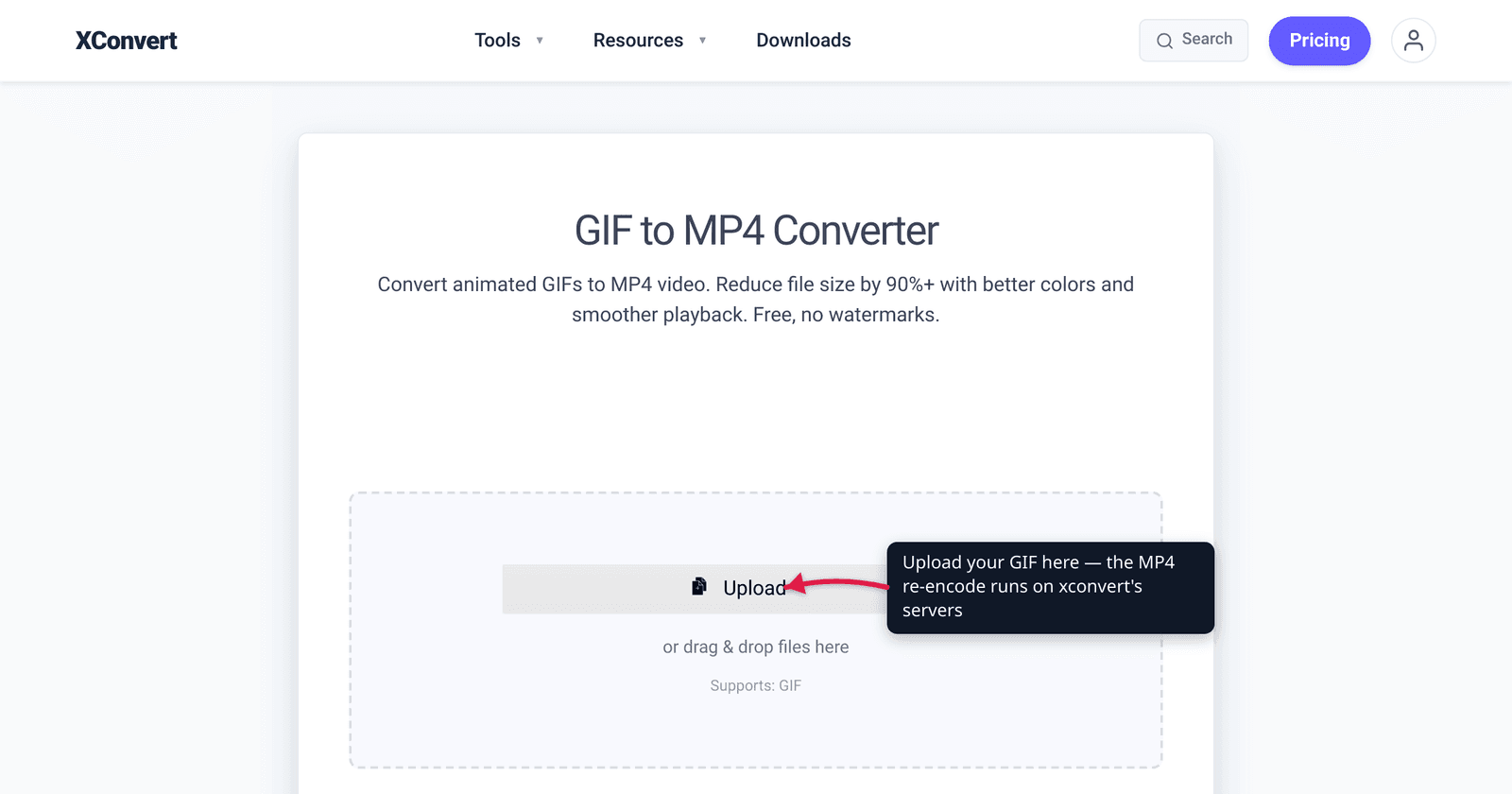
You made a slick 6-second screen recording, saved it as a GIF to share in a Slack channel and embed in a doc — and it weighs 14 MB. The same clip as an MP4 is often a small fraction of that, looks sharper, and plays on essentially every device made in the last decade. Converting a GIF to MP4 is one of the highest-leverage swaps you can make for any moving image you share: it trades a 1987 image format that was never built for video for a real video codec. This guide covers the practical reasons to do it, the one honest tradeoff (GIFs loop and inline-autoplay as a plain image; MP4 needs a little markup to do the same), and how to convert in a couple of clicks. We verified the browser-support, audio, and autoplay claims against caniuse and MDN.
Quick answer: Convert a GIF to MP4 when you want a smaller file that plays everywhere. MP4 with the H.264 codec uses real video compression (full color + frame-to-frame differencing), so it’s often several times smaller than the GIF — and H.264 plays in ~96.65% of browsers plus every modern phone, TV, and editor. MP4 can also carry audio, which GIF cannot. The one caveat: a GIF loops and autoplays automatically as an
<img>; an MP4 needs<video autoplay muted loop playsinline>to behave the same way inline. Use the GIF to MP4 converter.
Jump to a section
- Why convert a GIF to MP4 at all
- MP4 is much smaller — and that’s the whole point
- MP4 plays everywhere (and can carry audio)
- The honest tradeoff: looping and inline autoplay
- When to keep the GIF (or use WebM)
- Convert a GIF to MP4 on xconvert
- FAQ
Why convert a GIF to MP4 at all
A GIF is an image format pressed into service as video. It dates to 1987 and was designed for logos, icons, and simple line art — so when you push a screen recording or a video clip through it, you get a big, blocky, dithered file. An MP4 is a video container holding a real video codec (almost always H.264), which is engineered for exactly this job.
The payoff of converting comes down to four practical wins:
- Much smaller files — real video compression instead of a per-frame flipbook.
- Universal playback — H.264 plays on essentially everything.
- Better-looking results — full color instead of GIF’s 256-color ceiling, so no banding or dithering noise.
- Audio, if you want it — MP4 can carry a sound track; GIF physically cannot.
The mechanism behind the size win — GIF’s 256-color palette, lossless LZW, and lack of inter-frame compression versus H.264’s key frames and motion prediction — is a topic of its own; we cover it in depth in GIF vs MP4 file size: why the GIF is so much bigger. Here we focus on why you’d convert and how to do it.
MP4 is much smaller — and that’s the whole point
The headline reason people convert is size. A GIF stores each frame as a near-complete 256-color image and has no way to reuse the pixels that didn’t change between frames. H.264 does the opposite: it stores occasional full key frames and then encodes most frames as just the differences from their neighbors, in full color. For the screen recordings, reaction clips, and product demos people actually turn into GIFs, that structural difference collapses huge amounts of redundancy.
How much smaller? It depends on the content, and anyone quoting a single universal ratio is guessing. A flat-color UI loop with little motion shrinks only modestly — GIF’s LZW already handles big flat regions reasonably. A photographic or motion-heavy clip is where MP4 pulls dramatically ahead, often several times smaller or more, because full color avoids dithering bloat and inter-frame prediction collapses the redundant background. The honest framing: converting an animated GIF to MP4 very often produces a substantially smaller file, frequently by several times — but the exact factor varies with resolution, length, color complexity, and motion.
The practical consequence is that “compress the GIF harder” is usually the wrong fix. Squeezing a GIF works only within the format’s hard limits and typically buys you 20–30%. Converting to MP4 addresses the cause — the format — rather than the symptom.
MP4 plays everywhere (and can carry audio)
Smaller would be a hollow victory if the file didn’t play. It does. H.264-in-MP4 is the most broadly compatible video combination in existence — per caniuse, the MPEG-4/H.264 video format has roughly 96.65% global browser support, and it’s playable in every modern browser (Chrome, Firefox, Safari, Edge), every phone, every smart TV, and every video editor. If a device can play video at all, it can almost certainly play your converted MP4.
Two more compatibility notes worth knowing:
- Audio. GIF has no audio track at all — the format simply can’t store sound (MDN’s image format guide documents GIF as an image format with no audio capability). MP4 can carry an audio track (commonly AAC). So if your source had sound and you want to keep it, MP4 is the only one of the two that can.
- Social and chat platforms like Reddit, Discord, X/Twitter, and Slack natively accept MP4 uploads and play them inline, frequently auto-looping short clips the same way they treat GIFs — while serving a much smaller file to everyone who views it.
The honest tradeoff: looping and inline autoplay
MP4 wins on size, quality, compatibility, and audio. But there is one genuine thing a GIF does that an MP4 doesn’t do for free, and it’s worth being clear about it.
A GIF is an image. Drop it into an <img> tag, an email signature field, an old forum, or a CMS upload box, and it loops and plays automatically with no controls, no JavaScript, and no special markup — because that’s just how an animated image behaves. An MP4 is a video, so to reproduce that “it just plays, silently, forever” behavior inline you need a <video> element with the right attributes:
<video autoplay muted loop playsinline>
  <source src="clip.mp4" type="video/mp4" />
</video>autoplaystarts it without a click,looprestarts it at the end,playsinlinekeeps it in place on mobile instead of going fullscreen, andmutedis required — MDN notes that modern browsers block videos with an unmuted audio track from autoplaying, so an autoplaying inline MP4 must be muted.
There’s a related subtlety: unlike GIF (whose Netscape loop extension stores looping in the file itself), the MP4 container has no intrinsic loop flag — looping is the player’s job, which is why you add loop in HTML, and why platforms decide for themselves whether to loop uploaded videos. None of this is hard, but if your destination only accepts a plain image — some chat inputs, email signature fields, certain wikis — a GIF “just works” where an MP4 can’t be embedded at all. That’s the one place to keep the GIF.
When to keep the GIF (or use WebM)
Convert to MP4 for nearly everything: screen recordings, tutorials, reaction clips, product demos, anything with photographic content or real motion, and anything you’re uploading to a platform that accepts video. Keep a GIF only when:
- The destination accepts only an image, not video — an email signature field, an older forum, a CMS or wiki box that embeds an
<img>but won’t take a<video>upload. - You need zero-markup autoplay-loop as a plain image and can’t add a
<video>element.
If your target is the web and you control the page, there’s a third option worth considering: WebM, which can be smaller still than H.264 MP4 at equivalent quality for self-hosted video. We cover when it’s the right call in WebM compression for self-hosted web video. For maximum compatibility, though, H.264 MP4 remains the safe default.
Convert a GIF to MP4 on xconvert
The xconvert GIF to MP4 converter does the re-encode for you:
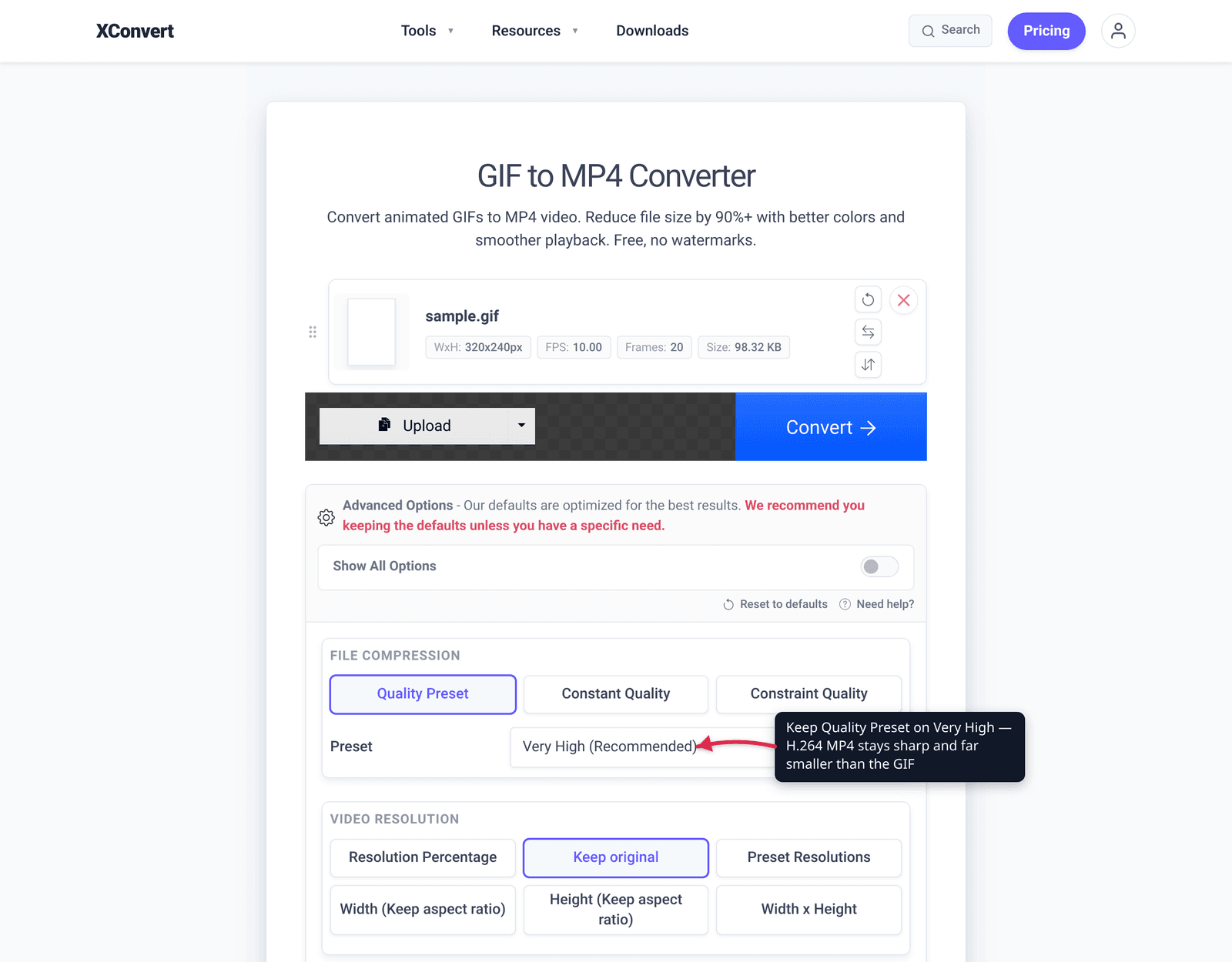
- Open the GIF to MP4 Converter and click + Add Files to select your GIF (from your computer, Google Drive, or Dropbox). Your file uploads over an encrypted connection and is processed on our servers.
- Leave the Quality Preset on Very High (Recommended) for the cleanest result — because MP4 uses full color, a high-quality export usually looks as good as or better than the GIF while still being far smaller. Drop it to High, Medium, or Low if you want a smaller file.
- (Optional) Open Advanced Options to fine-tune File Compression (Constant Quality vs Constraint Quality) or set the Video resolution — keep the original, pick a Resolution Percentage, or choose a preset width/height — if you need specific dimensions.
- Click Convert, then download your MP4.
Your file uploads over an encrypted connection, is processed on our servers, and is automatically deleted a few hours later. Nothing stays around.
For the deeper “why,” see GIF vs MP4 file size; if your destination needs a smaller self-hosted web video instead, compare WebM compression.
FAQ
Why convert a GIF to MP4?
To get a smaller file that plays everywhere. MP4 with H.264 uses real video compression (full color plus frame-to-frame differencing), so the same animation is often several times smaller than the GIF, looks sharper, and plays on essentially every modern browser, phone, and app. MP4 can also carry audio, which GIF cannot. The main thing you give up is GIF’s zero-markup, plays-as-an-image autoplay-loop behavior.
How much smaller will the MP4 be than the GIF?
It varies with the content, and there’s no single universal ratio. Photographic or motion-heavy clips — screen recordings, video reactions — shrink dramatically because full color and inter-frame compression both help. Flat, simple, or very short animations shrink less because GIF already handles those reasonably. The reliable statement is that converting an animated GIF to MP4 very often produces a substantially smaller file, frequently by several times.
Does converting a GIF to MP4 lose quality?
H.264 is a lossy codec, so a re-encode isn’t bit-for-bit identical. In practice it usually looks as good or better, because MP4 supports full color while GIF is capped at 256 — so you actually lose the GIF’s dithering and banding. Keeping the Quality Preset on “Very High (Recommended)” gives a visually clean result that’s still much smaller than the source GIF.
Will the MP4 loop and autoplay like my GIF did?
Not automatically — looping and inline autoplay are the player’s job for video, not a property of the MP4 file. On your own webpage, use <video autoplay muted loop playsinline> to reproduce GIF-like behavior (the video must be muted to autoplay in modern browsers, per MDN). Most social and chat platforms — Reddit, Discord, X/Twitter, Slack — auto-loop short uploaded videos for you.
Can an MP4 have sound when a GIF can’t?
Yes. GIF has no audio track at all, so a GIF is always silent. MP4 can carry an audio track (commonly AAC), so if your original clip had sound, converting to MP4 lets you keep it — whereas a GIF would discard it.
Should I compress my GIF or convert it to MP4?
If the destination accepts video, convert to MP4 — that fixes the actual cause of the bloat. Compressing a GIF only works within the format’s hard limits (256 colors, no inter-frame compression), so the savings are capped around 20–30%. Only compress the GIF if you’re locked into a place that requires a GIF specifically.
Sources
Last verified 2026-06-25.
- caniuse — MPEG-4 / H.264 video format — ~96.65% global browser support; playable in all modern browsers (Chrome, Firefox, Safari, Edge).
- MDN — HTML video element —
autoplay,muted,loop,playsinlineattributes; modern browsers block unmuted video from autoplaying (autoplay requires muted). - MDN — Image file type and format guide — GIF is a 256-color indexed image format with animation but no audio capability.