 By James
A folder of 300 MP3s ripped at 320 kbps is roughly 2.4 MB per minute of audio, and a phone or a car USB stick runs out of room long before you run out of albums. Doing them one at a time is not a plan. The part most guides skip is that the setting you’d pick for a single file is the wrong one for a folder — a fixed byte target that makes sense for one podcast episode quietly wrecks a batch containing both three-minute singles and hour-long mixes. Here is how to choose a batch control that behaves sensibly across every file, and what to check before you commit the whole folder.
Quick answer: Select every file in the folder and upload them together — xconvert’s audio compressor processes the whole batch with one set of settings, and each finished file gets its own Download button in the list. There is no download-everything ZIP for a many-in, many-out batch. For a music library, pick Constant Bitrate (128–192 kbps) so every track gets the same quality and sizes stay proportional to length. For “shrink this whole folder by roughly half,” pick File Size Percentage. Do not use Specific file size on a mixed batch — it applies the same byte target to a 3-minute single and a 90-minute mix. Run one file first and check it before you queue the rest.
Jump to a section
- Pick the right batch control
- How much a minute of audio costs at each bitrate
- Run one file first
- What batch compression will not do
- Batch-compress a folder on xconvert
- FAQ
Pick the right batch control
Every file in a batch is processed with the same settings. That is the whole design constraint, and it decides which control is correct.
| Control | What it does across a batch | Use it when |
|---|---|---|
| Constant Bitrate | Every file is re-encoded at the same kbps. Output size ends up proportional to each file’s duration. | You want a consistent-quality library — music for a phone, a car USB stick, a DAP. This is the right default for a folder. |
| File Size Percentage | Each file is shrunk to the same fraction of its own size. A 90 MB file and a 4 MB file both come out at, say, 50%. | You want the whole folder roughly N% smaller and you don’t care about a uniform bitrate. |
| Specific file size | The same absolute target — say 8 MB — is applied to every file in the batch. | A single file has to clear a hard cap. Avoid it on a mixed folder: a short track and a long mix do not belong at the same byte count. |
The distinction matters most on folders with wildly varying durations — a podcast archive, a DJ set collection, a folder of lecture recordings mixed with intro stings. Constant Bitrate is duration-neutral; File Size Percentage is size-relative; Specific file size is neither, and on a batch it is the one that produces surprises.
One more control worth knowing: Audio Channel. Setting it to MONO does not shrink a constant-bitrate file — the bitrate is the bitrate — but it makes a given bitrate sound considerably better on spoken-word material, because the encoder no longer splits its budget across two channels. If you are running a percentage or an exact-size target instead, mono lets the encoder hit that target with less audible damage. For music, leave it on ORIGINAL.
How much a minute of audio costs at each bitrate
Constant Bitrate is predictable in a way percentages are not, because the arithmetic is fixed: bitrate × duration ÷ 8 = bytes. One minute at 128 kbps is 128,000 × 60 ÷ 8 = 960,000 bytes, or about 0.96 MB.
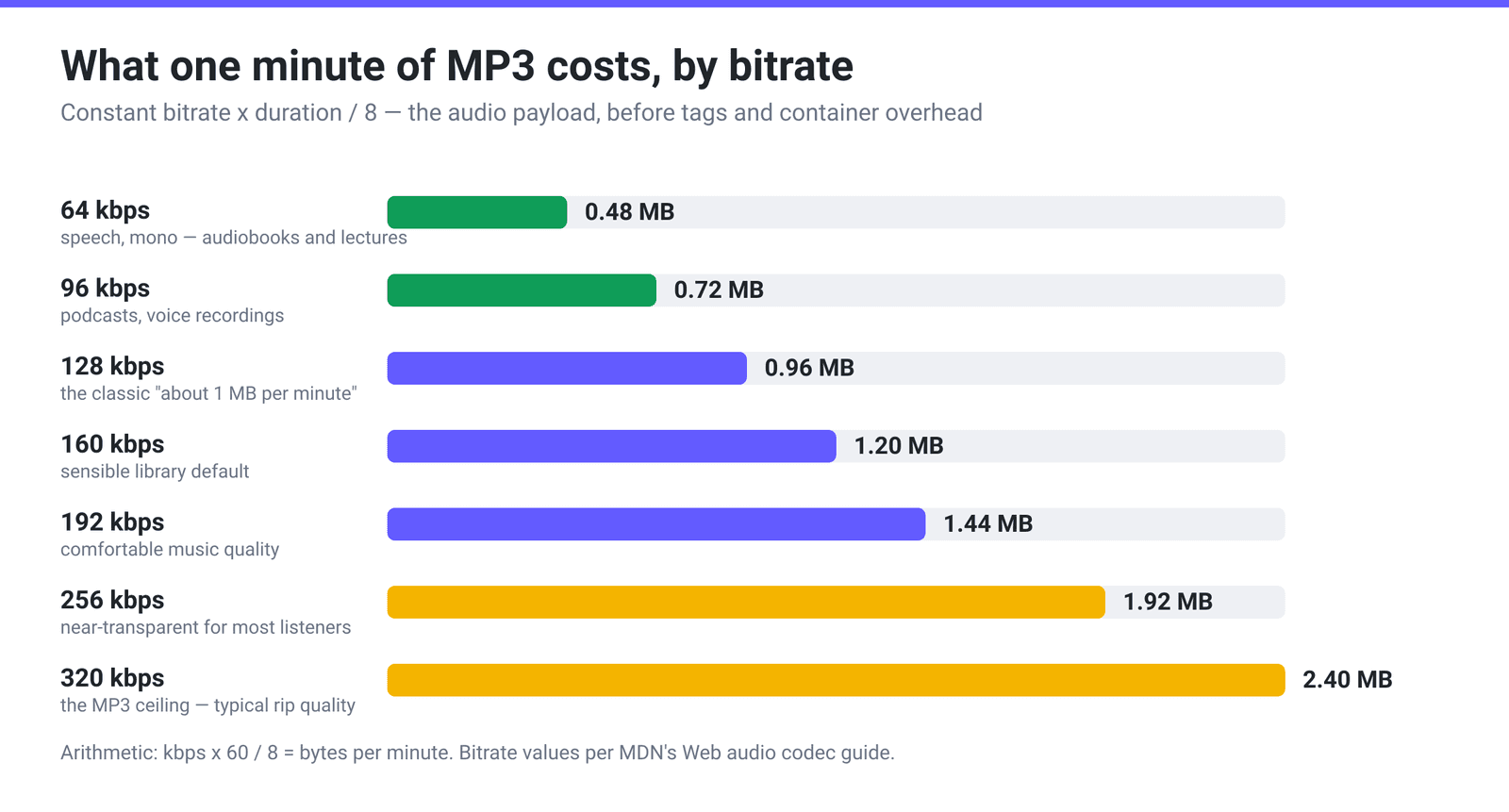
Multiply by the total running time of the folder and you have your answer before you upload anything. A 400-minute library (roughly 100 four-minute tracks) works out at about 960 MB at 320 kbps, 480 MB at 160 kbps, and 384 MB at 128 kbps. Tags and container overhead add a little on top, so treat these as floors rather than exact totals.
That is also the honest way to answer “which bitrate should I use”: pick the lowest rung whose total fits your destination, then listen to one file at that rung before committing the folder.
Run one file first
This costs you thirty seconds and saves re-running a 300-file job.
- Compress a single representative track — not the shortest one, and not the outlier. Something typical of the folder.
- Listen to it on the device you actually care about. Laptop speakers hide almost everything; the artifacts that matter show up on headphones or in a car.
- Check the tags survived. Open the output in your music player and confirm artist, album and artwork read the way you expect. If something is missing, you want to know now, not after the batch.
- Check the size landed where you predicted. If a 4-minute track at 160 kbps came out near 4.8 MB, the arithmetic above holds and you can extrapolate to the whole folder.
Only then select the rest of the folder and run it with the same settings.
What batch compression will not do
Three expectations worth resetting before you start, because each one sends people looking for a setting that does not exist.
It will not even out the volume. This is the single most common misunderstanding of the phrase “audio compressor.” In file terms, compression means fewer bytes. In audio-engineering terms, a compressor is a dynamics processor that reduces the gap between loud and quiet. xconvert’s audio compressor does the first thing only — there is no gain, normalise, loudness or ReplayGain control anywhere in it. If your problem is that one album is much quieter than the next, you need a loudness-normalisation tool, not a file compressor.
It will not recover quality later. MP3 is a lossy format — MDN’s codec guide lists its compression flatly as “Lossy” — so re-encoding an MP3 at a lower bitrate decodes the already-reduced audio and throws away more of it. The detail discarded in the first encode does not come back, and the second pass removes more. Keep your originals somewhere until you are certain the compressed set is good. This is exactly why the pilot-file step above is worth the thirty seconds.
It will not reorganise your folder. The output is a list of compressed files you download one row at a time; sorting, renaming and re-filing them into your library is still your job.
Batch-compress a folder on xconvert
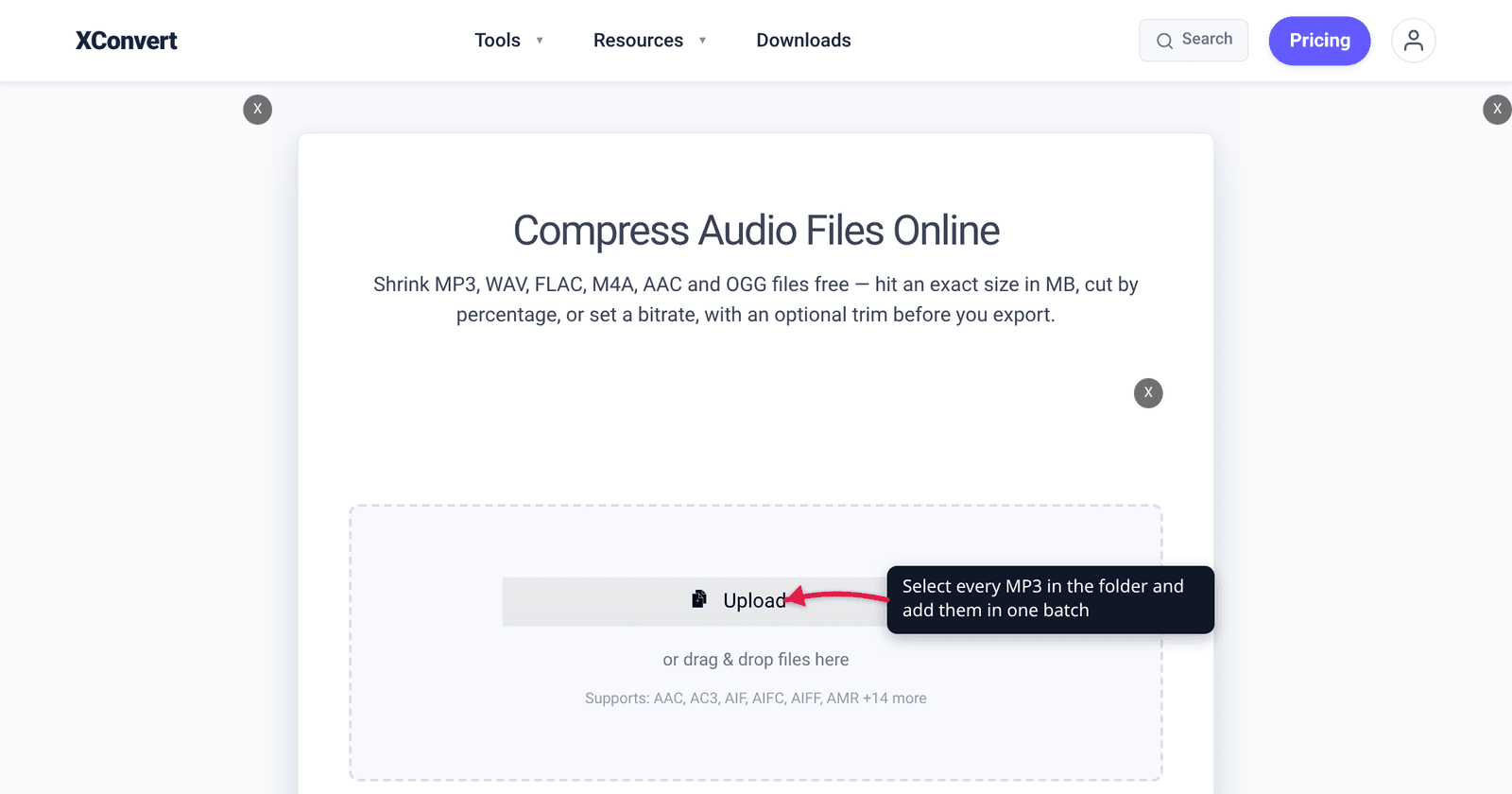
- Open xconvert.com/audio-compressor and click Upload ▸ From my Computer. In the file picker, open your folder and select every file inside it (Ctrl+A on Windows, ⌘A on macOS), or drag the selected files onto the page. Batch is supported.
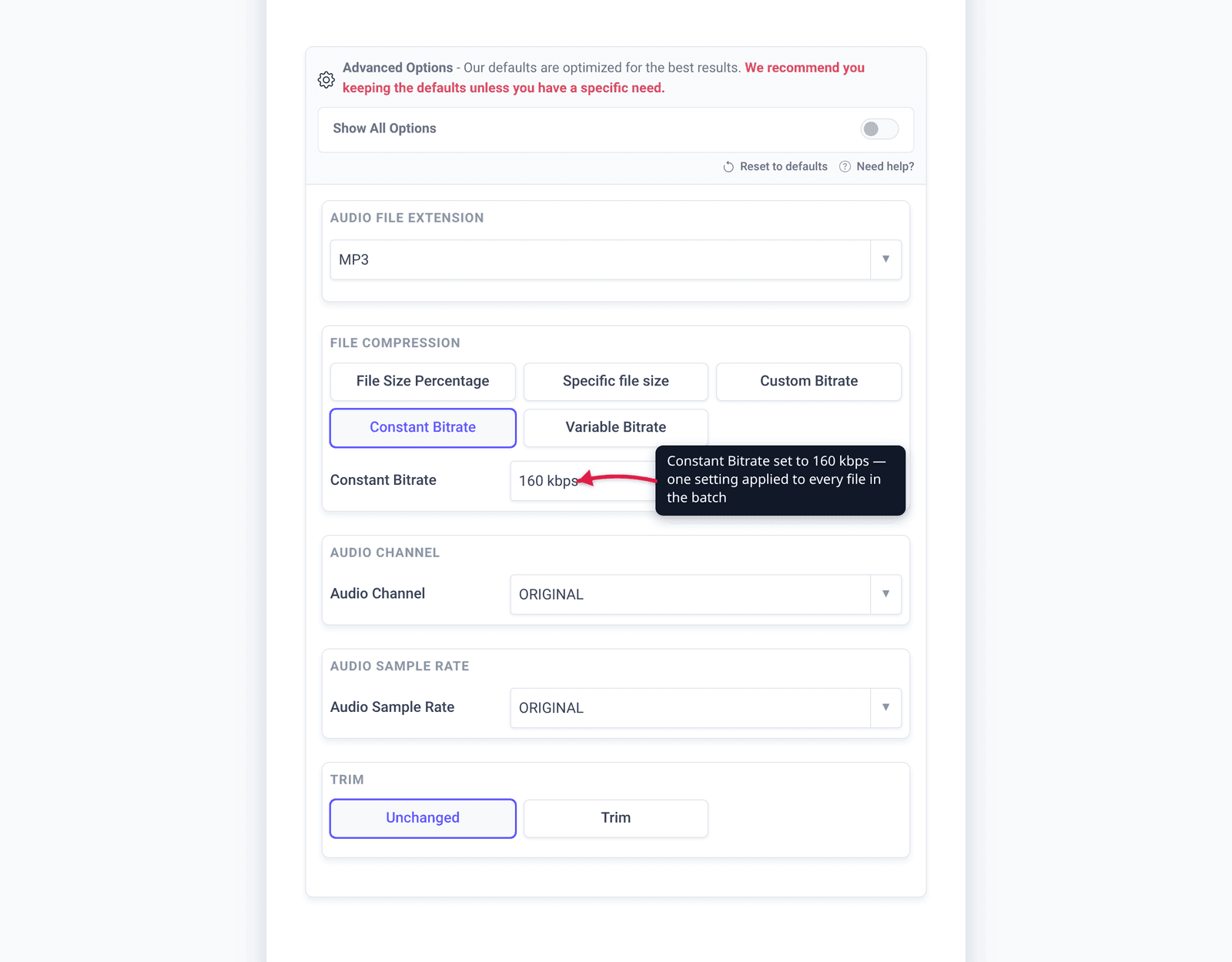
- Open Advanced Options. Leave Audio File Extension on MP3 — it’s already selected — so you get MP3s back rather than a format change.
- Under File Compression, pick your batch control. Constant Bitrate opens a dropdown running from 8 kbps to 384 kbps; 160 kbps is a sensible library setting. Or choose File Size Percentage and drag the File size (%) slider, which starts at 80.
- Optional: set Audio Channel to MONO for spoken-word folders, or use Audio Sample Rate to step a voice archive down to 24000 HZ. Leave both on ORIGINAL for music.
- Click Compress, then download each finished MP3 from its own row. Your browser will ask permission to download multiple files — allow it once and the rest go through. There is no single ZIP of the whole batch, so watch the list for any file that failed rather than assuming a complete set.
Your files upload over an encrypted connection, are processed on our servers, and are deleted automatically a few hours later. No sign-up, no watermark.
xconvert’s own production data, published on the audio compressor page, puts the median audio file at about 50% smaller after compression — a 9.4 MB file coming out near 4.7 MB. There is no published maximum on how many files a batch may contain; if a very large folder feels slow, the constraint is upload time rather than a file-count rule, so splitting it into a couple of runs is a reasonable move.
For the reasoning behind a specific number rather than a folder-wide setting, see how to compress audio to a target size; for what each bitrate actually sounds like, MP3 bitrate: 128 vs 256 vs 320 kbps.
FAQ
How do I compress a whole folder of MP3s at once?
Select the files rather than the folder. Open the folder inside the upload dialog, press Ctrl+A (Windows) or ⌘A (macOS) to select everything in it, and add them in one go — or drag the selected files onto the page. All of them are then processed with the same settings, and each result gets its own Download button in the list. There is no single ZIP of a many-in, many-out batch — allow your browser’s “download multiple files” prompt once and the rest go through.
How many files can I compress in one batch?
There is no published maximum file count or total size for a batch, so this article won’t invent one. The practical limit you’ll actually hit is upload time: a folder of a few hundred MP3s is a lot of megabytes to push over a home connection. If a huge folder feels slow, split it into two or three runs with identical settings — the results are the same.
Should I use a percentage or a bitrate for a whole folder?
Use Constant Bitrate if you want every track to sound the same, which is what you want for a music library — sizes then vary with track length, exactly as they should. Use File Size Percentage if your goal is expressed as “make this folder about half the size.” Avoid Specific file size on a mixed batch, because it applies one absolute byte target to every file regardless of how long each one is.
Will batch compression make all my songs the same volume?
No, and this is worth being clear about: xconvert’s audio compressor has no gain, normalise, loudness or ReplayGain control. “Compression” here means fewer bytes, not a narrower dynamic range. Volume differences between albums are a loudness-normalisation problem and need a different kind of tool entirely.
Will re-compressing MP3s I already compressed once make them worse?
Yes. MP3 is a lossy format, so each encode discards detail permanently and a second pass discards more from an already-thinned signal. If your library is already at 128 kbps, taking it to 96 kbps will be audibly worse than a fresh 96 kbps encode from a lossless source would have been. Keep the originals until you have listened to the compressed set.
What bitrate should I use for a car USB stick or a phone?
For music, 160 kbps is a good default: it works out at about 1.2 MB per minute, so a 400-minute library lands near 480 MB, and on car speakers or earbuds the difference from 320 kbps is hard to hear. For audiobooks, podcasts and lectures, drop to 64–96 kbps and set Audio Channel to MONO — speech carries almost no stereo information, so you get the same intelligibility at a third of the size.
Sources
Last verified 2026-08-31.
- xconvert audio compressor — the available controls (Audio File Extension, File Compression with all five modes: File Size Percentage / Specific file size / Custom Bitrate / Constant Bitrate / Variable Bitrate, plus Audio Channel, Audio Sample Rate and Trim), batch upload support, per-file download only (no batch ZIP), and the published production figure that the median audio file drops about 50%.
- MDN — Web audio codec guide — MP3 listed as lossy compression, and the supported MP3 bitrate values.
- Fraunhofer IIS — mp3 — the format’s origin at Fraunhofer IIS, and the note that newer ISO-MPEG codecs deliver higher quality at lower bitrates.