 By James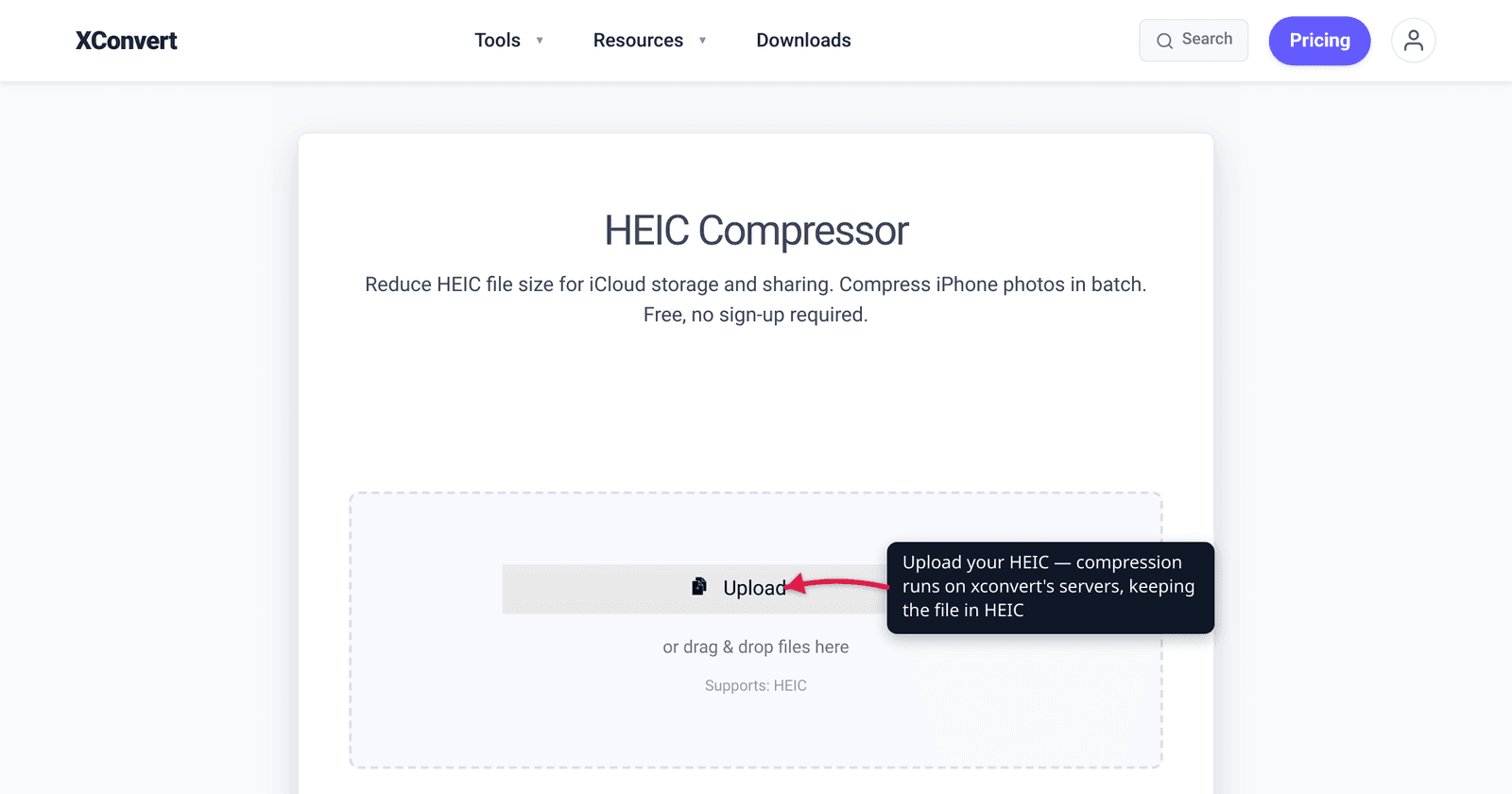
You tried to attach a single HEIC photo to a storage-limited form or email, and it was still bigger than you wanted. Here’s the catch most “compress HEIC” guides won’t tell you: HEIC is already one of the most efficient image formats in common use — roughly half the size of the same photo as a JPEG — because it’s compressed with the HEVC (H.265) video codec. So there’s far less fat to trim than there’d be in a JPEG or PNG, and the single most common “fix,” converting HEIC to JPG to shrink it, almost always makes the file bigger. This guide sets honest expectations, shows the two levers that actually work, and walks the exact steps on xconvert. We verified the efficiency claims against Apple and the ISO/MPEG standards.
Quick answer: A HEIC file is already HEVC-compressed and about half the size of an equivalent JPEG, so don’t expect dramatic shrinkage from re-compressing it. The two levers that genuinely reduce a HEIC’s size are (1) re-encoding at a lower quality and (2) reducing the pixel dimensions (resolution). Do not “compress” by converting HEIC → JPG: JPEG is the less efficient format, so that usually produces a larger file. Keep it HEIC, lower the quality and/or resolution, and the file shrinks while staying in the efficient format.
Jump to a section
- Why HEIC is already small
- The two levers that actually shrink a HEIC
- The HEIC → JPG “compression” trap
- How much smaller can you realistically get?
- Compress HEIC on xconvert
- FAQ
Why HEIC is already small
HEIC is Apple’s name for an image stored in the HEIF container (ISO/IEC 23008-12, MPEG-H Part 12) using the HEVC / H.265 codec (ITU-T H.265 / ISO/IEC 23008-2) — the same modern compression that makes 4K video files manageable, applied to a still photo. Since iOS 11, “High Efficiency” has been the default camera format on iPhone 7 and later, and Apple’s own pitch was blunt: the format “lets you take new photos with the same quality as before but at half the file size.” Apple’s support documentation puts it the same way — “HEIF and HEVC offer better compression than JPEG and H.264, so they use less storage space.”
The reason matters for compression. HEVC does far more work per pixel than JPEG’s decades-old algorithm — larger, more flexible block sizes and smarter prediction — and Fraunhofer HHI, one of the institutes behind the standard, puts HEVC at roughly 50% bit-rate reduction at the same quality versus the older H.264/AVC generation.
The practical consequence: a HEIC file has already had most of the easy savings squeezed out of it. Compressing a JPEG or PNG often means working with a format that left a lot of redundancy on the table; compressing a HEIC means shrinking something already near the efficient frontier. The headroom is real but modest — set your expectations accordingly.
The two levers that actually shrink a HEIC
There are only two things that reliably reduce a HEIC file’s size. Everything else (renaming, changing a DPI metadata tag, re-saving without changing settings) does essentially nothing to the encoded bytes.
1. Re-encode at a lower quality. HEVC is a lossy codec with a quality parameter. Lowering it tells the encoder to discard more fine detail in exchange for fewer bytes. Because HEIC starts efficient, you can often drop the quality a notch with no perceptible change on a phone screen — but past a point you’ll see softening and blocking, just as with any lossy format. One quirk to know: if a HEIC was already saved at, say, quality 70, asking an encoder for quality 80 won’t shrink it (you can’t add detail back), and may even grow it. If a quality setting doesn’t reduce the size, set it lower, not higher.
2. Reduce the pixel dimensions (resolution). This is the lever people forget, and it’s the most dependable one. A modern iPhone shoots roughly 12-megapixel images (about 4032×3024); if the photo only needs to live on the web, in a document, or in a chat, you almost certainly don’t need full resolution. Scaling 4032×3024 down to, say, 1920×1440 removes three-quarters of the pixels — and file size scales with pixel count far more directly than any quality tweak. When a HEIC is “stubborn” and won’t shrink on quality alone, downscaling is what finally moves the number.
In practice you combine the two: drop the resolution to what the photo actually needs, then trim quality a little if you need to go smaller still.
The HEIC → JPG “compression” trap
This is the most common mistake, and it’s worth stating plainly: converting a HEIC to a JPG to make it smaller usually makes it bigger. JPEG is the less efficient format — that’s the whole reason Apple switched away from it. Apple’s own framing was that HEIC delivers the same quality “at half the file size” of JPEG, which means going the other direction, HEIC → JPG, you’d commonly expect the JPEG to land around twice the size at matched quality. (The HEIF specification’s own measurements show JPEG needing on the order of 2.39× the bytes for equivalent objective quality.)
So when does HEIC → JPG make sense? When you need compatibility, not size. Outside the Apple ecosystem, native HEIC support is thin — only Safari 17+ opens HEIC in the browser; Chrome, Firefox, and Edge do not. If you’re emailing a photo to a Windows colleague or uploading to a site that rejects HEIC, convert to JPG and accept the size increase as the price of it opening everywhere. For that whole keep-vs-convert decision, see HEIC vs JPG for iPhone photos, and for the format itself, What is a HEIC file?. But if your goal is purely a smaller file, stay in HEIC and use the two levers above.
How much smaller can you realistically get?
Because HEIC starts compressed, treat any “90% smaller!” promise with suspicion — that number comes from compressing a bloated JPEG, not an already-efficient HEIC. Realistic outcomes:
| What you do | Typical effect on a HEIC |
|---|---|
| Drop quality one notch (e.g. 80 → 60) | Modest savings, often little visible loss on screen |
| Drop quality aggressively (e.g. → 40) | Larger savings, visible softening on close inspection |
| Downscale resolution (e.g. 12 MP → ~2 MP) | The biggest, most reliable reduction |
| Both together | Smallest file; tune to your size target |
| Convert HEIC → JPG | Usually bigger, not smaller (do this only for compatibility) |
The honest framing: a stubborn HEIC that’s “already small” is a sign the format did its job. If you need it meaningfully smaller, the resolution lever — not the quality slider — is what gets you there, and a tool that lets you set an exact target size will pick the settings for you.
Compress HEIC on xconvert
The xconvert HEIC compressor keeps the file in HEIC and lets you compress by quality, by resolution, or to an exact size — so you apply the levers above without guessing settings:
- Open xconvert.com/compress-heic and click Upload to add your photo (from your computer, Google Drive, or Dropbox). You can add several HEIC files at once for batch compression.
- Open Advanced Options (the gear icon). The page notes its defaults are tuned for good results, so you can also just compress with the defaults.
- Choose how to control size: Target file size (%) (marked Best) to shrink by a percentage, Specific file size to hit an exact size in MB, or the Image Quality (%) slider to set the HEVC quality directly. Leave Auto Scale on to let it downscale the dimensions intelligently when that’s what’s needed to reach your target.
- Click Compress.
- Download each result, or grab them all as a ZIP. The output stays in HEIC format, so you keep the efficient codec.
Your file uploads over an encrypted connection, is processed on our servers, and is automatically deleted a few hours later. Nothing stays around.
If the file is “compatibility-stubborn” rather than too big — it just won’t open on a non-Apple device — converting to JPG is the right move there, even though it grows; see HEIC vs JPG for iPhone photos.
FAQ
Why won’t my HEIC file get much smaller?
Because HEIC is already compressed with HEVC (H.265) and is roughly half the size of the same photo as a JPEG to begin with — there’s little easy redundancy left to remove. The most reliable way to shrink it further is to reduce the pixel dimensions (resolution), not just nudge the quality slider. If lowering quality does nothing, the file was likely already saved at a low quality, so set the quality value lower than its current level rather than higher.
Does converting HEIC to JPG reduce the file size?
Usually no — it makes the file bigger. JPEG is the less efficient format; Apple adopted HEIC specifically because it delivers the same quality at about half a JPEG’s size. Converting HEIC → JPG at matched quality typically lands around twice the size. Convert to JPG only when you need compatibility (Windows, the web, older apps), not when you want a smaller file.
What’s the best way to compress a HEIC without losing quality?
Reduce the resolution to only what you actually need (web, chat, and documents rarely need a full 12-megapixel image), since fewer pixels means a smaller file with no per-pixel quality loss in the part that remains. Combine that with a small quality reduction if needed. A tool with a Target file size option does this for you — set the size, and it picks the quality/resolution to match.
Can HEIC even be opened on Windows or in Chrome?
Native support is limited. In browsers, only Safari 17 and later opens HEIC; Chrome, Firefox, and Edge do not. On Windows you generally need Microsoft’s HEIF/HEVC extensions or a third-party app. This is exactly why the compatibility play is to convert to JPG — at the cost of a bigger file.
Will compressing a HEIC strip the depth, Live Photo, or HDR data?
It depends on the tool, but re-encoding generally produces a standard still HEIC and may not preserve auxiliary data like depth maps, Live Photo video pairs, or HDR gain maps. If those matter, keep an untouched original and compress a copy.
How do I make iPhone photos smaller before I even take them?
Open Settings → Camera → Formats and confirm High Efficiency is selected (the HEIC default) rather than Most Compatible (which saves bigger JPEGs). High Efficiency already roughly halves the size versus JPEG. For an existing photo, downscale and re-compress it with a HEIC compressor as above.
Sources
Last verified 2026-06-25.
- Apple — Using HEIF or HEVC media on Apple devices — “HEIF and HEVC offer better compression than JPEG and H.264, so they use less storage space”; High Efficiency vs Most Compatible camera settings; supported devices (iPhone 7+, iOS 11+).
- Macworld — What is HEIC? (quoting Apple’s iOS 11 announcement) — Apple: HEIF technology “lets you take new photos with the same quality as before but at half the file size.”
- Fraunhofer HHI — H.265 / HEVC — “HEVC achieves about 50% bit-rate reduction at the same subjective video quality” vs H.264/AVC.
- Library of Congress — HEIF (High Efficiency Image File Format), MPEG-H Part 12 — HEIF defined as ISO/IEC 23008-12; HEVC (ISO/IEC 23008-2 / ITU-T H.265) as the default codec; HEIC = HEIF with HEVC.
- caniuse — HEIF/HEIC image format — browser support: Safari 17+ only; Chrome, Firefox, Edge do not natively decode HEIC.