 By Stephanie Taylor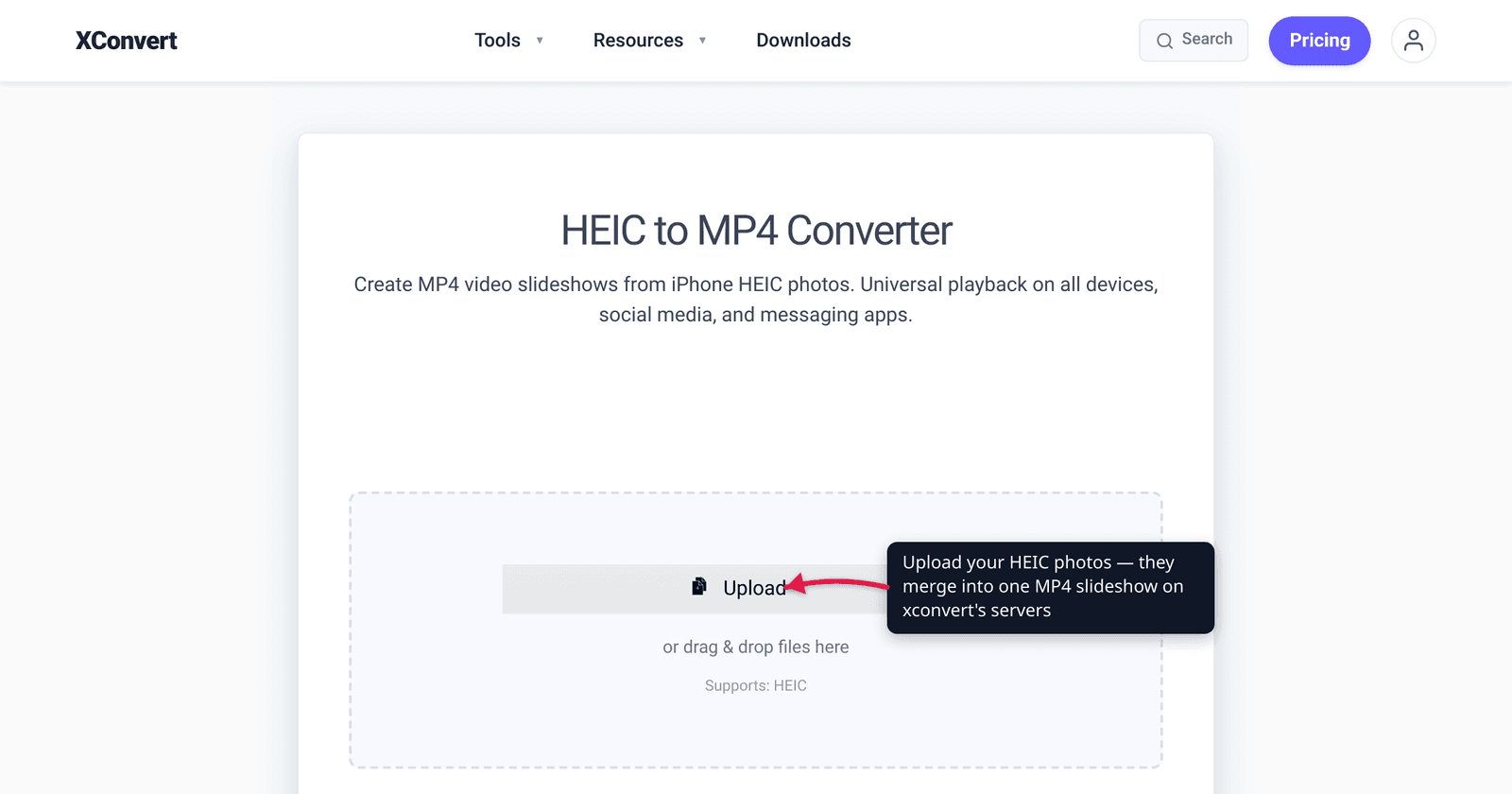
You’ve got a camera roll full of .heic photos from your iPhone — and when you try to share them, half the world can’t open them. Windows PCs without the HEIF add-on, older Androids, plenty of upload forms, and most smart TVs still choke on HEIC. One clean fix: turn the batch into a single MP4 slideshow. MP4 plays virtually everywhere, it’s one file instead of fifty, and it turns a pile of stills into something you can actually send, post, or play on a TV. This guide covers when a slideshow beats converting to JPG, how to control the timing and order, and the exact steps on xconvert.
Quick answer: Upload your HEIC photos to a HEIC-to-MP4 tool and merge them into one video. Set how long each photo shows (3–6 seconds is a typical slideshow pace), arrange the order, keep the codec on H.264 so it plays on every device, and convert. The result is one silent MP4 — add music later in any video editor. A single HEIC works too; it just becomes a short clip. If you only want viewable photos rather than a video, convert HEIC to JPG instead.
Jump to a section
- Why turn HEIC photos into a video?
- Slideshow MP4 vs. converting to JPG
- Timing, order, and quality
- Convert HEIC photos to an MP4 slideshow on xconvert
- FAQ
Why turn HEIC photos into a video?
HEIC (High Efficiency Image Format) is what an iPhone saves photos as by default — excellent compression and small files, but limited support outside Apple’s ecosystem. A Windows PC without the HEIF extension, an older Android, a web form, or a smart TV often can’t open a .heic file at all. Bundling the photos into an MP4 sidesteps that completely: MP4 video is one of the most universally supported formats there is, so the slideshow plays on Windows, Android, browsers, TVs, and social platforms without anyone installing anything.
There’s a second reason: one file instead of many. Forty separate photos are awkward to send and easy to get out of order. A single MP4 is one attachment, in the sequence you chose, that anyone can press play on — ideal for a trip recap, an event, a property listing, or a slideshow for a grandparent’s TV.
Slideshow MP4 vs. converting to JPG
These solve different problems, so choose by what you actually need:
- Make an MP4 slideshow when you want a single, playable, shareable thing — a recap to post or send, something to play on a TV, or a base to set to music. The output is a video.
- Convert HEIC to JPG when you want editable, uploadable still images — to print, attach individually, or drop into a document. See convert HEIC/HEVC photos to JPG for that path.
If the goal is “I just need these to open on Windows,” JPG is usually the simpler answer. If the goal is “I want to show these,” the slideshow wins.
Timing, order, and quality
Three choices shape the result:
- Seconds per photo. A relaxed slideshow runs 3–6 seconds per image; 1–2 seconds feels snappy; a small fraction of a second (e.g. 1/24s) turns a burst of sequential shots into a timelapse.
- Order. Photos play in the order they’re listed, so arrange them before you convert — most people want chronological.
- Quality / codec. Keep the codec on H.264 for the broadest playback. The slideshow is silent by design (still photos carry no audio) — add a music track afterward in any video editor if you want one, something like Movavi Video Editor, an easy desktop app that’s great for turning a recap like this into a finished YouTube video.
A practical default for a shareable recap: H.264, 4 seconds per photo, original resolution.
Convert HEIC photos to an MP4 slideshow on xconvert
The xconvert HEIC to MP4 converter takes one HEIC photo or a whole batch and merges them into a single MP4 — no HEIF codec needed on your end, since the work happens on our servers.
- Open xconvert.com/convert-heic-to-mp4 and click Upload to add your photos — from your computer, Google Drive, or Dropbox. Drop in the whole set at once, arranged in the order you want them to play.
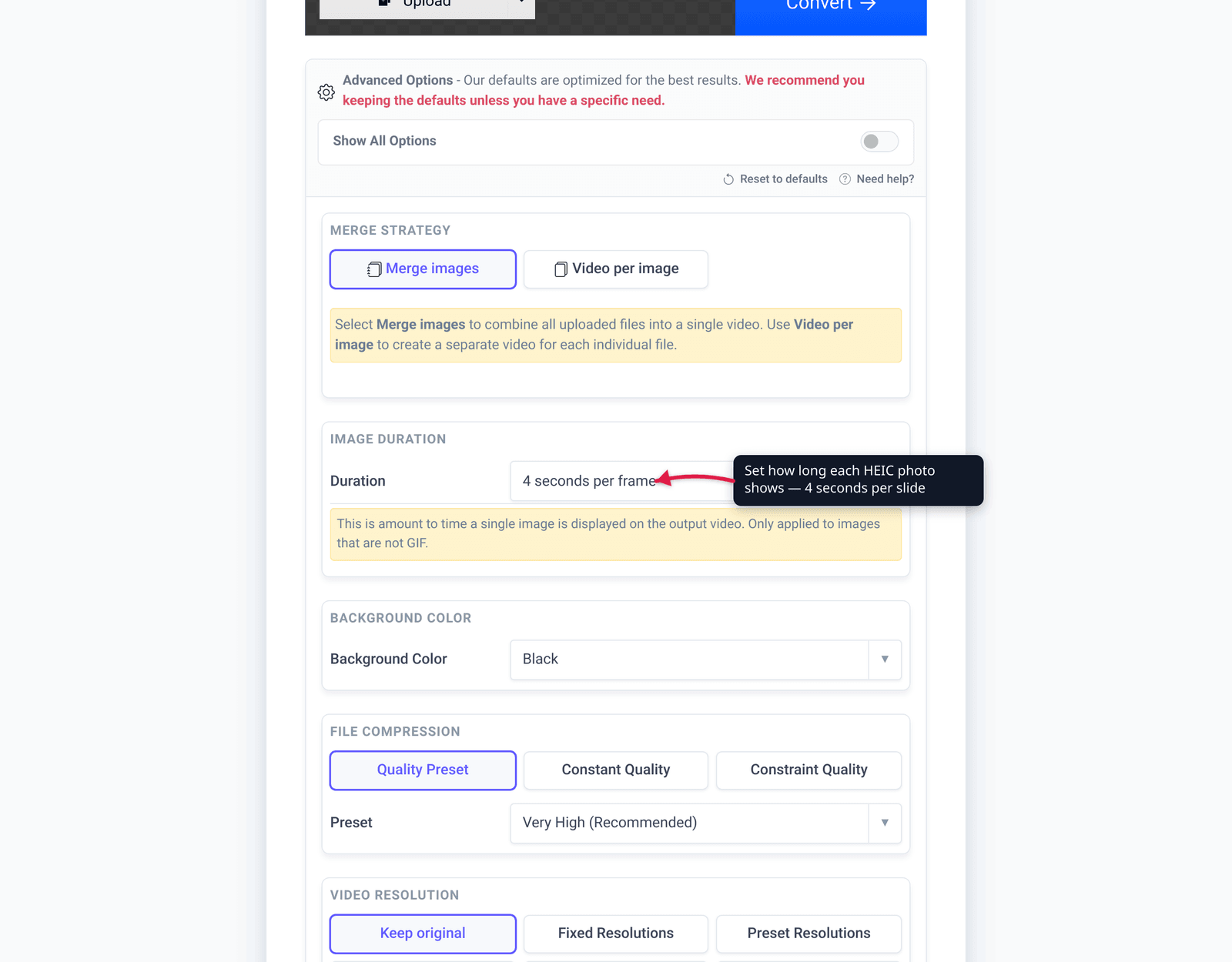
- Set Merge strategy to Merge images so all the photos become one combined video. (The alternative, Video per image, makes a separate clip per photo — only for that specific need.)
- Set Image Duration — how long each photo stays on screen. Pick 3–6 seconds for a slideshow, or a small fraction for a timelapse.
- (Optional) Adjust Background Color (it letterboxes photos that don’t match the video’s aspect ratio), Video resolution (keep original or pick a preset), and Quality Preset.
- (Optional) Leave Video Codec on H.264 for maximum compatibility, or choose H.265/AV1 for a smaller file you’ll only play on modern devices.
- Click Convert, then download your MP4. It’s silent — add music afterward in a video editor if you want a soundtrack.
Your photos upload over an encrypted connection, are processed on our servers, and are automatically deleted a few hours later. Nothing stays around.
Want the photos as ordinary images instead of a video? Convert HEIC to JPG; to shrink them in place, compress your HEIC files; and if the format is new to you, what is HEIC? explains it.
FAQ
How many HEIC photos can I put in one slideshow?
A single photo, a handful, or hundreds — the tool merges whatever you upload into one MP4. Large batches just take a little longer to process and produce a longer video; set a shorter per-photo duration if a big batch would otherwise run too long.
Can I choose the order the photos appear?
Yes. Photos play in the order they’re listed before you convert, so arrange them first — most people want chronological order.
Will the slideshow have sound?
No — still photos carry no audio, so the MP4 is silent by design. Add a music track afterward in any video editor (including the one built into your phone).
How long should each photo stay on screen?
For a normal slideshow, 3–6 seconds per photo reads comfortably; 1–2 seconds feels fast-paced. For sequential burst shots you want to play back as motion, use a small fraction of a second to make a timelapse.
Can I convert just one HEIC to MP4?
Yes. A single HEIC becomes a short MP4 clip of that one image — handy when a platform accepts video but not HEIC. Set the duration to however long you want the clip to run.
I just want to open my HEIC photos, not make a video — what should I do?
Convert them to JPG instead, which gives you ordinary, editable, universally viewable images. See convert HEIC/HEVC photos to JPG. The MP4 route is for when you want a single playable slideshow, not separate stills.
Does turning HEIC into MP4 lose quality?
A slideshow re-encodes your photos as video frames, so it isn’t a pixel-perfect archive — it’s a presentation format. Keep your original HEIC (or JPG) files if you need full-quality stills, and use the MP4 for sharing and playback.
Sources
Last verified 2026-06-28.
- Apple Support — Using HEIF or HEVC media on Apple devices — confirms iPhones save photos in the HEIF/HEIC format by default since iOS 11.
- Wikipedia — High Efficiency Image File Format — background on HEIF/HEIC and its uneven support outside the Apple ecosystem (Windows requires a paid HEIF extension; support varies elsewhere).
- caniuse — MPEG-4/H.264 video format — near-universal browser and device support for H.264 MP4, the reason a slideshow plays everywhere a HEIC file won’t.