 By Stephanie Taylor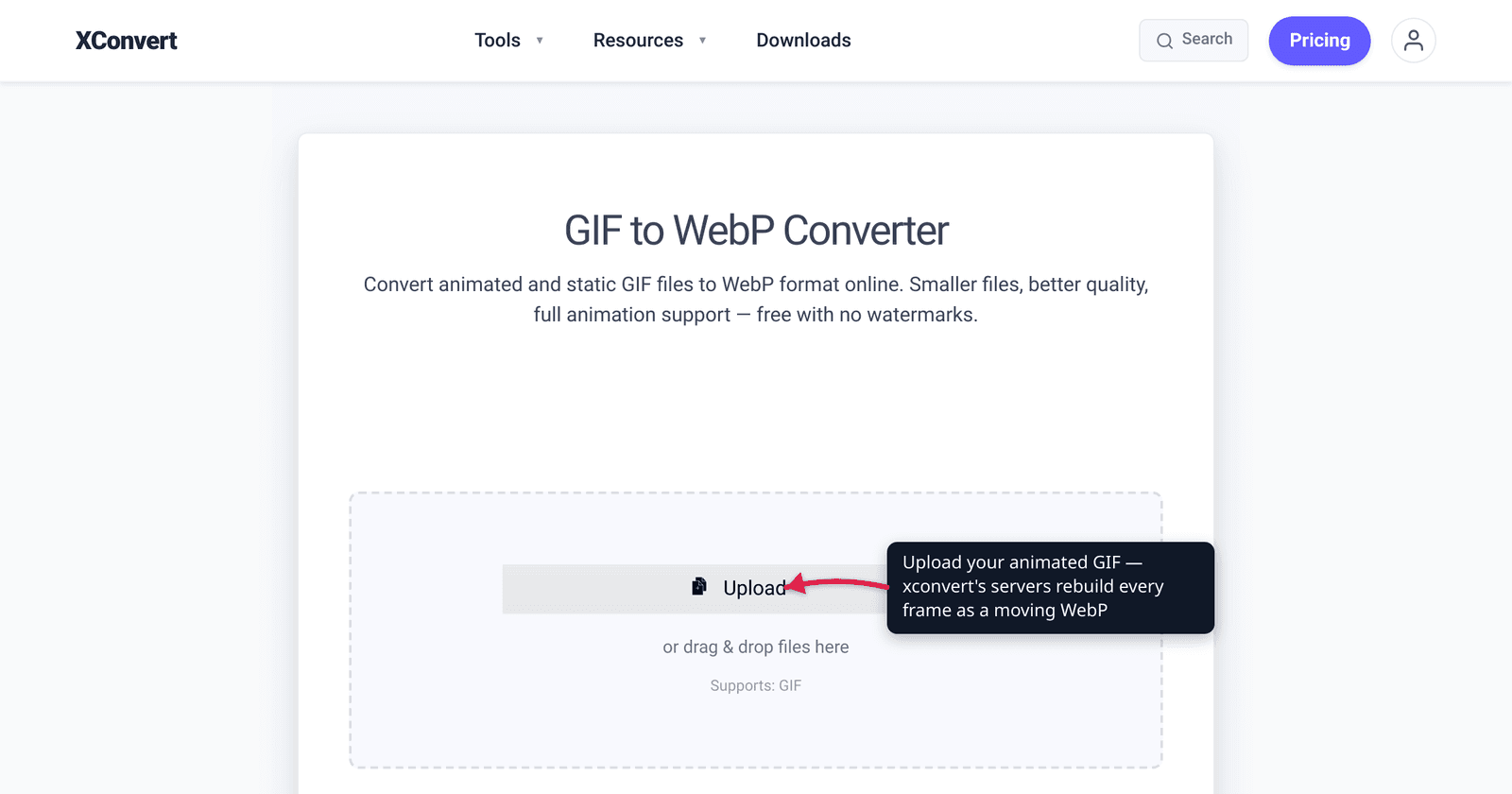
You recorded a 5-second loop — a UI walkthrough, a reaction clip, a product micro-demo — and you want it to autoplay on a web page without a video player and without the bloated file size of a GIF. The modern answer is an animated WebP: it plays like a GIF (silent, looping, no controls) but Google’s own measurements put a lossy animated WebP at 64% smaller than the same GIF. The catch most “convert video to animated WebP” guides skip: turning a video into an animated WebP is a two-step job, because a direct MP4→WebP converter usually just grabs a still frame. This guide explains the real path, verified against Google’s WebP docs and caniuse — and the platforms that still choke on WebP.
Quick answer: To get an animated WebP from a video, go video → animated GIF → animated WebP. A direct “MP4 to WebP” tool typically extracts a still frame, not a moving image. Once you have the animated GIF, convert it to WebP and you keep the motion while cutting the file size — Google measured ~64% smaller (lossy) / ~19% smaller (lossless) than the source GIF. Animated WebP plays in every current browser (~96% global support), but some apps and social platforms (e.g. Discord) still don’t render it reliably — keep a GIF or MP4 fallback for those.
Jump to a section
- Why animated WebP beats GIF
- The catch: “video to WebP” usually means a still frame
- The real workflow: video → GIF → animated WebP
- Where animated WebP plays (and where it doesn’t)
- Convert your video to animated WebP on xconvert
- FAQ
Why animated WebP beats GIF
GIF is a 1987 format kept alive by inertia. It animates, it loops, it autoplays everywhere — but it’s technically antiquated, and it shows in the file size. WebP, developed by Google and based on the VP8 video codec, does the same job far more efficiently.
Google’s own WebP FAQ quantifies it from a corpus of ~7,000 random animated GIFs converted with the gif2webp tool at default settings:
- Lossy animated WebP: 64% smaller than the source GIF.
- Lossless animated WebP: 19% smaller than the source GIF.
The size win comes from real technical advantages, not marketing:
| Animated GIF | Animated WebP | |
|---|---|---|
| Color depth | 8-bit (256 colors) | 24-bit RGB |
| Transparency | 1-bit (on/off) | 8-bit alpha channel (smooth) |
| Compression | Lossless only | Lossy or lossless (mixable per frame) |
| Decode speed | Baseline | ~0.57× the decode time of GIF (less scroll jank) |
So animated WebP isn’t just smaller — it also renders more colors, supports proper semi-transparency, and decodes faster, which means less stutter when several animations are on a page. The image-side analogue is covered in our sibling post on converting PNG to WebP; the same efficiency story applies to motion.
The catch: “video to WebP” usually means a still frame
Here’s the trap. Most online tools labeled “MP4 to WebP” or “video to WebP” — including xconvert’s own Video to WebP converter — are frame extractors. They let you pick a timestamp (or several timestamps) and save each one as a separate still .webp image. That’s genuinely useful for grabbing a poster image or a thumbnail, but it does not produce a moving, looping animation. xconvert’s tool says so plainly in its own FAQ: “This tool extracts still frames only … not a single animation.”
Why the split? WebP encoders for video frames and WebP animation assembly are different operations. The reliable way to assemble a true animated WebP is to start from a format that already carries the full sequence of frames with timing — and the most universally supported such format is the animated GIF. That’s why the dependable route is to make the GIF first, then convert the whole GIF to WebP.
If your end goal was actually a video file (smaller MP4/WebM) rather than an image, an animated WebP is the wrong target — see GIF vs MP4 file size or convert GIF to WebM instead.
The real workflow: video → GIF → animated WebP
Two conversions, both of which preserve motion:
- Video → animated GIF. Trim to the clip you want, set a frame rate (10 fps is plenty for most loops), and pick a resolution. This produces a looping animated GIF.
- Animated GIF → animated WebP. Convert the whole GIF. A WebP encoder reads every frame and its per-frame delay, re-compresses them, and writes a single animated
.webp— keeping the loop and timing while dropping ~64% of the bytes at lossy quality.
The reason this works where a direct converter doesn’t: the GIF is a complete, ordered, timed frame sequence. The WebP encoder (gif2webp under the hood) ingests that sequence wholesale and emits a true animation. For tuning the first step — frame rate, dithering, palette — our high-quality MP4 to GIF guide covers the settings that matter.
Where animated WebP plays (and where it doesn’t)
Browser support is no longer the blocker it once was. Per Google’s WebP FAQ, animated WebP is supported in Chrome 32+, Edge 18+, Firefox 65+, Opera 19+, and Safari 14+ (iOS). caniuse puts overall WebP support at roughly 96% of global browser usage — Safari was the last holdout and has supported it for years now.
The real gotchas are apps and platforms, not browsers:
| Context | Animated WebP? |
|---|---|
| Chrome / Edge / Firefox / Opera / Safari (current) | Plays |
<img src="...webp"> on a web page | Plays and autoplays (no player needed) |
| Discord (uploads / emoji) | Unreliable — community-reported failures; animation often stripped on upload |
| Older social platforms / some chat apps | Hit or miss — many still expect GIF or MP4 |
| Legacy software / older OS image viewers | May show a static frame or nothing |
Bottom line: for your own website or web app, animated WebP is the right call today — small, sharp, and broadly supported. For uploading to a third-party platform you don’t control, verify it accepts WebP first; if you hit problems on Discord or a social network, fall back to the GIF (or an MP4/WebM) you already made in step 1. The brief rule: animated WebP for pages you own; GIF or video for places you upload to.
Convert your video to animated WebP on xconvert
Do it in two passes. First make the animated GIF, then convert that GIF to an animated WebP.
Step 1 — Video to animated GIF
- Open the xconvert MP4 to GIF converter and click Upload to add your clip (from your computer, Google Drive, or Dropbox).
- Open Advanced Options and set the Frame Rate (the default 10 FPS (Recommended) suits most loops) and a Resolution (smaller dimensions = smaller file).
- Adjust Image quality (%) and the color Palette if needed, then run the conversion and download your animated GIF.
Step 2 — Animated GIF to animated WebP
- Open the xconvert GIF to WebP converter and Upload the GIF you just made. This tool preserves all frames, per-frame timing, and loop count — the output is a moving WebP, not a still.
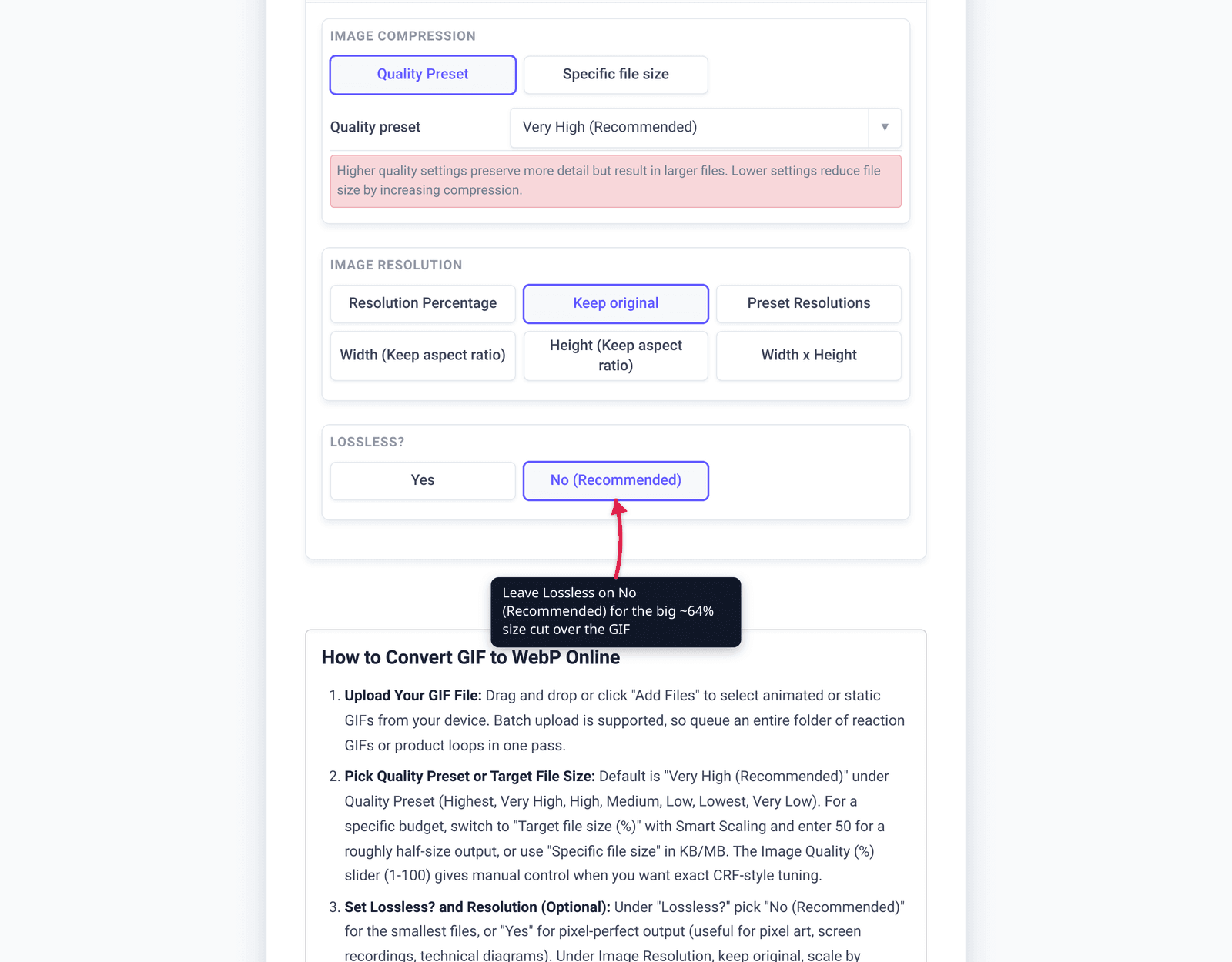
- In Advanced Options, leave Lossless? on No (Recommended) for the big size saving, or switch it to Yes if you need pixel-perfect frames. Optionally set a Quality Preset or a Specific file size target.
- Convert and download your animated
.webp.
Each file uploads over an encrypted connection, is processed on our servers, and is automatically deleted a few hours later. Nothing stays around.
If you start from a non-MP4 source, the same two-step path works with the video to GIF converter for step 1.
FAQ
Can I convert a video directly to an animated WebP?
Not in one click with most tools. A direct “video to WebP” converter — including xconvert’s — extracts still frames, giving you one .webp image per timestamp, not a moving animation. To get a true animated WebP, convert the video to an animated GIF first, then the GIF to WebP, which preserves all frames and timing.
Is an animated WebP smaller than a GIF?
Yes, substantially. Google’s measurements (a ~7,000-GIF corpus converted with gif2webp) put a lossy animated WebP at 64% smaller and a lossless one at 19% smaller than the source GIF, with better color (24-bit vs 8-bit) and smoother transparency.
Does animated WebP work in all browsers?
Effectively yes for current browsers — Chrome 32+, Edge 18+, Firefox 65+, Opera 19+, and Safari 14+ all support it, and caniuse reports roughly 96% global support. The remaining risk is older browsers and certain apps/platforms (e.g. Discord) that still don’t render WebP animation reliably.
Why won’t my animated WebP play on Discord or a social platform?
Some platforms don’t fully support animated WebP even though browsers do. Discord users have reported uploads that lose their animation or fail to render. There’s no fix on your end beyond using a format the platform accepts — upload the GIF or an MP4/WebM instead for those destinations.
Should I use lossy or lossless for the WebP?
Use lossy (the recommended default) for the dramatic size cut — it’s ideal for screen recordings, reactions, and most web loops. Choose lossless only when you need exact, artifact-free frames (e.g. flat-color UI animations with crisp text); it’s still smaller than GIF, just by less (~19%).
What frame rate and length should I use?
Keep it short and modest. 10 fps looks smooth for most loops and keeps the file small; only push to 15–24 fps for genuinely fast motion. Trim to the few seconds that matter — every extra second and every extra frame adds bytes to both the GIF and the resulting WebP.
Sources
Last verified 2026-06-25.
- Google WebP FAQ — animated GIF→WebP savings (64% lossy / 19% lossless, ~7,000-GIF
gif2webpcorpus), 24-bit color vs GIF’s 8-bit, 8-bit alpha, ~0.57× GIF decode time. - Google WebP overview — WebP is based on VP8; lossy/lossless/transparency supported in animated WebP; lossy 25–34% smaller than JPEG, lossless 26% smaller than PNG.
- Google gif2webp documentation — the GIF→animated-WebP conversion tool behind the workflow.
- caniuse — WebP image format — ~96% global browser support; Chrome 32+, Firefox 65+, Edge 18+, Safari (desktop 16 / iOS 14)+.
- Discord support — animated WebP requests/issues — community-reported gaps in animated-WebP handling on a platform that browsers support.