 By James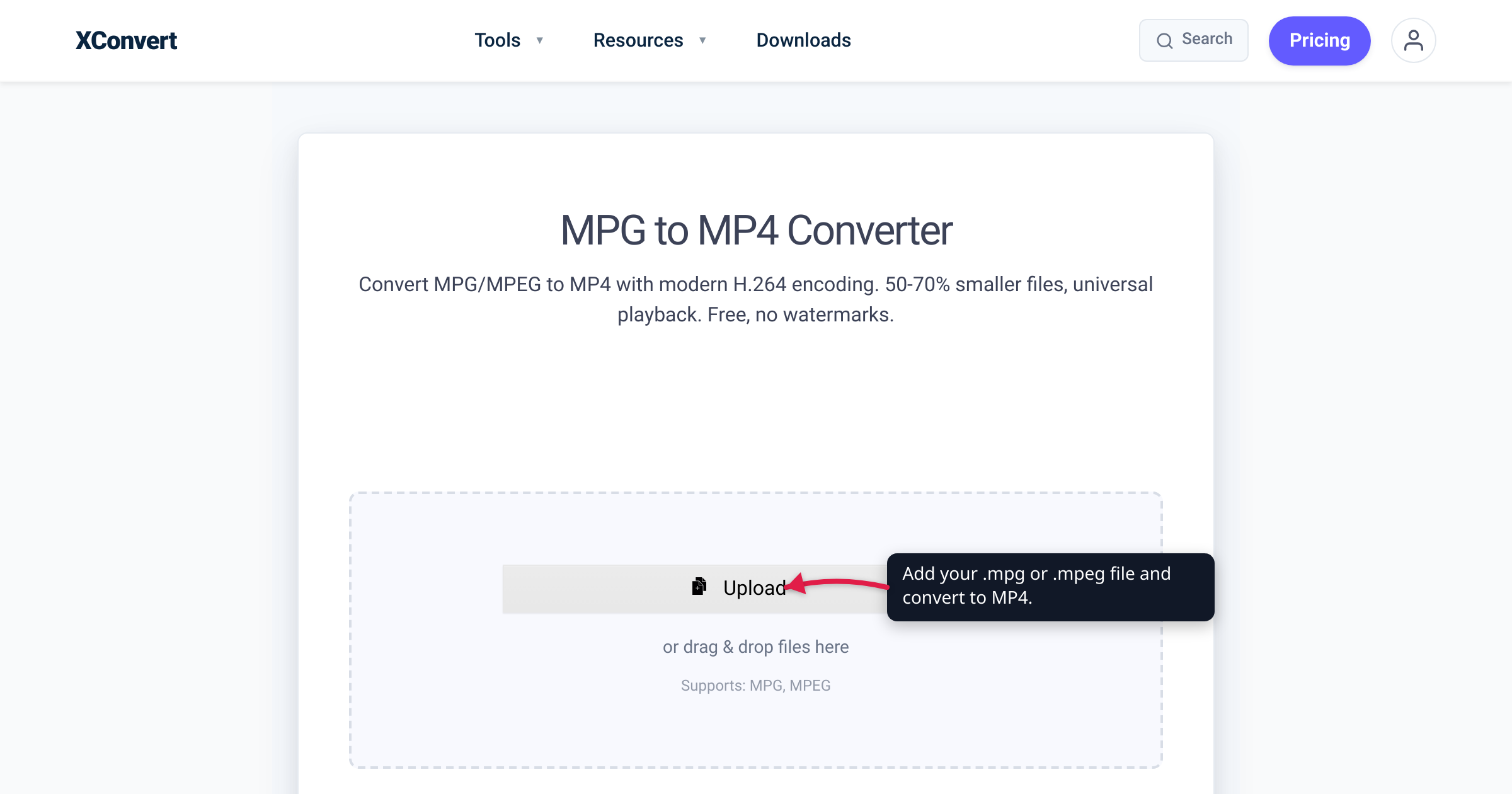
You dig out a disc you burned years ago, or copy the .mpg clips off an early digital camera or a Video CD — and none of them will play. Your phone rejects them, Instagram won’t accept the upload, and your video editor throws an “unsupported format” error. Those files are almost always MPEG-1 or MPEG-2, the video standards behind VCDs and DVDs, and modern devices quietly dropped native support for them years ago. Converting to MP4 with H.264 fixes it in one step: universal playback and, for DVD-era files, a meaningfully smaller file. We verified the MPEG-1/MPEG-2 standards, resolutions, and codec-efficiency figures against the ISO catalogue, the Library of Congress format registry, MDN, and caniuse.
Quick answer: .mpg and .mpeg files are almost always MPEG-1 (Video CD era) or MPEG-2 (DVD/broadcast era) — old ISO/IEC standards that today’s phones, browsers, and social apps no longer play natively. Converting to MP4 with H.264 gives you universal playback (H.264 works for ~96.9% of web users and every modern phone) and, because H.264 is roughly 50% more bitrate-efficient than MPEG-2, a DVD-era file usually gets smaller at the same quality. One catch: these are standard-definition sources (about 352×240 for VCD, 720×480 for DVD) — converting modernizes the format but can’t add detail that was never recorded, so don’t expect HD.
Jump to a section
- What MPG and MPEG files actually are
- Why old .mpg files won’t play or upload
- They’re standard-definition — set your expectations
- The payoff: smaller files and universal playback
- Convert MPG/MPEG to MP4 on xconvert
- FAQ
What MPG and MPEG files actually are
.mpg and .mpeg are two spellings of the same thing: a file holding video compressed with an early MPEG standard. There are two you’ll actually run into, and knowing which you have explains everything else.
- MPEG-1 — standardized by ISO/IEC as ISO/IEC 11172 (the video part finalized in 1993; first approvals in 1991). It was designed for “coding of moving pictures and associated audio for digital storage media at up to about 1.5 Mbit/s” — in other words, to fit video onto a CD. Its typical picture size is 352×240 (non-square pixels), the format the Video CD (VCD) used, and it is progressive-only.
- MPEG-2 — ISO/IEC 13818, jointly published by the ITU-T as H.262, first approved in 1994. This is the DVD-Video and digital-broadcast standard. Its common DVD configuration is 720×480 (NTSC) or 720×576 (PAL); it added interlacing and much higher bitrates (DVD video typically runs several Mbit/s, up to ~15). If your
.mpgcame off a ripped DVD, a hard-disk camcorder’s.MODfiles, or a DVR, it’s MPEG-2.
So the shorthand is: MPEG-1 = Video CD era, MPEG-2 = DVD era. Both predate the smartphone, and both are what a plain .mpg/.mpeg almost always contains. (If instead your footage came off an HD camcorder as .MTS or .M2TS, that’s a different, newer format that already holds H.264 — see convert MTS/M2TS/AVCHD to MP4.)
Why old .mpg files won’t play or upload
The video inside these files was fine in 2001. The problem is that the modern playback world moved on to newer codecs and stopped shipping the old decoders.
- Phones don’t decode them natively. Apple’s iPhone tech specs list the video it plays as H.264 and HEVC (with AV1/ProRes on newer Pro models) — MPEG-1 and MPEG-2 aren’t on the list. Android’s built-in players tell the same story: they’re built around H.264/HEVC in MP4, not the MPEG-1/2 codecs inside a
.mpg. Tap an old.mpgon a phone and it typically fails, or plays audio with no picture. - Browsers won’t play them. MDN is blunt that MPEG-2 is “a poor choice for use in websites and web applications” — only Safari supports it, and no version of Chrome, Edge, Firefox, or Opera plays it in a
<video>tag. By contrast, MP4/H.264 is supported for 96.9% of global users (caniuse). That gap is exactly why an old.mpgwon’t preview in a browser-based uploader. - Social platforms and editors reject the format. Instagram, YouTube, and messaging apps expect MP4 (H.264 video, AAC audio); many refuse a raw
.mpgoutright. Video editors frequently can’t ingest MPEG program streams cleanly either. “Convert it to MP4 first” is the standard workaround.
Converting to MP4/H.264 solves all three at once, because MP4 with H.264 is the container-and-codec combination every modern device, browser, and app was built to accept.
They’re standard-definition — set your expectations
This is the honest part most “convert your old videos” guides skip. MPEG-1 and MPEG-2 .mpg files are standard-definition by design: roughly 352×240 for a VCD, 720×480 (or 720×576 PAL) for a DVD. That is the detail that was actually recorded.
Converting to MP4 changes the wrapper and the codec — it does not create detail that isn’t there. You can set the output to 1080p or 4K, but upscaling only interpolates new pixels between the old ones; it makes the frame bigger, not sharper, and often just makes the softness and compression artifacts more obvious. For a faithful modernization, keep the original resolution. Upscaling is a cosmetic choice, not a quality upgrade.
Two quirks of the source to expect: DVD-era MPEG-2 is often interlaced, which can show fine horizontal “comb” lines on motion when viewed on a progressive screen; and the picture uses non-square pixels, so a good conversion preserves the intended aspect ratio rather than stretching it.
The payoff: smaller files and universal playback
Two concrete wins come from moving to MP4/H.264.
Universal playback. H.264 in an MP4 is the closest thing video has to a universal format — ~96.9% of web users can play it (caniuse), every modern phone records and plays it, and every major editor and social platform accepts it. Standardized in 2003 as ITU-T H.264 / MPEG-4 Part 10 (ISO/IEC 14496-10), it’s two codec generations newer than MPEG-2 and effectively everywhere.
Smaller files, for DVD-era sources. H.264 is far more efficient than MPEG-2. Peer-reviewed subjective testing found H.264 delivers the same quality at roughly 50% — and in some cases up to ~60% — of MPEG-2’s bitrate. So a DVD-era MPEG-2 .mpg re-encoded to H.264 at matching quality typically lands around half the size. The exact saving depends on the source’s original bitrate and the quality you target — and an already-small MPEG-1 VCD file (which was capped near 1.5 Mbit/s to begin with) won’t shrink dramatically, so don’t push its bitrate down chasing a smaller number and throw away quality for nothing.
Does the conversion itself cost quality? Because MPEG-1/2 → H.264 is a re-encode (unlike, say, an AVCHD file that’s already H.264 and can be re-wrapped losslessly), there is some generational loss in principle — but at a sensible quality setting it’s not visible at normal viewing. Keep the resolution native and pick a high-quality preset, and your MP4 looks like the source, only playable everywhere.
Convert MPG/MPEG to MP4 on xconvert
The xconvert MPG-to-MP4 converter re-encodes MPEG-1 and MPEG-2 files to MP4/H.264. Here’s the flow:
- Open xconvert.com/convert-mpg-to-mp4 and click Upload to add your file — From my Computer, From Google Drive, or From Dropbox. Both
.mpgand.mpegwork. - For a straightforward modernization, the defaults already produce a clean MP4 with H.264 — you can leave them and convert. To fine-tune, open Advanced Options.
- Under the Quality Preset, keep the default Very High (Recommended), or switch modes to Constant Quality, Constant Bitrate, Variable Bitrate, or Specific file size if you need to hit an exact target size.
- Under Video resolution, leave it on Keep original to preserve your SD source (recommended — upscaling won’t add detail), or use Preset Resolutions / Width x Height if you deliberately want a different frame size.
- Only need a clip? Use Trim → Time Range to set start and end points; leave it unchanged to convert the whole file.
- Click Convert, then download your MP4 — it will now play on the phones, browsers, and apps that rejected the
.mpg.
Your file uploads over an encrypted connection, is processed on our servers, and is deleted automatically a few hours later. Nothing lingers.
For another legacy-format rescue that uses the same approach, see convert AVI to MP4 — the other classic old container that modern apps refuse.
FAQ
Why won’t my MPG/MPEG file play on my iPhone or Android phone?
Because a .mpg/.mpeg almost always holds MPEG-1 or MPEG-2 video, and modern phones don’t decode those natively — Apple’s iPhone specs list playback for H.264 and HEVC, not MPEG-1/MPEG-2, and Android’s built-in players are built around the same MP4/H.264 stack. The fix is to convert the file to MP4 with H.264, which every current phone plays.
What’s the difference between .mpg and .mpeg?
Nothing meaningful — they’re two extensions for the same MPEG video format, a holdover from the old 3-letter (.mpg) versus longer (.mpeg) filename conventions. Both typically contain MPEG-1 or MPEG-2 video and convert to MP4 identically.
Is MPG the same as MP4?
No. .mpg is MPEG-1/MPEG-2 (the VCD/DVD-era standards); .mp4 is the MPEG-4 container that usually holds H.264 video — a newer, far more compatible codec. The similar names cause a lot of confusion, but they’re different generations, which is exactly why the old one needs converting.
Does converting MPG to MP4 reduce the file size?
Often, yes — especially for DVD-era MPEG-2 files. H.264 needs roughly half the bitrate of MPEG-2 for the same quality, so a converted MP4 is commonly around half the size. A small MPEG-1 VCD file (already near 1.5 Mbit/s) won’t shrink as much; forcing its bitrate lower just costs quality.
Will converting MPG to MP4 lose quality?
There’s a small, usually invisible loss because MPEG → H.264 is a re-encode rather than a straight re-wrap. At a high-quality preset with the original resolution kept, you won’t notice it at normal viewing. You only lose visible quality if you deliberately lower the bitrate or downscale to shrink the file.
Can I upscale my old MPG video to HD or 1080p?
You can output a larger frame, but you can’t add detail that was never recorded. MPEG-1/MPEG-2 sources are standard-definition (about 352×240 or 720×480); upscaling interpolates pixels and makes the frame bigger, not sharper — it often just magnifies the softness. Keep the native resolution for the most faithful result.
Sources
Last verified 2026-07-16.
- ISO/IEC 11172-2:1993 — MPEG-1 Video — the MPEG-1 standard: “coding of moving pictures and associated audio for digital storage media at up to about 1,5 Mbit/s.”
- Library of Congress — MPEG-1 Video Encoding — MPEG-1 = ISO/IEC 11172 (first approvals 1991); typical 352×240 picture at 1.5 Mb/s; the Video CD format.
- Library of Congress — MPEG-2 Video Encoding (H.262) — MPEG-2 = ISO/IEC 13818 / ITU-T H.262 (first approvals 1994); used for DVD and ATSC broadcast; VOB and MOD files are MPEG-2.
- MDN — Web video codec guide — MPEG-2 is “a poor choice for use in websites and web applications” (Safari-only); AVC/H.264 is broadly compatible across all major browsers.
- caniuse — MPEG-4 / H.264 video format — H.264/MP4 supported for ~96.9% of global users.
- Apple — iPhone 15 Tech Specs — iPhone video playback lists HEVC and H.264 (Pro adds AV1/ProRes); MPEG-1/MPEG-2 are not among the supported formats.
- NTIA/ITS — Subjective quality of H.264 vs. MPEG-2 (IEEE) — peer-reviewed subjective testing of H.264/AVC bitrate efficiency versus MPEG-2 at equal quality.