 By James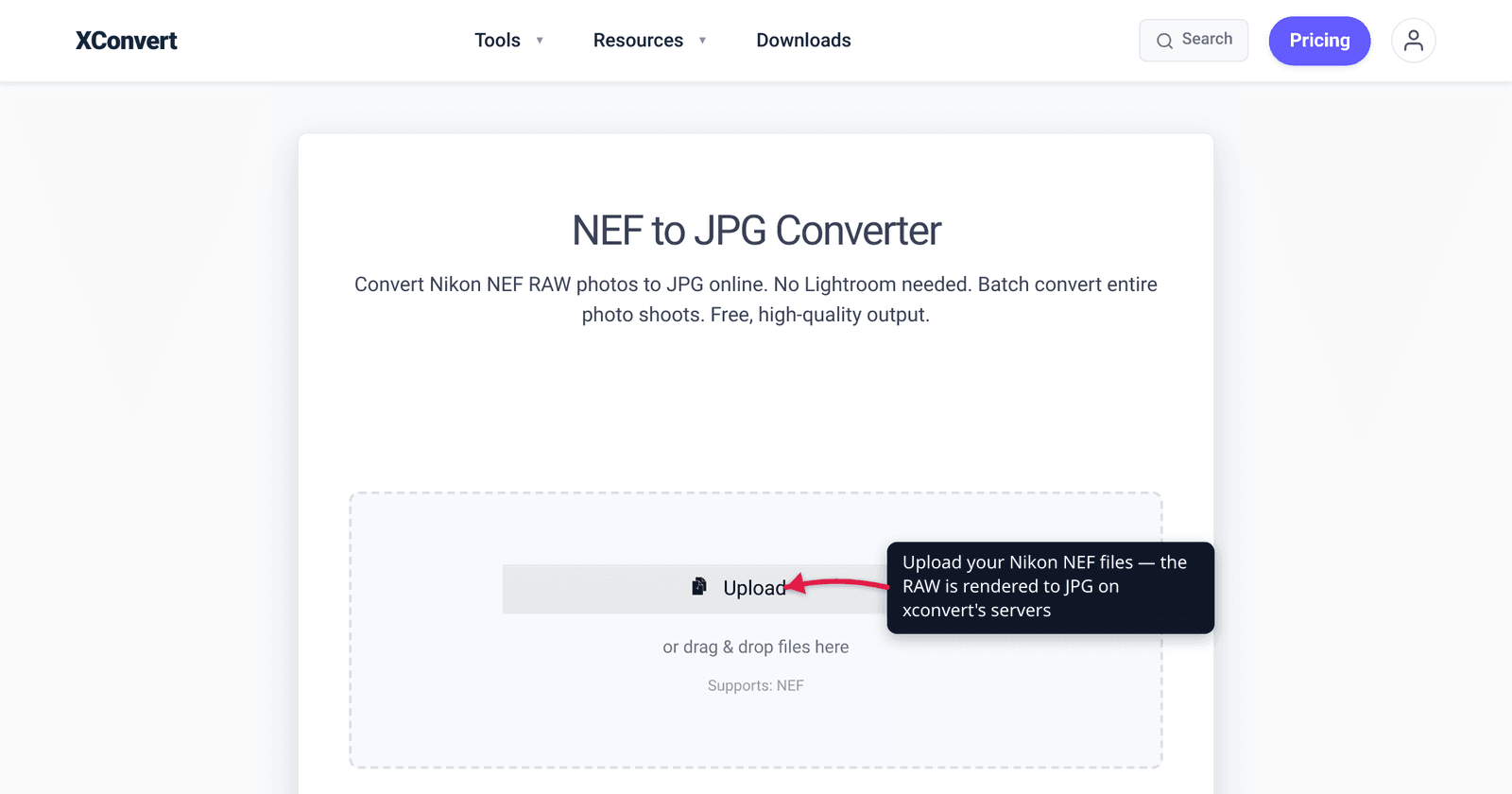
You get home from a shoot, find a card full of .NEF files, and discover they won’t open in Windows Photos, won’t preview in a browser, and won’t attach to an email anyone can view. That’s not a broken file — it’s a Nikon RAW file doing exactly what it’s supposed to do. The fix is to convert a copy to JPG: a universal 8-bit image anyone can open. The catch is that a JPG throws away the editing latitude the NEF holds, so the rule is convert a copy to share, keep the NEF master to edit. We verified the NEF facts against Nikon’s own documentation and the Windows codec requirement against Microsoft.
Quick answer: NEF is Nikon’s RAW format — unprocessed 12-bit or 14-bit sensor data that most apps can’t open without a special codec. Convert it to JPG when you need a small, universal image to share, email, upload, or print at a lab. JPG is 8-bit and lossy, so you lose highlight/shadow recovery and free white-balance changes — always keep the original NEF as your editable master and convert a copy. On xconvert’s NEF to JPG converter you can batch a whole shoot at once.
Jump to a section
- What a NEF file actually is
- NEF vs JPG: what you gain and lose
- Why your NEF won’t open
- When to convert — and when not to
- Convert NEF to JPG on xconvert
- FAQ
What a NEF file actually is
NEF stands for Nikon Electronic Format — it is, in Nikon’s own words, “Nikon’s RAW file format,” exclusive to Nikon cameras. A RAW file is sometimes called a digital negative: instead of a finished picture, it stores the raw, unprocessed readout from the camera’s image sensor, plus metadata about the camera, lens, and settings.
Two facts about NEF matter for everything below:
- It’s high-bit-depth. Depending on the camera, a NEF “retains 12-bit or 14-bit data, resulting in an image with a far greater tonal range than an eight-bit JPEG or TIFF file” (Nikon). A 14-bit NEF can describe up to 16,384 brightness levels per channel; an 8-bit JPEG tops out at 256. That extra data is what lets you rescue a blown sky or lift a dark face in editing.
- Nothing is baked in. Per Nikon, “No in-camera processing for white balance, hue, tone and sharpening are applied to the NEF file; rather, those values are retained as instruction sets included in the file” — and “you can change the instruction set as many times as you like without ever disturbing the original image’s RAW data.”
A JPG is the opposite: the sensor data has already been demosaiced, given a white balance, a tone curve, and sharpening, then compressed to 8 bits with lossy compression. It’s a finished, universal photo — but the decisions are permanent.
NEF vs JPG: what you gain and lose
Converting NEF to JPG is a one-way trade. Here’s the honest accounting:
| NEF (Nikon RAW) | JPG | |
|---|---|---|
| Bit depth | 12-bit or 14-bit per channel | 8-bit per channel |
| Compression | Uncompressed or lossless | Lossy (data is discarded) |
| File size | Large (often 20–55 MB) | Small (often 2–10 MB) |
| White balance | Changeable freely after the fact | Baked in; limited correction |
| Highlight/shadow recovery | Wide latitude | Narrow; clipped detail is gone |
| Opens everywhere | No — needs a RAW-aware app | Yes — universal |
| Best for | Editing, archiving the master | Sharing, email, web, lab prints |
What you gain by converting: a dramatically smaller file (commonly a fraction of the NEF’s size) that opens on any phone, browser, printer, or website with zero special software.
What you lose: the editing headroom. Once you flatten a 14-bit RAW into an 8-bit JPG, you can’t re-recover a clipped highlight or freely re-pick the white balance — those decisions are locked into the pixels. That’s why a JPG is fine as a deliverable and a poor choice as a master.
The practical workflow most photographers use: edit the NEF, export a JPG to share, and keep the NEF. Never delete the originals after converting — you’re discarding the one file that holds all the latitude. If you have a whole card to process at once, see batch convert RAW photos to JPG for the bulk workflow across brands.
Why your NEF won’t open
This is the single most common reason people convert NEF to JPG: the file simply won’t display.
NEF is a proprietary, camera-specific format, so general-purpose apps don’t read it out of the box. On Windows, the Photos app and File Explorer need Microsoft’s free Raw Image Extension (from the Microsoft Store) to even show thumbnails — and that extension is built on the open-source LibRaw library, which Microsoft has updated only sporadically. As a result, NEF files from newer Nikon bodies can fail to preview at all on a stock Windows install. Browsers, email previews, most messaging apps, and photo-print kiosks don’t support NEF either.
Converting to JPG sidesteps all of that. A JPG is one of the most universally supported image formats in existence — it will open on a decade-old phone, in any browser, and at any print lab without a plugin.
When to convert — and when not to
Convert NEF → JPG when:
- You need to email, message, or upload the photo and the recipient just needs to see it.
- You’re posting to a website or social platform that doesn’t accept RAW.
- You’re printing at a consumer lab or kiosk that only takes JPG.
- The NEF won’t open on the computer or device you’re using.
- You want a smaller file for a phone, a shared drive, or quick browsing.
Don’t convert (or convert only a copy) when:
- You still plan to edit the shot — do your exposure, white-balance, and recovery work on the NEF first, then export the JPG.
- You’re archiving your portfolio — keep NEFs as the master; they hold the most data.
- The image has tricky exposure (bright sky, deep shadow) you may want to rescue later.
The safe default never changes: convert a copy, keep the NEF. Converting doesn’t touch your original file, so the master stays intact for whenever you want to re-edit. If you shoot Canon instead, the same logic applies to CR2 — see convert CR2 to JPG (Canon RAW).
Convert NEF to JPG on xconvert
The xconvert NEF to JPG converter renders the RAW sensor data into a finished JPG for you — no Nikon software, Lightroom, or codec install required — and handles a whole shoot in one batch:
- Open xconvert.com/convert-nef-to-jpg and click + Add Files to upload your NEF files (From my Computer, From Google Drive, or From Dropbox). You can add many at once.
- Open Advanced Options if you want to fine-tune; the defaults are set for the best results.
- Under Quality Preset, leave Very High (Recommended) for near-master quality, or step it down for smaller files. Higher settings preserve more detail but make bigger files.
- (Optional) Under Image resolution, keep Keep original, or set a Resolution Percentage or Preset Resolution to shrink large images — handy for web or email.
- (Optional) Pick the File extension — JPG or JPEG (same format, different extension).
- Click Convert, then download your photos individually or as a single ZIP.
Your NEF uploads over an encrypted connection, is processed on our servers, and is automatically deleted a few hours later. Your original NEF on your own drive is never altered — you’re always converting a copy.
For related workflows: batch convert RAW photos to JPG (bulk, multi-brand) and convert CR2 to JPG (the Canon equivalent).
FAQ
What is a NEF file?
A NEF is Nikon’s RAW photo format — Nikon Electronic Format. It stores the unprocessed 12-bit or 14-bit data straight off the camera’s sensor, along with metadata, rather than a finished picture. That’s why it holds far more tonal range than a JPEG but won’t open in ordinary apps without RAW support.
Is converting NEF to JPG lossy?
Yes. A JPG is 8-bit and uses lossy compression, so converting from a 12/14-bit NEF discards data — you lose highlight/shadow recovery and the ability to freely change white balance afterward. The conversion is one-way, which is why you should keep the original NEF and only convert a copy.
Will I lose quality converting NEF to JPG?
For viewing and sharing, a high-quality JPG looks essentially identical to the rendered NEF — the difference isn’t in what you see, it’s in the editing headroom you give up. At the highest quality preset the visible loss is minimal; the real cost is that you can no longer make big exposure or white-balance corrections the way you could on the NEF.
Why won’t my NEF file open on my computer?
NEF is a proprietary Nikon format that most apps don’t read natively. On Windows you need Microsoft’s free Raw Image Extension for the Photos app to even show it, and that codec lags behind new cameras — so newer NEFs may not preview at all. Converting to JPG gives you a file that opens anywhere with no plugin.
How big is a NEF compared to a JPG?
NEF files are large — often 20–55 MB each, depending on the camera and 12- vs 14-bit setting — because they store full-resolution uncompressed or losslessly-compressed sensor data. The JPG you export is typically a small fraction of that (commonly a few MB), which is the main reason people convert before sharing.
Can I convert NEF to JPG without Photoshop or Lightroom?
Yes. You don’t need any Nikon, Adobe, or codec software. The xconvert NEF to JPG converter renders the RAW on our servers and gives you a downloadable JPG — and it can batch an entire shoot at once.
Does converting NEF to JPG delete my original?
No. You upload a copy; your original NEF on your own drive is untouched. The uploaded file is processed on our servers and deleted automatically a few hours later. Always keep your NEFs as the editable master.
Sources
Last verified 2026-06-25.
- Nikon USA — Nikon Electronic Format (NEF) — official statements that NEF is Nikon’s RAW format, retains 12-bit/14-bit data vs 8-bit JPEG, and applies no in-camera processing (white balance/hue/tone/sharpening stored as changeable instruction sets without disturbing the RAW data).
- Microsoft — Raw Image Extension (Microsoft Q&A) — the free extension is required for the Windows Photos app/File Explorer to view RAW files; it’s based on LibRaw and updated infrequently, so newer NEFs may not preview natively.
- Nikon — Understanding RAW Files — Nikon’s explainer that RAW/NEF files are “digital negatives” containing all sensor data plus metadata, recordable at 12- or 14-bit.