 By James
You filmed an interview, a lecture, or a gig on your phone, and now you only want the sound — a clean MP3 you can drop into a podcast app, a transcript tool, or a playlist. The audio is already sitting inside that MP4 or MOV; you just need to pull it out into its own file. This guide shows how to do that, which output to pick (MP3 vs keeping the native AAC), and the bitrate that keeps it sounding right. We verified the codec and bitrate facts against MDN and the MPEG-4 standard.
Quick answer: A video’s audio track is almost always AAC (the standard audio codec in MP4 and MOV). Pulling it into an MP3 means a second lossy re-encode — perfectly fine at a good bitrate (use 192–320 kbps so you don’t add audible damage). If you’d rather lose nothing, copy the audio in its native format (AAC) into an M4A file — that’s a bit-for-bit extract with zero quality loss. You can’t make the audio better than the video’s original track, so don’t pick a bitrate higher than the source.
Jump to a section
- What’s actually inside the video
- MP3 vs M4A: re-encode or copy?
- What bitrate should you pick?
- Common mistakes to avoid
- Extract audio from a video on xconvert
- FAQ
What’s actually inside the video
An MP4 or MOV file is a container — a wrapper holding separate video and audio streams. The video stream is usually H.264 or HEVC; the audio stream is, in the overwhelming majority of cases, AAC (Advanced Audio Coding).
AAC is the standard audio codec for these formats. It’s defined as part of the MPEG-4 specification, and per MDN it has “become a popular choice, and is the standard format for audio in many types of media.” In practice, most MP4/MOV video carries roughly 128–256 kbps stereo AAC-LC — that’s what your phone records, what cameras produce, and what most editors export.
That matters for one reason: AAC is a lossy codec. The audio inside your video was already compressed once, throwing away data your ears won’t usually miss. Whatever you do next, you start from that already-compressed track — you can’t recover detail the camera discarded.
MP3 vs M4A: re-encode or copy?
You have two genuinely different paths, and the right one depends on whether you value universal compatibility or maximum fidelity.
Re-encode to MP3 (the compatible choice). MP3 is also a lossy codec, so converting AAC → MP3 runs the audio through a second round of lossy compression. This is sometimes called transcoding loss or generation loss: you’re re-compressing already-compressed audio. At a high enough bitrate the added damage is inaudible to almost everyone, which is why MP3 extraction is completely fine for podcasts, music for casual listening, voice notes, and anything you’ll share widely. MP3’s payoff is ubiquity — there is essentially no device, app, or car stereo on earth that can’t play an MP3.
Copy the native AAC into M4A (the lossless choice). Because the audio is already AAC, you can extract it without re-encoding at all — copying the stream bit-for-bit into an M4A container (M4A is just an MP4 wrapper holding audio only). No second compression pass happens, so there is zero added quality loss, and it’s near-instant because nothing is being encoded. The trade-off is compatibility: M4A/AAC plays everywhere modern (iPhones, Macs, Android, every browser), but a few older or oddball devices still expect MP3.
| Re-encode to MP3 | Copy native AAC → M4A | |
|---|---|---|
| Quality | Slight added loss (2nd lossy pass) | None — bit-for-bit copy |
| Speed | Re-encodes the audio | Near-instant (no encoding) |
| Compatibility | Plays literally everywhere | Plays everywhere modern |
| Best for | Sharing, podcasts, max compatibility | Archiving, editing, no-compromise fidelity |
Rule of thumb: want a no-loss extract and you control playback → keep AAC in an M4A. Want a file that plays anywhere without a second thought → MP3 at a good bitrate.
What bitrate should you pick?
If you go the MP3 route, bitrate is the one setting that decides how much of that second-pass damage you can hear. MDN’s guidance: MP3’s recommended minimum for stereo is 128 kbps, and for music downloads you should “choose a bit rate of at least 192 kbps if possible.” Building on that, here’s a practical ladder for extracted audio:
| Content | MP3 bitrate | Notes |
|---|---|---|
| Speech / lecture / interview (mono) | 96–128 kbps | Voice has a narrow range; mono halves the size |
| Podcast (stereo) | 128–192 kbps | The common podcast sweet spot |
| Music — good | 192–256 kbps | Transparent to most listeners |
| Music — highest | 320 kbps | The MP3 ceiling; safest to mask the re-encode |
Two honest caveats that override the table:
- You can’t out-run the source. If the video’s audio is 128 kbps AAC, exporting a 320 kbps MP3 doesn’t add quality — it just makes a bigger file that still contains 128 kbps of real information. Match the source bitrate or go a notch above; don’t go higher expecting magic.
- Re-encoding only ever subtracts. A higher MP3 bitrate doesn’t recover anything — it only reduces how much new damage the AAC → MP3 step adds. If even that bothers you, the M4A copy route avoids the question entirely.
For a deeper dive on choosing kbps and what the number actually means, see How to lower the bitrate of an audio file. And if your extracted MP3 ends up bigger than you’d like, How to reduce MP3 file size walks through shrinking it without wrecking the sound.
Common mistakes to avoid
- Setting the MP3 bitrate above the source. As above — wasted megabytes, no quality gain. A 192–256 kbps MP3 is plenty for almost any video’s audio.
- Re-encoding when you could copy. If you just need the audio out and don’t specifically need MP3, copying to M4A gives you a flawless extract for free. Reach for MP3 only when compatibility actually matters.
- Expecting MP3 to fix bad source audio. Wind noise, a muffled mic, or a low recording level are baked into the track. Extraction copies the sound across; it can’t clean it up.
- Forgetting mono for voice. A lecture or interview is usually one voice — switching from stereo to mono roughly halves the file with no perceptible loss for speech.
Extract audio from a video on xconvert
The xconvert MP4-to-MP3 converter pulls the audio track out of your video and gives you control over the bitrate and channels — so you can apply everything above in one place. It accepts MP4, MOV, MKV, and other common video files:
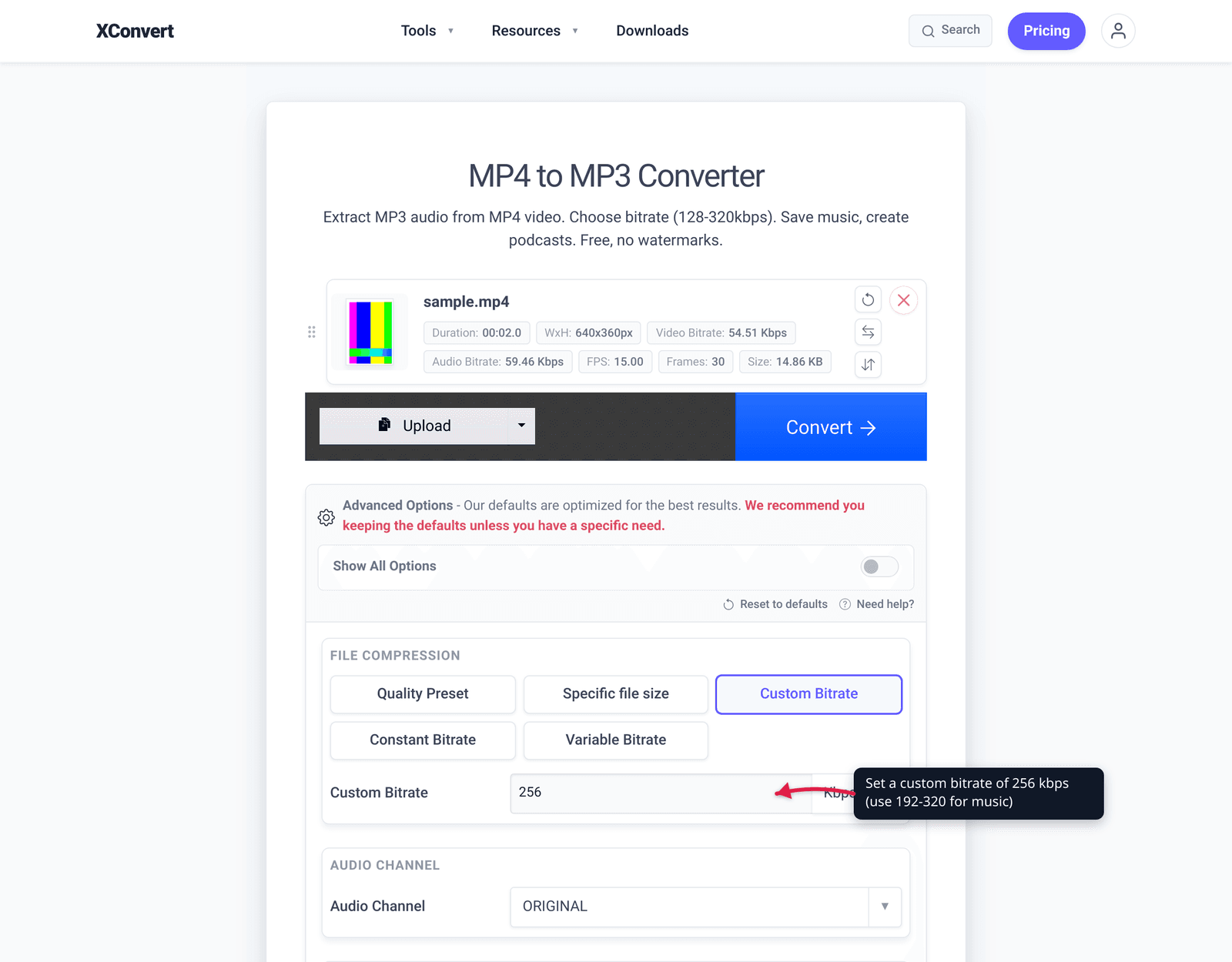
- Open xconvert.com/convert-mp4-to-mp3 and click Upload → + Add Files to add your video (from your computer, Google Drive, or Dropbox).
- Open Advanced Options (the gear icon) to reveal the audio controls.
- Set the Quality Preset (this drives the MP3 bitrate) — pick 192–320 kbps for music, or a lower preset for speech. Don’t choose higher than your video’s source audio.
- Optionally set Audio Channel (switch to mono for a voice-only recording to halve the size) and leave Audio Sample Rate on ORIGINAL unless you have a reason to change it.
- Choose Constant Bitrate for a predictable file size or Variable Bitrate for slightly better quality-per-byte.
- Click Convert, then download your MP3.
Your file uploads over an encrypted connection, is processed on our servers, and is automatically deleted a few hours later. Nothing stays around.
Want the lossless route instead? Pick an M4A / AAC output where available to copy the native audio without a second re-encode. And if you later need that MP3 smaller for email or chat, reduce its file size without re-wrecking the audio.
FAQ
Does extracting audio from a video lose quality?
It depends on the output. Copying the native AAC into an M4A loses nothing — it’s a bit-for-bit extract with no re-encoding. Converting to MP3 adds a small second lossy pass, which is inaudible at a good bitrate (192–320 kbps) but isn’t strictly lossless. Either way, you can’t make the audio better than the video’s original track.
Why is MP4-to-MP3 a “re-encode” if I’m just pulling out the audio?
Because the audio inside an MP4 is almost always AAC, not MP3. To get an MP3 you have to re-compress the AAC into a different lossy format — that’s the re-encode. If you keep the audio in its native AAC format (as an M4A file), no re-encoding happens and there’s zero added loss.
What bitrate should I use for MP3?
192 kbps is a safe “good” choice; 320 kbps is the highest MP3 quality. For speech or a lecture, 96–128 kbps mono is plenty. The key rule: don’t pick a bitrate higher than the video’s source audio — it won’t improve anything, it just makes a bigger file. MDN recommends at least 192 kbps for music.
Can I extract audio without losing any quality at all?
Yes — keep the audio in its native AAC format and save it as an M4A, which copies the stream without re-encoding. That avoids the second lossy compression that MP3 introduces. Choose this when you control playback (modern phones, computers, browsers) and want a no-compromise extract.
Does it work for MOV and MKV too, not just MP4?
Yes. MOV, MKV, AVI, WebM and other containers also hold a separate audio stream — usually AAC in MOV (it’s the same MPEG-4 standard), and AAC or others in MKV. The extraction works the same way: pull out the audio stream and either re-encode it to MP3 or copy it natively.
Will a 320 kbps MP3 sound better than a 192 kbps one if the video was recorded at 128 kbps?
No. The source audio caps the real quality. A 320 kbps MP3 made from a 128 kbps source just stores the same ~128 kbps of actual information in a larger file. Match the source or go one step above; higher than that only wastes space.
Sources
Last verified 2026-06-25.
- MDN — Web audio codec guide (AAC, MP3) — AAC is the standard audio codec in MP4/MOV and is part of the MPEG-4 spec; MP3 and AAC are both lossy; MP3 recommended minimum 128 kbps stereo and ≥192 kbps for music.
- MDN — Codecs in common media types — MP4/QuickTime containers carry AAC audio; container-vs-codec relationship.
- Wikipedia — Advanced Audio Coding — AAC packaged in MP4/M4A containers; AAC-LC is the common in-the-wild profile (cross-reference to MPEG-4 spec).
- Mux — Extract audio from a video file with FFmpeg — stream-copy (
-acodec copy) extracts the native audio without re-encoding (no quality loss); re-encoding AAC→MP3 is a second lossy pass.