 By James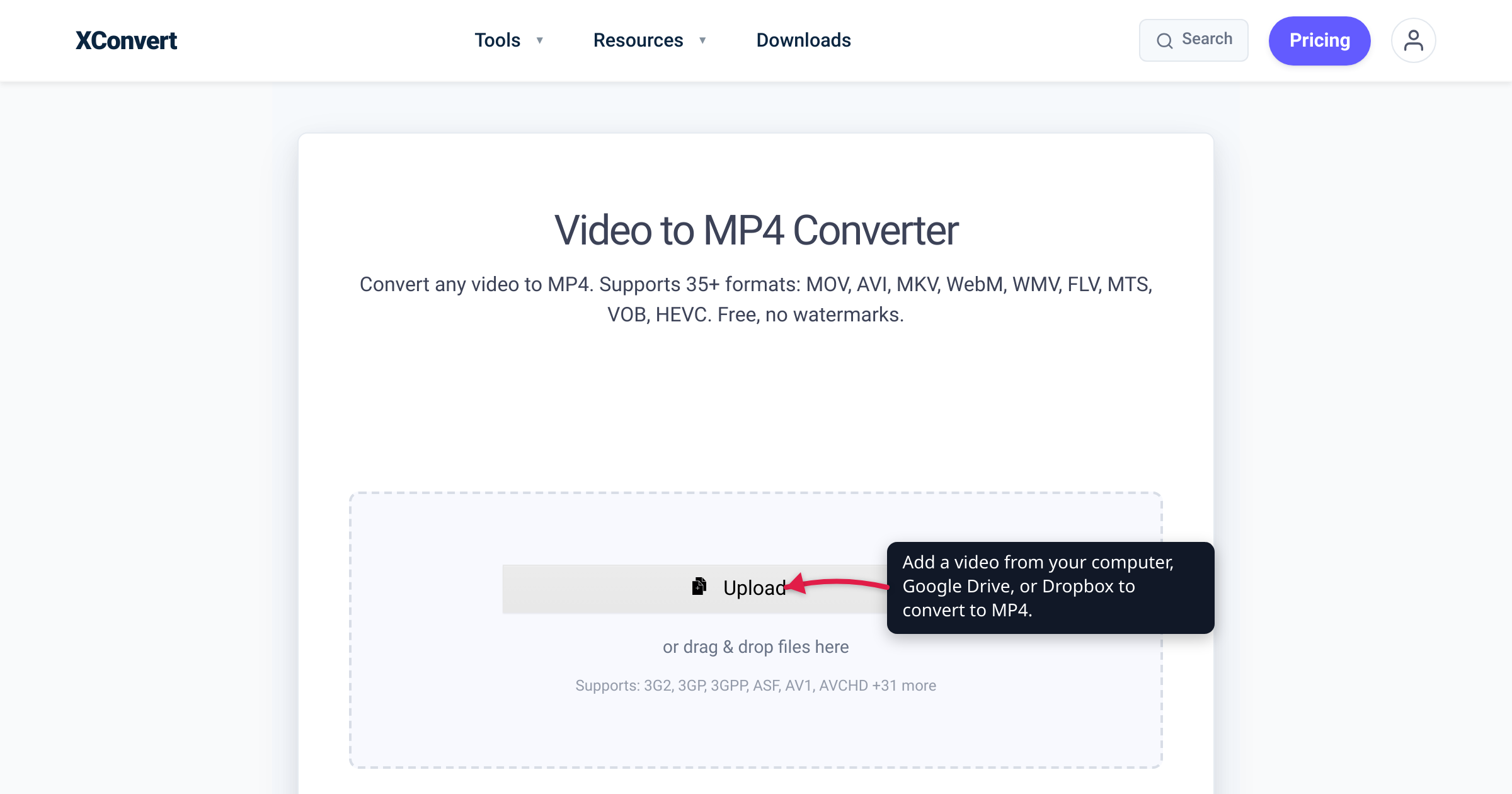
You drag a video into a converter, click Convert, and then… wait. Is this a 20-second job or a 20-minute one? Most “how long does it take” answers online are guesses. This one isn’t: we pulled the real server-side timing for 33,000+ video conversions run on xconvert in July 2026 and broke it down by input file size. The short version is that most videos finish faster than people expect — but the spread is wide, and a few things reliably push a job from seconds into minutes. We also verified the two technical claims that explain why — how resolution multiplies the work, and how the target codec changes encode speed — against the ITU resolution standard and Mozilla’s codec documentation.
Quick answer: On xconvert, a typical video under 10 MB converts in about 22 seconds of server processing, and 9 in 10 finish within a minute. Larger files take longer in a smooth, predictable way — the median climbs to ~38 seconds (10–50 MB), ~1.7 minutes (50–200 MB), and ~5 minutes (over 200 MB). These are medians for server processing only: they exclude the time to upload your file and download the result, and individual jobs vary widely (that’s why we also show a “9 in 10 finish within” column). Don’t read any single number as a promise for your specific file.
Jump to a section
- The real numbers, by file size
- What actually drives the time
- Upload and download aren’t in these numbers
- How to make your conversion faster
- Convert a video to MP4 on xconvert
- FAQ
The real numbers, by file size
Here is the actual distribution of server-side processing time — from the moment your file starts converting to the moment the output is ready, not counting upload or download. The figures come from xconvert production data, measured over a recent sample of 33,000+ successful video conversions in July 2026, grouped by input file size and reported as the median and the 90th percentile (“9 in 10 finish within”).
| Input file size | Median processing time | 9 in 10 finish within | Conversions measured |
|---|---|---|---|
| Under 10 MB | ~22 seconds | ~1 minute | 14,148 |
| 10–50 MB | ~38 seconds | ~2.2 minutes | 8,856 |
| 50–200 MB | ~1.7 minutes | ~5 minutes | 7,325 |
| Over 200 MB | ~5 minutes | ~17 minutes | 2,818 |
Total sample: 33,147 conversions. Two things jump out. First, most jobs are small and fast — over 40% of all conversions were under 10 MB and finished in a median of about 22 seconds. Second, the median rises smoothly with size, but the “9 in 10” column climbs much faster — from roughly a minute to roughly 17 minutes. That widening gap is the honest headline: the median tells you the typical case, while the slowest tenth of large files can take several times longer. At the median, an over-200 MB job runs about 14× longer than a small one. These are medians from real, varied files, so treat them as expectations, not guarantees for your particular video.
What actually drives the time
Why does a large file take so much longer than a small one? Conversion time scales with a handful of factors, and the table above is mostly the story of the first one.
1. File size and duration — the dominant factor. Encoding is per-frame work: the converter decodes every frame of your source and re-encodes it into the output. A longer clip has more frames (duration × frame rate), and a bigger file usually means more frames, higher quality, or both. That is exactly why the numbers scale the way they do — input size is the single best predictor of how long a job runs, which is why we grouped the data by it.
2. Resolution — 4K is four times the work of 1080p. Frame count isn’t the whole story; each frame’s size in pixels matters too. 4K UHD is 3840 × 2160 = 8,294,400 pixels — exactly four times the 1920 × 1080 (2,073,600 pixels) of 1080p, because it doubles both the width and the height (the 4K UHDTV format defined in ITU-R Rec. BT.2020). Four times the pixels per frame means roughly four times the data to decode and encode, so a 4K clip takes far longer than a 1080p clip of the same length.
3. Target codec — H.264 is fast, AV1 is slow. The codec you encode to changes the math. H.264 is the quickest to encode. H.265/HEVC does more analysis per frame to reach its smaller files, so it’s slower. AV1 is slower still — Mozilla’s codec documentation notes that AV1 “is more computationally intensive to encode,” and frames the “additional encoding overhead” as the price you pay for its better compression. If you’re optimizing for speed, H.264 wins; see H.264 vs H.265: which to use for the full trade-off.
4. Re-encode vs. re-mux. Not every “conversion” rebuilds the video. If the job only needs to repackage an already-compatible video stream into a new container — a re-mux, or stream copy — that’s near-instant, because no frames are re-encoded. A true re-encode (changing the codec, resolution, quality, or bitrate) rebuilds every frame, and that heavier work is what the numbers above measure.
5. Server load. Conversions run on shared servers. At busy times a job may queue briefly before it starts. The median smooths that over, but it shows up in the slower 90th-percentile tail.
Upload and download aren’t in these numbers
This is the caveat that matters most for your real-world wait: the table measures server processing only. Your total time from click to finished download is:
upload time + server processing + download time
Upload runs entirely on your internet connection, not on our servers. Roughly, upload time ≈ file size ÷ your upload speed — so a 200 MB clip on a modest home connection (say, 10 Mbps up) takes on the order of a few minutes just to reach the server, before any conversion starts. On a fast fibre uplink the same file arrives in seconds. Downloading the (usually smaller) result is quicker, but it still counts. So if a big conversion feels slower than the table suggests, the upload is usually why — and it’s the part a faster connection, or a smaller file, most directly fixes.
How to make your conversion faster
- Shrink or trim the input first. Since size and duration dominate, cutting them cuts the time — and a smaller file uploads faster too. Trim to just the part you need, or compress the video before converting. Our guide to reducing MP4 file size without losing quality walks through the settings, and the MP4 compressor does it in one step.
- Pick H.264 if speed matters. Encoding to H.264 is faster than H.265 or AV1. Choose the newer codecs only when you specifically want the smaller file and can accept the longer encode.
- Lower the output resolution. Scaling a 4K source down to 1080p removes about three-quarters of the pixels per frame — less to encode, and a smaller result.
- Upload on a good connection. Because upload is on your side, a wired link or strong Wi‑Fi removes the part of the wait we can’t control.
- Go off-peak if you can. A job that starts instantly at a quiet time may queue for a moment at a busy one.
Convert a video to MP4 on xconvert
To convert a video — and see the timing for yourself — use the xconvert Video to MP4 Converter:
- Open xconvert.com/convert-video-to-mp4 and click Upload to add your video — From my Computer, From Google Drive, or From Dropbox.
- (Optional) Open Advanced Options to control the output. The Quality Preset defaults to Very High (Recommended); instead you can set a Specific file size, a Constant or Variable Bitrate, or a Constant Quality target.
- (Optional) Under Video resolution, keep the original or scale it down with a Resolution Percentage or a Preset Resolution — a lower resolution converts faster.
- (Optional) Use Trim → Time Range to convert only the part you need — fewer frames, less time.
- Click Convert, then download your MP4.
Your file is processed on our servers and deleted automatically a few hours later — nothing stays around. Want a smaller output as well? The MP4 compressor lets you set a target size in the same workflow.
FAQ
How long does it take to convert a video to MP4?
For a typical file, about 22 seconds of server processing if it’s under 10 MB, and 9 in 10 such files finish within a minute (xconvert production data, 33,000+ conversions, July 2026). The median rises with size — roughly 38 seconds for 10–50 MB, 1.7 minutes for 50–200 MB, and 5 minutes above 200 MB — and all of those figures exclude the time to upload and download. Individual files vary, so treat them as typical, not guaranteed.
Why is my video taking so long to convert?
The usual reasons are size, length, resolution, and codec: a long or 4K clip has far more pixels and frames to process, and encoding to H.265 or AV1 is slower than H.264. A brief queue at busy times can add a little, and — most often — your upload time adds minutes that the server-processing numbers don’t include.
Does a longer video take longer to convert than a shorter one?
Yes. Conversion is per-frame work, and a longer clip has more frames (duration × frame rate) to decode and re-encode. Trimming to just the section you need is one of the quickest ways to cut the time.
Is converting to H.265 or AV1 slower than H.264?
Yes. H.264 is the fastest to encode. H.265/HEVC analyses more per frame, and AV1 is slower still — Mozilla’s codec documentation notes that AV1 “is more computationally intensive to encode.” Choose the newer codecs when you want a smaller file; choose H.264 for speed and maximum compatibility (see H.264 vs H.265).
Do these times include the upload?
No — the numbers are server processing only. Your total wait is upload + processing + download, and the upload runs on your own connection, so for a large file on a slow uplink it can be the biggest single part. A faster connection or a smaller file both shrink it.
How can I make a conversion faster?
Shrink the input and pick a faster codec. Trim or compress the video first so there’s less to upload and encode, keep the output at H.264 rather than H.265/AV1 if speed is the priority, and upload on a solid connection. Lowering the output resolution helps too.
Sources
Last verified 2026-07-16.
- xconvert Video to MP4 Converter — the funnel tool; verified the live UI labels used in the steps (Upload; From my Computer / Google Drive / Dropbox; Advanced Options; Quality Preset; Video resolution; Trim; Convert).
- MDN — Codec selection (WebCodecs API) — “AV1 … is more computationally intensive to encode”; newer, more-efficient codecs trade encoding overhead for better compression (the basis for H.264 encoding faster than H.265/AV1).
- 4K resolution — 3840 × 2160 (ITU-R Rec. BT.2020) — 4K UHD = 3840 × 2160 = 8,294,400 pixels, “exactly double the horizontal and vertical resolution of 1080p (1920 × 1080) for a total of 4 times as many pixels,” per the ITU-R BT.2020 UHDTV format.
- Timing figures: xconvert production data, a sample of 33,147 successful video conversions in July 2026 — server-side processing time only (upload/download excluded), reported as median and 90th percentile by input file size.