 By Stephanie Taylor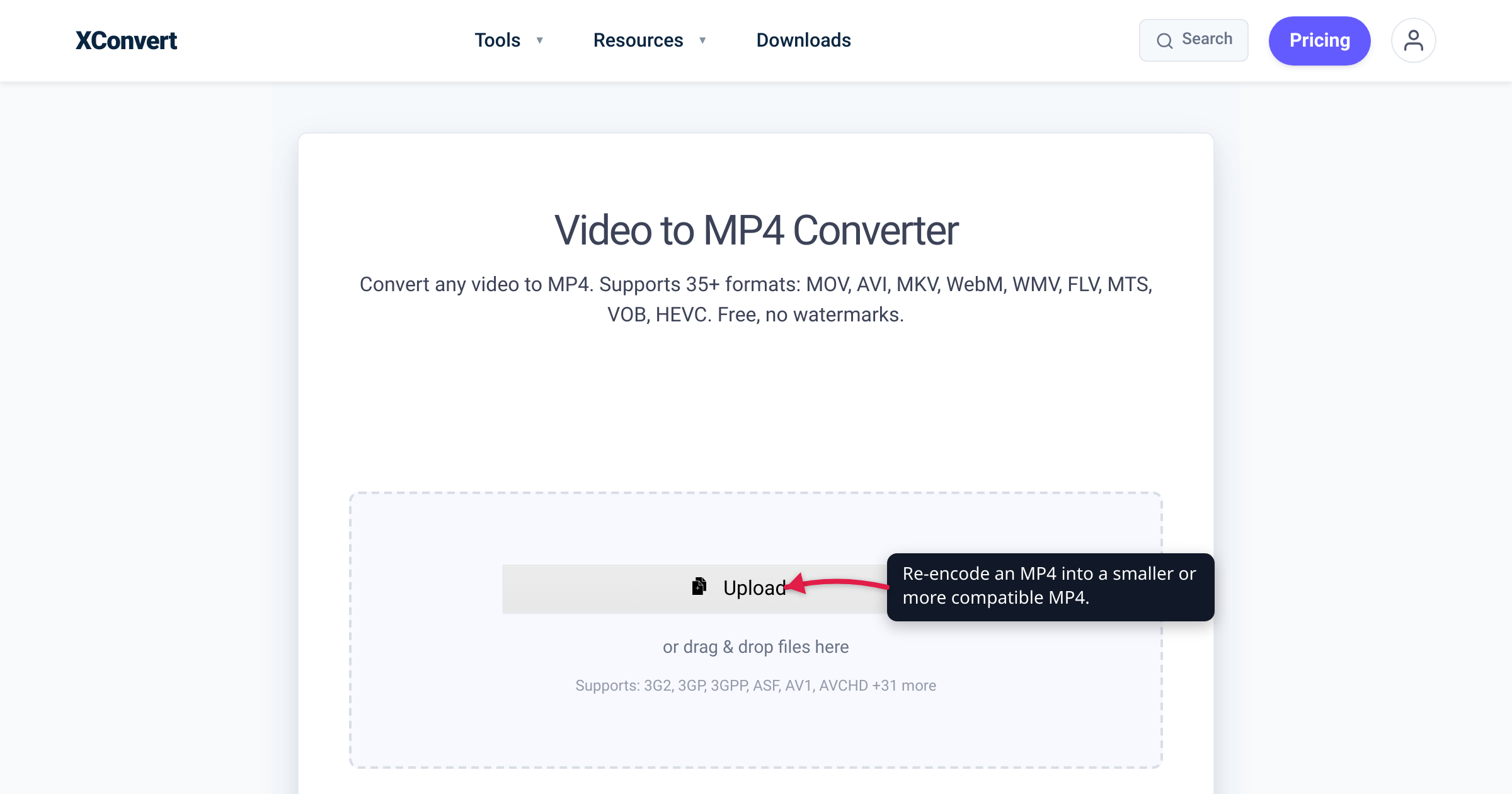
You drag a video into a converter, and the output list suggests the format you already have: MP4. It reads like a typo — same extension in, same extension out. But in a 30-day sample of xconvert’s production usage, MP4-to-MP4 was one of our most common jobs (roughly 1,984 of them), and MP3-to-MP3 was busier still. Same-format “conversion” isn’t a mistake; it’s re-encoding, and there are at least six real reasons to do it — from shrinking a file under a size cap to swapping the codec trapped inside the container. We checked the technical claims below against MDN and the FFmpeg documentation, and the usage figures come straight from our own logs.
Quick answer: A file’s extension names its container, not its contents — so “converting” an .mp4 to .mp4 doesn’t copy it, it re-encodes what’s inside (MDN). People do it to shrink a file under a size cap (the biggest driver), swap the codec inside the same MP4 (HEVC that won’t play → H.264 that does), repair a file that won’t play or seek, web-optimize it (fix the moov-atom/faststart placement), strip metadata/GPS, or re-sample audio. The catch: most media codecs are lossy, so every re-encode sheds a little quality — do it for a reason, not by reflex.
Jump to a section
- The data: same-format jobs are common
- What “converting MP4 to MP4” actually does
- Six real reasons to re-encode to the same format
- Re-encode or convert MP4 on xconvert
- FAQ
The data: same-format jobs are surprisingly common
Across a 30-day sample of xconvert’s production usage, “X-to-X” jobs — where the input and output extension are identical — show up constantly. The six busiest:
| Same-format job | Approx. jobs (30-day sample) |
|---|---|
| MP3 → MP3 | ~2,520 |
| MP4 → MP4 | ~1,984 |
| M4A → M4A | ~890 |
| WAV → WAV | ~604 |
| ZIP → ZIP | ~492 |
| GIF → GIF | ~230 |
That’s more than 6,700 same-format jobs in a single 30-day sample, across just these six formats. Audio leads the table (MP3, M4A, WAV) — almost always someone re-sampling to a smaller bitrate or a different sample rate. Video (MP4, GIF) is re-encoding to compress or fix a file, and ZIP-to-ZIP is usually re-compressing an archive. These are approximate counts from one production sample, but the pattern is clear: same-format conversion is mainstream, not an edge case.
What “converting MP4 to MP4” actually does
Two ideas explain the whole phenomenon.
The extension is the container, not the content. MDN defines a media container as “a file format that encapsulates one or more media streams (such as audio or video) along with metadata.” The .mp4 on the end of your file names that outer package — it says nothing about the codec inside. A single MP4 can hold H.264 (AVC), HEVC (H.265), AV1, or VP9 video, and AAC, MP3, or Opus audio (MDN). So “MP4 to MP4” keeps the box and rebuilds what’s inside. That process has a name: re-encoding (also called transcoding).
Re-encoding is lossy. This is the honest catch. As MDN’s video codec guide puts it, “most video codecs are lossy, in that the decoded video does not precisely match the source. Some details may be lost.” Every time you re-encode a lossy file, the encoder decodes an approximation and then approximates it again — so a little fidelity goes each round. That’s why same-format conversion should be purposeful: you’re trading a slice of quality for something you want more (a smaller file, a playable codec, a repaired container). If you don’t need any of those, don’t re-encode.
Six real reasons to re-encode to the same format
Here’s what people are actually accomplishing when they run those same-format jobs.
- Shrink it to fit a size cap — the #1 driver. By far the most common reason MP4-to-MP4 and MP3-to-MP3 top our table: the file is too big for wherever it’s going (an email attachment limit, a chat app’s free cap, an upload form). Re-encoding at a lower bitrate or to a target size produces a smaller
.mp4with the same extension. The dedicated xconvert MP4 compressor is built for exactly this — it leads with Target file size (%) and Specific file size. For a walkthrough that protects quality, see reduce MP4 file size without losing quality. - Swap the codec trapped inside the same MP4. A
.mp4that holds HEVC (H.265) often won’t play in a browser or on an older device — HEVC playback is fragmented (Safari supports it; Chrome, Edge, and Firefox are partial and hardware-gated, per caniuse). Re-encoding that file to H.264 inside the same MP4 container fixes playback without changing the extension. MDN’s own recommendation for a “plays everywhere” file is an MP4 container with the H.264 codec. Which codec to pick, and what it costs you, is the whole subject of H.264 vs H.265: which to use. - Repair a file that won’t play or seek. Sometimes a download is oddly muxed, has a broken index, or was written by software that produced a technically-valid-but-cranky file. Re-encoding reads the media and writes a clean container from scratch, which often clears up playback stalls, a missing seek/scrub bar, or audio-sync glitches. Honest limit: a re-encode can’t rebuild data that’s genuinely missing — it fixes structure, not true corruption.
- Standardize and web-optimize. Re-encoding lets you normalize an unusual frame rate, and — critically for the web — place the file’s moov atom at the front. That metadata index maps where every frame lives; FFmpeg’s
faststartoption “run[s] a second pass moving the index (moov atom) to the beginning of the file” (FFmpeg docs), so a browser can start playing before the whole file has downloaded. - Strip metadata, GPS tags, or extra tracks. A straightforward re-encode writes a fresh file that doesn’t inherit the original’s embedded metadata by default — the GPS location and device info a phone stamps into a video, for instance — and lets you drop unwanted audio tracks or subtitle streams. Same
.mp4, lighter and more private. - Re-sample audio. This is why audio dominates the data. MP3-to-MP3 is usually a bitrate change — a 320 kbps track re-encoded to 128 kbps to save space (lossy, so it loses a little more each pass). WAV-to-WAV changes bit depth or channels — 24-bit down to 16-bit, or stereo down to mono — which WAV handles cleanly because it’s typically uncompressed PCM. Same extension, different audio inside.
Re-encode or convert MP4 on xconvert
Whether you’re shrinking, re-codec-ing, or repairing, the xconvert Video to MP4 converter runs the whole re-encode in one place:
- Open xconvert.com/convert-video-to-mp4 and click Upload to add your file (From my Computer, Google Drive, or Dropbox).
- Open Advanced Options (the gear icon).
- Change only what you’re re-encoding for: pick a Quality Preset, or choose Constant Bitrate / Variable Bitrate / Constant Quality to set a new bitrate; use Specific file size to hit an exact cap; adjust Resolution Percentage to scale down; or use Trim → Time Range to cut a section.
- Click Convert and download your new MP4.
If shrinking is the whole goal, start from the purpose-built xconvert MP4 compressor instead — it opens on Target file size (%).
Your file uploads over an encrypted connection, is processed on our servers, and is deleted automatically a few hours later. Nothing is kept.
FAQ
Isn’t converting MP4 to MP4 completely pointless?
No — it’s re-encoding, not copying. The .mp4 extension is just the container; converting rebuilds the video and audio inside it. People do it to shrink a file under a size cap, swap an unplayable codec for a compatible one, repair a broken file, or web-optimize it. In a 30-day sample of xconvert usage, MP4-to-MP4 ran roughly 1,984 times — it’s a mainstream task, not a mistake.
Does converting MP4 to MP4 lose quality?
Usually a little, yes. Most video and audio codecs are lossy, so the re-encoded file “does not precisely match the source,” in MDN’s words — some detail is discarded each pass. The trade is deliberate: you accept a small quality hit to get a smaller file, a playable codec, or a repaired container. If you don’t need any of those, there’s no reason to re-encode.
Will re-encoding actually make my MP4 smaller?
Only if you lower the bitrate or resolution, or switch to a more efficient codec. Re-encoding at the same settings can even make a file slightly bigger. To shrink it, target a lower bitrate or an exact size — the MP4 compressor is set up for this — or re-encode to a more efficient codec like H.265, weighed up in H.264 vs H.265.
Can I change the codec inside an MP4 without changing the file type?
Yes — that’s one of the main reasons to convert MP4 to MP4. An MP4 container can hold H.264, HEVC (H.265), AV1, and more. If your MP4 holds HEVC that won’t play, re-encode it to H.264 and it stays a .mp4 — same extension, different codec inside, and now it plays.
How do I fix an MP4 that won’t play or won’t let me scrub?
Re-encode it to a clean MP4. Reading the file and writing a fresh container often resolves odd muxing, a broken index, or a misplaced moov atom that made a player stall or refuse to seek. Web-optimizing with faststart moves that index to the front so playback can start during download. It can’t recover data that’s truly missing, but structural glitches usually clear up.
Does re-encoding remove GPS location and other metadata?
Typically, yes. A straightforward re-encode writes a new file that doesn’t inherit the original’s embedded metadata by default — including the GPS coordinates and device details a phone adds — and lets you drop extra audio or subtitle tracks. It’s a common reason to run a same-format conversion before sharing.
Sources
Last verified 2026-07-16.
- MDN — Media container formats — a container “encapsulates one or more media streams … along with metadata,” and MP4 holds multiple codecs (H.264, AV1, VP9, and more). Backs the container-vs-codec point.
- MDN — Web video codec guide — “most video codecs are lossy … some details may be lost”; HEVC and H.264 both live in an MP4 container; MP4 + H.264 is the broad-compatibility recommendation. Backs lossy re-encoding and codec-in-container.
- FFmpeg — formats documentation (faststart) — the
faststartmovflag “run[s] a second pass moving the index (moov atom) to the beginning of the file.” Backs the web-optimize / moov-atom claim. - caniuse — HEVC / H.265 video — Safari full support; Chrome, Edge, and Firefox partial and hardware-gated. Backs “HEVC won’t play everywhere.”