 By James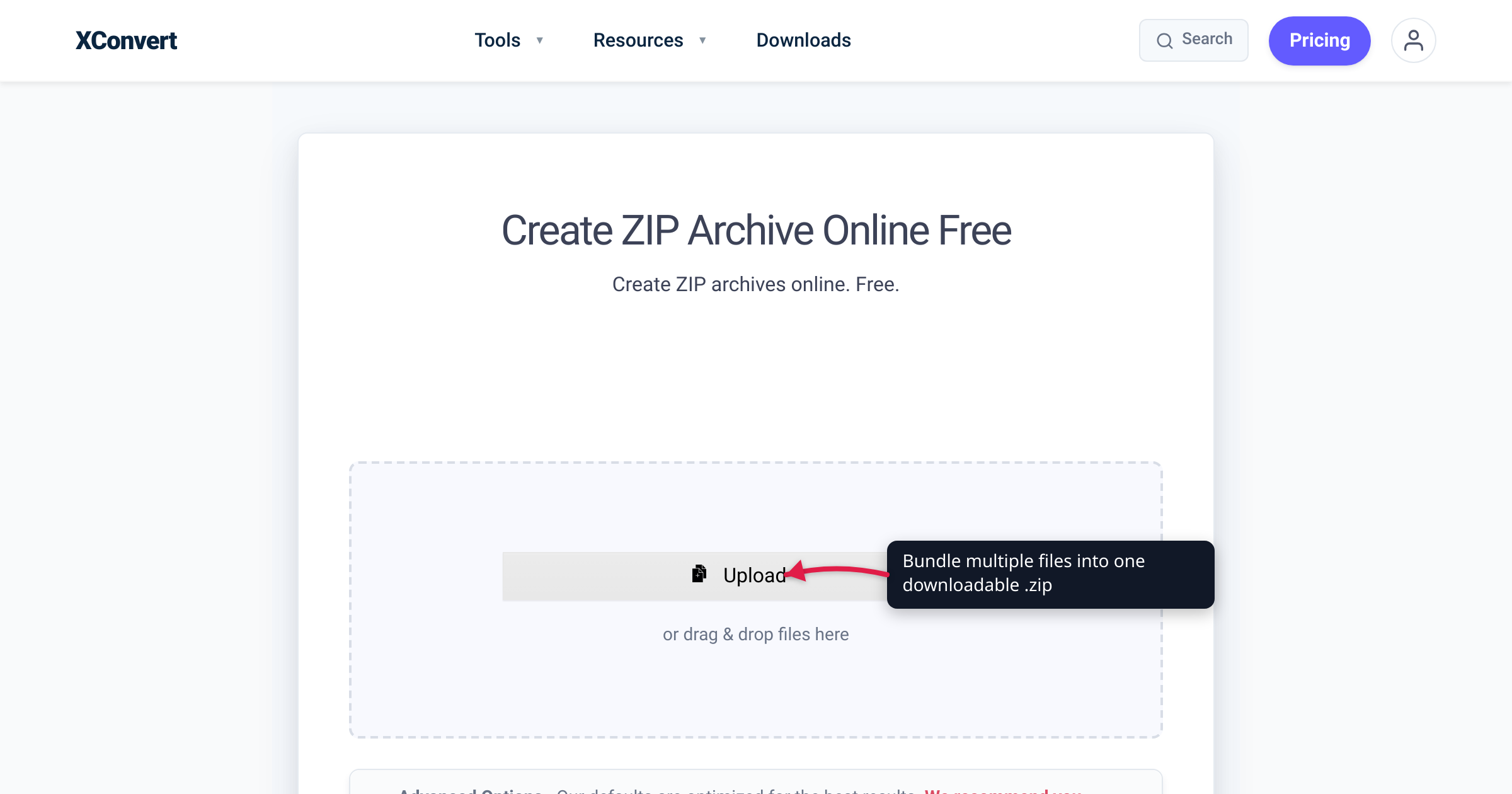
You’ve got 40 things to hand one person — a folder of event photos, two PDFs, a spreadsheet, a logo — and email won’t let you attach a folder. The fix is a ZIP: one .zip file that packs everything into a single attachment your recipient opens with a double-click. The best part is that you don’t have to install anything to make one. Every Windows PC and every Mac creates a ZIP on its own, and when the built-in route isn’t there — a phone, a Chromebook, a locked-down work laptop, or files scattered across Google Drive and Dropbox — a browser tool does it in a few clicks. We verified the native steps against Microsoft’s and Apple’s own support pages, and the online flow against the live tool.
Quick answer: To bundle files into a ZIP with no software: on Windows, select your files, right-click, and choose Send to > Compressed (zipped) folder (Windows 11’s menu also offers a one-click Compress to > ZIP file). On a Mac, select the files, Control-click, and choose Compress — you get an Archive.zip. ZIP is the right default because it opens natively on every major OS with a double-click. To do it from a browser — a phone, a Chromebook, or when mixing files from Drive and Dropbox — use an online ZIP maker that packages your files into one .zip. One honest caveat: ZIP both bundles and compresses, but already-compressed files (JPG, MP4, MP3, PDF) barely shrink — there the win is the single container, not smaller bytes.
Jump to a section
- What “making a ZIP” actually does
- Make a ZIP with no software (Windows and Mac)
- Will a ZIP actually shrink your files?
- When to reach for 7z or RAR instead
- Make a ZIP file online with xconvert
- FAQ
What “making a ZIP” actually does
A ZIP does two jobs at once, and it helps to keep them separate in your head:
- Bundling — it packs many files and folders into one
.zipcontainer, preserving their names and folder structure. This is the part almost everyone actually wants: one attachment to email, one file to upload, one thing to download, instead of 40 loose pieces. - Compression — it also squeezes the data with an algorithm called DEFLATE. Per the DEFLATE specification (RFC 1951), it “compresses data using a combination of the LZ77 algorithm and Huffman coding” — in plain terms, it scans for repeated byte sequences and replaces each repeat with a short back-reference.
That second job is where expectations go sideways, which the size section unpacks. For now, the thing that makes ZIP special is universality: unlike RAR or 7z, every modern operating system reads and writes it. That’s the whole reason it’s the default for “send this to anyone.” And when the .zip lands on the other end, opening it is just as painless — see how to unzip files online for the extraction side.
Make a ZIP with no software (Windows and Mac)
You almost never need a download to create a ZIP. Both major desktop systems build them in.
Windows. Per Microsoft’s own support page, select the files or folders you want, then:
- Right-click (or press and hold) your selection.
- Choose Send to > Compressed (zipped) folder. On recent Windows 11 you may instead see a one-step Compress to > ZIP file in the modern menu.
- “A new zipped folder with the same name is created in the same location.” Rename it and it’s ready to send.
Microsoft frames the use case in exactly these terms: “Combine several files into a single zipped folder to more easily share a group of files.” ZIP creation has been built into Windows since Windows XP — no WinZip, no 7-Zip required.
Mac. Per Apple Support, it’s a single menu item:
- In Finder, select the files or folders.
- Control-click the selection and choose Compress from the shortcut menu.
- Compress one item and you get
name.zip; select several and, in Apple’s words, “the compressed file is calledArchive.zip.” It lands in the same folder.
macOS’s built-in Archive Utility does this with nothing to install. The reason ZIP is the right default is symmetric: the person on the receiving end doesn’t need any software either — Windows, macOS, ChromeOS, and Android all open ZIP out of the box.
When a browser tool is the better call. The native routes are perfect on your own desktop, but reach for an online ZIP maker when you’re on a phone or Chromebook without the desktop right-click flow, on a locked-down machine you can’t install on, or combining files that live partly on your computer and partly in Google Drive or Dropbox.
Will a ZIP actually shrink your files?
This is the most over-promised thing about ZIP, so here’s the honest version. Whether a ZIP is meaningfully smaller depends entirely on what you put in it:
| What you’re zipping | Realistic size change |
|---|---|
| Plain text, source code, logs, CSV, uncompressed WAV/BMP/TIFF | Shrinks a lot — lots of repetition for DEFLATE to collapse |
| JPG/HEIC photos, MP4/MOV video, MP3/AAC audio | Barely changes |
| PDFs, plus DOCX/XLSX/PPTX (which are already ZIP packages inside) | Barely changes |
The reason is DEFLATE’s mechanism. It saves space by finding repetition and replacing it. But JPG, HEIC, MP4, and MP3 are already compressed by their own codecs — that redundancy has already been squeezed out, so DEFLATE finds almost nothing left to replace. (Office files like .docx and .xlsx are a fun special case: they’re literally ZIP archives already, so re-zipping them gains essentially nothing.) RFC 1951 states the hard limit directly: “no lossless compression algorithm can compress every possible input data set.” Zip a folder of phone photos and you might trim a percent or two — no more.
So for media, ZIP’s value isn’t a smaller file — it’s one tidy container instead of dozens of loose attachments. That’s still a genuine win (email a “folder,” share a single download), just don’t expect the byte count to drop. If you actually need the media smaller, compress the media itself first — a JPEG or MP4 compressor — and then bundle the smaller results into a ZIP.
When to reach for 7z or RAR instead
If squeezing every byte matters more than “opens anywhere,” a different archive format can pack tighter:
- 7z is open and free (its code ships under the GNU LGPL) and is built for a “High compression ratio” using the LZMA method — it typically compresses noticeably smaller than ZIP’s DEFLATE. It’s the right pick when the recipient has a real archiver (7-Zip, The Unarchiver, and friends) and file size is the priority.
- RAR also compresses strongly, but it’s proprietary — only WinRAR or RARLAB-licensed software can create a genuine
.rar. Unless a form or recipient specifically demands that exact extension, the licensing friction rarely pays off.
The trade-off never changes: ZIP wins on “opens everywhere with zero software”; 7z and RAR win on raw compression. For a full side-by-side of all three, see ZIP vs RAR vs 7z. For the everyday “just bundle these and send them” job, ZIP is the correct answer — which is why it stays the default.
Make a ZIP file online with xconvert
When the native route isn’t available, the xconvert ZIP maker bundles everything into one .zip right in the browser. We confirmed on the live page that it accepts multiple files and packages them into a single archive:
- Open xconvert.com/archive-file-to-zip and click + Add Files to upload — From my Computer, From Google Drive, or From Dropbox — or drag and drop them onto the page. Add as many files as you want; they all go into one archive.
- (Optional) Open Advanced Options (the gear icon). As the tool notes, its “defaults are optimized for the best results” — leave them as-is for a standard ZIP unless you have a specific need.
- Click Convert to package everything into a single
.zip. - Download your ZIP file, then email or upload it. Your recipient opens it with a double-click on any modern OS — or unzips it online if they’re on a restricted device.
Your files are uploaded over an encrypted connection, processed on our servers, and deleted automatically a few hours later. Nothing is kept.
FAQ
How do I make a ZIP file for free?
Every Windows PC and Mac makes ZIPs for free, with no extra software — the Windows and Mac steps are just below. An online ZIP maker is the free fallback when you’re on a phone, a Chromebook, or a locked-down machine, or combining files that live on your computer and in Google Drive or Dropbox.
How do I zip files on Windows?
Select the files or folders in File Explorer, right-click, and choose Send to > Compressed (zipped) folder — on Windows 11 you may also see a one-click Compress to > ZIP file. A new .zip appears in the same folder with the same name; rename it and send. Per Microsoft, this has been built into Windows since Windows XP, so no WinZip or 7-Zip is needed.
How do I zip files on a Mac?
In Finder, select the items, Control-click, and choose Compress. A single item becomes name.zip; select several and macOS names the result Archive.zip, dropped in the same folder. Apple’s built-in Archive Utility handles it — there’s nothing to download.
Why is my ZIP the same size as the original files?
Because they were already compressed. ZIP’s DEFLATE shrinks data by removing repetition, and JPG/HEIC photos, MP4/MOV video, MP3/AAC audio, and most PDFs have already had that redundancy stripped out by their own formats — so a ZIP of them is mostly a container, not a size cut. (DOCX and XLSX are already ZIP files internally, so they won’t shrink either.) To actually make media smaller, compress the media first, then zip the results.
Can I make a ZIP online without installing anything?
Yes. A browser tool like the xconvert ZIP maker takes your files and returns a single .zip — handy on a phone, a Chromebook, or a work machine where you can’t install software, or when your files are split between your computer and cloud storage. Note that it uploads your files to a server (where they’re processed and then deleted a few hours later), so it isn’t the right choice for highly sensitive documents — use your OS’s built-in Compress for those.
Can I password-protect a ZIP without extra software?
Not with the built-in tools. Windows’ Send to > Compressed (zipped) folder and macOS’s Compress create ordinary, unencrypted ZIPs. For a password-protected archive you need a dedicated app — for example 7-Zip on Windows (choose AES-256), or the Terminal’s zip -e command or the Keka app on a Mac. Whatever you use, never send the password in the same email as the file.
Sources
Last verified 2026-07-16.
- Microsoft Support — Zip and unzip files — Windows native ZIP creation: right-click → Send to > Compressed (zipped) folder; “A new zipped folder with the same name is created in the same location”; “Combine several files into a single zipped folder to more easily share a group of files.”
- Apple Support — Zip and unzip files and folders on Mac — macOS native ZIP creation: Control-click → Compress; a single item becomes
name.zip, multiple items becomeArchive.zip. - IETF RFC 1951 — DEFLATE Compressed Data Format Specification — DEFLATE (the compression method inside ZIP) “compresses data using a combination of the LZ77 algorithm and Huffman coding” by replacing duplicated strings; “no lossless compression algorithm can compress every possible input data set” — why already-compressed files barely shrink.
- 7-Zip.org — 7z Format — 7z offers a “High compression ratio” via the LZMA method and is open/free (“7z code is a part of 7-Zip program distributed under the GNU LGPL”) — the higher-compression alternative to ZIP.
- xconvert — Create ZIP Archive — the funnel tool; verified live: H1 “Create ZIP Archive Online Free,” + Add Files upload (Computer / Google Drive / Dropbox + drag-and-drop), multiple files bundled into one
.zip, Advanced Options with optimized defaults, Convert, then “Download your ZIP file.”